




How to give a discount during a sale
Apply a percentage or fixed-amount discount to a product or to the whole receipt, and use customer discounts and staff discount limits.
BenimPOS has two kinds of discount: a product (line) discount applies to one product only, and a receipt discount applies to the whole receipt. You can use both together; the receipt discount is applied to the amount left after the line discounts.
Discount on a product (line)
Open the discount window
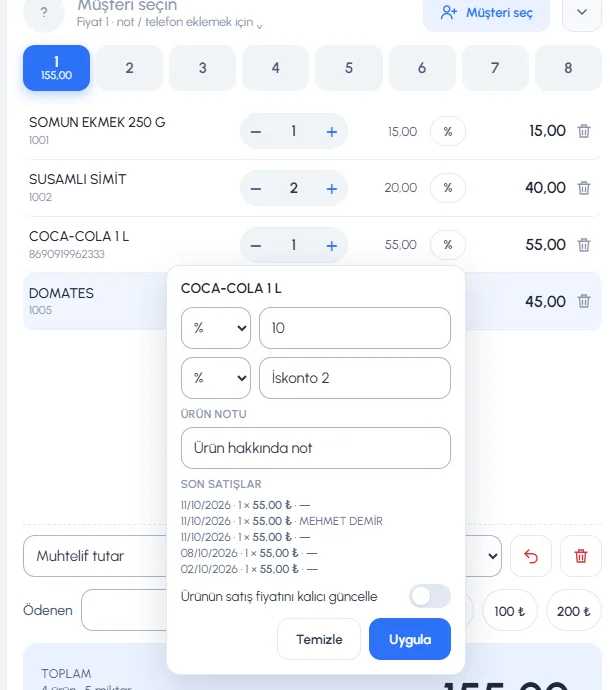
Click the 1 % button on the product line in the basket.
 1234
1234Enter the discount
Type the value in the 2 Discount 1 box; choose percentage (%) or amount (₺) with the selector on the left. If needed, add 3 Discount 2; the second discount is applied to what is left after the first.
Apply
Press 4 Apply. A red discount label and the discounted amount appear on the line. To remove it, press Clear in the same window.
In the same window you can add a note to the product and see its recent sales. If Permanently update the product's sale price is on, the price you change on the line is also saved to the product card.
Discount on the whole receipt
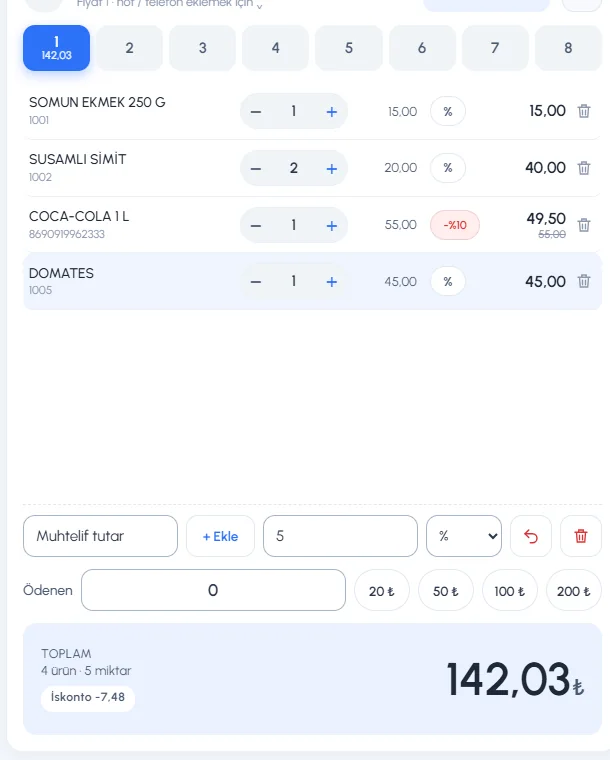
Type the value in the 1 Discount box below the basket and choose % or ₺ with the 2 selector next to it. The discount shows as a "Discount" line in the 3 total box.
 123
123Customer discount
If you entered a discount rate on the customer card (Customer card › Edit › Discount), it is applied to the receipt automatically as a percentage discount when you select that customer during a sale.
Discount after the sale
To apply a discount to a saved sale, open the sale details: enter values in the two DISCOUNT fields on the product lines and press Update Products; for a receipt discount, type it in Receipt discount in the Edit window and press Save. Editing a sale
Staff discount limit
Edit the staff member on the Staff page and turn the Can apply receipt discount and Can apply product discount permissions on or off on the Sale tab. For each one you can enter the largest discount allowed (Maximum Discount, percentage or amount). When a discount goes over the limit, the sales screen shows the warning "You can apply a maximum discount of … for a sale".
Discount on a product (line)
Press the % button on the line
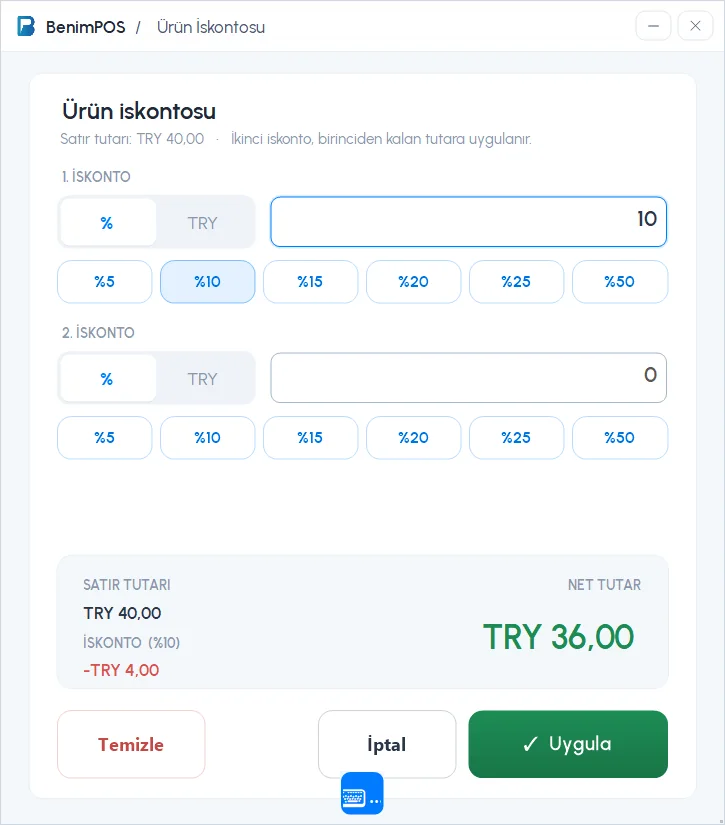
On the sales screen, press the % button next to the product line on the receipt. The Product discount window opens.
Enter the discount
1 Choose the discount type (% or a TRY amount) and type the value, or press one of the 2 preset rates (5%–50%). If you need a second discount, use the 2ND DISCOUNT row; it is applied to what is left after the first. The line amount, the discount and the NET AMOUNT appear at the bottom.
 123
123Apply
Press 3 Apply. The button on the line shows the discount rate in red. To remove it, use Clear in the window.
Discount on the receipt (total)
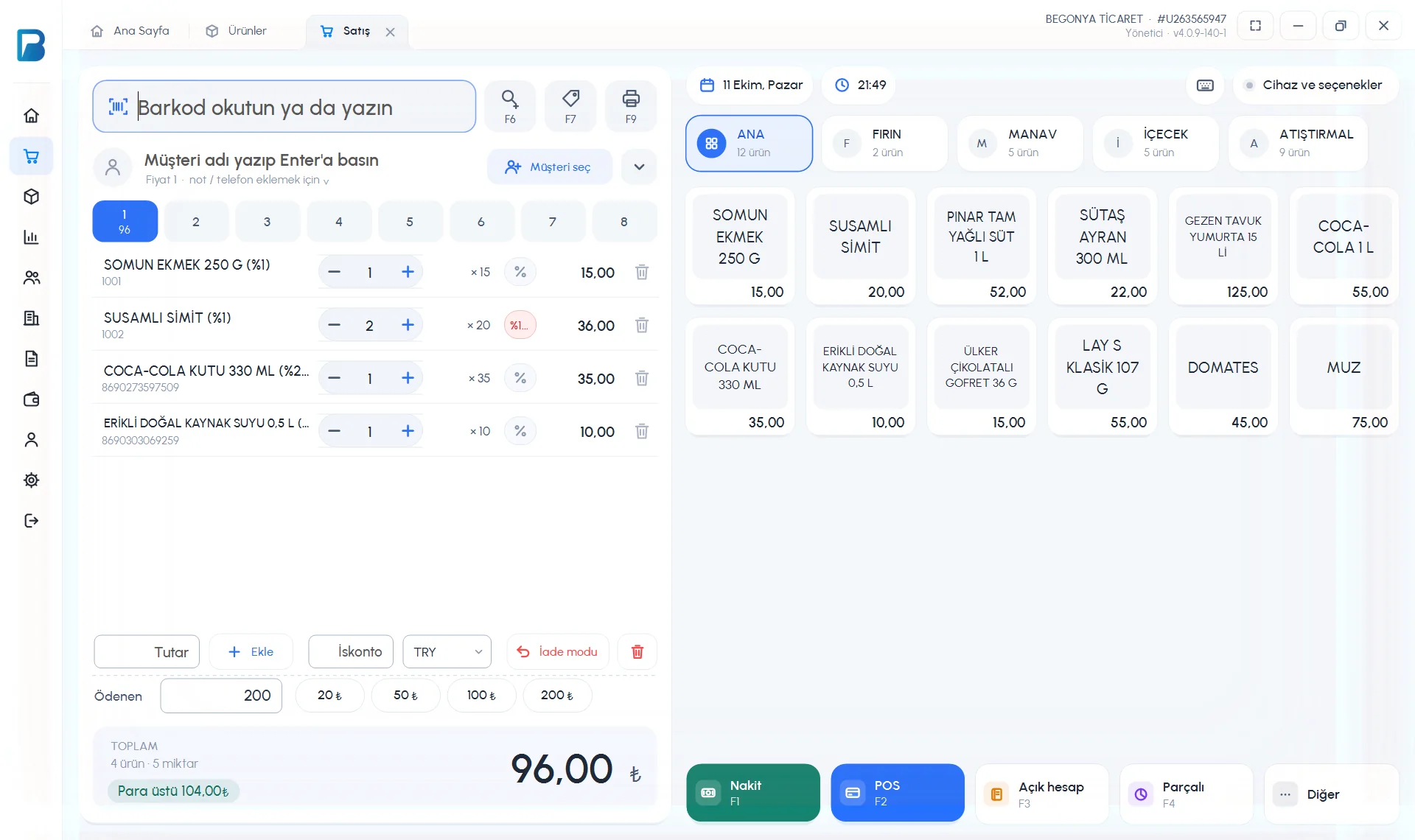
Type the value in the Discount box below the receipt and choose Percentage or amount (TRY) next to it. The discount is deducted from the receipt total and appears in the Discount field in the sale details.
 123456
For staff to give discounts, the Can apply receipt discount / Can apply product discount permissions must be on in the staff card; you can set a limit with MAXIMUM DISCOUNT.
Receipt discount
On the sales screen, tap 1 Discount among the tool chips above the receipt (or ••• › Receipt discount). In the window that opens, choose Percentage (%) or Amount, type the value or pick one of the preset chips (5%, 10%…) and tap Apply. On receipts with a fractional amount, the Round off chip discounts the part after the decimal point.
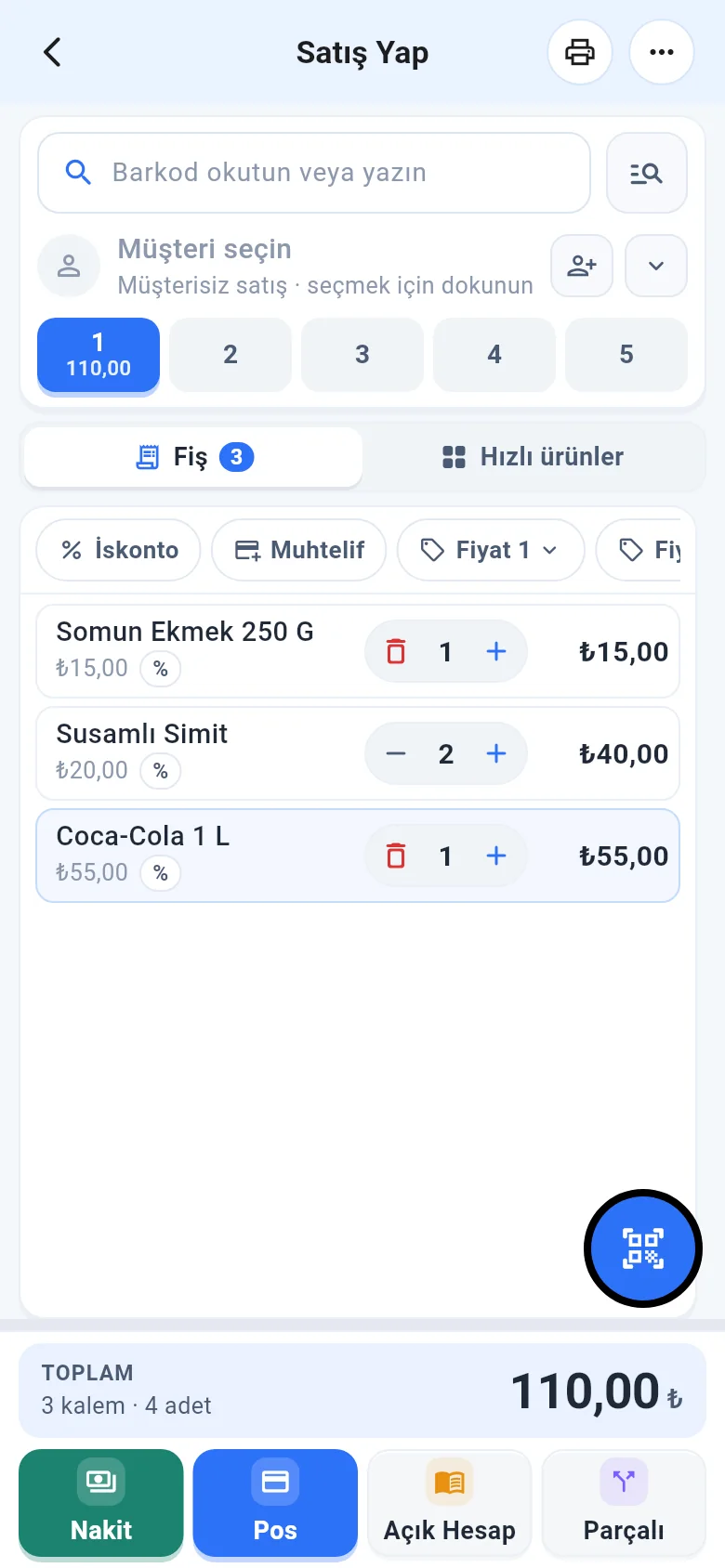 1234
1234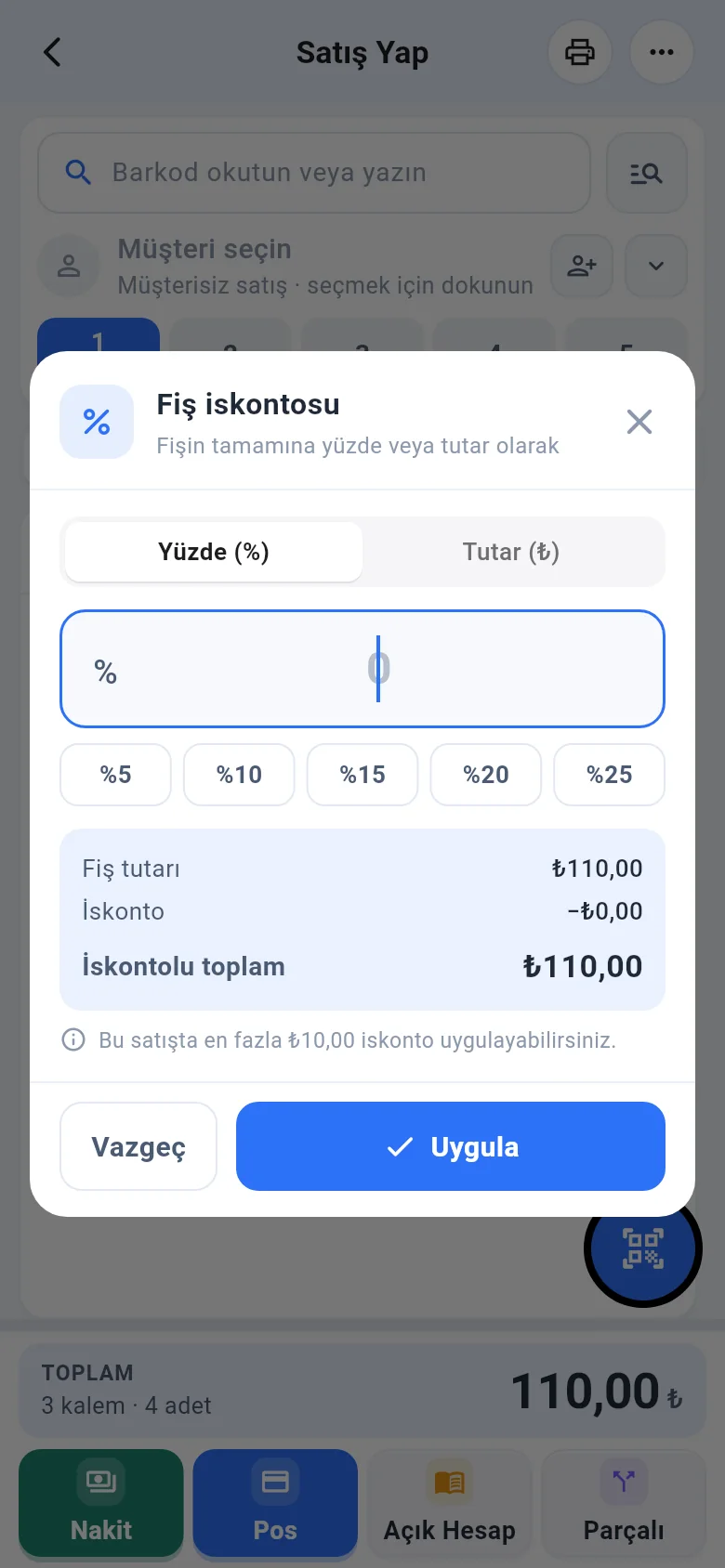
Discount on a product
Tap the product line on the receipt. In the window that opens, type the value in the Discount 1 and Discount 2 fields in the PRODUCT DISCOUNT section; set the type with the % / ₺ choice on the left and tap Update.
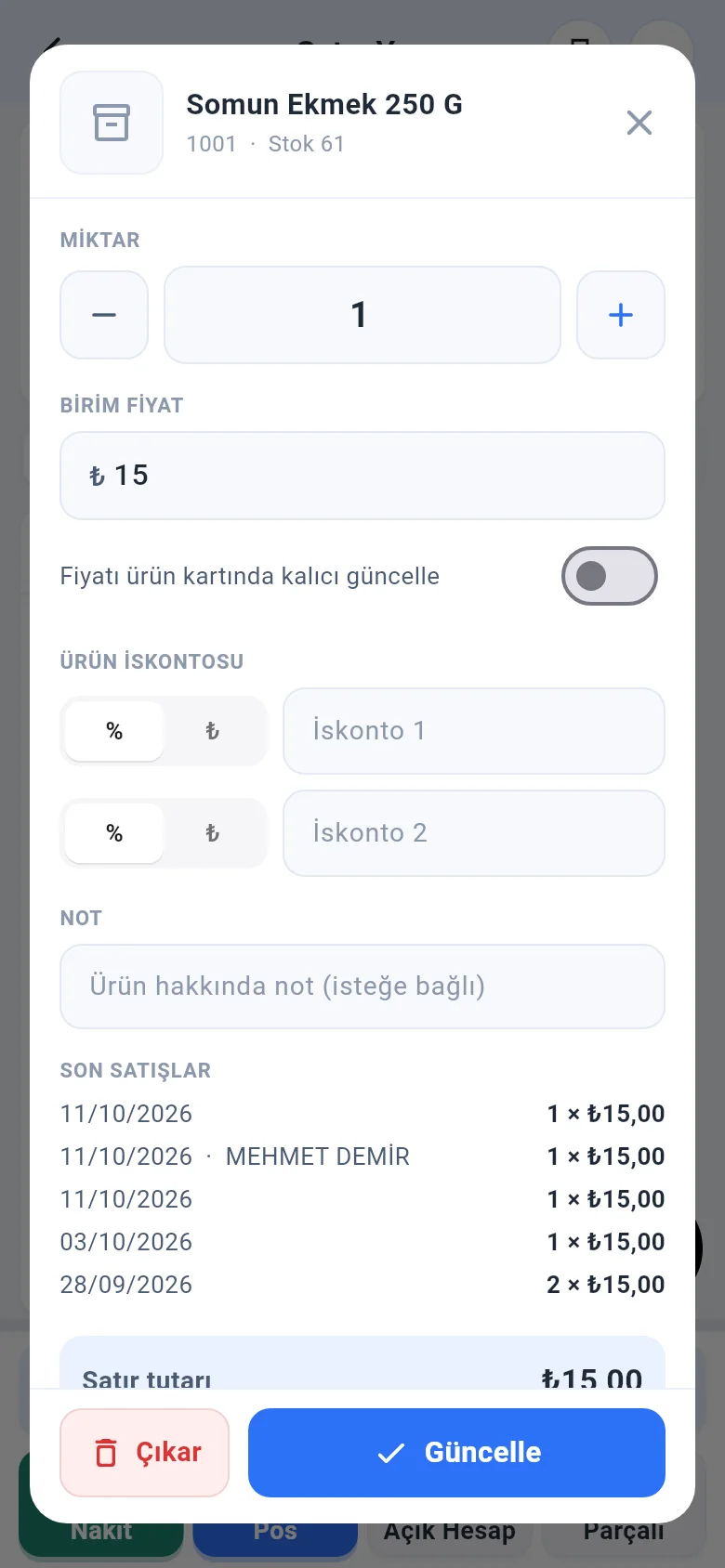
When you select a customer, the discount rate on the customer card is applied to the receipt as a percentage. A staff discount over the limit is reset to zero and a warning is shown.