




Date range report: sales, profit and till between two dates
List sales between two dates by staff and payment type, and get profit, the cash register report, Excel/PDF and receipt printer output.
The Date Range Report shows your sales between two dates (and times) you choose, totals by payment type, your profit, payments received, expenses and the cash that should be in the till. For a single day's report, use the Daily Report.
Listing the report
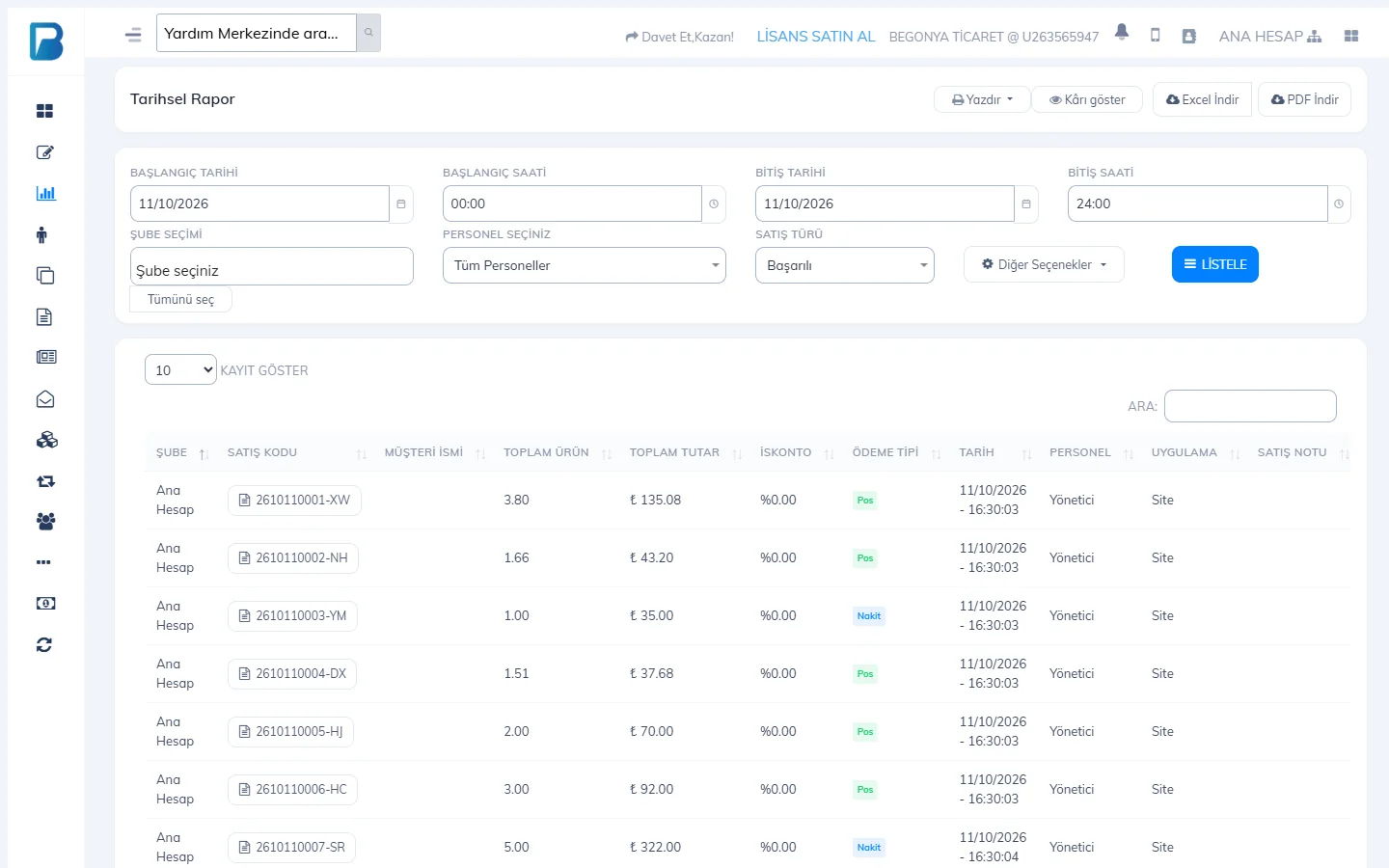
Open the report
Reports › Date Range Report.
 1234567
Choose the dates and filters
Enter the 1 START and END date/time. If needed, choose 2 STAFF (all staff, excluding manager, manager only or a single staff member) and 3 SALE TYPE (successful, cash, card, on account, no effect).
More options
4 More Options:
- Cancelled sales: cancelled receipts only.
- Apply time range to each day: the same time range for every day (e.g. 09:00–12:00 each day).
- Product details: the products on each receipt also appear in the list.
- Show summary only: only the totals, without the sales list.
List
Press 5 LIST.
Summary cards
| Card | What it shows |
|---|---|
| Cash / Card / On account | Sales totals by payment type (extra payment types as separate cards). |
| Total | All sales; tax base and VAT breakdown by VAT rate. |
| Payments Received | On-account payments you received from customers. |
| Supplier Payments, Expenses, Income | Other amounts that left or entered the till in the same period. |
| Cash Register Report | Cash sales + cash payments + cash income − cash expenses and payments: the cash that should be in the till. |
| Profit / Turnover / Product Cost | To see profit, press 6 Show profit; profit is calculated from products that have a purchase price. |
Exporting and printing
- 7 Download Excel and Download PDF download the report you listed.
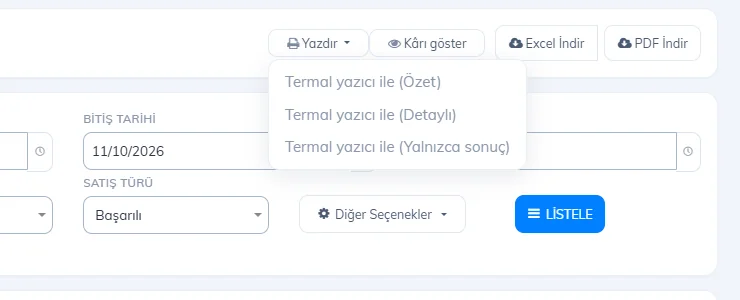
- The Print menu prints a Summary, Detailed or Totals only printout on the receipt printer (like an end-of-day slip).
- Click a sale code in the list to go to the sale details.
If you have branches, use Select all in BRANCH SELECTION to get the report for the main account and all branches together.
Profit is calculated from the purchase price at the time of the sale. Earlier sales of products whose purchase price you entered later show no profit.
Sales report between two dates
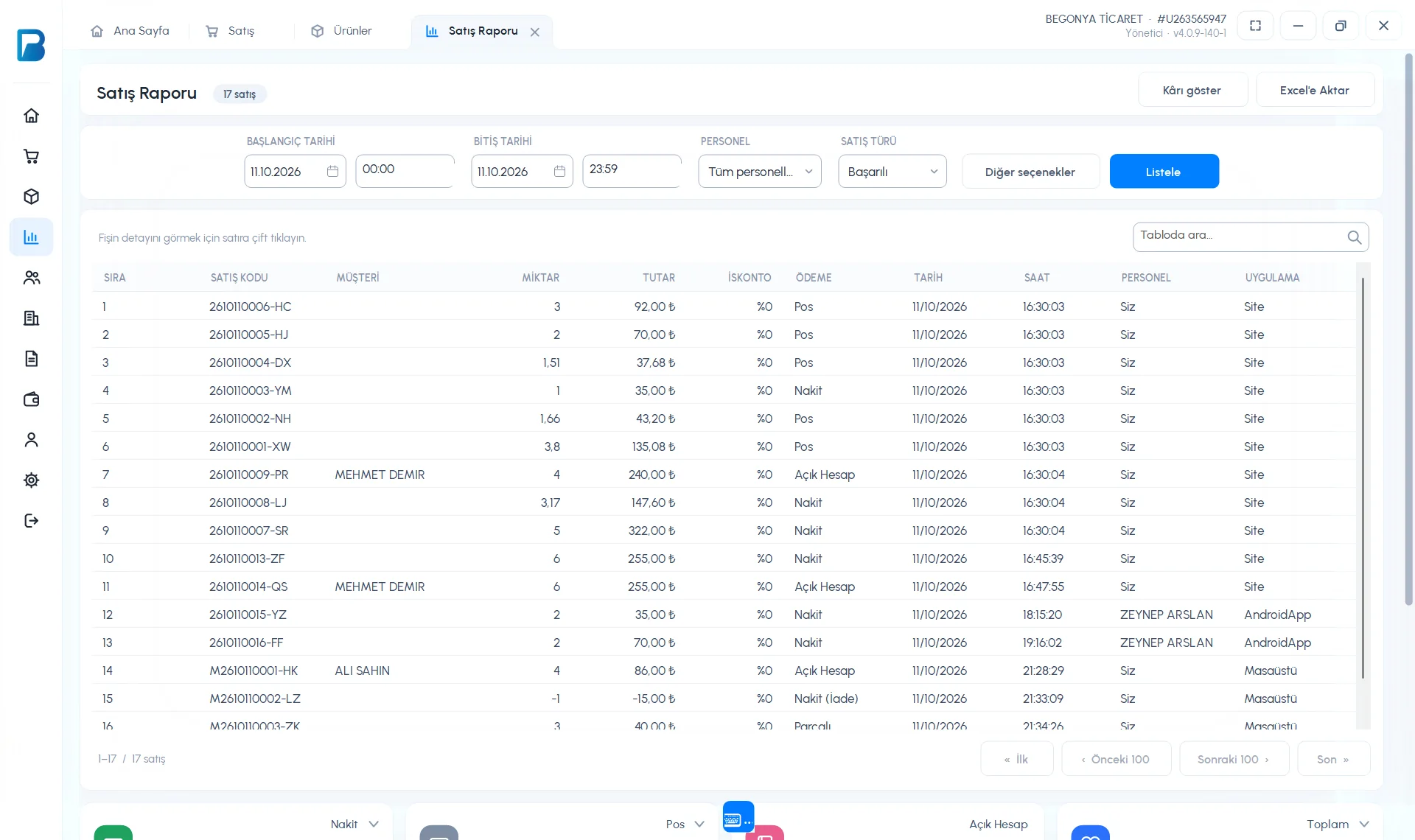
On desktop, the date range report is the Reports › Sales Report page. 1 Choose START DATE and END DATE with times, STAFF and SALE TYPE, then press 3 List.
 12345
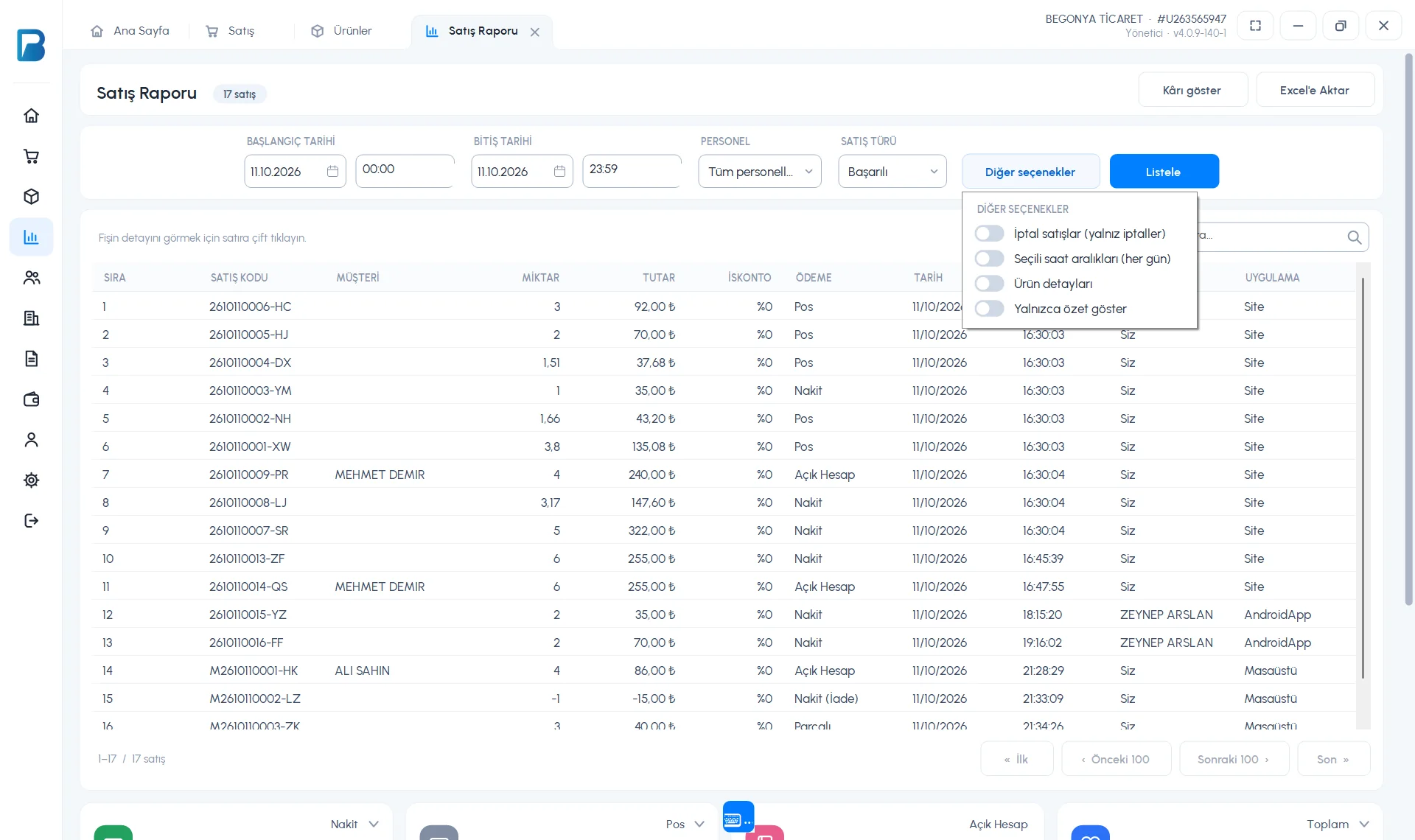
12345- 2 More options: Cancelled sales (cancellations only), Selected time range (each day) (e.g. 09:00–12:00 on each day), Product details and Show summary only.
- 4 Show profit adds a PROFIT column to the list and a Profit card to the summary.
- 5 Export to Excel saves the report in the Excel Files folder inside the app folder.
- Double-click a line to open the sale details.
 1
1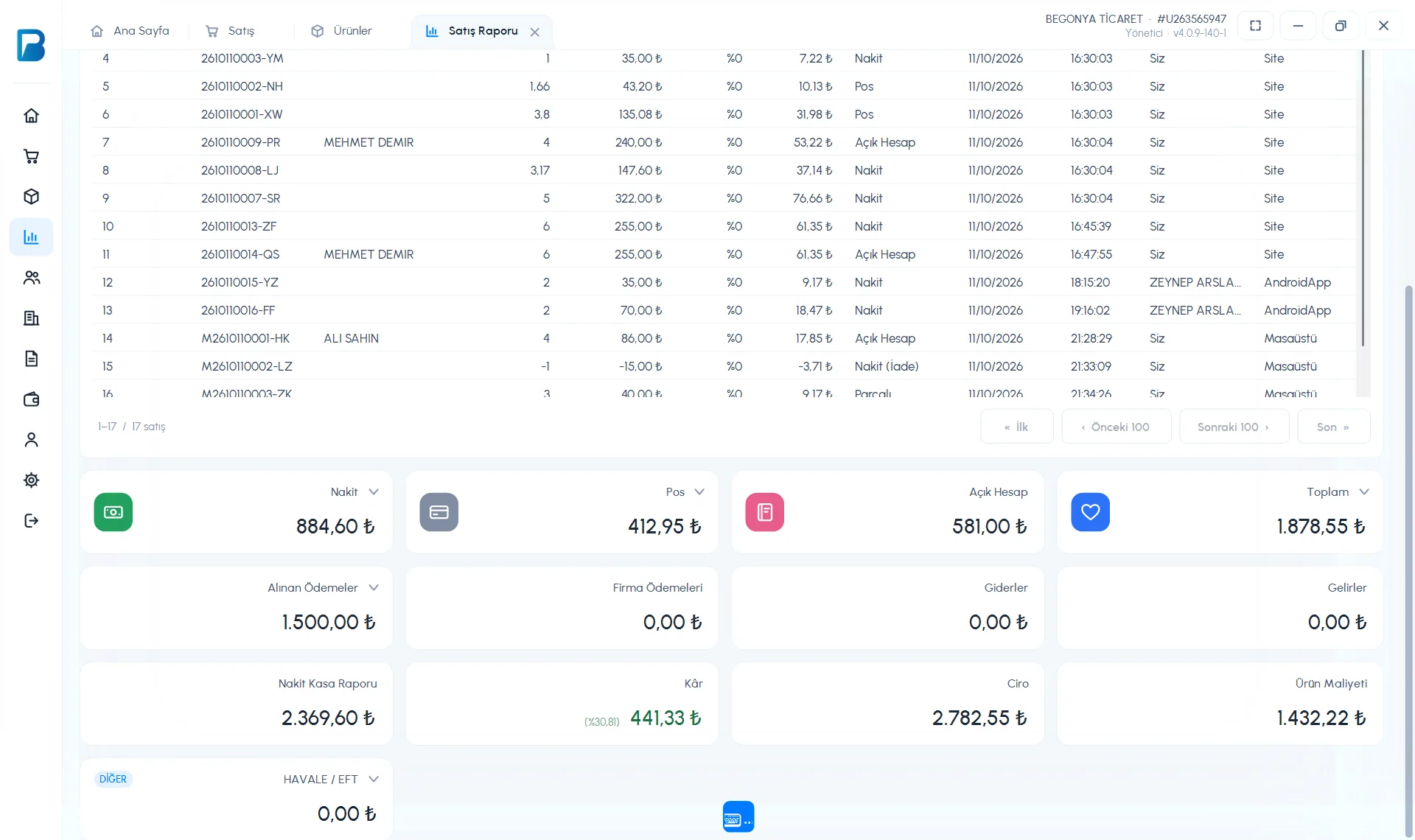 123
123In the free limited version, only the last 7 days of reports are shown; profit and Excel are PRO features. For PDF and thermal printer output, use the Date Range Report in the web panel.
Sales Report
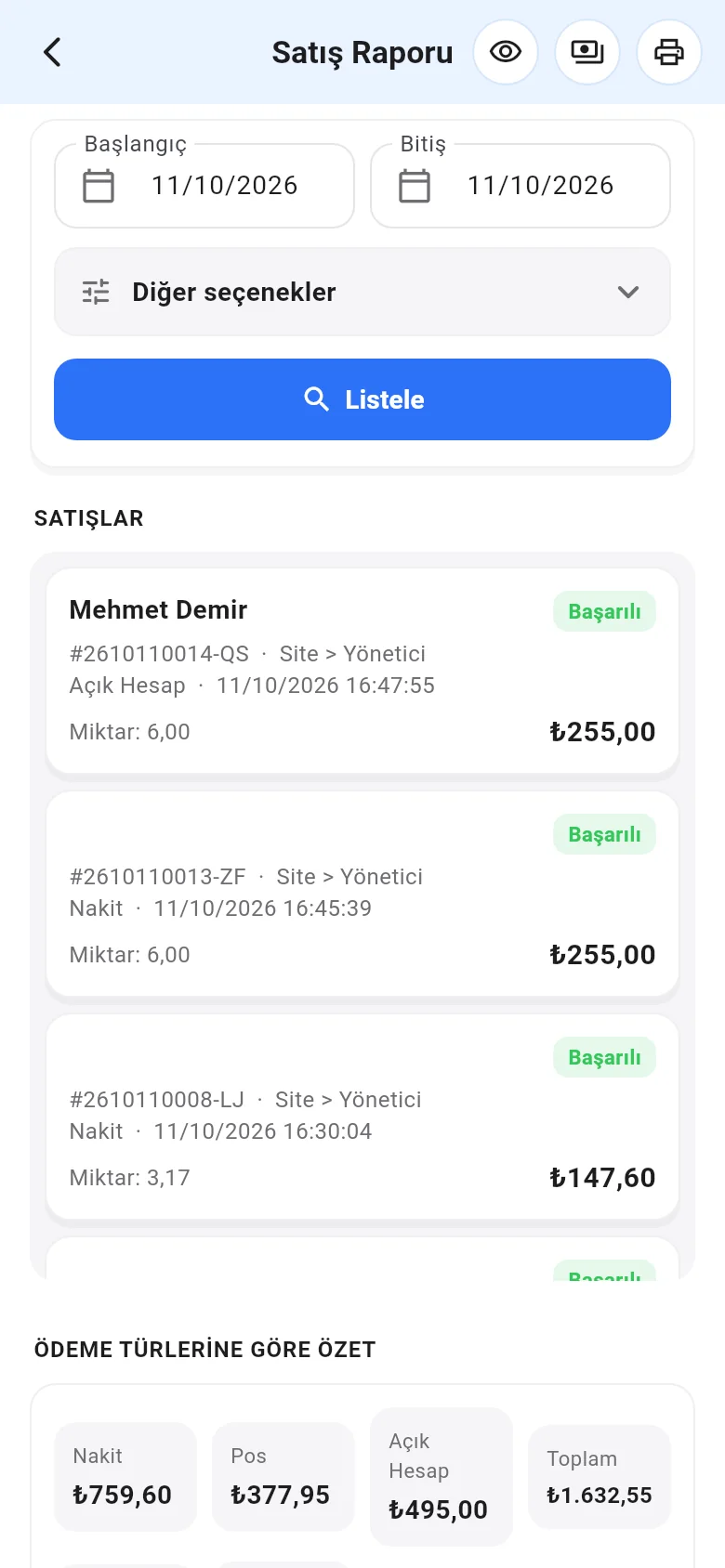
In Menu › Sales Report, choose the Start and End dates and tap List. More options contains the time range, Cancelled sales and Summary only.
 12
12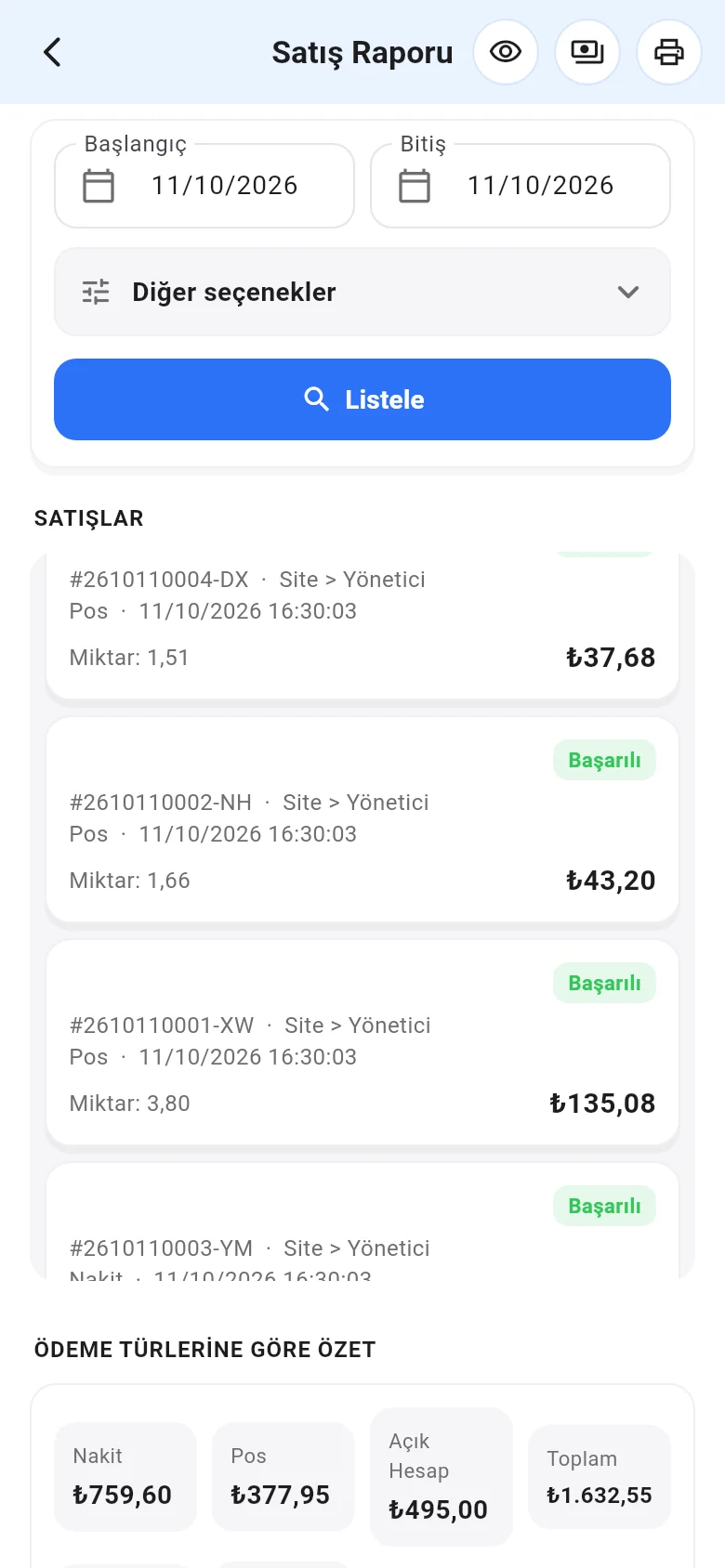
- Icons at the top: Show / hide profit, Payments received (customer payments between two dates) and Print.
- Print › Print summary, Print detailed or Print totals only prepares the report as a PDF; you can print or share it.
- Tap a sale to open its details.