




Adding customer debt, statements and closing an account
Add debt to a customer by hand, delete a wrong payment, print an account statement and list customers who owe you money.
A customer's credit sales are added to their debt, and payments you receive are deducted from it. Outside of sales you can add debt (credit) by hand, delete a payment entered by mistake and give the customer an account statement. For the steps to take a payment see: Credit sales and adding payments.
Actions on the customer card
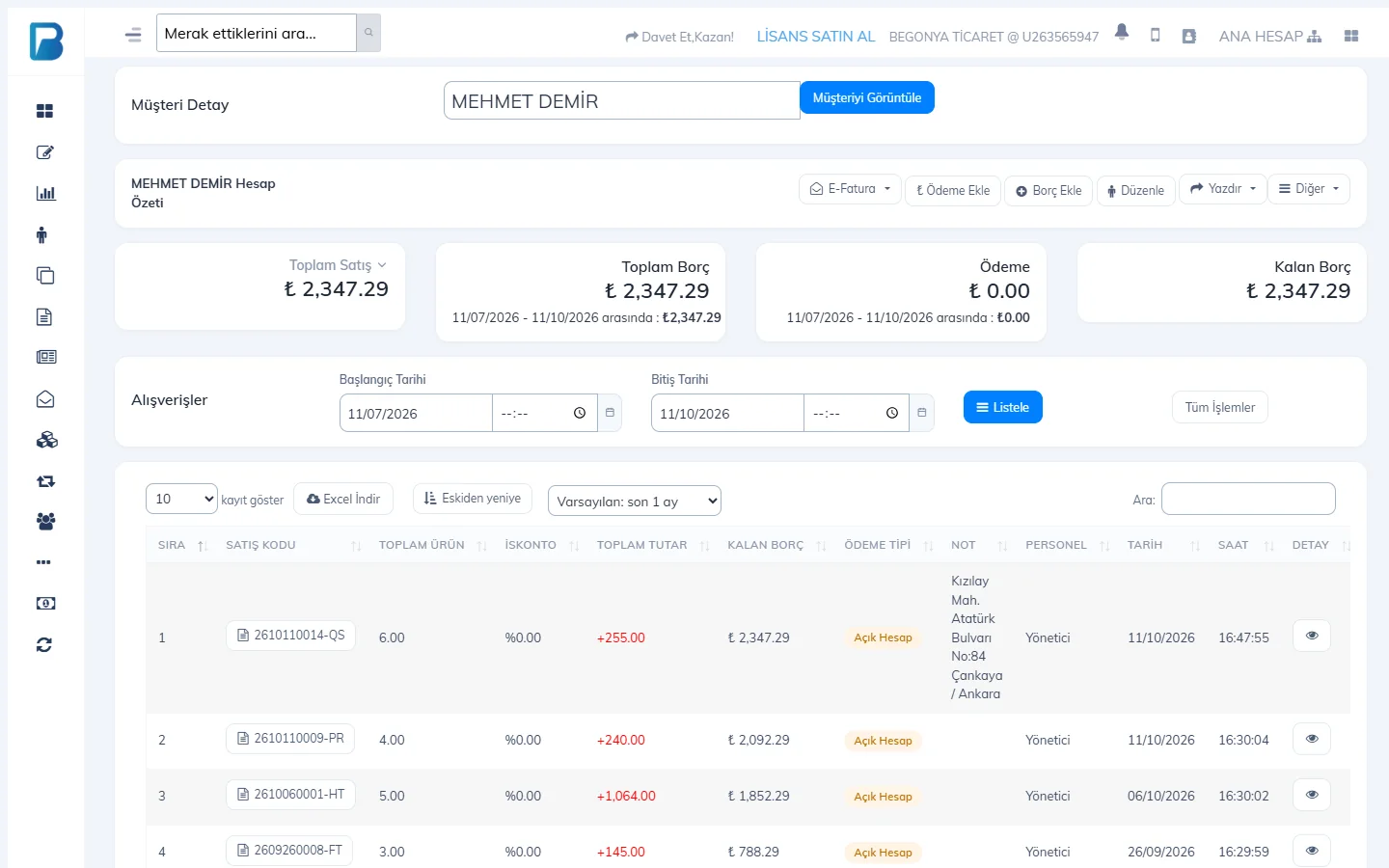 1
1- Add Payment: records a payment you received from the customer.
- Add Debt: adds debt to the customer outside of a sale (e.g. a balance carried over from your old program). Enter the amount and a description and save.
- Other › Add credit: records an amount you owe the customer (the customer's credit) or a payment you made to the customer.
- Other › Reset customer's account: closes the account; all transactions become unlinked from any customer account.
- Other › SMS / WhatsApp: sends the customer an SMS or WhatsApp message.
Printing a statement (account summary)
On the customer card, choose A4 printer (Summary), A4 printer (Detailed), Thermal printer (Summary) or (Detailed) from the Print menu. In the Purchases list at the bottom of the card, choose a date range and press List to see the transactions for a specific period, and export them with Download Excel.
Deleting a wrong payment and receipts
In the Purchases list on the customer card, press the bin icon at the end of the payment row and confirm; the remaining debt is recalculated. The printer icon prints a receipt for that payment. Permission to delete payments is given to staff separately.
Seeing customers who owe money
On the Customers page, turn on Show only customers with a balance due. The boxes at the top show total credit sales, total payments and TOTAL REMAINING DEBT. Customers with an approaching due date are listed on the Upcoming due dates card on the home page.
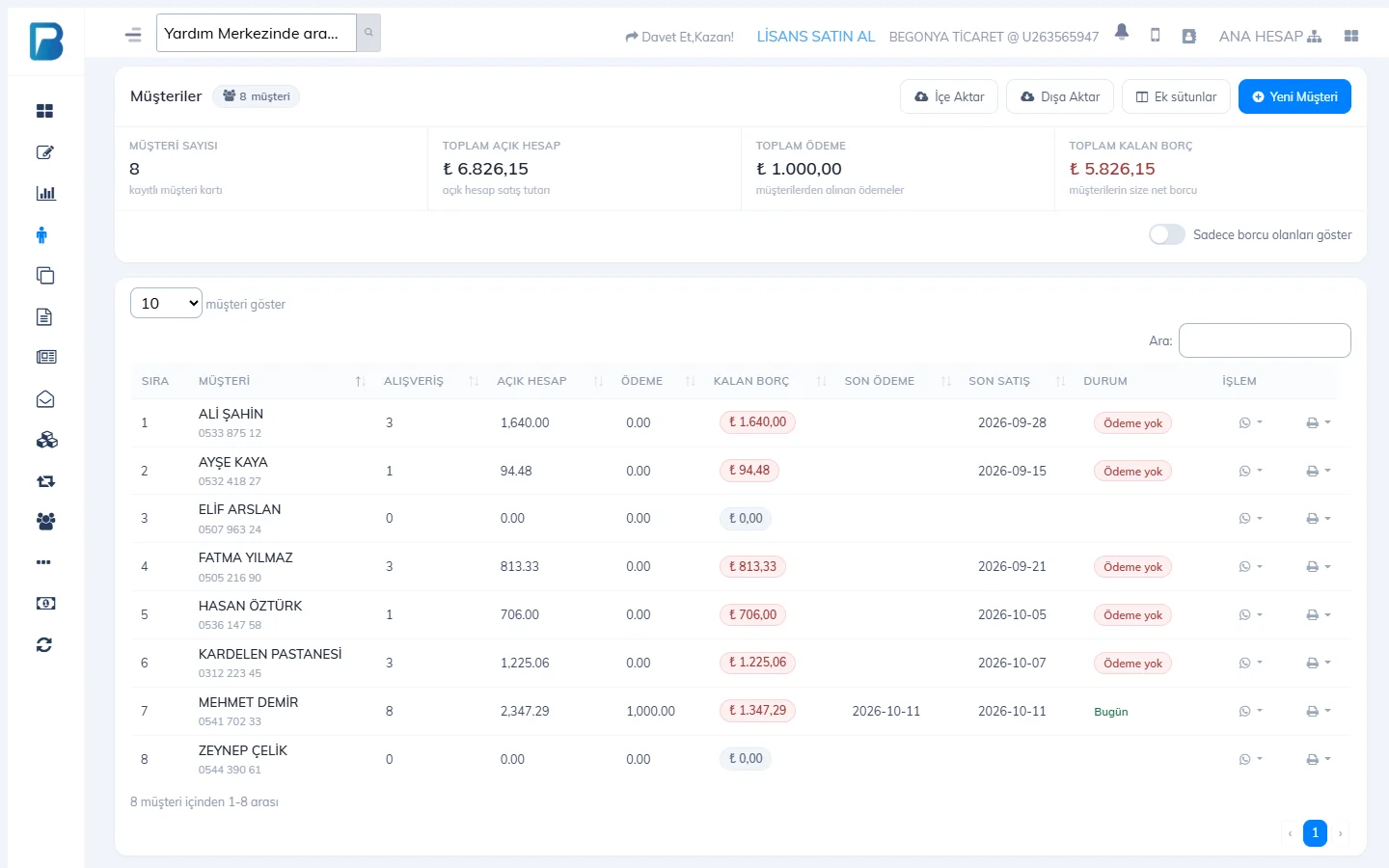 123
123Customer card
Double-click the customer in the Customers list. The 1 TOTAL DEBT, TOTAL PAYMENTS and REMAINING DEBT appear at the top; 6 all credit sales and payments are listed below (the eye icon on a row opens the sale details).
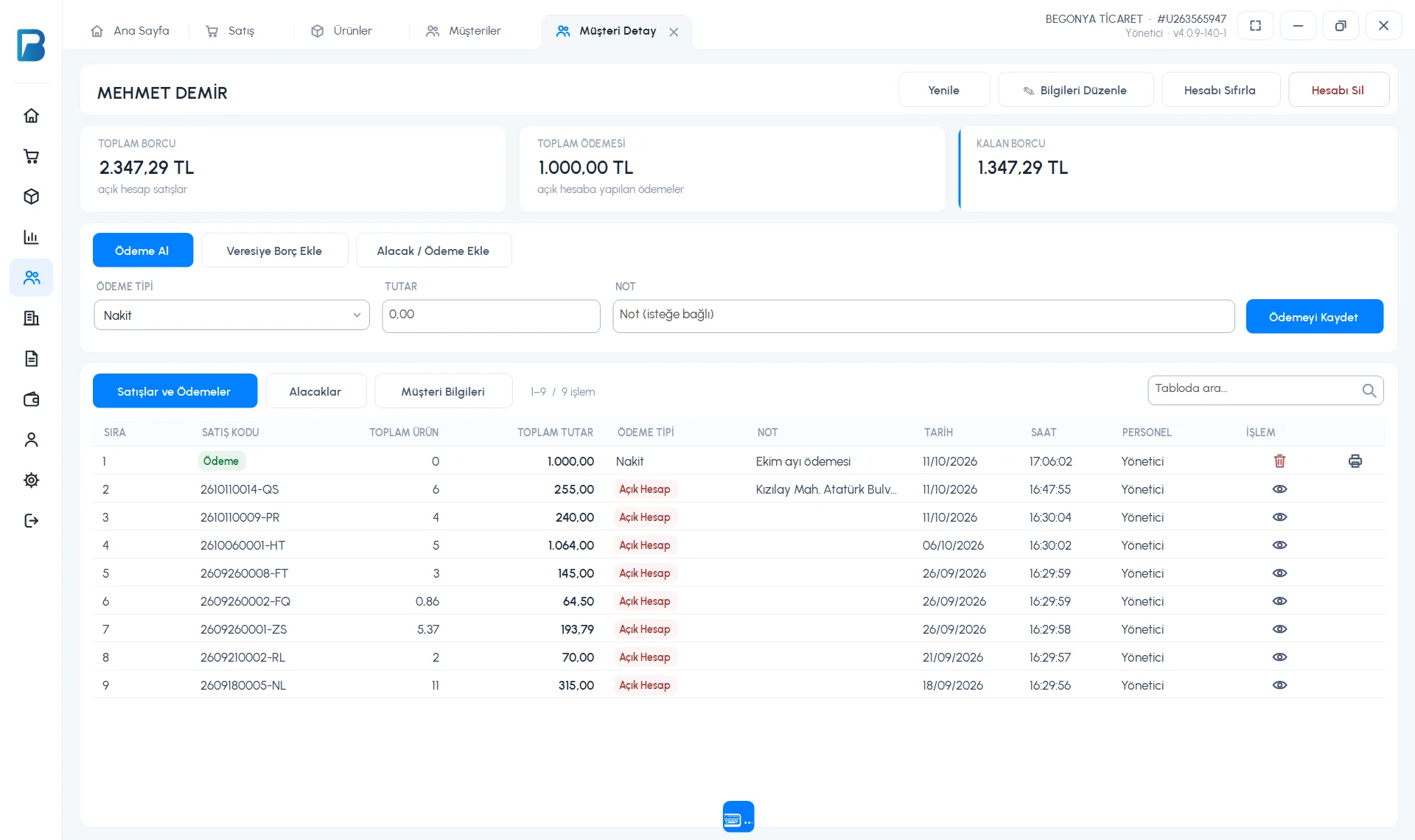 123456
Taking a payment
On the 2 Take Payment tab, choose the PAYMENT TYPE, enter the AMOUNT and an optional NOTE, then press 5 Save Payment.
Adding debt (credit)
To add debt without a sale (e.g. old debt carried over), enter the 2 AMOUNT and NOTE on the 1 Add On-account Debt tab and press 3 Add On-account Debt.
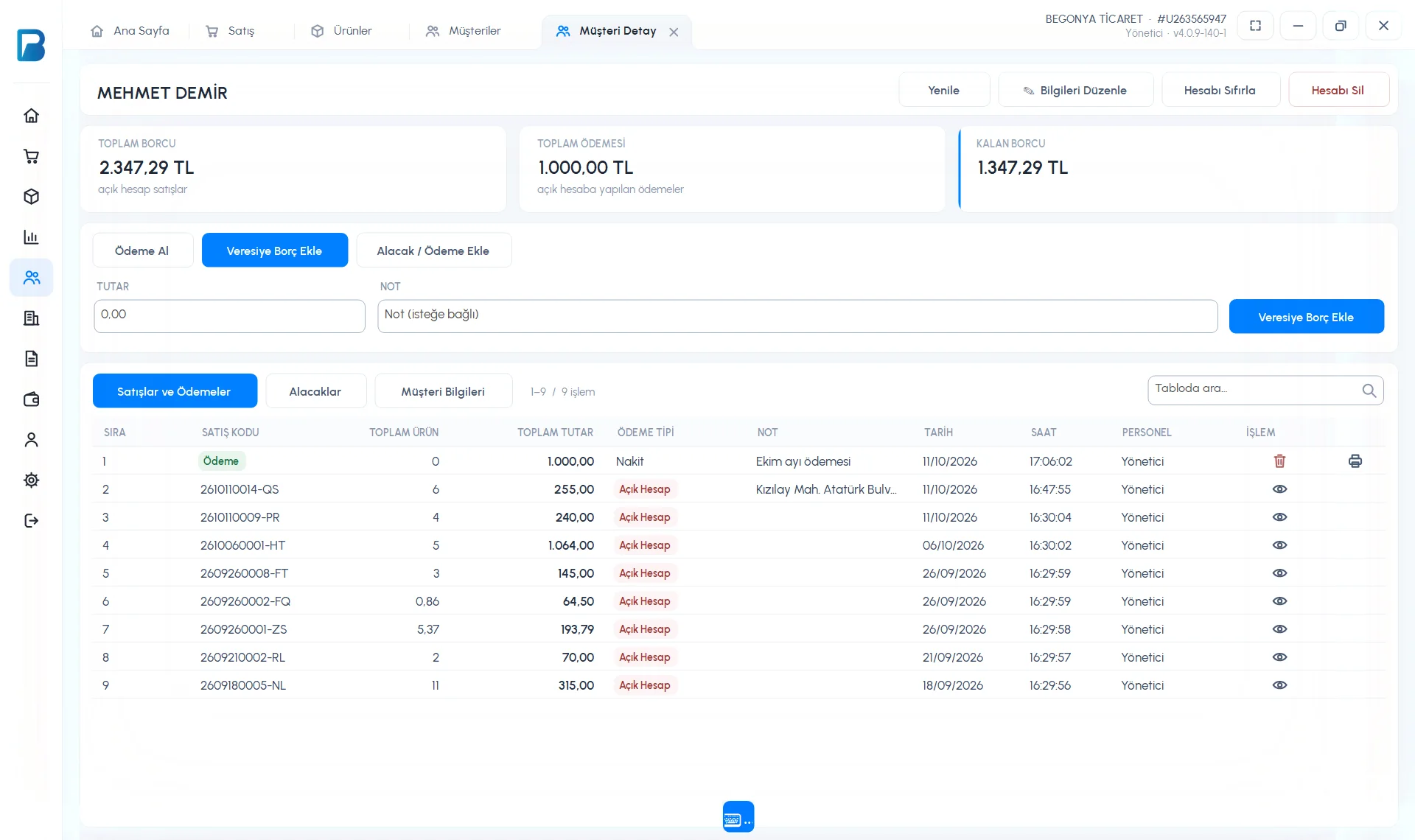 123
123Credit or payment to the customer
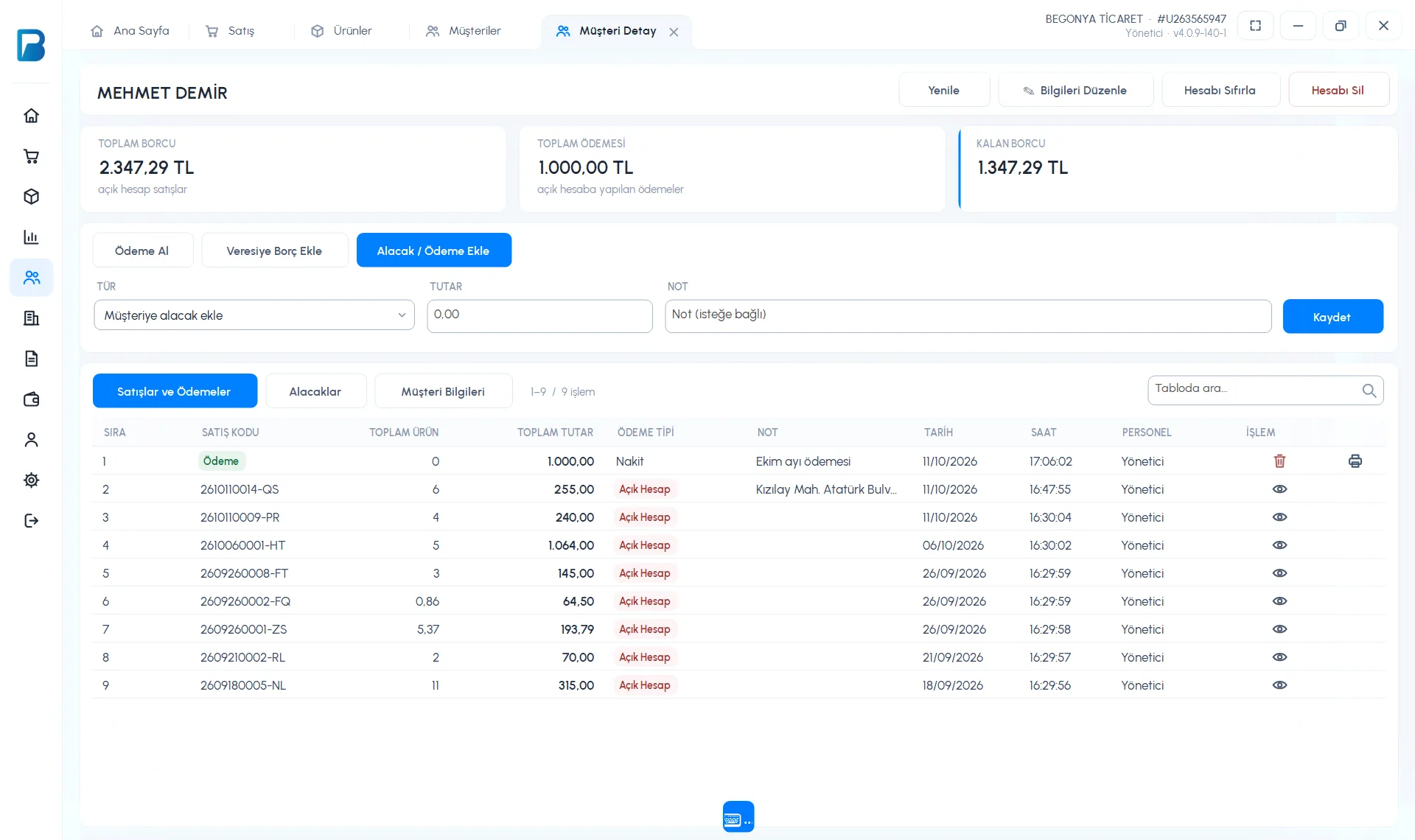
On the 1 Add Credit / Payment tab, choose Add credit for customer (what you owe the customer) or Payment made to customer from the 2 TYPE list, enter the amount and press 3 Save. Credits appear in a separate Credits list.
 123
123- To cancel a payment, press the bin icon on the payment row in the list; the printer icon prints a payment receipt.
- Reset Account closes the customer's account when the remaining debt and credit are zero.
- To see customers who owe money, use With Outstanding Balance in the Customers list.
Printing a statement isn't available in the desktop app; get the customer statement from the web panel or the mobile app.
Adding debt
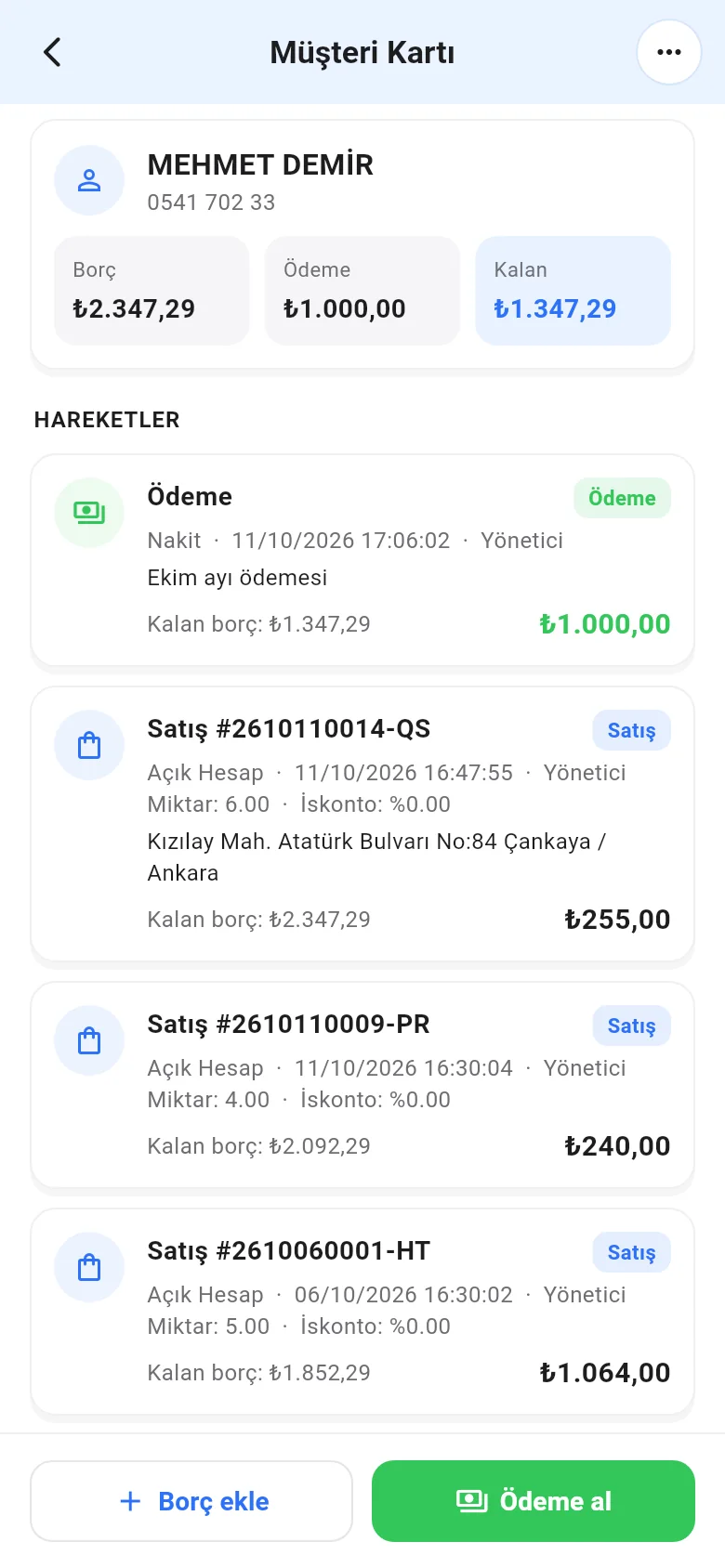
On the customer card, tap Add debt at the bottom; enter the Debt amount, Note and Transaction date and tap the red Add debt button.
 123
123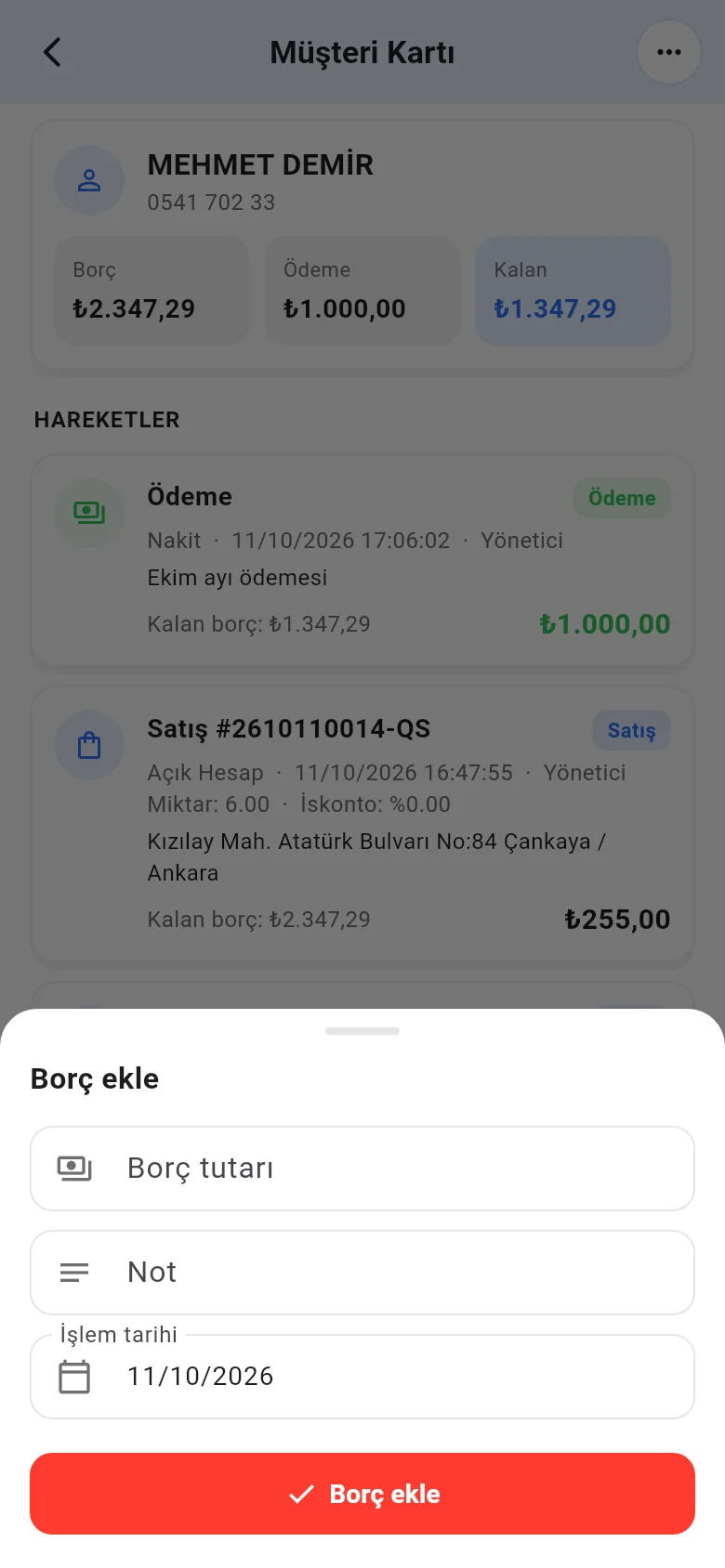
Statement
On the customer card, choose Print summary, Print detailed or Print / send by date range from the Actions menu. A PDF is prepared; you can print it or share it by WhatsApp/email.
- To delete a payment, tap the payment in TRANSACTIONS and choose Cancel payment; Print payment receipt is on the same screen.
- To reset the account, choose Balance reset as the payment type in the Receive payment form.
- For customers who owe money, use Sort by balance due in the Customers list.