




Importing and exporting customers with Excel
Bulk-upload your customers with their balances from an Excel file, or download the list as Excel.
When switching from another program, instead of entering your customers and their balances one by one, you can bulk-upload them with an Excel file and download your current customer list as Excel.
Importing with Excel
Prepare your file
Download the ready-made template, delete the sample rows and enter your own customers: Download customer template (.xlsx). If you prepare your own file, fill in the following columns without a header row, with the first customer on the first row:
Column Content A Customer name (up to 100 characters) B Balance (numbers only) C Balance type: B for what the customer owes you (credit sales), A for what you owe the customer. Enter only A or B; values such as "Debt", "Credit", 1 or 2 are not recognized and the balance is not recorded. D Address E Phone (up to 11 digits) F Tax office G Tax no. H Payment term (days) I Credit limit J Note about the customer Upload the file
On the Customers page, press 1 Import, select your .xlsx file and click Import.
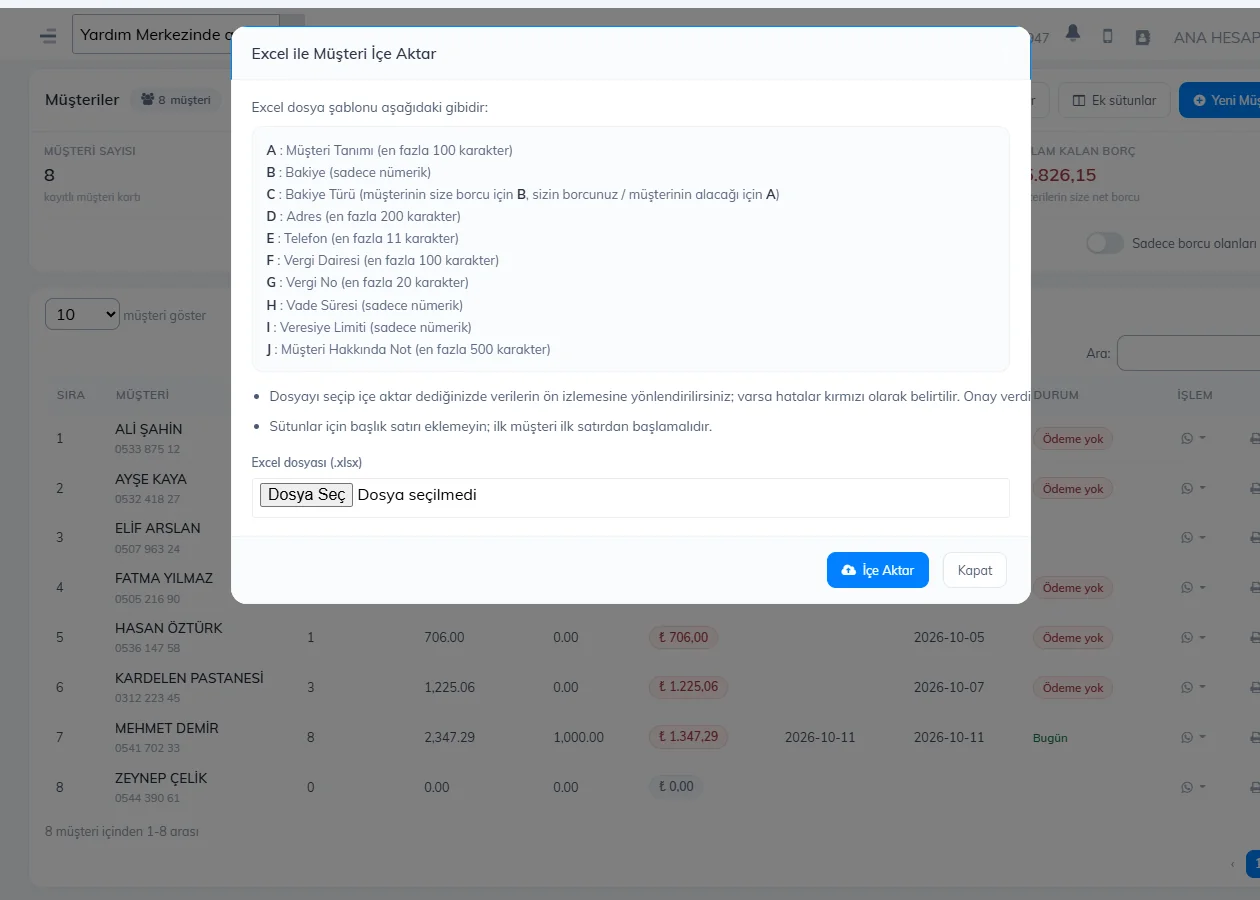
Check the preview
The data is listed on a preview page; check that the Balance Type column shows debt or credit (if it's empty, column C was not recognized). When you press Import data and confirm, the customer cards and their balances are created.
Exporting
2 Export downloads your customer list as an Excel file. You can use it to make a backup or send it to your accountant.
Before uploading a large list, try a file with a few rows. If a customer with the same name already exists, that row is skipped (not updated). Save the file as .xlsx. The exported list has a different column layout; use the template for importing.
This can't be done in the desktop app. Import/export customers with Excel in the web panel; the customers come to the desktop app by sync.
This can't be done in the mobile app. Import/export customers with Excel in the web panel.