




Promotions & Discounts: promotion types and how to create them
Set up 3-for-2, Nth item discount, multi-buy, quantity tier, bundle price, cross-sell and receipt total promotions; choose dates, days, hours, branches and price types, and track them in the report.
Promotions you set up on the Promotions & Discounts page are applied at the till automatically: the matching promotion is found without the cashier doing anything, and the discount appears under the line with the promotion's name. Promotions are set up in the web panel; they work with the same rules on the web sales screen, in the desktop app and in the mobile app.
Open the page from the left menu with Products › Promotions & Discounts. The first time you open the page, you read and accept the Promotions & Discounts Agreement on behalf of your business; until it is accepted, no promotions can be set up and none are applied at the till. For your staff to set up promotions, give them the Can create and edit promotions permission on the Staff page. The old bulk SMS feature in this menu has moved to the Send Bulk SMS button on the Contacts page.
Promotion types
| Type | What it does | Example |
|---|---|---|
| Discount / promotion price | A percentage, an amount or a fixed price on selected products | 20% off detergents, coffee at 149.90 ₺ |
| Buy X, pay for Y | In every X items, the cheapest one (or ones) is free | 3 for the price of 2, 2 for the price of 1 |
| Discount on the Nth item | A percentage off every Nth item | 50% off the second item |
| Multi-buy price | A set number of items for a total price | 3 for 100 ₺ |
| Quantity tiers | A discount that grows as the quantity bought grows | 10% for 2 or more, 15% for 3 or more |
| Bundle price | A set of different products for one price | 2 simit + ayran for 55 ₺ |
| Cross-sell / gift | A discount or a free gift on another product when a product is bought | Free crisps with a cola |
| Receipt total discount | A discount on the whole receipt once it goes over a set amount | 5% off over 500 ₺ |
Creating a new promotion
New promotion
On the Promotions & Discounts page, press 1 New promotion.
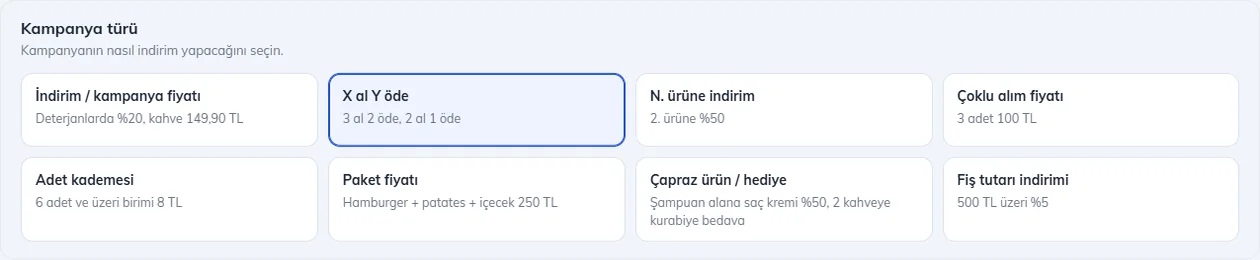
Choose the promotion type
Choose how the promotion gives its discount. For example, "3 for the price of 2" is set up with 2 Buy X, pay for Y, and "5% off over 500 ₺" with 3 Receipt total discount.
 123
123Enter the products and the rule
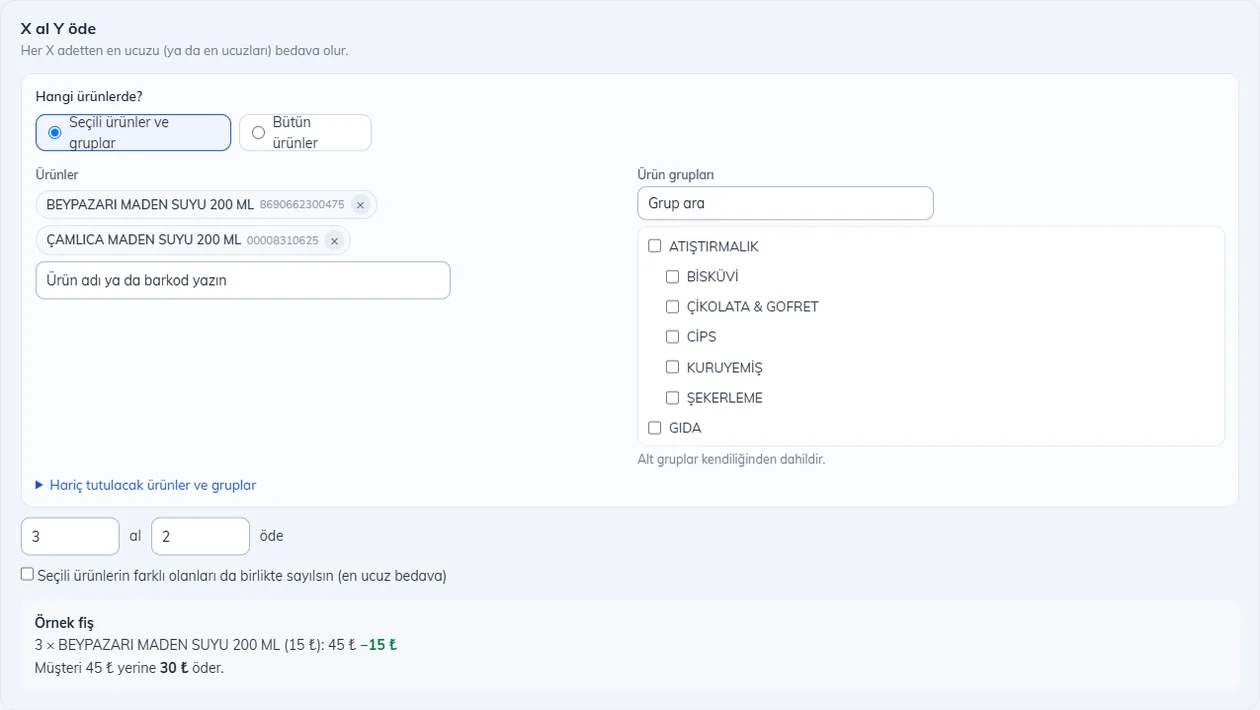
1 Type a product name or barcode and choose it from the list, or 2 tick product groups (subgroups are included automatically). If it should apply to all products, choose All products; you can leave some out with 3 Products and groups to exclude.
4 Enter the rule (3 for the price of 2 in the example). 5 If you tick this, different selected products are counted together; for example, when 3 bottles of two different mineral waters are bought, the cheapest one is free. If you don't tick it, each product is counted on its own.
6 Sample receipt shows how it will look at the till as you enter the rule; check it before saving.
 123456
Use the Max per receipt: box to limit how many times the promotion is applied on one receipt; if you leave it empty, there is no limit. Items over the limit are sold at the normal price. For example, if you enter 3 for a "50% off the 2nd item" promotion, only 3 items get 50% off even if the customer buys 8.
Type What "max 3" means Discount / promotion price The first 3 items are discounted (3 kg for weighed products), most expensive first Buy X, pay for Y The promotion is applied 3 times on the receipt (with 3 for the price of 2, 3 are free out of 9 items) Discount on the Nth item 3 items are discounted Multi-buy price 3 times (e.g. 3 × "3 for 100 ₺") Quantity tiers The tier discount applies to at most 3 items Bundle price At most 3 bundles Cross-sell / gift The discounted / gift product is given at most 3 times. If you want it only once, enter 1. The per-receipt limit works in the new versions of the desktop and mobile apps. Promotions with a limit aren't sent to older versions; a till running an older version doesn't apply this promotion, so it doesn't give too much discount either.
Buy X, pay for Y, Discount on the Nth item and Cross-sell / gift promotions have a Discount on receipt option:
- Spread across the promotion's items (default): the discount is shared among the items in the promotion in proportion to their prices. For example, with free 55 ₺ crisps for a 55 ₺ cola, both items show a 27.50 ₺ discount. If one of the items is returned, it is refunded at the price paid.
- Apply only to the gift or discounted item: the whole discount goes on the free or discounted item; the free crisps show 0 ₺ on the receipt and the cola is at full price. If the cola is returned on its own, it is refunded at full price; in that case, take the gift back too.
Choose when it applies
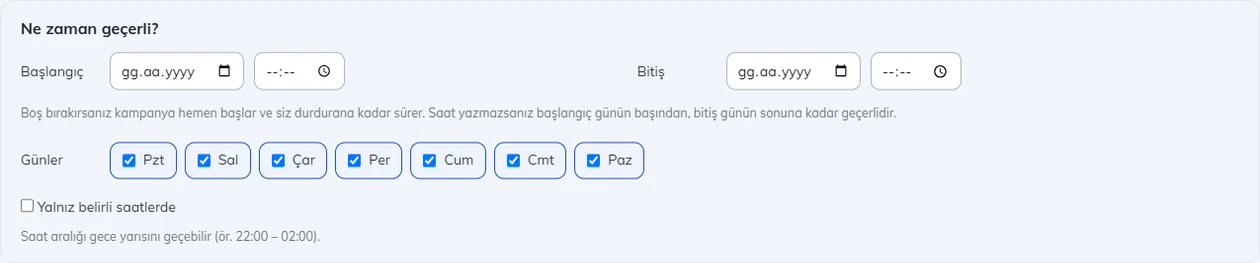
1 Enter the start and end dates; if you leave them empty, the promotion starts right away and runs until you stop it. 2 Choose the days the promotion applies (e.g. only Saturday and Sunday). 3 Set a time range with Only at certain hours (e.g. 14:00 – 17:00); the range can go past midnight.
 123
123Where and for whom
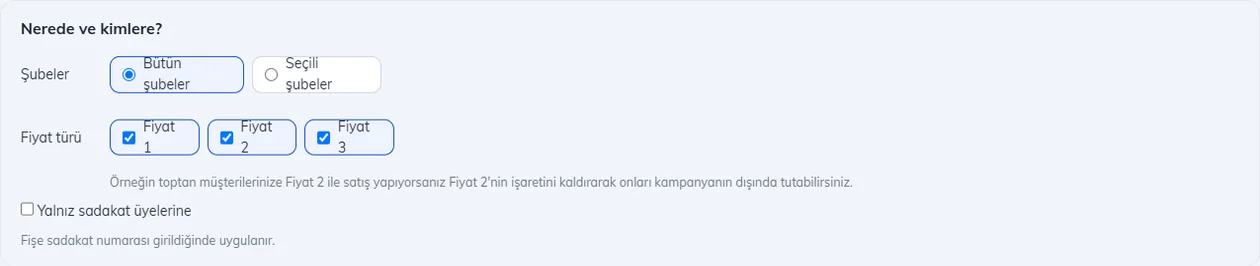
1 If you have branches, choose which branches the promotion applies in. 2 Tick the price types the promotion applies to; for example, if you sell to wholesale customers at Price 2, untick Price 2 to keep them out of the promotion. 3 If your loyalty program is on, you can apply the promotion only to customers whose loyalty number is entered on the receipt.
 123
123Name, priority and saving
1 The promotion's name appears on the receipt, at the till and in the report; if you leave it empty, a name is generated from the rule. 2 If two promotions match the same product, the one with the higher priority is applied; if the priorities are equal, the one that saves the customer more is chosen. Press Save at the bottom of the page and the promotion goes live right away.
 12
12
Promotion list
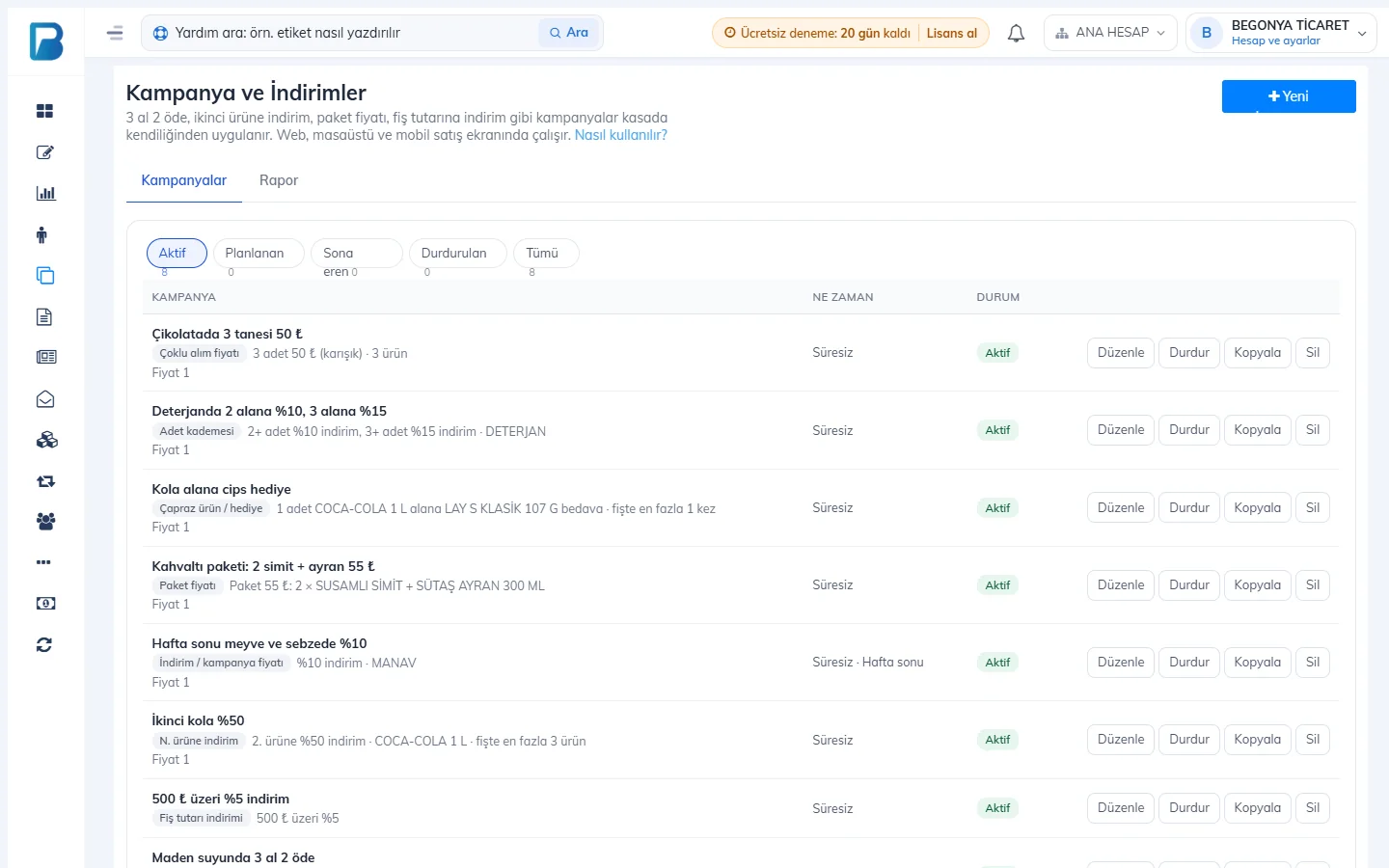
2 Promotions are grouped as Active, Scheduled (start date not reached yet), Ended and Paused. 3 When the promotion applies is shown, and 4 on the right are the Edit, Pause / Start, Copy and Delete buttons. 5 On the Report tab you can see how much discount the promotions have given.
 12345
12345- When you change or pause a promotion, the change applies from the next sales on; the discount on past sales doesn't change.
- Copy creates a paused copy of the promotion. Use it to quickly set up a similar promotion (e.g. the same rule for other products).
- A deleted promotion is removed from the list; sales made earlier with this promotion and the amounts in the report aren't deleted.
Promotion report
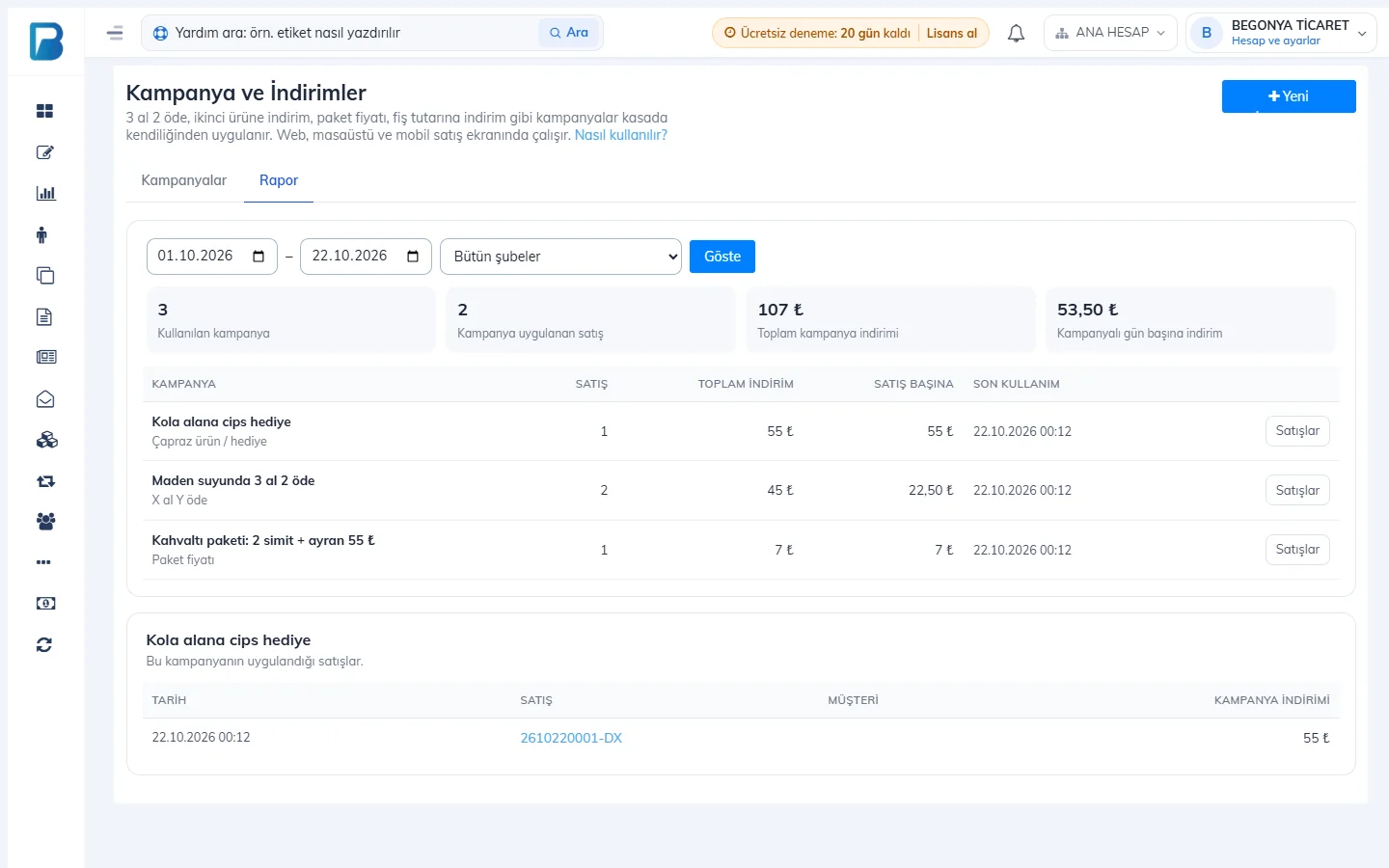
1 Choose the date range (and the branch, if you have branches) and press Show. 2 You see how many promotions were used, how many sales they were applied to and the total promotion discount. 3 With Sales you 4 list the sales the promotion was applied to and go to the sale details. Promotions on items voided from the receipt aren't included in the report.
 1234
1234Which lines are promotions not applied to?
- Lines where the cashier entered a discount by hand or changed the price by hand.
- Miscellaneous amount lines and sub-product lines in a product tree (recipe).
- In return mode, when adding items to a saved receipt, and when converting an order into a sale.
- Promotions that work by item count (buy X pay for Y, discount on the Nth item, multi-buy, bundle, cross-sell) aren't applied to weighed products or fractional quantities. Discount, quantity tier (works with kilograms) and receipt total promotions are also applied to weighed products.
Only one promotion is applied to an item at a time, and a receipt can have at most one receipt total promotion. This way promotions don't stack and push a product below its cost. In a receipt total promotion, if you untick Include items discounted by other promotions in the receipt total, discounted items aren't counted towards the receipt total.