




Return requests: staff return requests and admin approval
See return requests created by staff without return permission, and approve them by choosing the price and payment type, or delete them.
Staff who aren't allowed to accept returns directly create a return request when a return is needed at the till. The request goes to the admin; once the admin approves it, the return is processed. This way returns stay under your control.
Approving a request (admin)
Open the Return Requests page
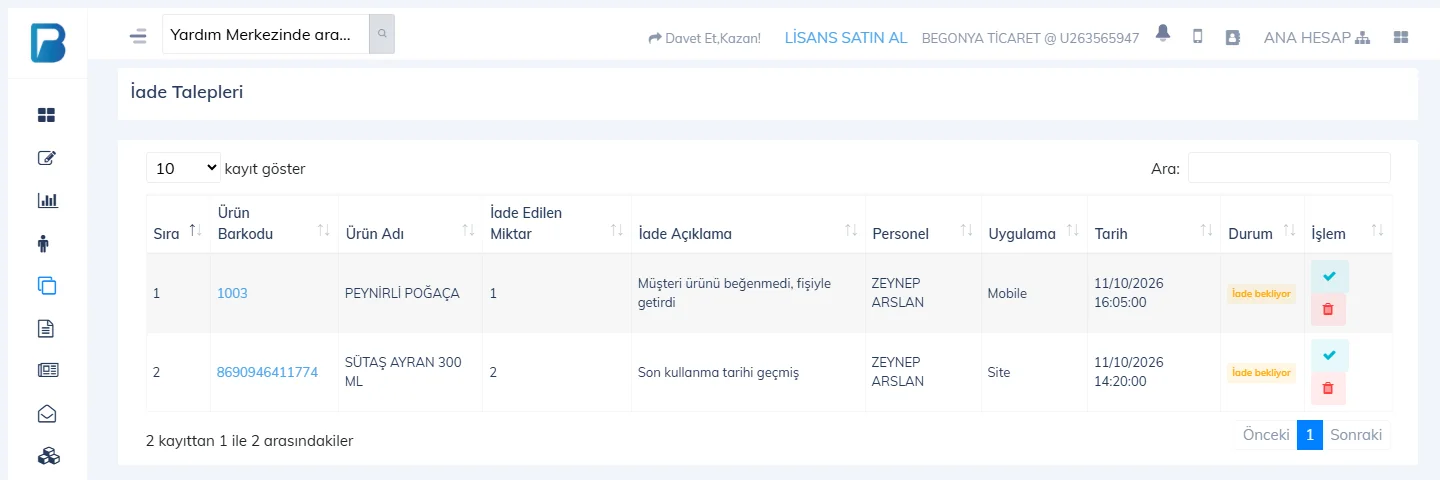
Open Products › Return Requests. When a new request arrives, a "There is a new return request!" notification also appears in the panel. 1 The list shows the product, return quantity, description, the staff member who created the request, the app (Site / Mobile) and the status (Pending return).
 123
123Approve
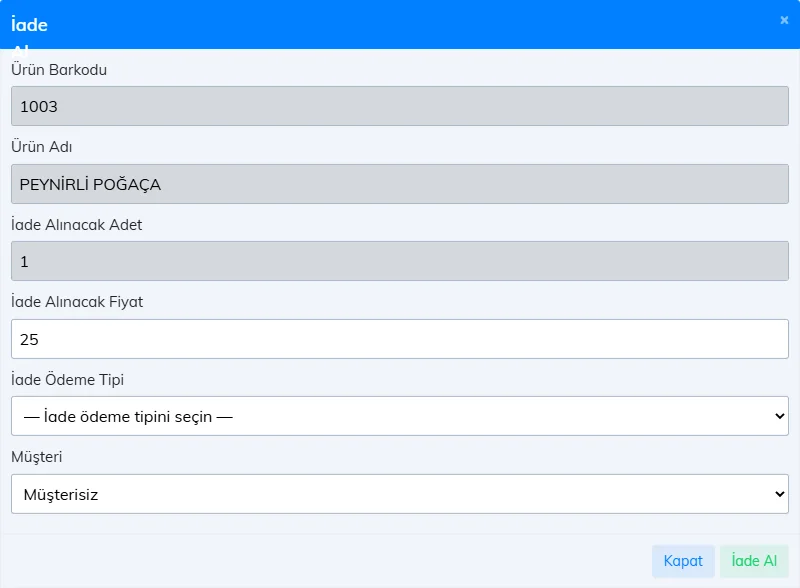
Press the 2 approve (✓) button. In the Accept Return window that opens, check the 1 Return Price (the product's current Price 1 is filled in), select the 2 Refund Payment Type (Cash, Card, On account, other types you have set up, or Non-revenue, which doesn't show in reports) and, if needed, select the 3 Customer. Press 4 Accept Return.
 1234
1234
The approved request becomes Returned; the product goes back into stock and the return is deducted from sales in reports. You can delete an unjustified request with the 3 bin icon.
Creating a request (staff, web)
On the New Sale screen opened with a staff login, press Create return request in the Options drawer; scan the product barcode, enter the Return quantity and Description and press Send request. The receipt doesn't change; the return is processed when the admin approves it.
To approve requests, the main account or the Can approve return requests permission on the staff card is needed. If you give a staff member the Can accept returns directly permission, they take the return themselves instead of sending a request.
On the sales screen opened with a staff login, the barcode bar has a Return button (tooltip "Create return request"); it doesn't appear when logged in as admin. In the window, scan the product barcode and press Get product, enter the RETURN QUANTITY and RETURN DESCRIPTION and press Create return request. The message "Your return request has been created." appears. Requests are approved on the Return Requests page in the web panel.
When staff without direct return permission turn on return mode on the sales screen and scan a product, the Return request window opens: "Since you don't have direct return permission, it will be sent as a request." Enter the QUANTITY TO RETURN and an optional RETURN NOTE and tap Create request.
The admin (or staff with approval permission) can see and approve requests from the Return requests icon in the top bar of the Products screen.