




I cannot sign in
Solutions for password, staff login, verification code, license and desktop sign-in errors.
If you cannot sign in, first check the login type (manager / staff) and your details. Below are common situations and their solutions.
| Situation | Solution |
|---|---|
| I forgot my password | Use Forgot password on the sign-in page to get a reset link at your registered email. Changing your password |
| Staff login does not work | Check the staff code, password and business number (starts with "U"). The staff member may have been made inactive; your manager can check in Staff. |
| The verification code does not arrive | The code goes to the registered email or phone; check the junk/spam folder of your email. If your registered phone has changed, message our support team. |
| License warning | Your license has expired; renew it with Buy a license now in the warning. Your data is not deleted. License |
| "You were signed out automatically because your details changed or your account was made inactive" | The password has changed or the staff member has been made inactive; sign in with the new details. |
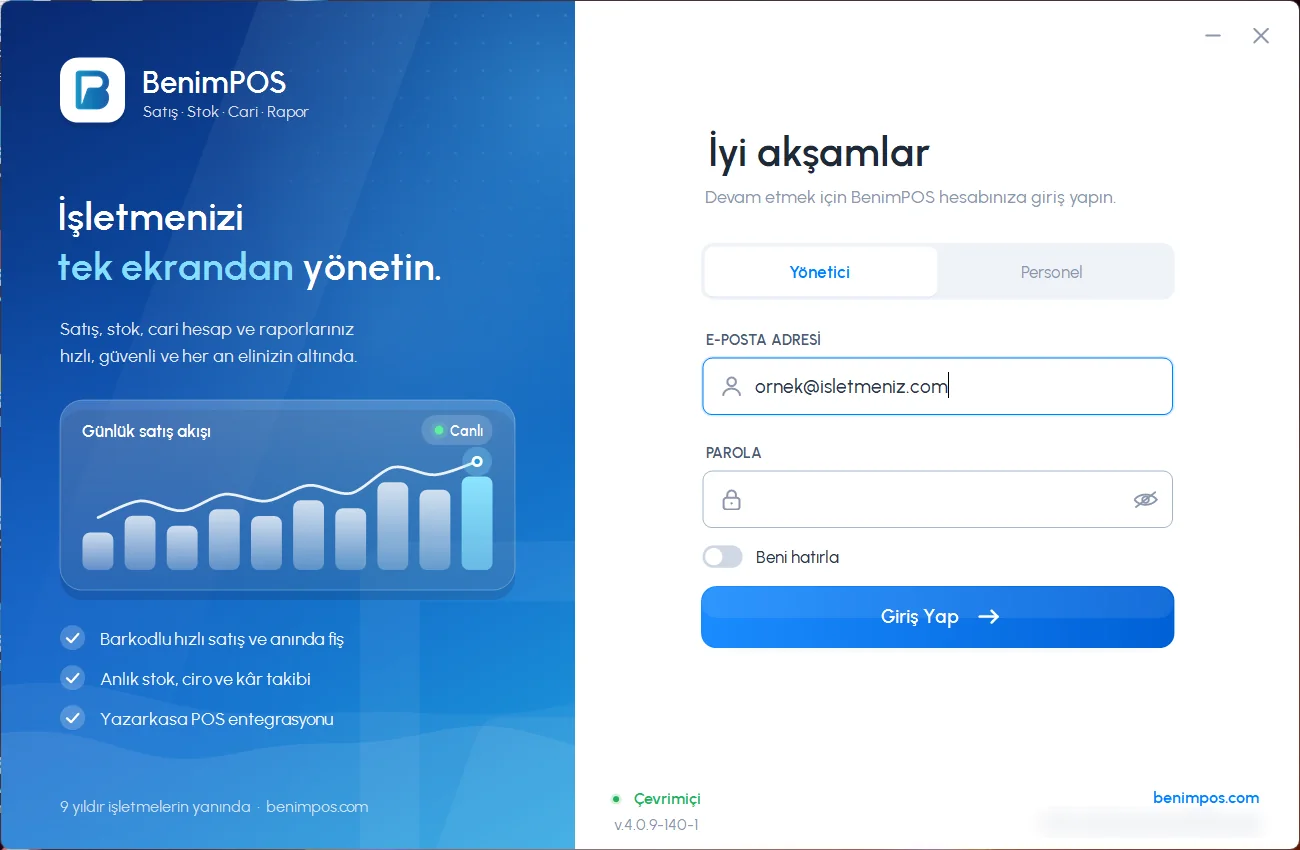
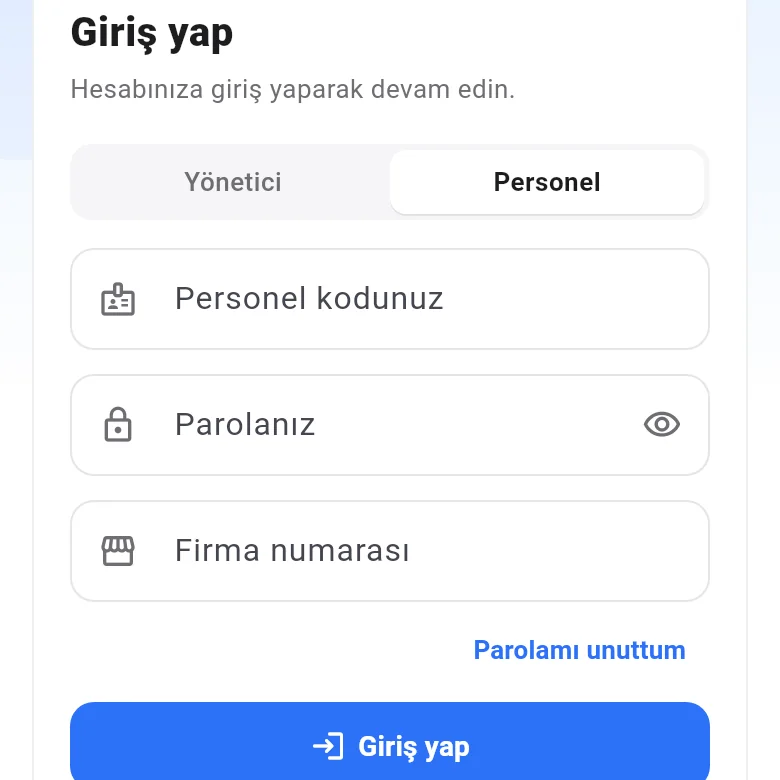
On the sign-in page of the web panel, a manager enters email and password; staff enter the staff code, password and business number with Staff login selected. If two-factor verification is on, a code is asked when signing in from a new browser.
 123
123Desktop sign-in errors
| Message | Meaning / solution |
|---|---|
| "Incorrect email or password." | Check your details. When there is no internet, the app signs in with the last details stored on the computer; if you have just changed your password, connect to the internet and try again. |
| "Incorrect email/staff code or password." | Staff login uses the data on the computer. For newly added staff or staff whose password was changed, first wait for sync to finish while signed in as manager. |
| "Please make sure you have an active internet connection." | The first manager sign-in on this computer requires internet. |
| "BenimPOS is already running…" | The app is already open; use the window in the taskbar or wait a few seconds. |
| "Cannot connect to the database…" / "…local database not found…" | The app downloads the required database component; when the download finishes, restart the app. If the problem continues, restart the computer. |
| "Incorrect verification code…" | Enter the latest 6-digit code sent to your phone / email. |
If you see the warning "You are signing in with a different account… your existing data will be deleted", you may be trying to sign in with the wrong account. If you are not sure, choose No.
There is no "forgot password" in the desktop app; reset your password from the web panel or the mobile app.
Mobile sign-in errors
- "Email and password must be at least 5 characters": check the fields.
- "Business number is required for staff login": enter the business number on the staff login.
- "Code is incorrect or has expired": request a new code and try again.
- If a license warning appears, renew with Buy a license now.
 123
123