




Promotions in sales: applying at checkout, choosing a promotion and returns
Promotions are applied automatically at checkout; removing a promotion or choosing another, the free item reminder, and returns, cancellations and sale details for sales with promotions.
The promotions you set up are applied automatically at checkout. The cashier does not need to do anything for the promotion; if they want, they can remove it or choose another promotion.
Promotions at checkout
Scan products as usual. Under a line that matches a promotion, 1 the promotion name and discount amount are shown. In bundle and free item promotions, the discount is shared among the products in the promotion in proportion to their prices (2 cola and crisps in the same promotion). If the promotion's Discount on receipt option is set to only on the free or discounted item, the whole discount goes on the free item and that item shows as 0 ₺ on the receipt. 3 The Promotion button in the total box shows the total promotion discount on the receipt.
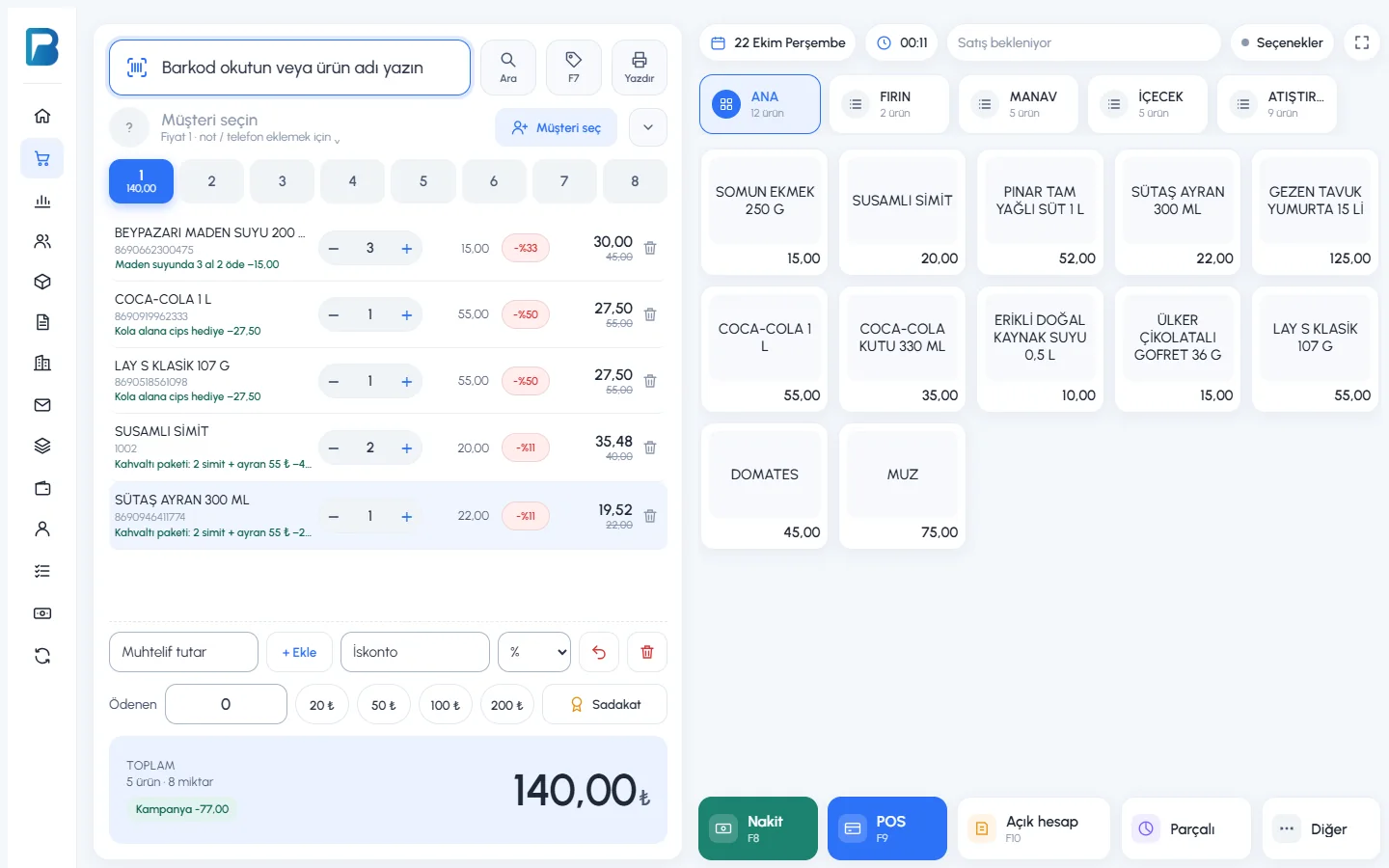 123
123Removing a promotion or choosing another
Press the Promotion button in the total (shortcut: F3). The promotions that match this receipt are listed. 1 If you press an applied promotion, it is removed from this receipt. 2 If you press a promotion that was not applied because its products are in another promotion, that promotion takes priority. 3 The choice applies only to this receipt; the next receipt starts again with the best promotion.
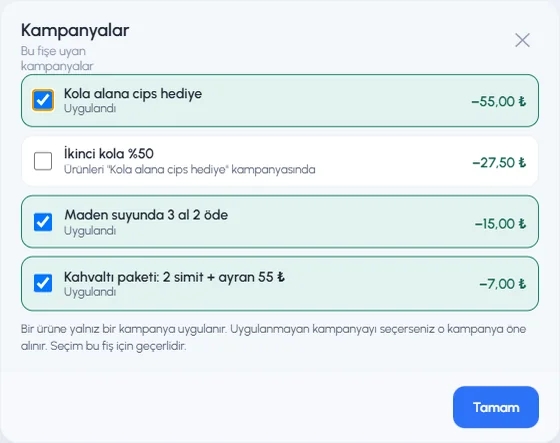 123
123In a promotion that gives a discount or a free item on another product when you buy one product, if the discounted product is not on the receipt, the reminder 2 Scan the free item (or Scan the discounted item) appears; remind the customer of their free item. If there is no discount yet, the button says 1 Promotions.
 12
12The desktop app downloads promotions from the central server and applies them at checkout even without internet. The promotion list is refreshed when the app opens and every few minutes.
Promotions at checkout
On a line that matches a promotion, the promotion name and discount are shown under the product name. In the total box, the 1 Promotion pill shows the total promotion discount on the receipt; if the free item is not on the receipt, 2 a reminder appears.
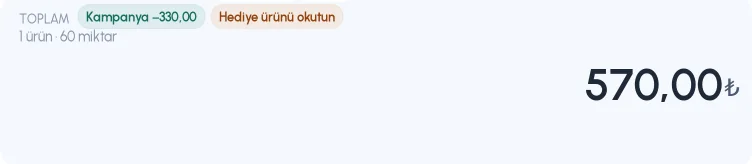 12
12Click the pill or press F10. 1 If a free item is missing, it is shown at the top. 2 If you click an applied promotion, it is removed from this receipt; 3 if you click a promotion that is not applied, it takes priority. While the window is open, the receipt and amounts update right away.
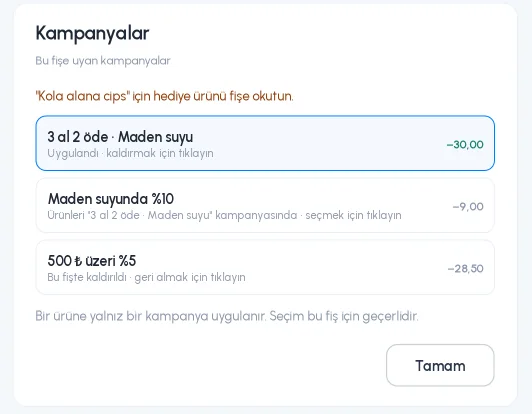 123
123On the receipt, a promotion discount is saved as a line discount, and a receipt total promotion as a receipt discount; the fiscal cash register, e-invoice and reports come out correctly as a result. On the printed receipt, the promotion name appears under the line.
In the mobile app, promotions are applied automatically on the sales screen; the cashier does not need to do anything for the promotion. Promotions are set up in the web panel, and the mobile app gets the list automatically.
Promotions at checkout
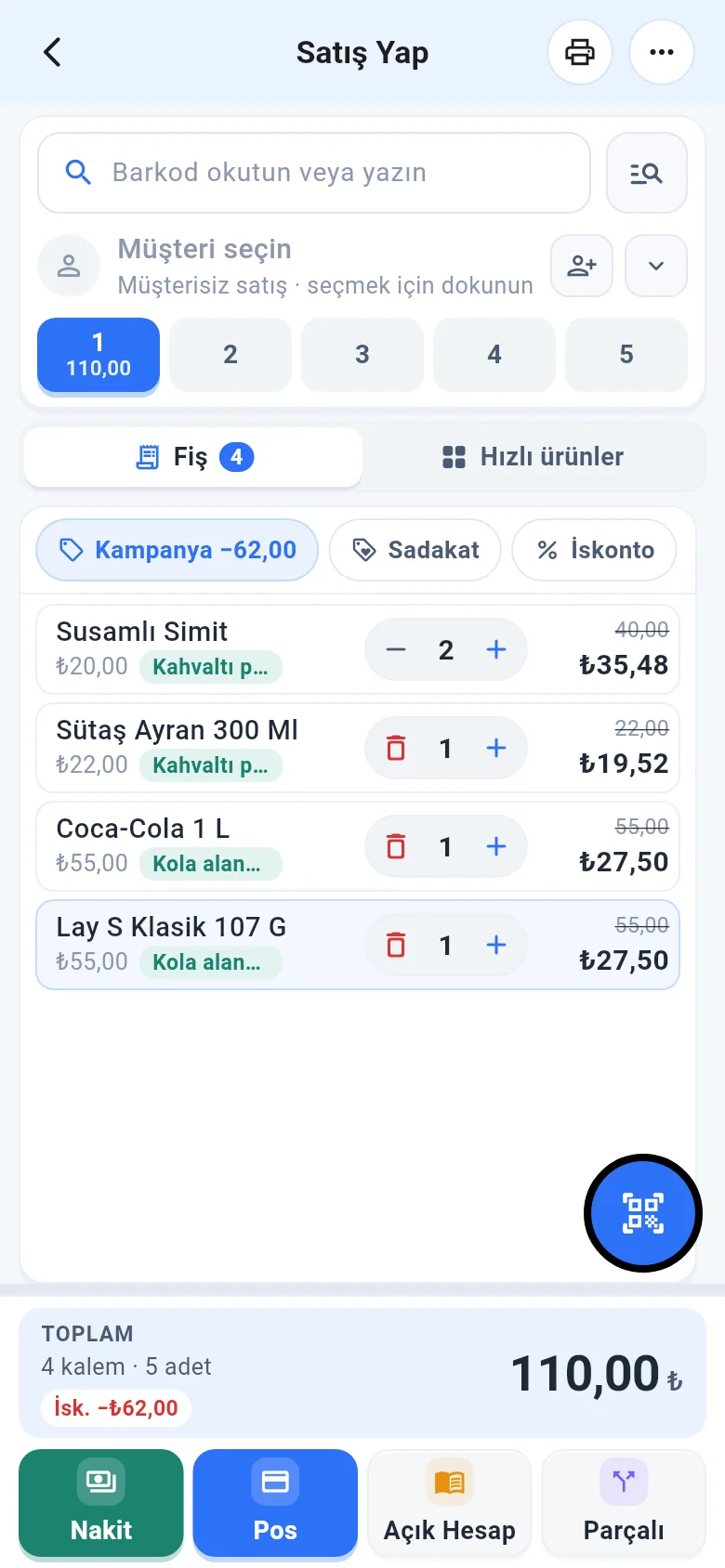
Scan products as usual or pick them from quick products. 1 Under a line that matches a promotion, a green pill shows the promotion name and discount. 2 The Promotion chip in the receipt tools row shows the total promotion discount on the receipt. 3 In the total box, the promotion discount is added to the Disc. line.
 123
123Removing a promotion or choosing another
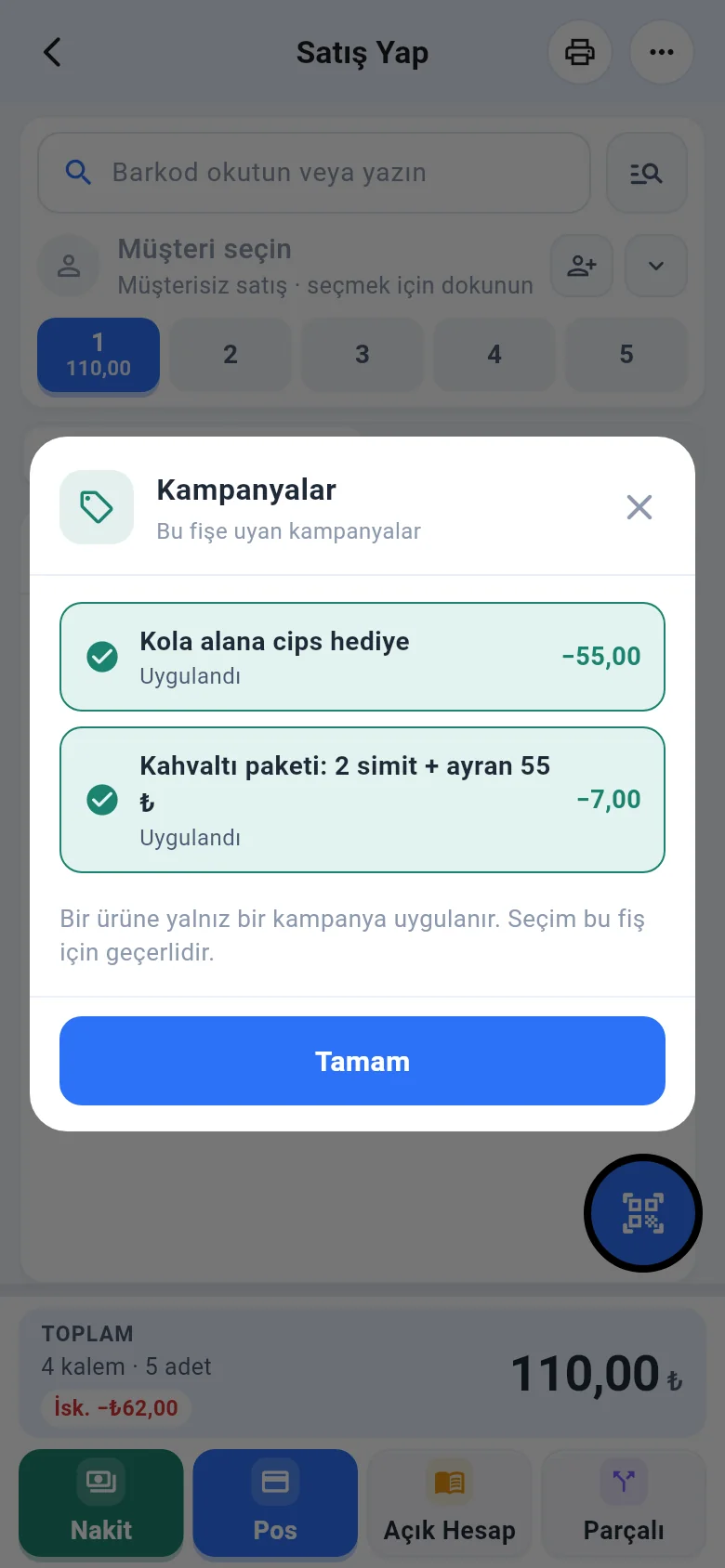
Tap the Promotion chip; the promotions that match this receipt are listed. 1 2 Applied promotions appear green and ticked; if you tap one, that promotion is removed from this receipt. If you tap a promotion that was not applied because its products are in another promotion, that promotion takes priority. 3 The choice applies only to this receipt; the next receipt starts again with the best promotion.
 123
123Free item reminder
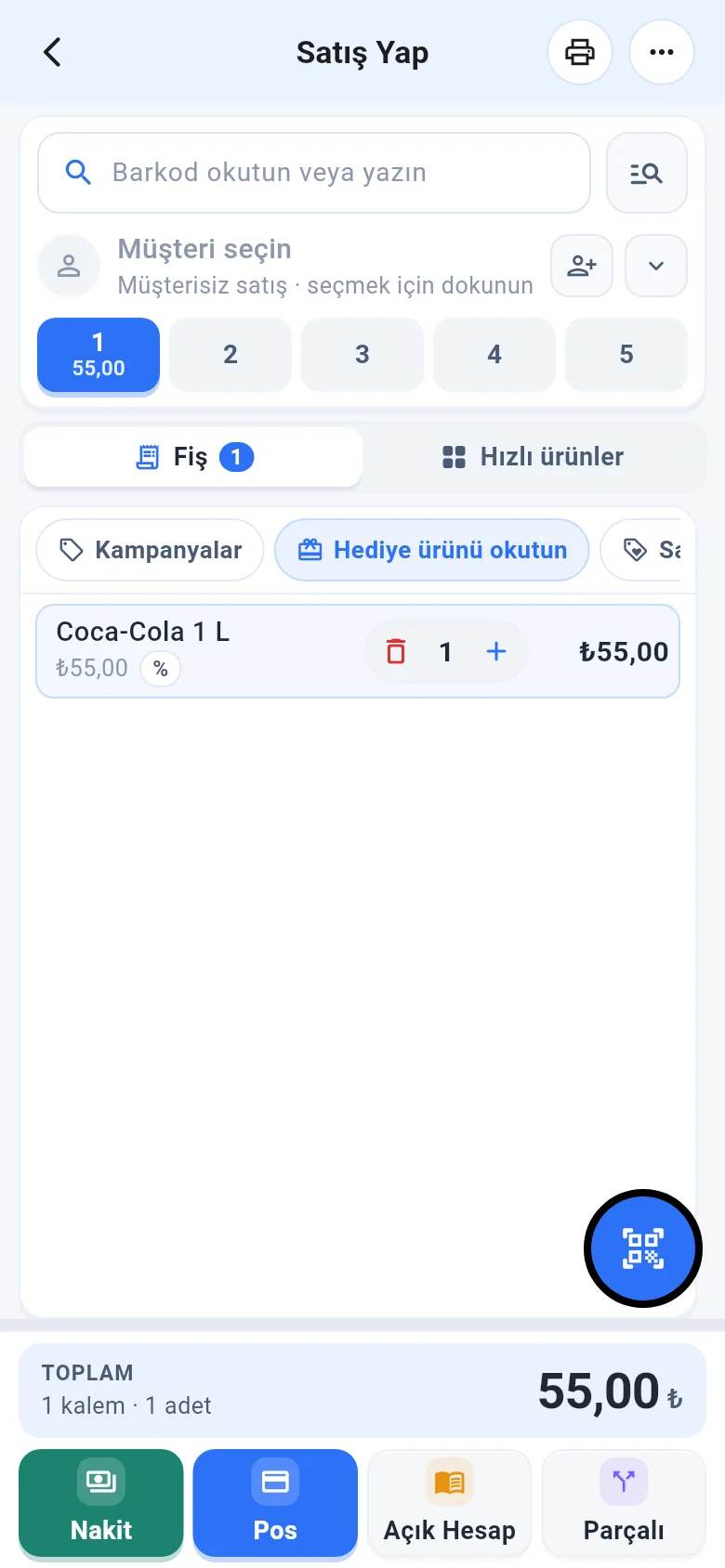
In a promotion that gives a free item or a discount on another product when you buy one product, if the free item is not on the receipt, the 2 Scan the free item (or Scan the discounted item) chip appears; remind the customer of their free item and add it to the receipt, and the discount is applied automatically. If there is no discount yet, the promotion chip says 1 Promotions.
 12
12Promotions in sale details
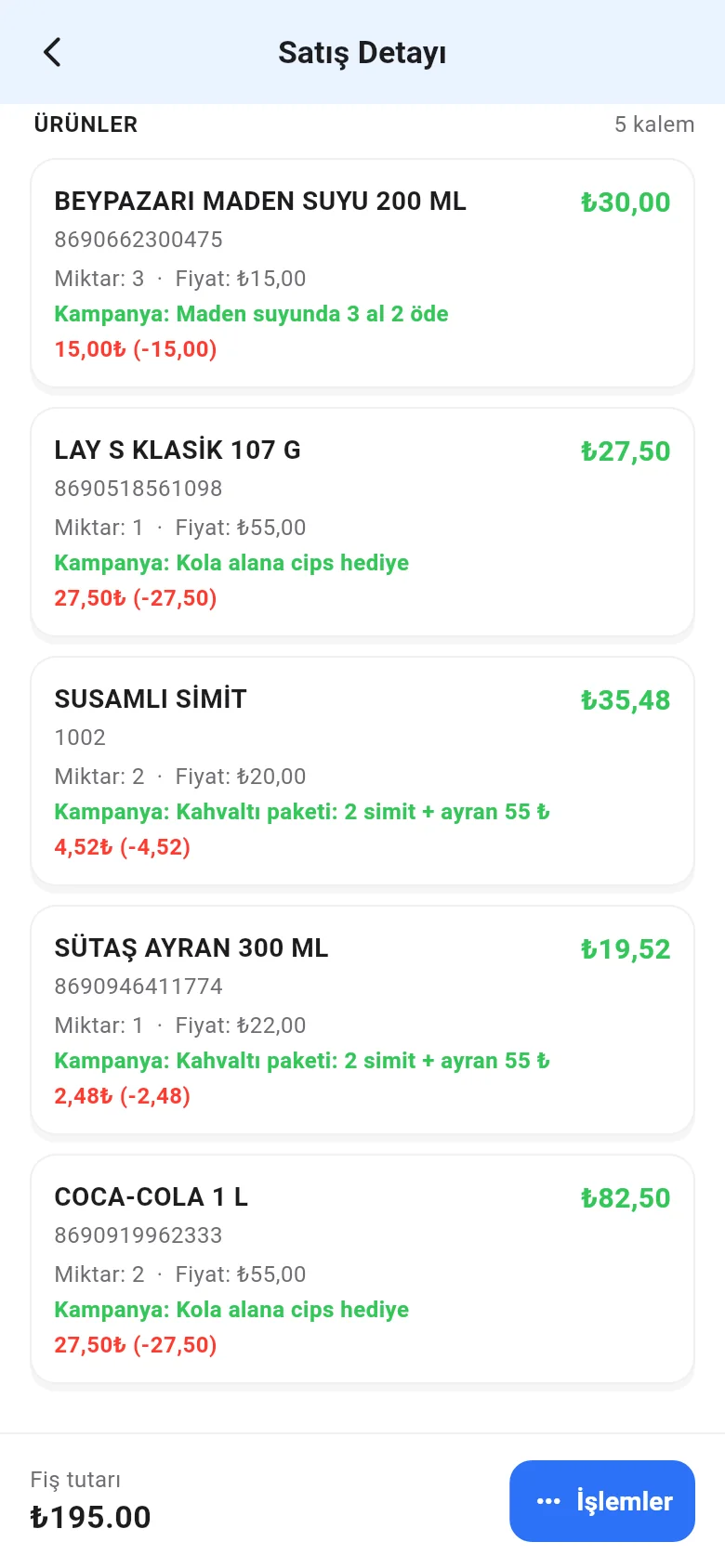
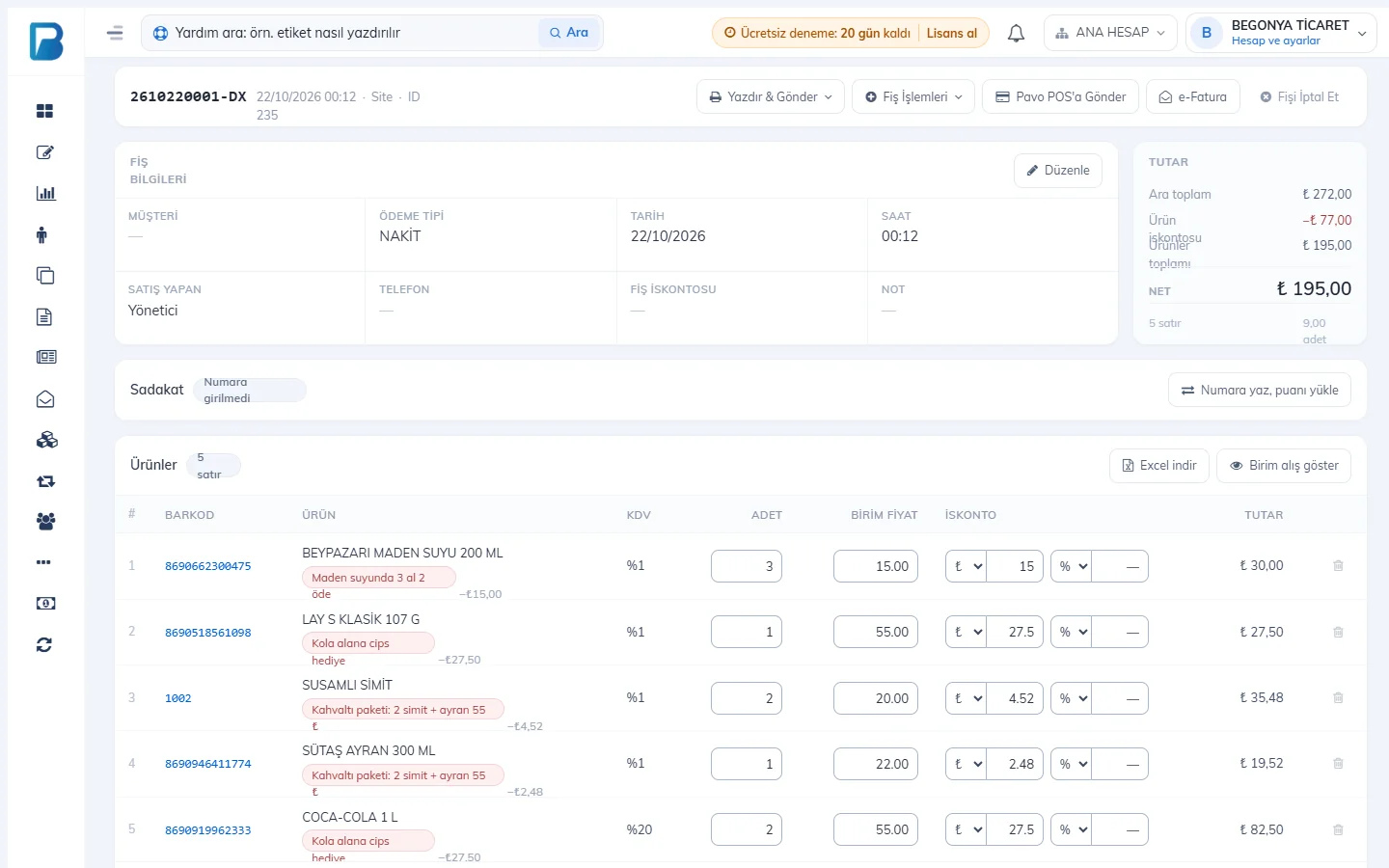
When you open a saved sale, 1 the promotion name is shown under the promotional product and 2 the discount amount just below it.
 12
12Returns and cancellations for sales with promotions
- Return from a saved sale (on the web, Receipt Actions › Create return in the sale details; on desktop and mobile, return mode on the saved receipt): the product you scan is returned at the price paid in that sale; the promotion discount and receipt discount are deducted from the refund. For example, if a customer bought 3 products for 30 ₺ with buy 3 pay 2 and returns one, they get 10 ₺ back.
- The promotion on the products left on the receipt is not taken back; the customer is not asked to pay the difference.
- On a new return receipt (return mode on the sales screen), promotions are not applied; the product is returned at the price you scan. When taking a return from a sale with a promotion, create the return from the sale itself.
- If you cancel the whole receipt, the promotion discount is also cancelled and removed from reports. If you cancel a single product on the receipt, that product's promotion is not included in reports.
Changes in sale details
In the sale details, under a line with a promotion, 1 the promotion name is shown, 2 you see the discount on each line, and 3 the receipt total promotion is shown separately in the amount box.
 123
123- If you change the quantity of a line with a promotion, the promotion discount stays the same per unit (if it is 15 ₺ for 3 units, it becomes 30 ₺ for 6).
- If you change the discount of a line with a promotion manually, the line leaves the promotion; the discount you entered applies.
- If you lower the receipt discount, the share of the receipt total promotion cannot exceed the new discount; if you set it to zero, the promotion record is removed.
When the promotion time ends
With promotions limited to certain hours or days, a promotion can start or end while a receipt is open. The sales screen checks the receipt every half minute and updates it if the promotion changes. If the promotion has changed at the moment the cashier presses payment, the sale is not saved and the screen shows Promotion changed, receipt total updated. Tell the customer the new amount and complete the sale again.
Staff permission
Staff with Cannot remove or change promotions on the sales screen ticked on the Staff page see promotions but cannot remove them or choose another promotion. Setting up promotions requires the Can create and edit promotions permission.