




Adding branches and switching between them
Open a new branch, switch between branches, apply product and price changes to branches and get a report for all branches.
If you have more than one store or a separate warehouse, you can open a branch for each. Each branch has its own products, stock and sales; from the main account you can switch to any branch, get their reports together and transfer products between branches.
New branch
Open the branches page
From the user menu, open Branch details / Add new branch and press 1 Add New Branch.
 1
1Enter the details
Enter the branch manager's first and last name, the business and Branch Name, phone and city, and the Email and Password for logging in to the branch account. Accept the terms and save.
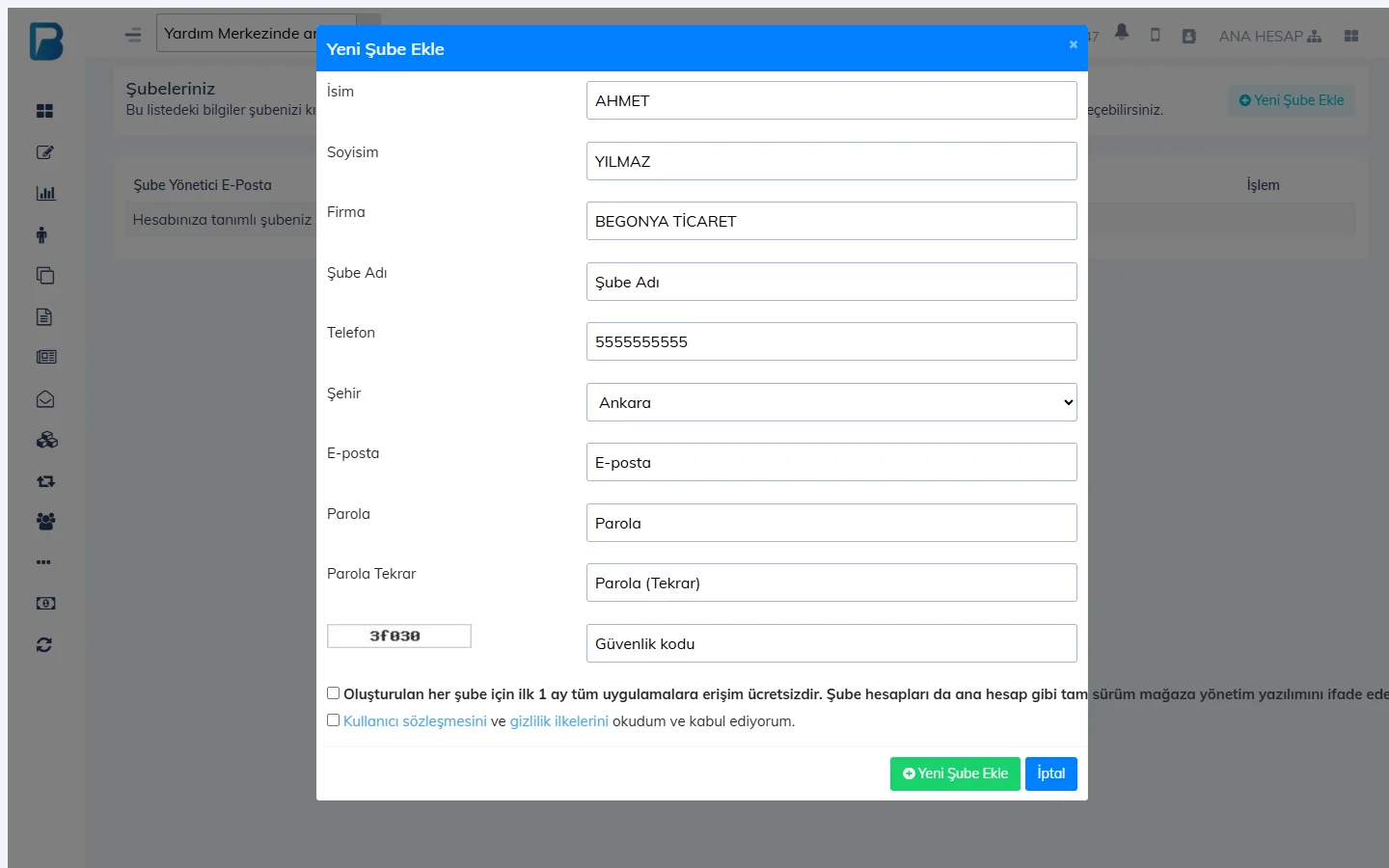
Each new branch is free for the first month; after that each branch is licensed separately. On accounts with branches, a %10 discount on the annual license of the main account and the branches is set up automatically; you will find the code ready on the Buy License page.
Switching between branches
Click MAIN ACCOUNT in the top bar and select the branch; the panel opens with that branch's account. Staff and desktop devices added to a branch work with that branch's data.
Branch shortcuts
- Use Apply changes to branches on the product card to save price and product details to the branches you select too; if the product doesn't exist at a branch, it is created.
- On a purchase invoice, send the new prices to branches with APPLY PRICE CHANGE TO BRANCHES.
- In reports, use BRANCH SELECTION › Select all to get the report for all branches together.
- Send stock between branches with Product transfer.
You can't add branches in the desktop app; do it in the web panel. To run a till at the branch, log in to the desktop app with that branch's email and password.
On the Menu › Branches page you see your branches, their license end dates and today's sales. Tap a branch to switch to it. You can't add branches in the mobile app.