Stock, product and other settings
Settings for selling when out of stock, automatic product creation, the order module, purchase price updates, till carry-over, service fees and email reports.
The settings that control how sales and stock behave are on the tabs of the My Profile page. The most used ones are below.
Basic settings
Language, country, phone country code, app currency, default VAT rate and app time zone are on the My Profile › Basic settings tab. Details: Language, country and region settings.
Stock & Product Settings
 1234
1234| Setting | Description |
|---|---|
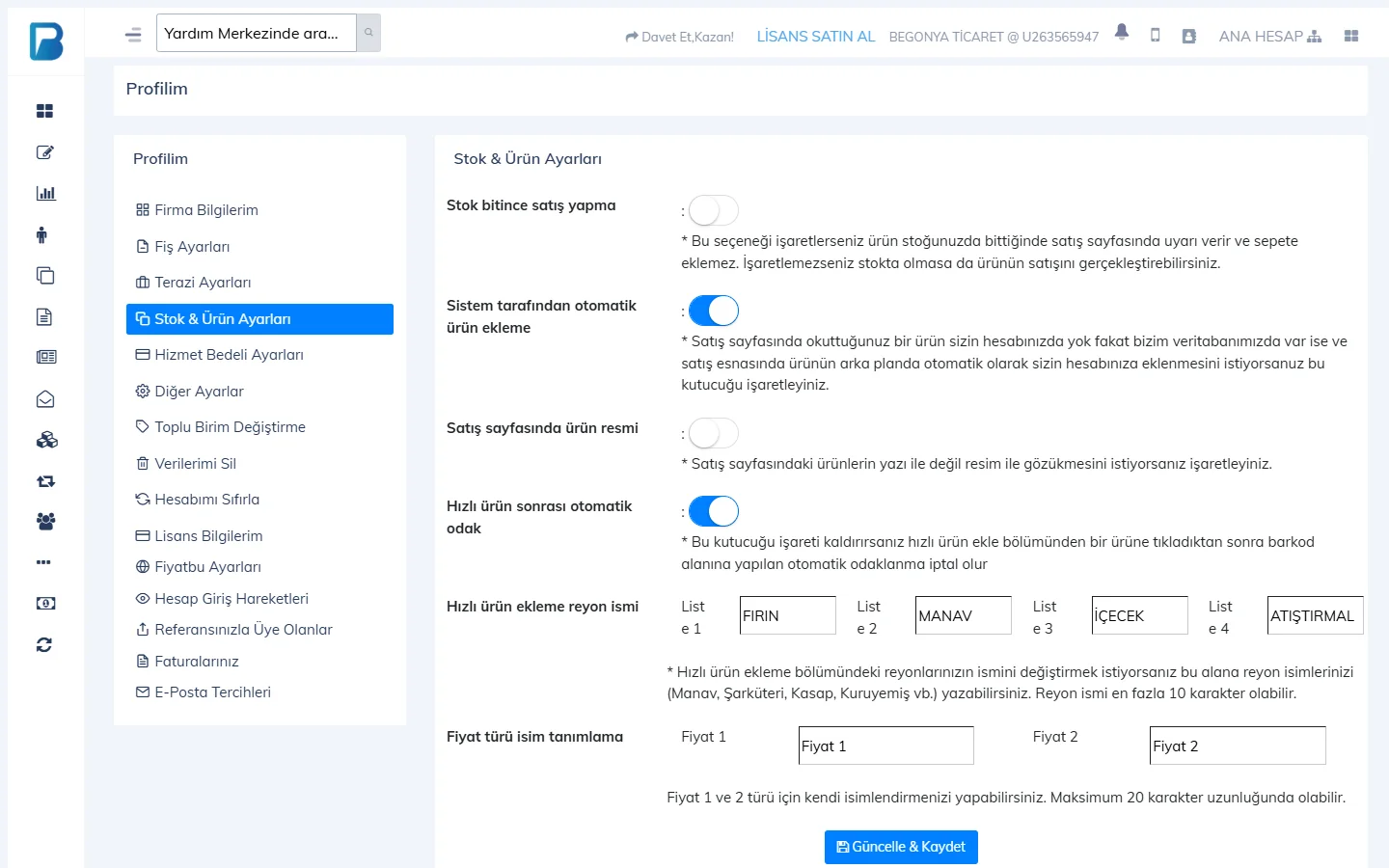
| Do not sell when out of stock | A product that is out of stock gives a warning on the sales screen and isn't added to the basket. |
| Automatic product creation | When you scan a barcode that isn't in your account but is in the BenimPOS product database, the product is added automatically. If a barcode you scan comes up with a different name, turn this setting off. |
| Product images on sales page | Quick products are shown with images instead of text. |
| Auto-focus after quick item | After you click a quick product, the cursor goes back to the barcode box. |
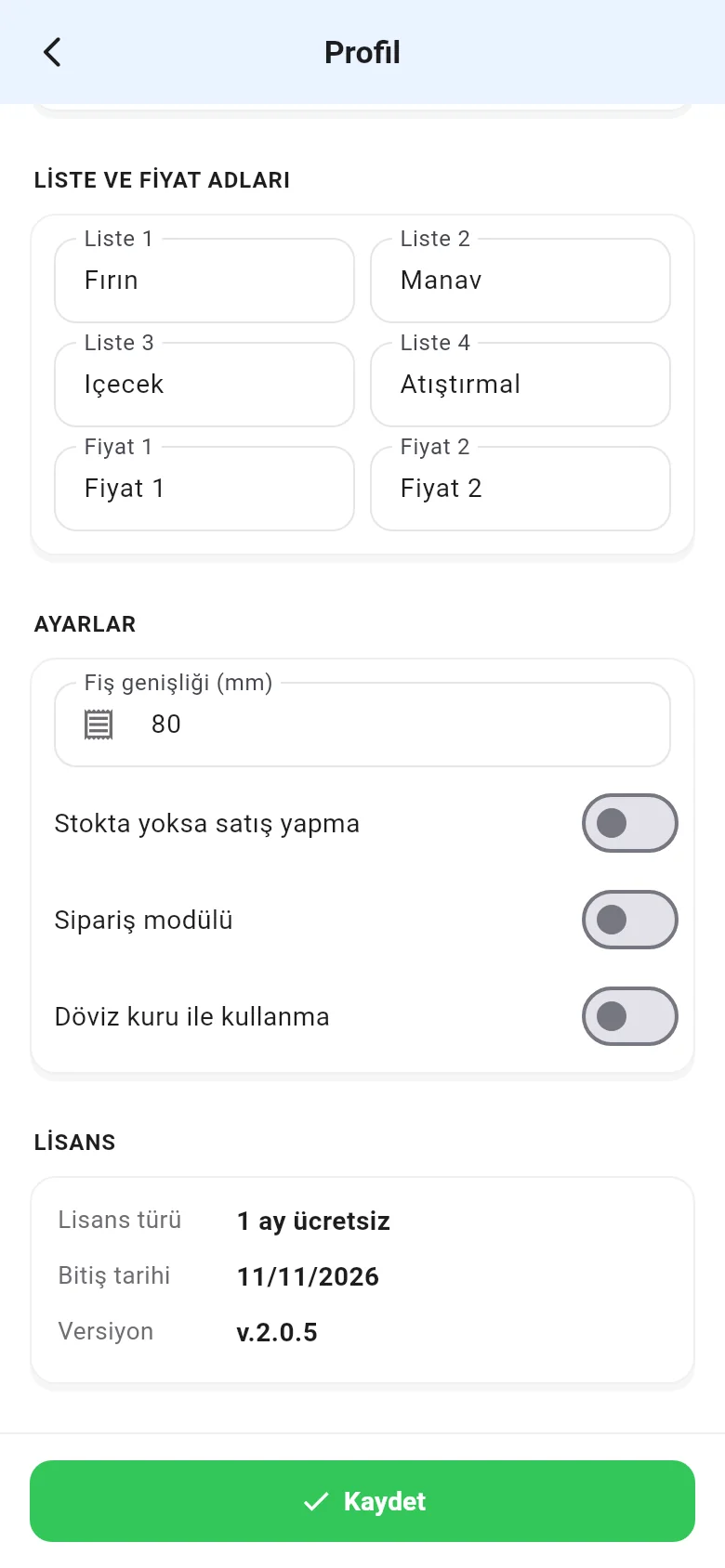
| Quick item department names | Names of Lists 1–4 (up to 10 characters). |
| Price level names | Names of Price 1 / Price 2. |
Other Settings
| Setting | Description |
|---|---|
| Order module | Save sales as orders and turn them into sales later. Orders |
| Price change notifications / Automatic price change | Get a notification, or have the price updated automatically, when the Turkey-wide price of your products changes. |
| Update purchase price from last invoice | When on, the product's purchase price becomes the price on the last invoice; when off, an average is used. |
| Carry over register opening from previous day | In the daily report, the till opening amount is carried over from the previous day's closing; when off, it is 0. |
| Live support window | The support window at the bottom right of the pages, where you can message us. |
| Use exchange rates | Prices in foreign currency are converted at the exchange rate. Exchange rates |
| Password required to switch staff | Whether a password is asked when switching staff. |
| Dark Theme, Virtual Keyboard, Use Receipt Design Template | Preferences for appearance, the on-screen keyboard and the receipt template. |
Service Fee Settings
To add a service fee or card commission to sales, enter the Service Fee Rate and the Service Fee Type (percentage or a fixed amount per sale). It is added to the receipt with the add-fee switch on the sales screen.
Email Preferences
Turn the weekly and monthly sales performance reports, and the daily emails for out-of-stock products, products that fall to critical stock and products nearing their expiry date, on or off here.
Account Details and Settings
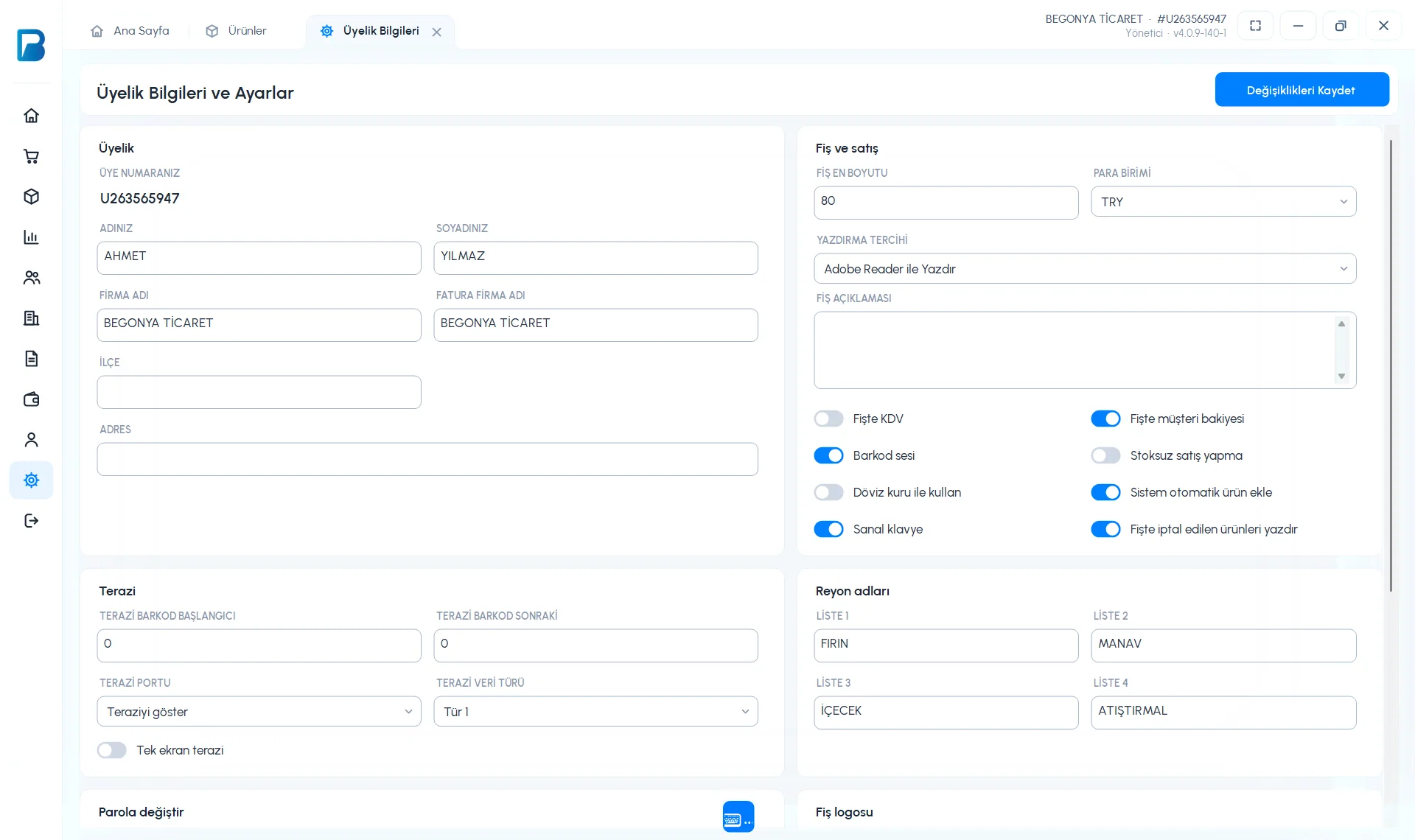
Open Settings › Profile settings. After making changes, press 1 Save Changes.
 123
123- 2 RECEIPT WIDTH (mm), CURRENCY, PRINT PREFERENCE (Print Directly / Print with Adobe Reader) and RECEIPT NOTE.
- 3 VAT on receipt, Customer balance on receipt, Barcode sound, Do not sell without stock (stops out-of-stock products being sold), Use with exchange rate, Add products automatically (adds a barcode that isn't found from the BenimPOS product database), Virtual keyboard, Print cancelled products on receipt.
 1234
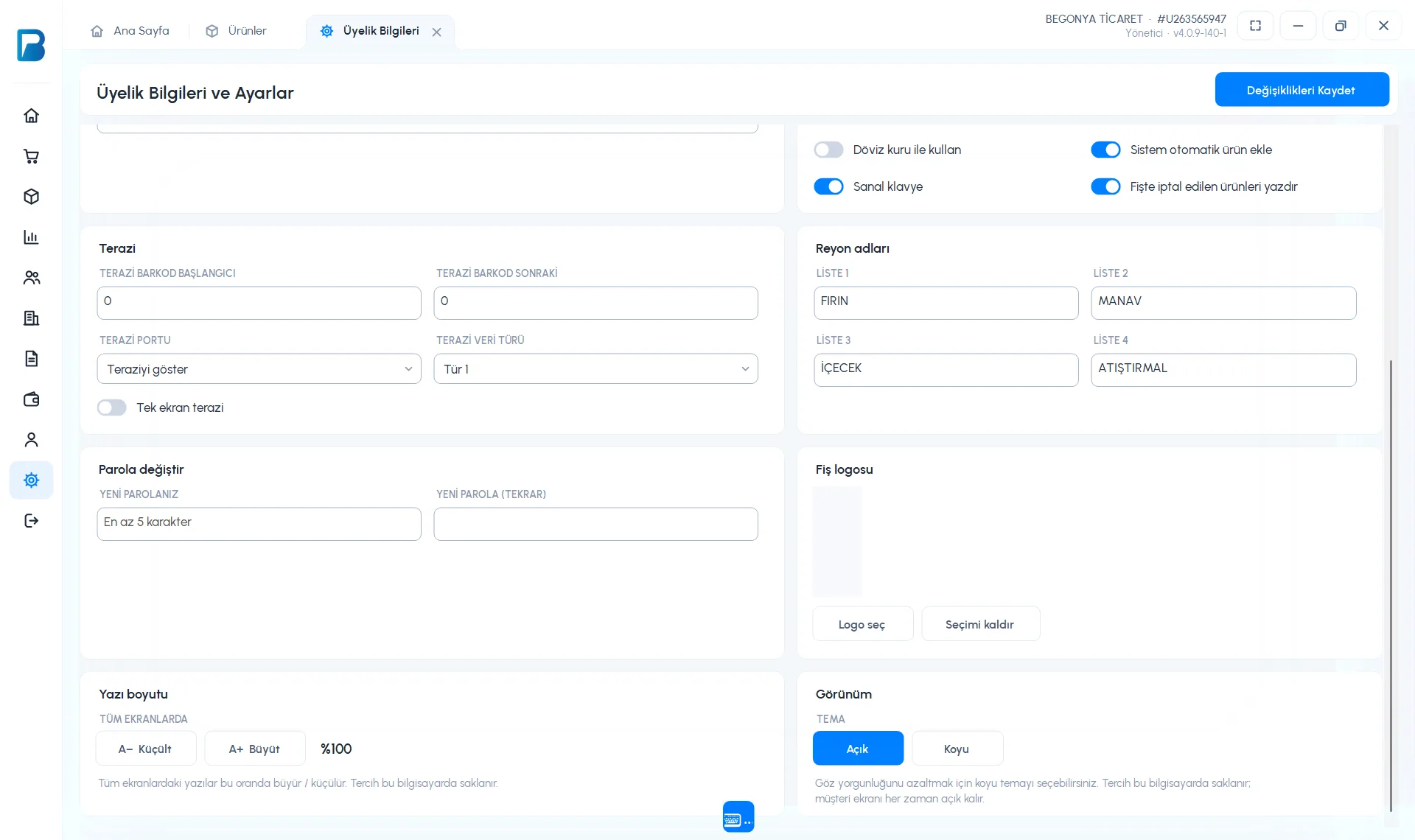
1234- 1 Scale: scale barcode digits, scale port and data type.
- 2 Shelf names: names of the quick list tabs on the sales screen (LIST 1–4).
- 3 Change password and 4 Receipt logo.
- Text size (larger / smaller on all screens) and Display (Light / Dark theme) are saved on this computer.
- Language: the app language (shared with the web panel) and Enable all-letter support. Details: Language, country and region settings.
The service fee rate is set on the web; on desktop, it is added to the receipt with the Devices and options › Add Service Fee switch on the sales screen.
Menu › Profile › SETTINGS: Receipt width (mm), Don't sell when out of stock, Order module, Use exchange rates; LIST AND PRICE NAMES: List 1–4, Price 1–2; Language. Other settings are in the web panel.