Adding staff and setting permissions
Create a staff code and password for your cashiers and limit their sales, discount and report permissions.
By opening separate staff accounts for your cashiers, you can see who made each sale and use permissions to limit what each staff member can see and do. Permissions are saved to your account and apply the same way in the web and desktop apps.
Adding a new staff member
Open the Staff page
Click Staff in the left menu and press 1 Add New Staff.
Enter the login details
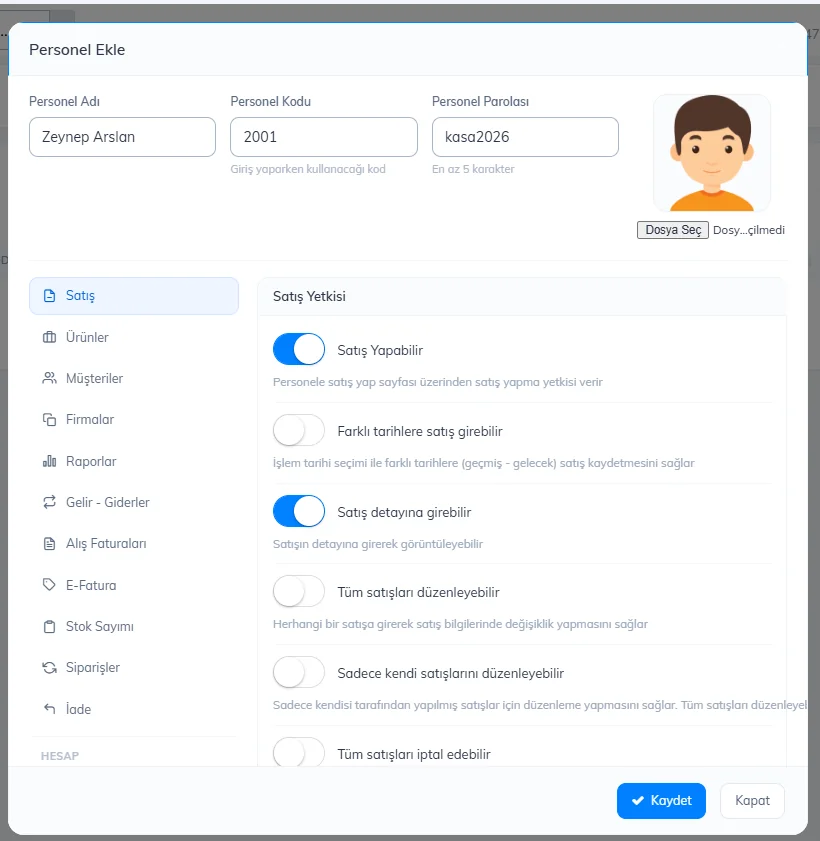
Set the 1 Staff name, 2 the Staff code they will use to log in and 3 a Password of at least 5 characters.
 1234
1234Choose permissions
4 On the tabs on the left (Sale, Products, Customers, Suppliers, Reports, Income-Expenses, Purchase Invoices, E-Invoice, Stock Count, Orders, Returns), turn on what the staff member can do. For example, for a cashier:
- Can make sales and Can open sale details: on
- Can edit / cancel all sales: off (if needed, turn on only their own sales)
- Can edit product prices during a sale: off
- Discount: if on, limit the maximum discount they can give (% or ₺)
Save
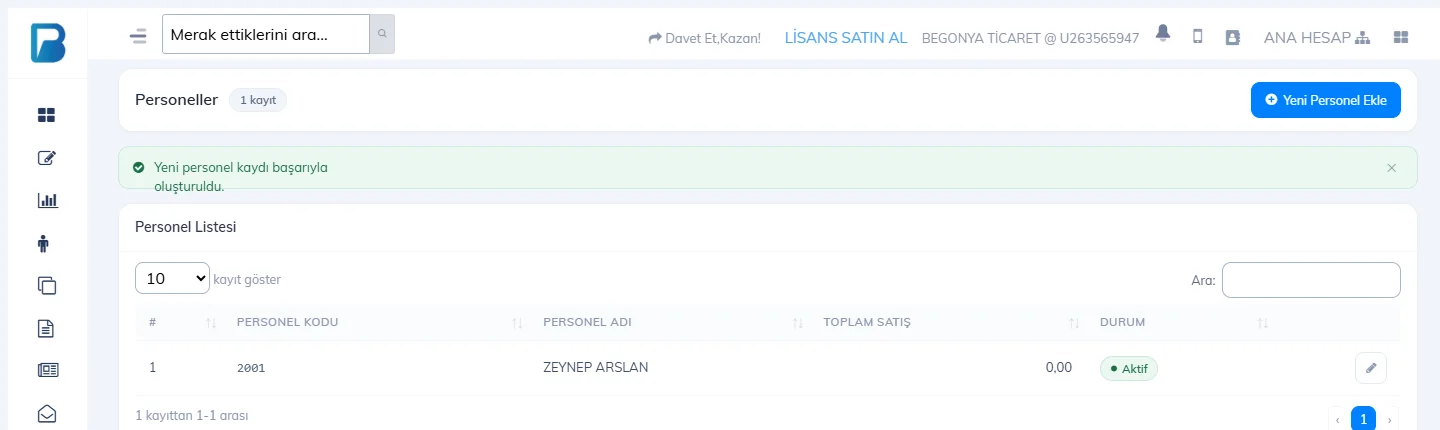
Press Save. The staff member 2 appears in the list; you can change their details and permissions later with the pencil icon.
 12
12
The admin permission on the Account Permissions tab gives the staff member access to your whole account. Only give it to people you trust. Instead of deleting a staff member who has left, we recommend making them inactive; their past sales keep showing under their name in reports.
Adding staff
Open the Staff page
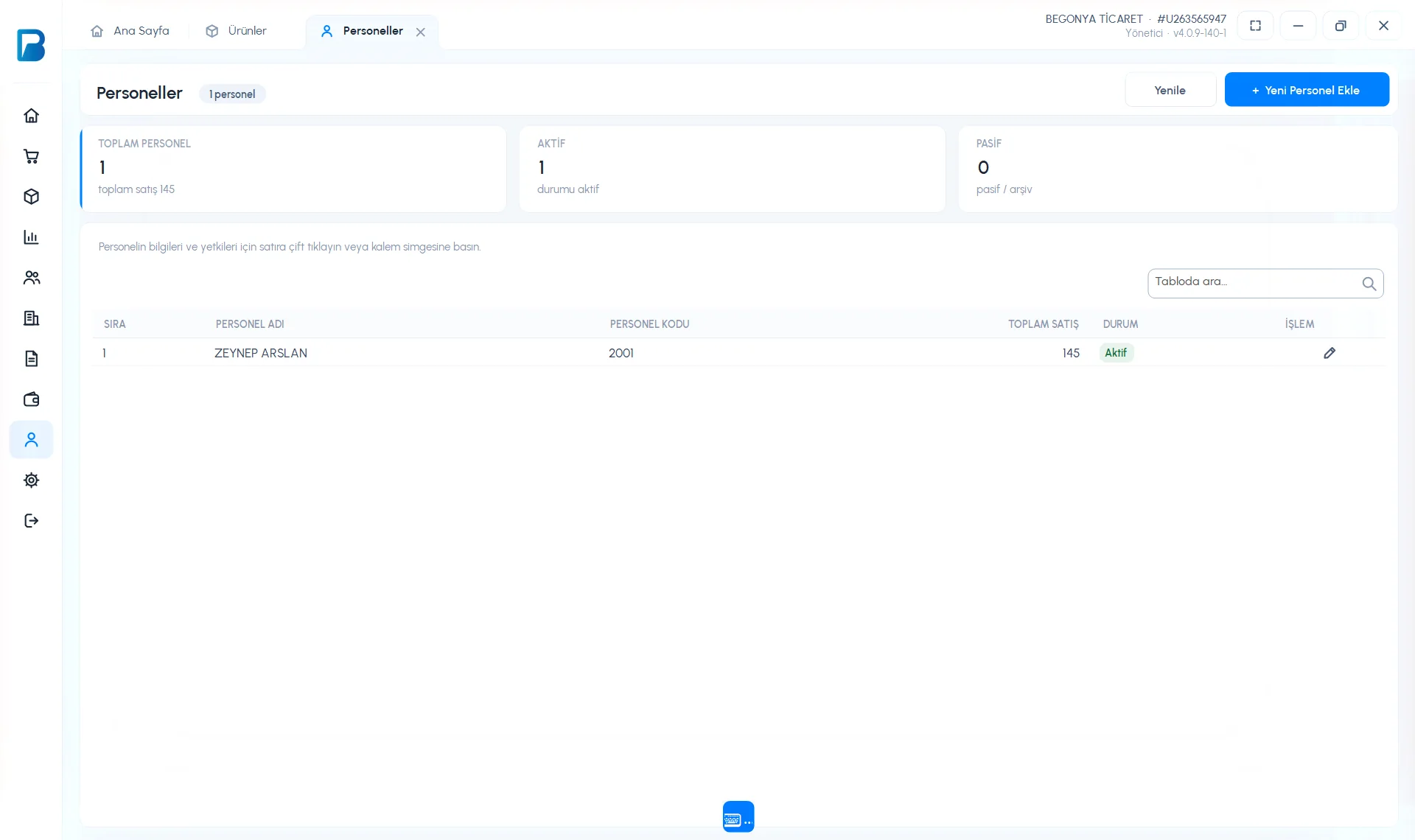
Click Staff in the left menu and press 1 + Add New Staff.
 1
1Enter the account details
1 Enter the STAFF NAME, STAFF CODE (for logging in at the till) and PASSWORD (at least 5 characters).
Choose permissions
2 On each tab (Sale, Products, Customers, Suppliers, Reports, Income - Expense, Purchase Invoices, Returns, Account Permissions, Personal Details), give permissions with the 3 switches. Use Select all to turn on everything on a tab and Clear to turn it off.
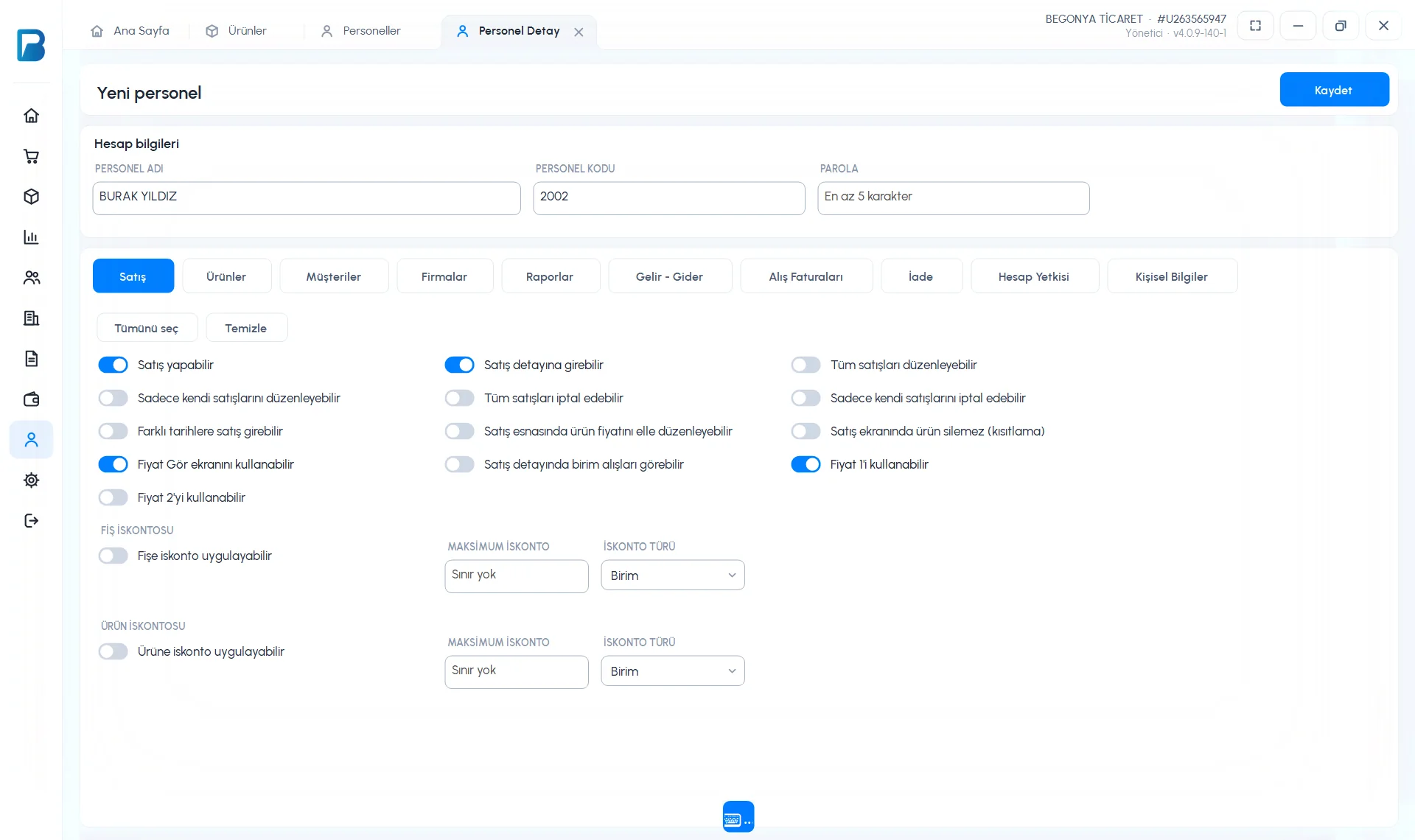 123
123Save
Press Save at the top right.
Editing permissions
Double-click the staff member in the list. 1 Change the permissions on the tabs and press 2 Save. Instead of deleting a staff member who has left, make them inactive with 3 Archive Staff; their past sales are kept.
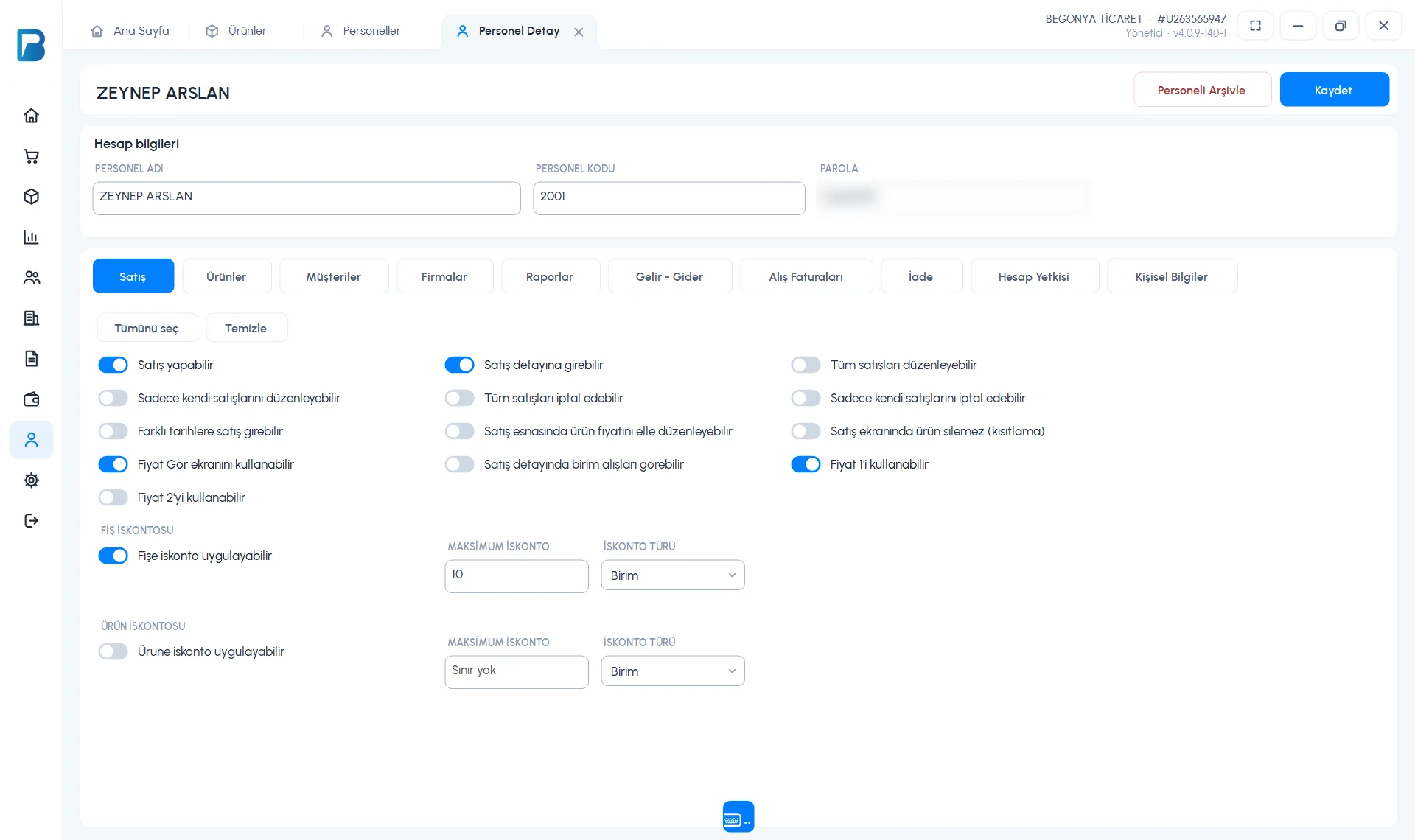 123
123- Sale: making sales, sale details, editing / cancelling (all sales or only their own), selling on a different date, changing the price manually, View Price, Price 1 / Price 2; Receipt / Product discount and MAXIMUM DISCOUNT.
- Reports: separate viewing permissions for the Daily, Date Range, Product-based and Group-based reports, own sales only, seeing earnings / profit, exporting and printing.
- Account Permissions: Admin permission (all permissions) and Deactivate.
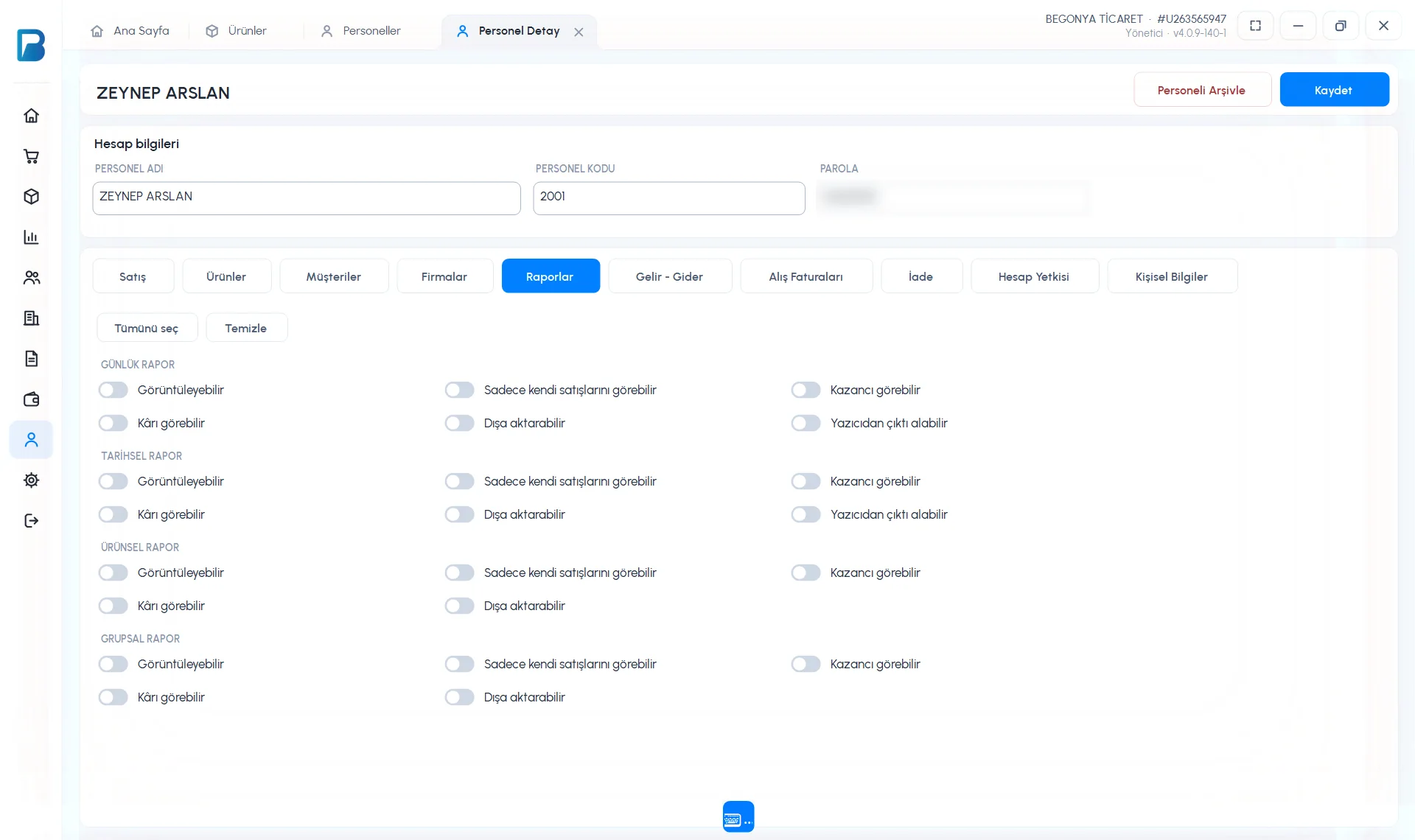
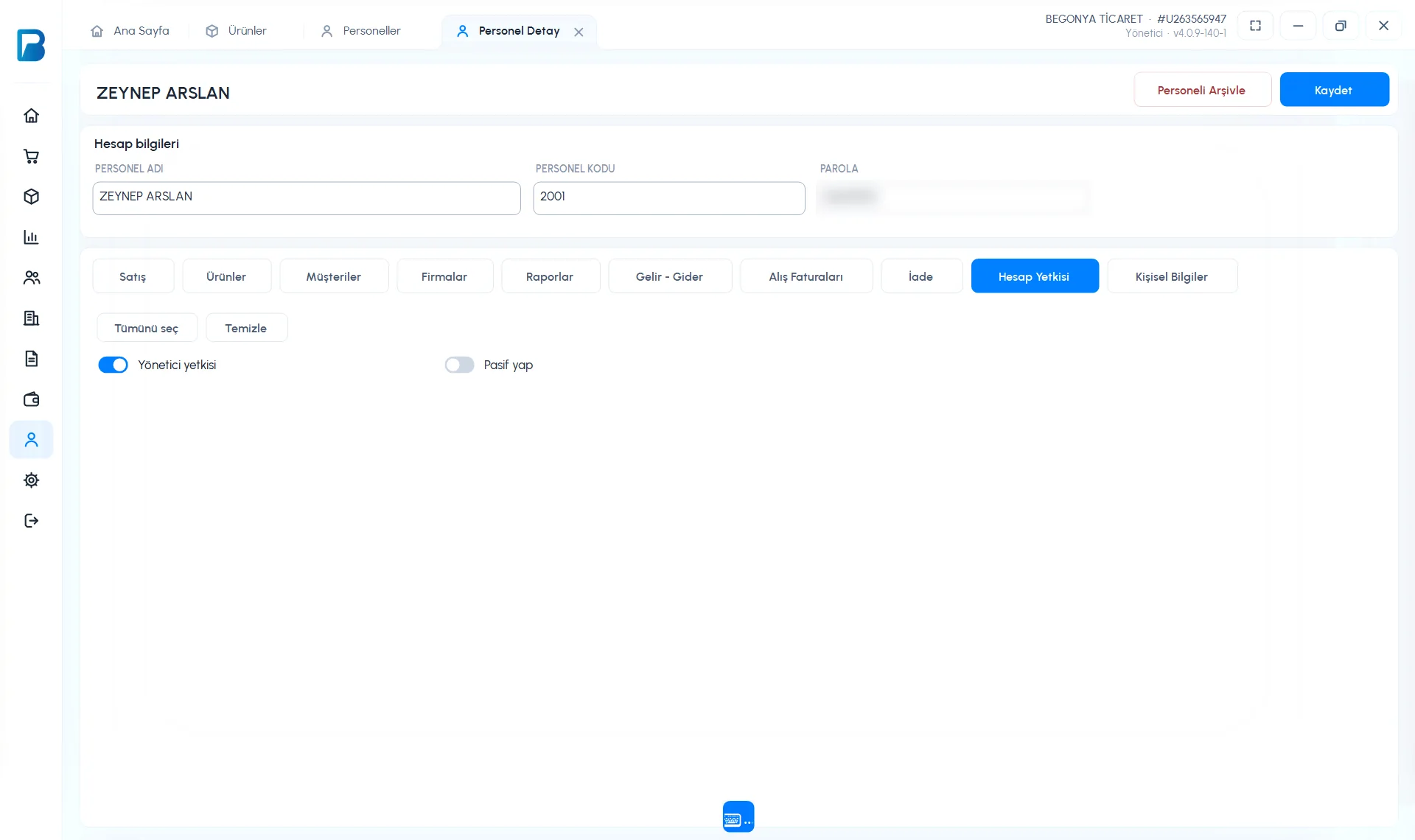
Adding staff and editing permissions can only be done when logged in as the account owner (admin). In the free limited version, Staff is a PRO feature. For staff login and switching staff at the till, see the Staff login article.
Adding staff on mobile
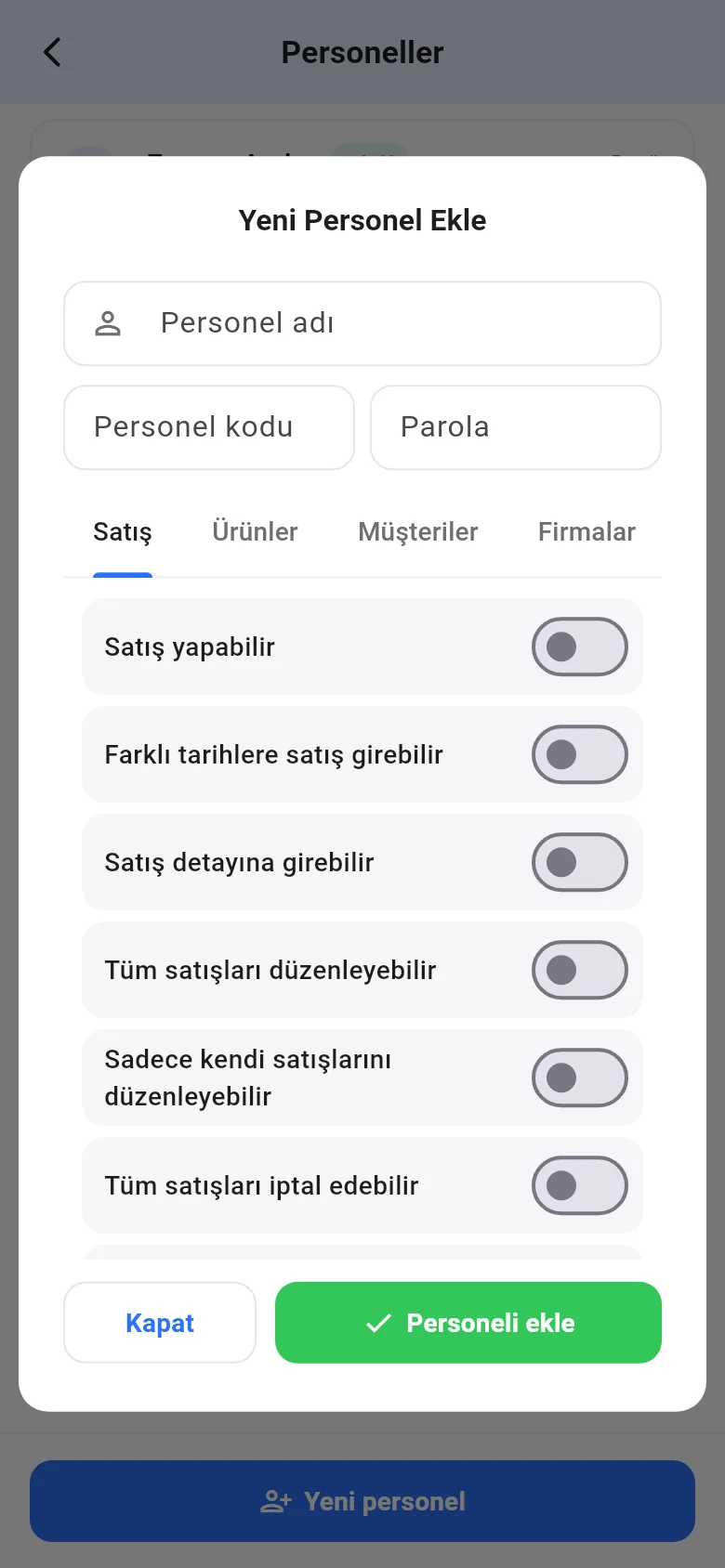
In Menu › Staff, tap 1 New staff; enter the Staff name, Staff code and Password, turn on permissions on the tabs and tap Add staff.
 1
1