




Loyalty members, actions and manual points
The member list and member card, points history, adding points and stamps manually, moving points entered on the wrong number, the period summary and numbers to check.
You keep track of the customers in your loyalty program, their points history and manual entries on the Members and Actions tabs. Points entered on the wrong number can be moved to the correct number from the sale details.
Members
Open Customers › Loyalty Program › Members tab. 1 Search by name, number or card number; choose the sort order from the list next to it (latest visits, highest balance, top earners, new members). 2 The list shows the number, card no., points, stamps, number of purchases and last visit date. 3 A customer whose stamp card is full shows reward ready; 4 points of a customer who hasn't verified their number are shown with "+" as pending.
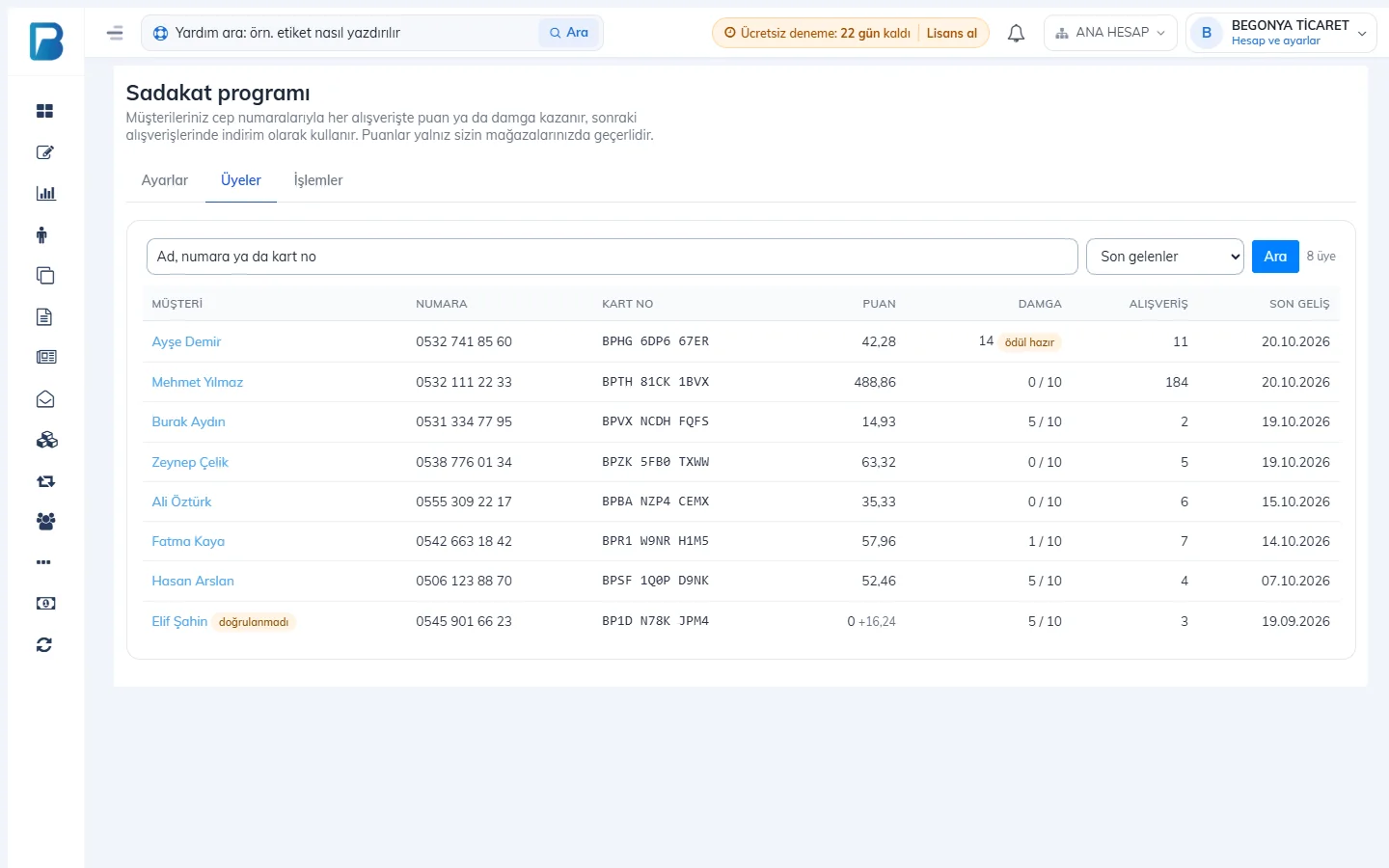 1234
1234Member card
Click the customer's name in the list. You see 1 the customer's name, number and verification status, 2 available points, 3 stamps, number and total of purchases, total points earned and used, and first and last visit dates.
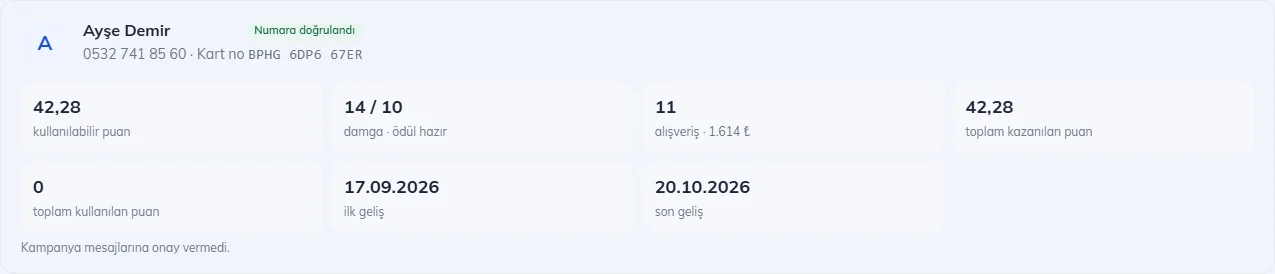 123
123In the Activity Log list below, you see 2 the points and stamps earned on each purchase, redemptions, cancellations and 3 gifts such as the welcome bonus, together with the sale number. Clicking the sale number opens the sale details.
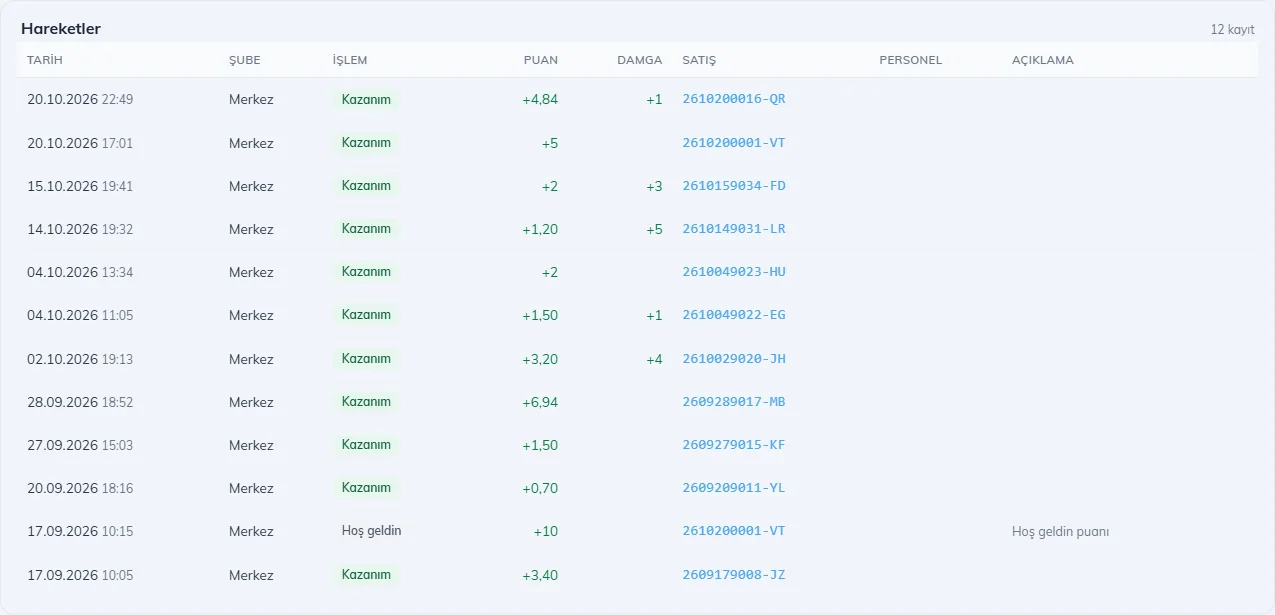 123
123Adding / deducting points and stamps manually
To add points for a sale where the number was not entered at the till, or to deduct points added by mistake, use the Manual points and stamps entry section on the member card.
Choose Add or Deduct
1 Choose Add or Deduct.
Enter points and stamps
2 Enter the points and/or stamps to add or deduct.
Write a note and save
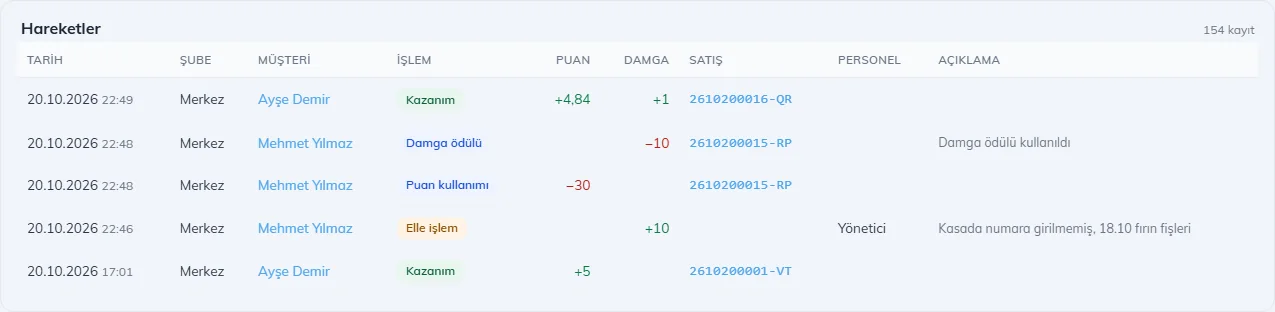
3 A note is required (e.g. "Number not entered at till, 18.10 bakery receipts"). 4 Press Save. The entry is recorded in the history with its note and your name.
 1234
1234For a staff member to make manual entries, the Can add and deduct points manually permission must be on in their staff card. You set the staff daily limit in Settings › Abuse protection; you get a notification for every entry.
Moving points entered on the wrong number
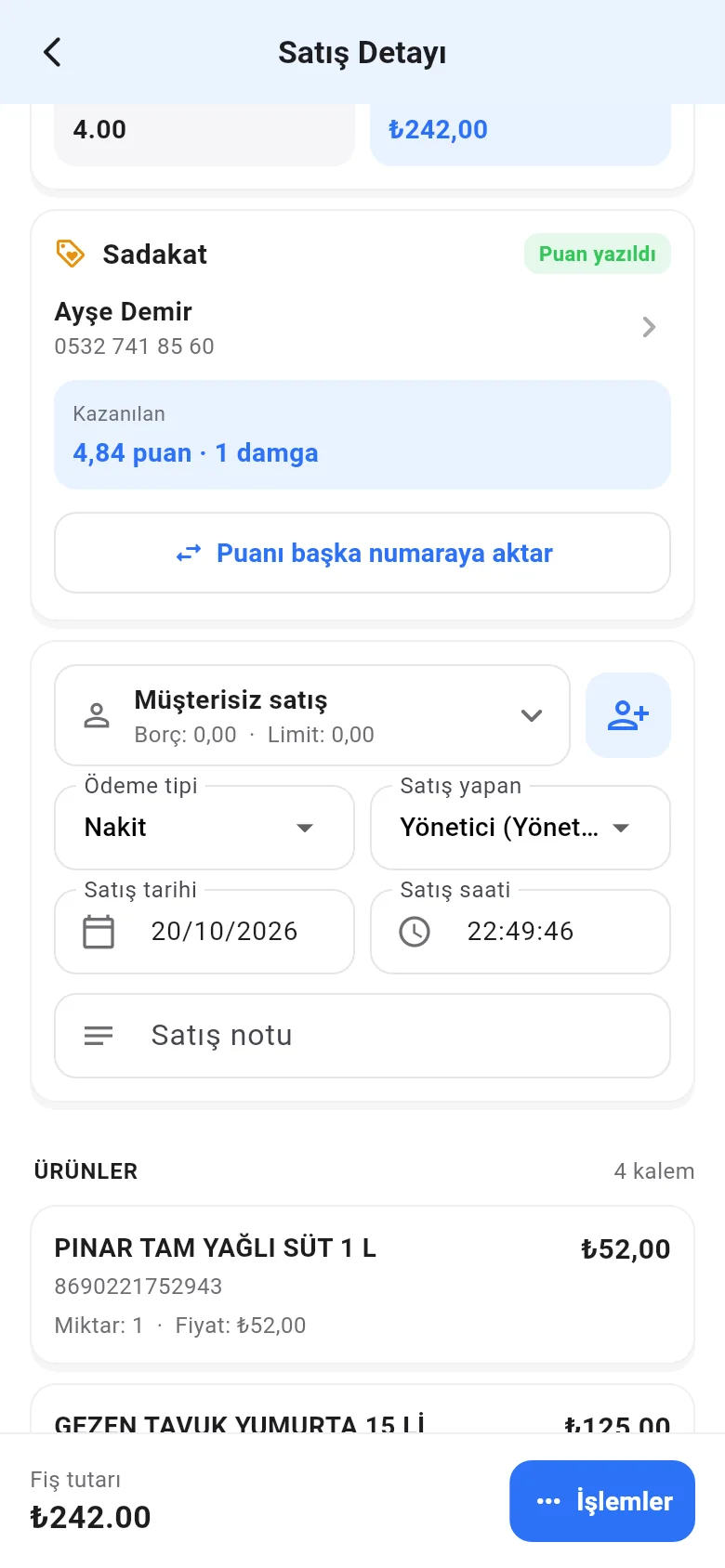
The 1 Loyalty card on the sale details page shows the sale's points and customer. Press 2 Transfer points to another number.
 12
12Enter 1 the correct number and 2 a note, then press 3 Transfer. The points from this sale are deducted from the old number and added to the new one; points redeemed in this sale stay on the old number. If no number was entered for the sale at all, you can add the points later from the same place with Enter number, add points.
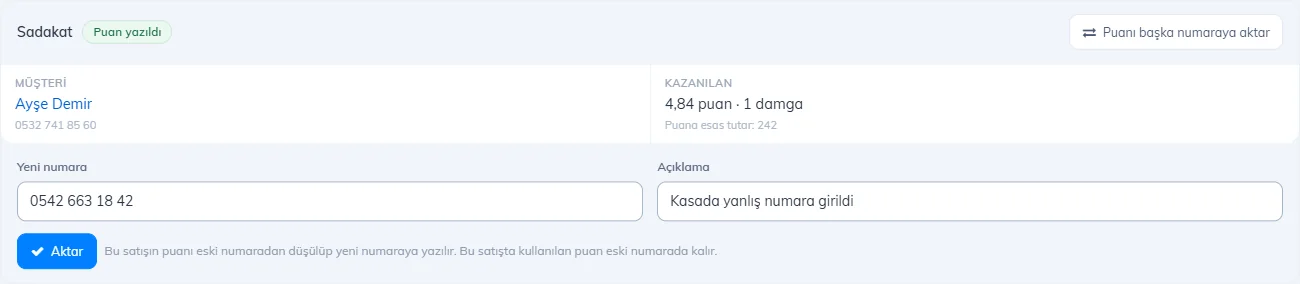 123
123Actions
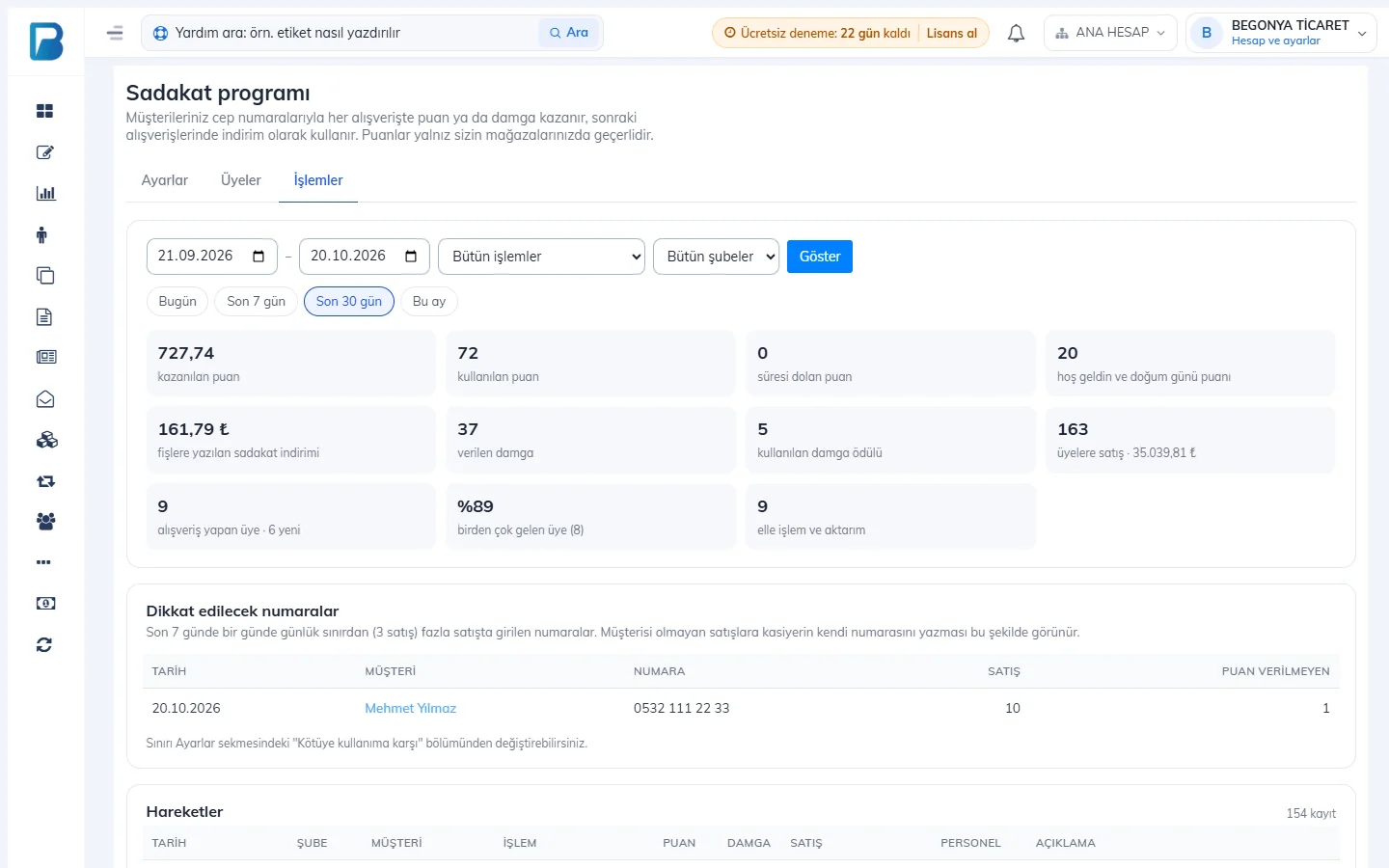
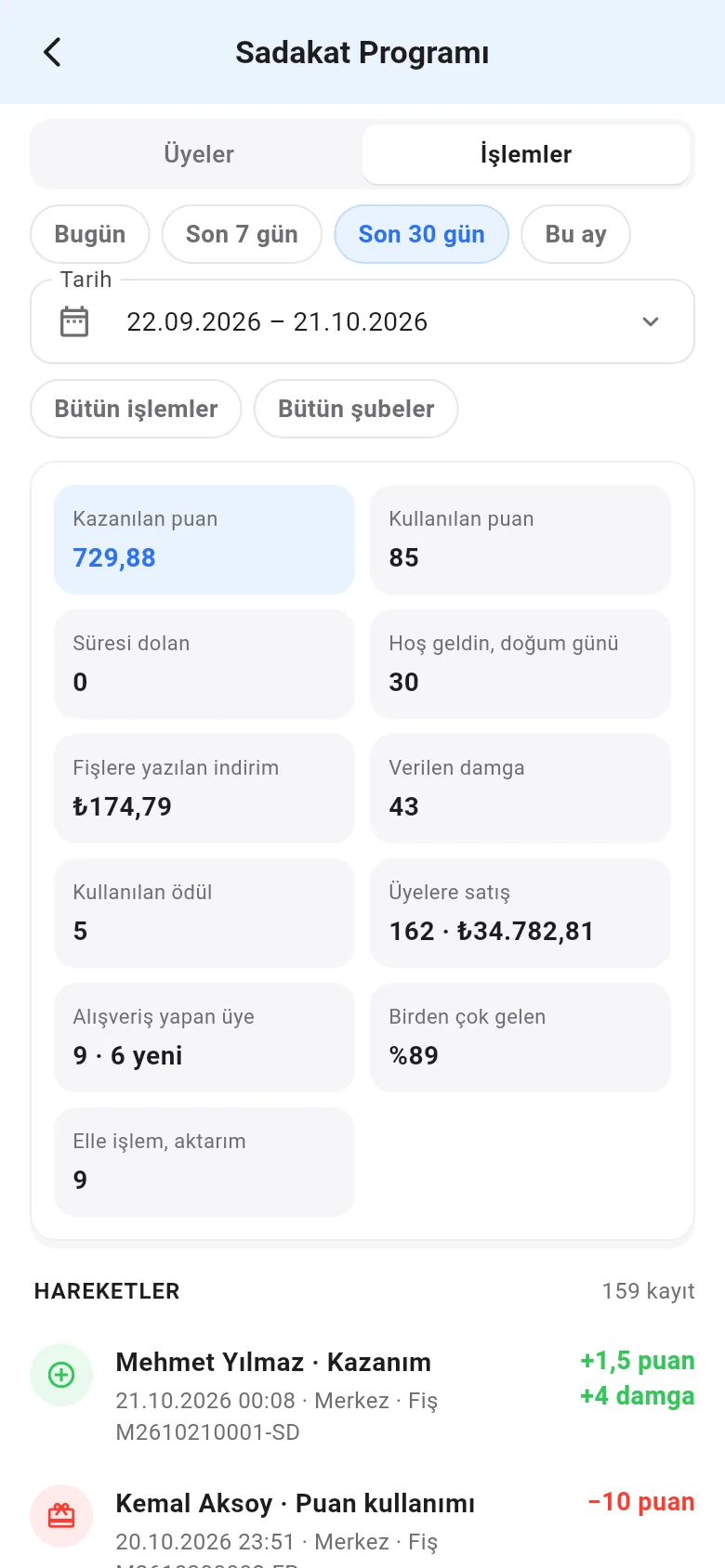
On the Actions tab, select 1 the date range, action type (earned, points redeemed, stamp reward, manual entry, transfer, expired…) and branch, then press Show. Below it you see the summary for the selected period: points earned and redeemed, expired points, gift points, loyalty discount applied on receipts, stamps and rewards given, sales to members, and new and returning members.
 1
1The Numbers to check section shows numbers that were entered on more sales in one day than the daily limit during the last 7 days. 1 A cashier entering their own number on sales without a customer shows up here.
 1
1At the bottom, the 1 history of all customers is listed by date.
 1
1Loyalty Program on mobile
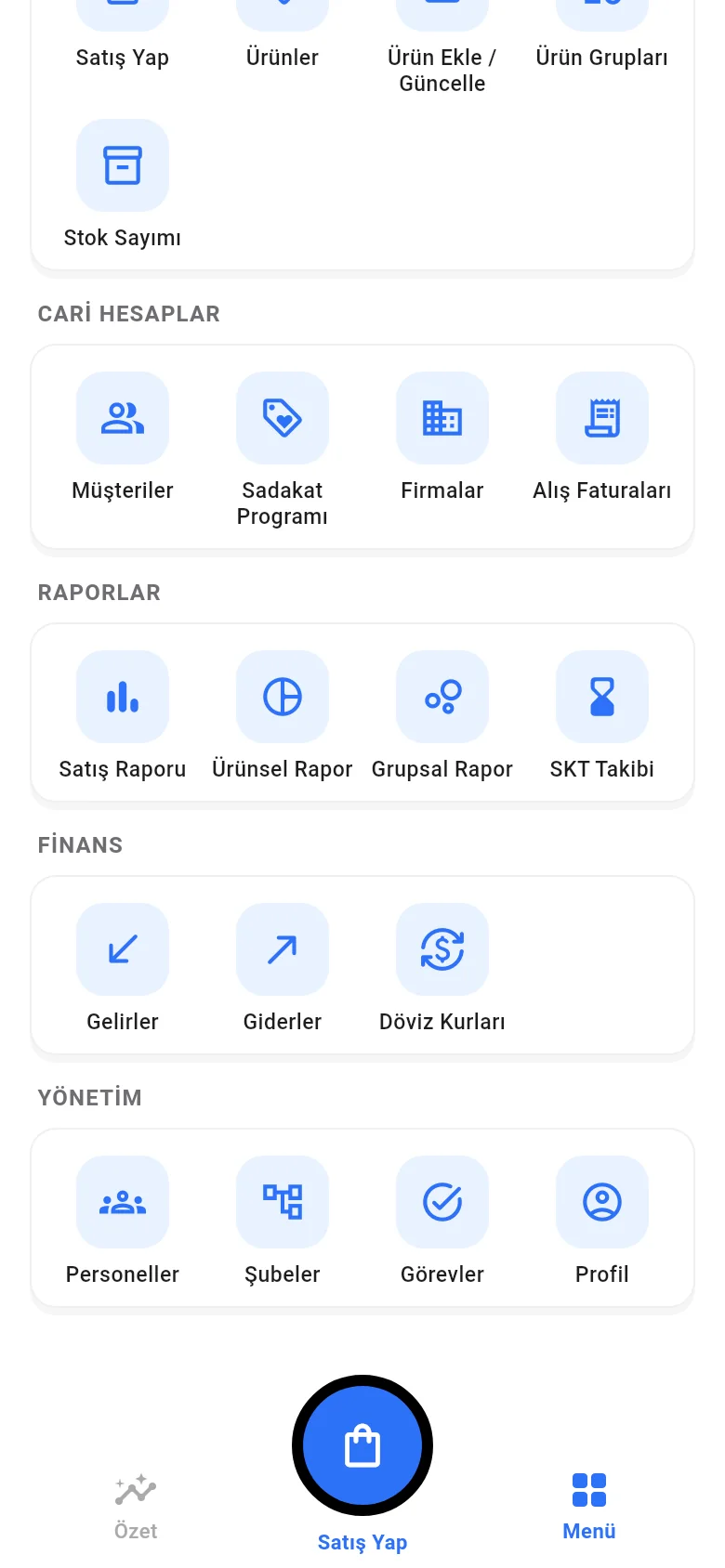
Tap 1 Menu › Loyalty Program. For it to appear in the menu, the program must be turned on and you must have permission to see the loyalty screens. Settings are in the web panel.
 1
1Members
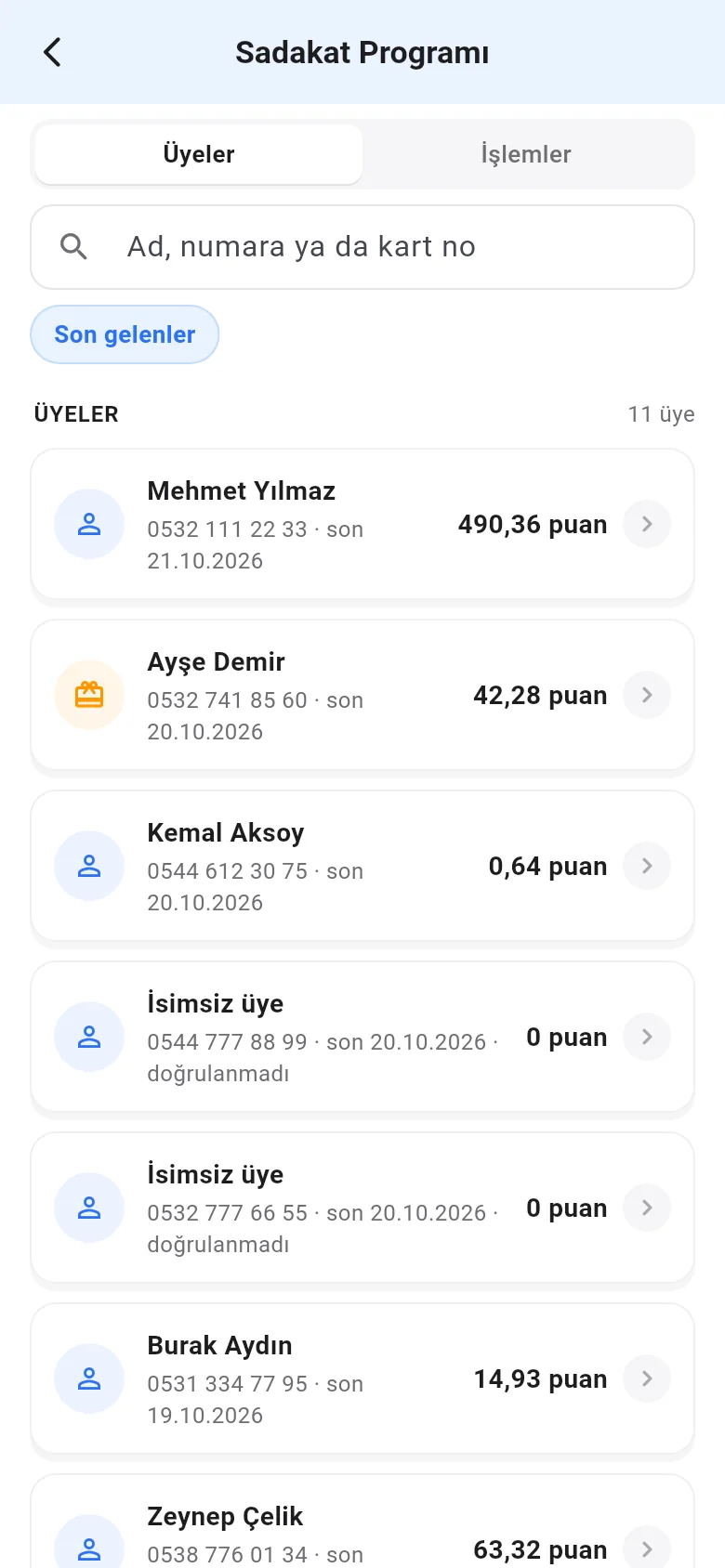
On the 1 Members tab, 2 search by name, number or card number; change the sort order with the option below. 3 The icon of a customer whose stamp card is full shows in orange. Tap a member to open the member card.
The member card shows 1 available points, stamps, number and total of purchases, total points earned and used, first and last visit, and 2 the history. If you have permission, you can add or deduct points or stamps with 3 Manual entry; a note is required.
 123
123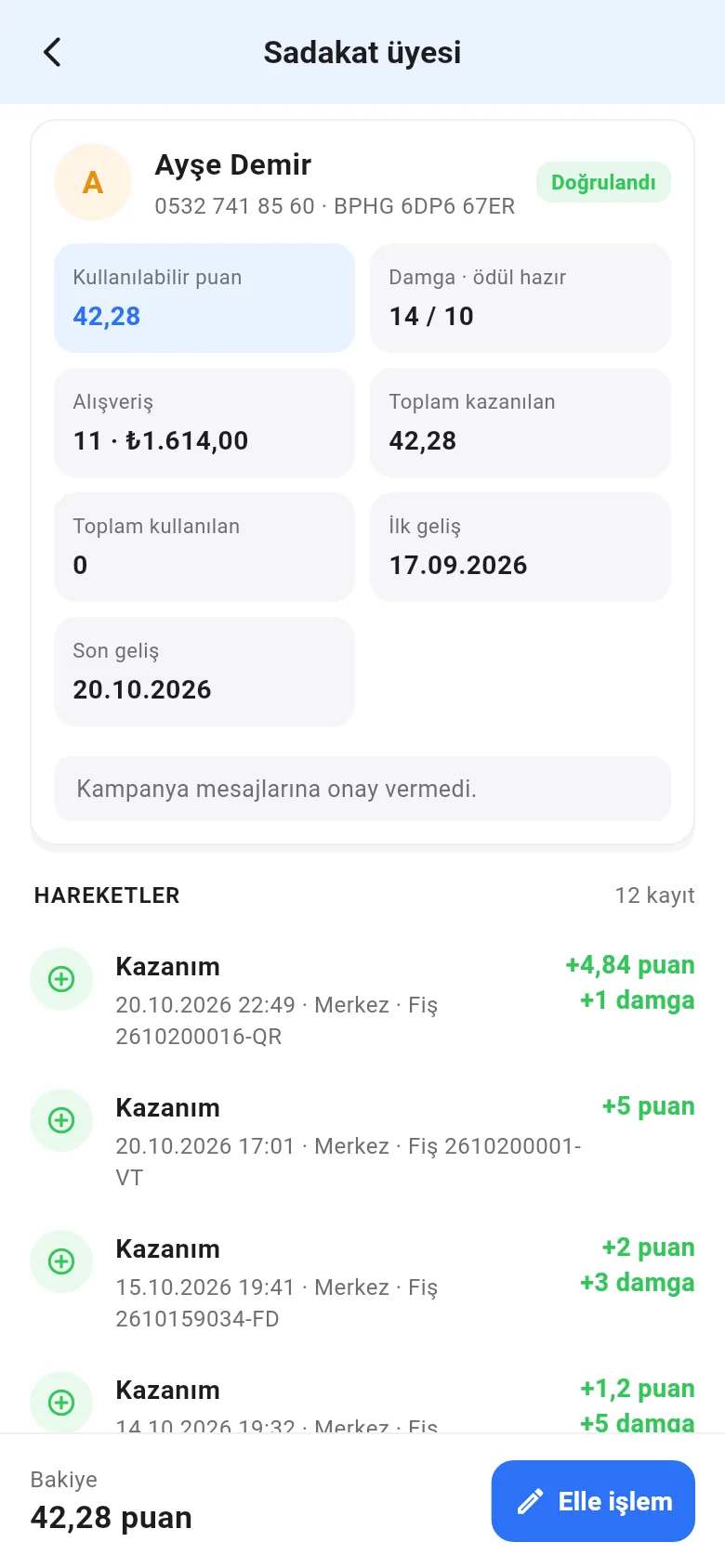 123
123Actions
On the Actions tab, select 1 one of the preset periods or 2 a date range, 3 the action type and the branch. 4 The period summary is listed, with all history entries and numbers to check below it. Tap an entry to open the member card or the sale.
 1234
1234Loyalty in sale details
In the sale details, the 1 Loyalty card shows the sale's customer and 2 the points earned or redeemed. Move points entered on the wrong number to the correct number with 3 Transfer points to another number.
 123
123