Searching by product name and checking prices at the till
Find products whose barcode won't scan by their name, and use price check to see a product's price and stock without adding it to the basket.
You can find products whose barcode won't scan, or that have no barcode, by name and add them to the receipt; with Price check you can see a product's price and stock without adding it to the basket.
Searching by product name
Type a few letters of the product name in the barcode box on the sales screen; matching products are listed and the one you pick is added to the receipt. To search by name only, use the Search button next to the barcode box or press F6. You can type the words in any order (e.g. "bread rye").
Price check
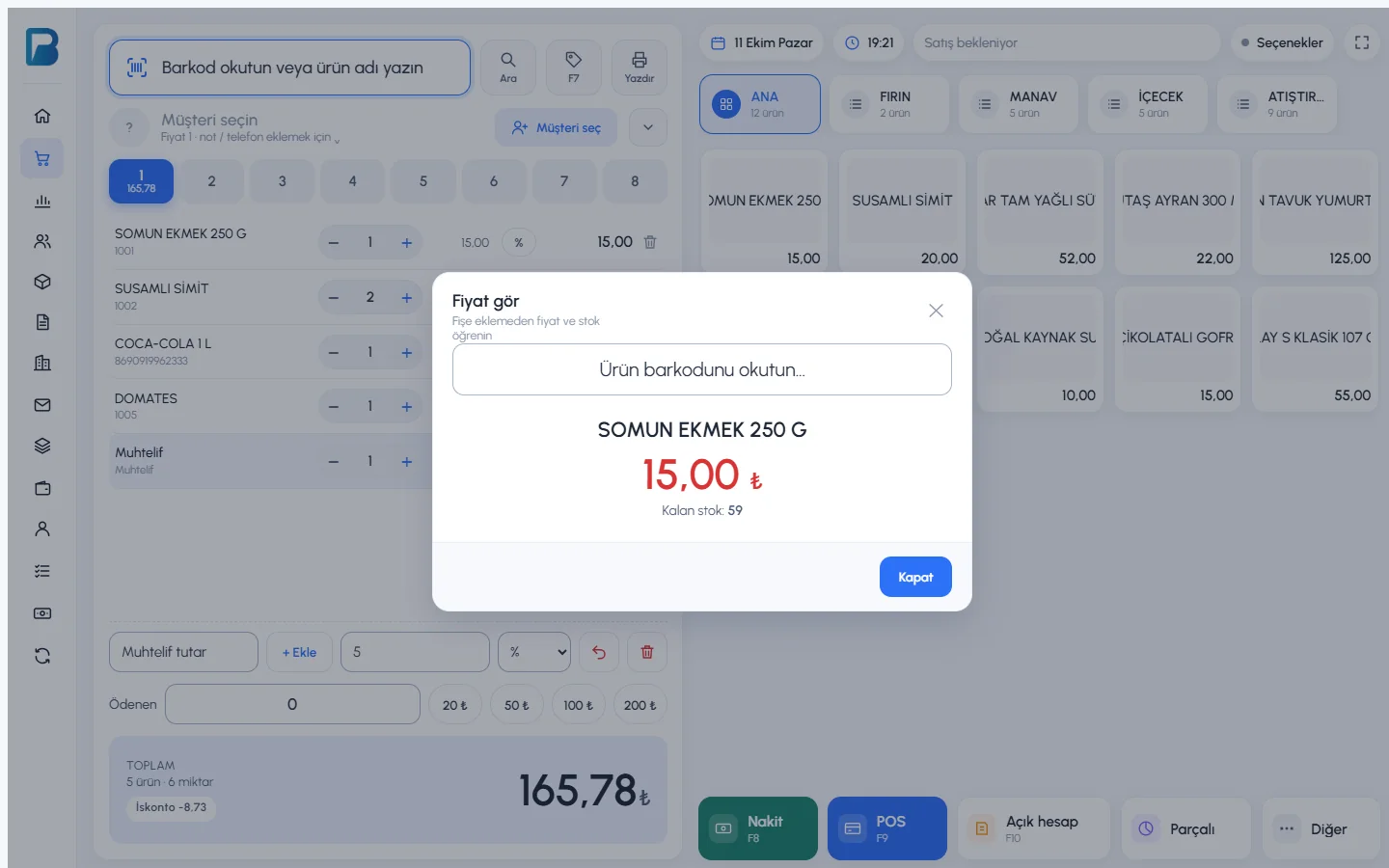
Open the price check window
Press the 1 Price check button next to the barcode box, or press F7.
Scan the barcode
Scan the barcode into the 2 box. The product's name, price and remaining stock appear; the product is not added to the receipt.
 12
12Close
Press Close or Esc.
Staff who don't have sales permission and only have the Can use the Price Check screen permission can only check prices at the till.
Find product (F6)
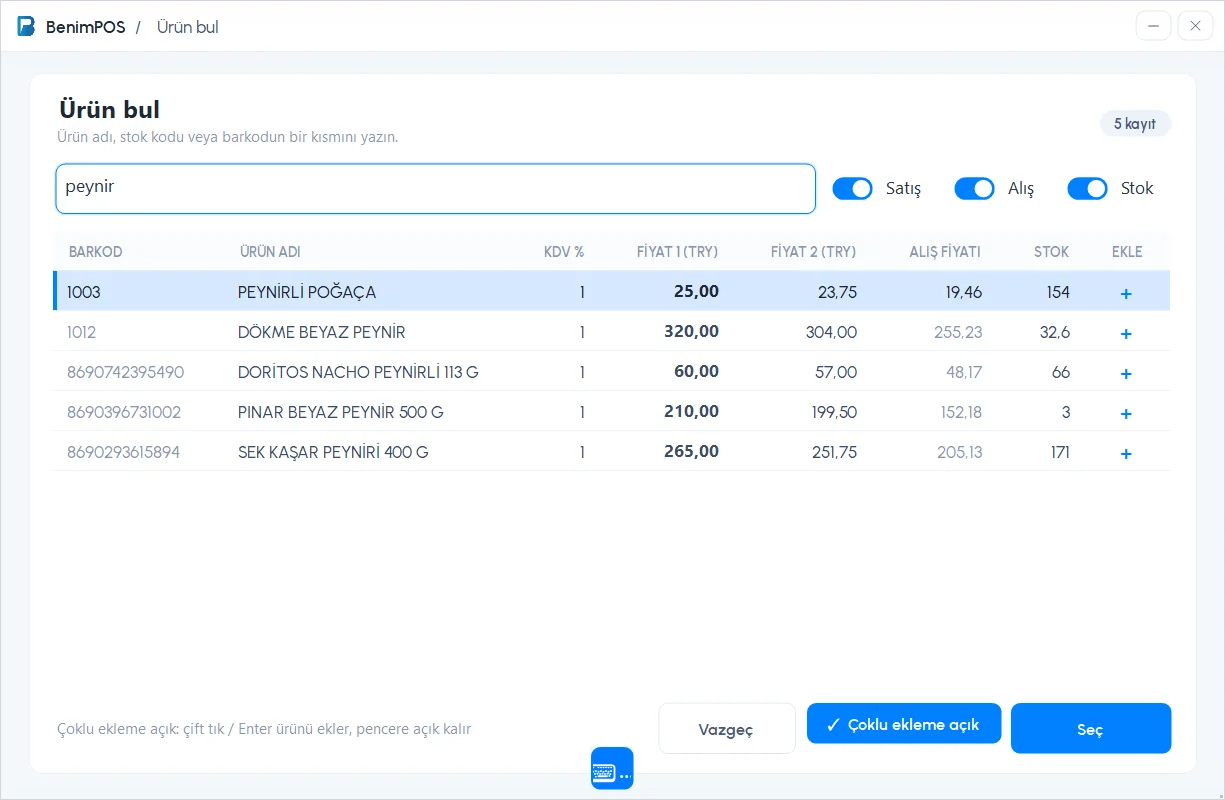
On the sales screen, press the magnifier button next to the barcode box or press F6. 1 Type part of the product name, stock code or barcode; results are listed as you type. 2 Choose which columns to show in the list with the Sale, Purchase and Stock switches.
 1234
1234- To add a product, double-click the row, press Enter or click the + on the row; 4 Select also adds the selected product.
- When 3 Multiple add on is set, the window stays open after each addition; you add several products one after another and close the window afterwards.
Price check (F7)
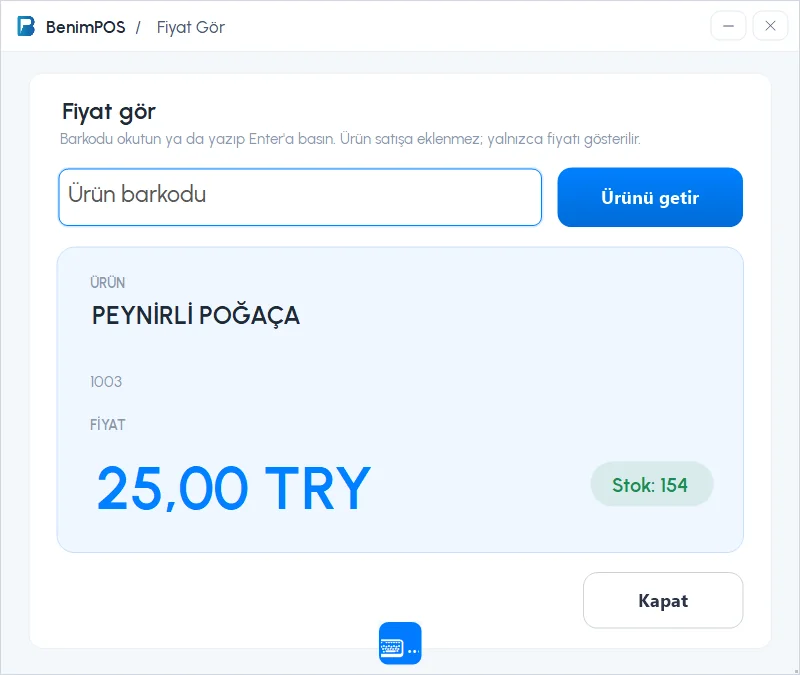
When a customer asks the price of a product, press F7 to check it without adding it to the sale. 1 Scan or type the barcode and press 2 Get product; 3 the product's name, barcode, price and stock appear. The product is not added to the receipt.
 123
123For staff to use the Price check screen, the Can use the Price Check screen permission must be on in their staff card.
Searching by product name
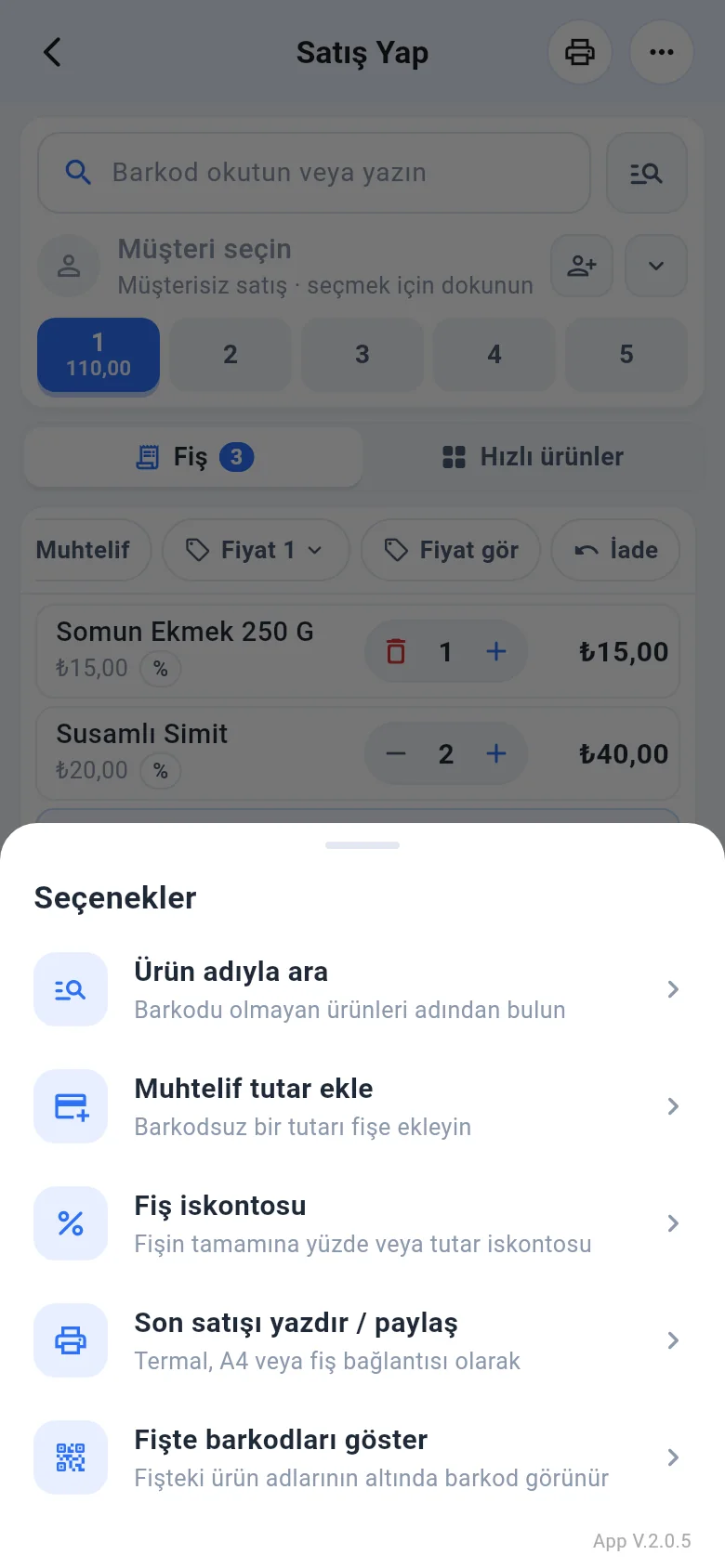
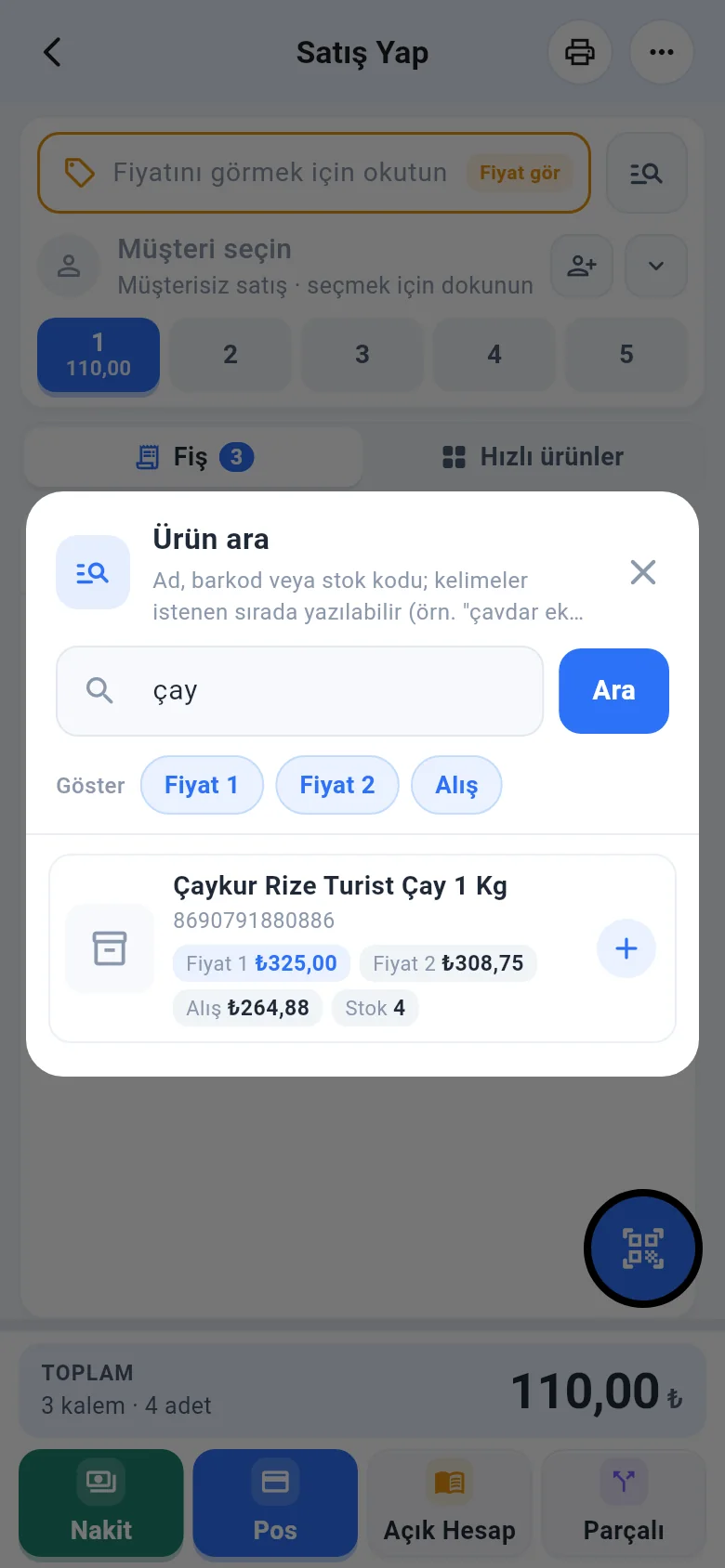
Tap the search button next to the barcode field (or ••• › Search by product name). Type the product name and tap Search; tap a product in the results to add it to the receipt. The window stays open, so you can add several products.
Price check
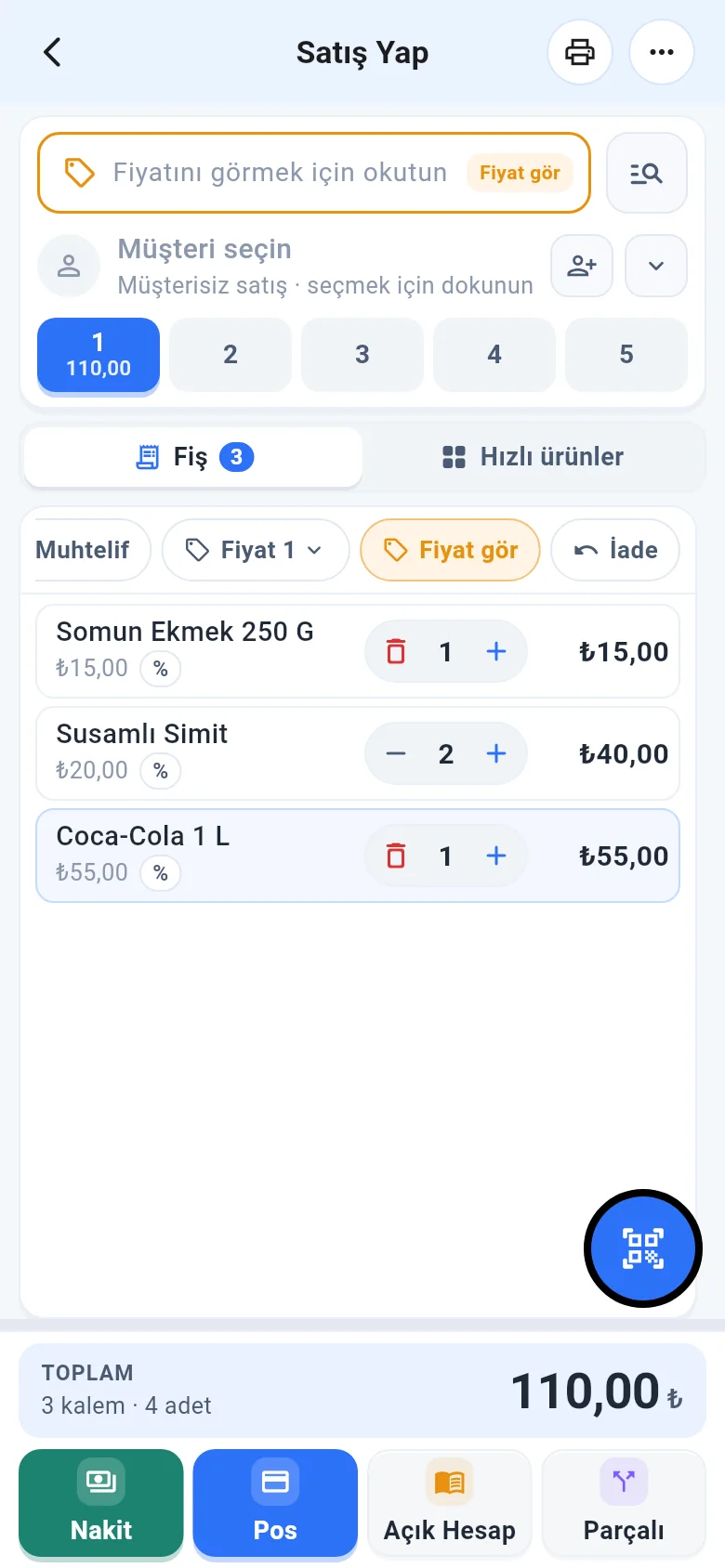
Tap the Price check chip; the barcode field turns orange. The price and stock of the product you scan are shown, and it isn't added to the receipt. Tap the chip again to turn it off.
 12
12