




Tracking case / pack stock separately
For products kept as single units on the shelf and as cases in the storeroom, keep the case as its own product with its own stock, choose what happens at checkout and on purchase invoices, and press Open case when you unpack a case onto the shelf.
Some products you keep both as single units and as cases (packs). Example: single 500 ml bottles of water on the shelf, cases of 24 in the storeroom. This page explains how to track the case with its own product card and its own stock. That way you see separately how many cases and how many single units you have.
| What do you want? | What should you use? |
|---|---|
| Cases should not be counted separately; when a case arrives, it always goes into stock as single units (e.g. cigarettes from a carton, always as packs) | Additional barcode — no separate card is created for the case |
| Cases should be counted separately: I want to know how many cases are in the storeroom and how many single units are on the shelf | Case / Pack tab (this page) — the case has its own card |
Open the tab
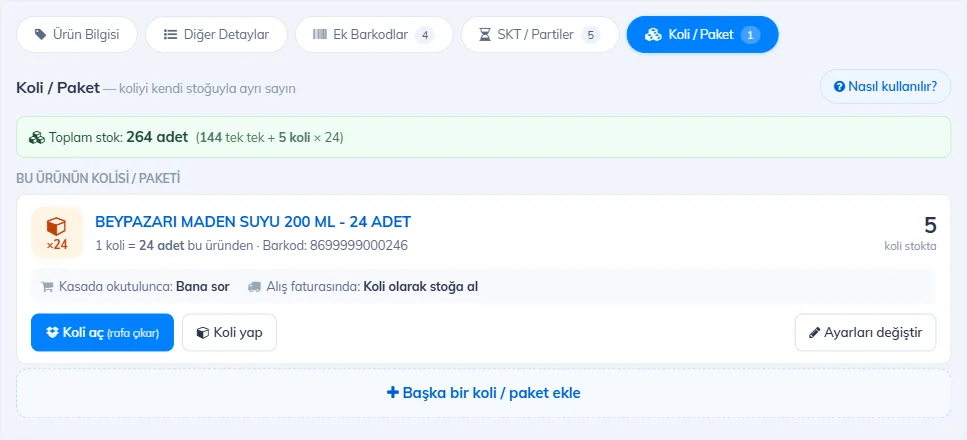
On the Products › Add & Update Products page, scan the barcode of the single product and press Get Product. Switch to the 1 Case / Pack tab at the top of the card. If you are not sure what to do, press 2 How does it work?; a short four-step guide opens (it opens automatically if the product has no case yet).
 12345678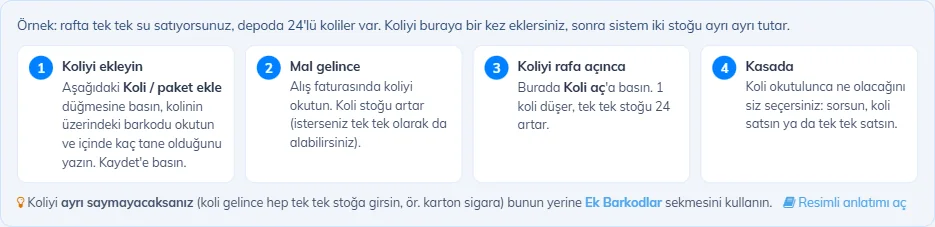
Adding a case
Press the Add button
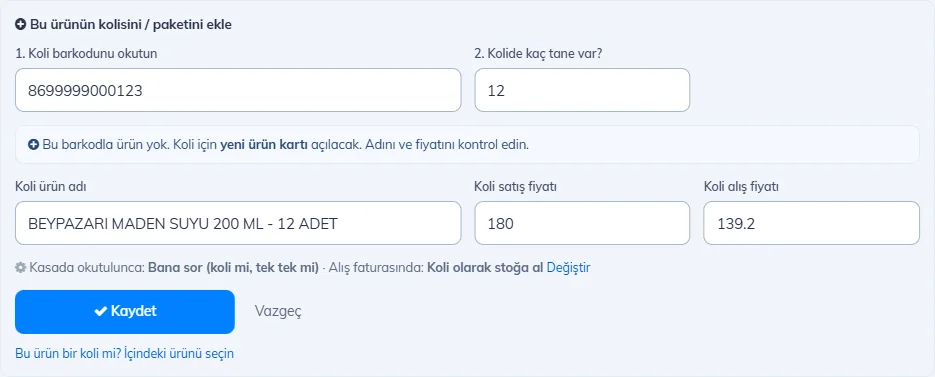
Press the 8 Add case / pack button. A form opens and the cursor goes to the barcode box.
Scan the case barcode
1 Scan the barcode on the case. The scanner presses Enter at the end of the barcode; the page is not saved, and the cursor moves to the 2 How many in the case? box by itself. Type the number of units in the case (e.g. 24).
 12345678
Check the case card
If there is no product with this barcode, 3 it says "a new product card will be created". 4 The case name, 5 sale price and 6 purchase price are filled in automatically (single price × quantity); correct them if needed. If the barcode already belongs to another of your products, that product is linked as the case and no new card is created.
Save
7 What happens at checkout and on purchases is shown in one line (at checkout: Ask me, on purchases: Add to stock as case). To change it, press Change. 8 Press Save (Enter in the last box also saves). The case appears in the list right away.
Case card and Open case
3 The green line shows the total stock in single units (single units + cases × quantity). 4 Each case has its own box: its name, how many units are in 1 case and, on the right, how many cases are in stock. 5 The gray line below shows what happens at checkout and on purchase invoices.
When you open a case from the storeroom and put it on the shelf, press 6 Open case. 1 Enter how many cases you opened and press 2 OK: case stock goes down, and single-unit stock goes up by the number of units in the case. If you put single units back into a case, use Make case.
 12
12Open case and Make case do not count as sales or purchases; they do not affect turnover or the supplier account. In stock movements they appear as "Paket bozma" (unpacking) / "Paket yapma" (packing). If there is not enough case stock, a warning appears; you can still go ahead if you want.
Changing the settings
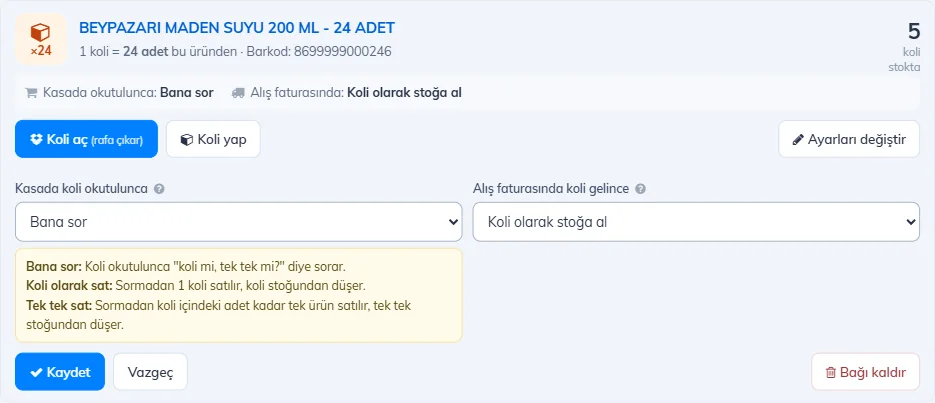
Press 7 Change settings. Make your choice for 1 When a case is scanned at checkout and 4 When a case arrives on a purchase invoice. To see what the options do, press the 2 ? icon; 3 a short explanation opens. Press 5 Save. 6 Remove link does not delete the two product cards or their stock; it only removes the link.
 123456
| Option | What happens? |
|---|---|
| At checkout: Ask me | When the case is scanned, it asks "case or single units?". |
| At checkout: Sell as case | 1 case is sold without asking and deducted from case stock. |
| At checkout: Sell as single units | Without asking, as many single units as the case holds are sold (e.g. 24) and deducted from single-unit stock. |
| On purchase: Add to stock as case | The case stays as a case on the invoice, and case stock goes up. |
| On purchase: Add to stock as single units | The case line on the invoice is converted to the single product: quantity × units, unit price ÷ units. The invoice total does not change. |
| On purchase: Ask every time | An orange selection box appears on the line, and you choose. |
The case card itself has the same tab, where it shows "The product inside this case / pack". To link the single product while you are on the case card, use the Is this product a case? Select the product inside link at the bottom of the form. Links are saved only in the branch you are working in.
Moving an additional barcode to separate stock
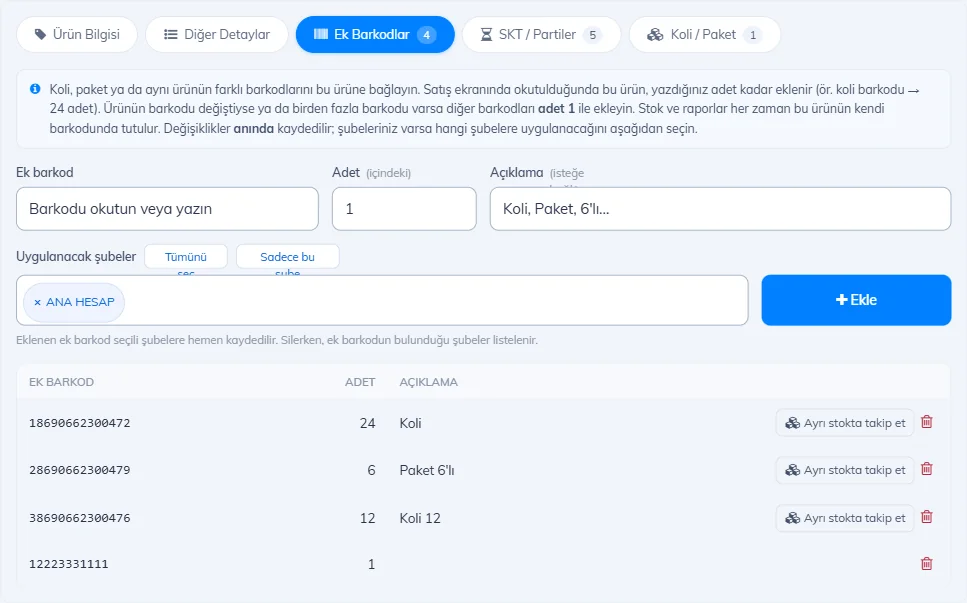
If you set up the case as an additional barcode earlier and now want to count it separately, go to the 1 Additional Barcodes tab and press 2 Track in separate stock on that row. 3 The Case / Pack tab opens with the barcode and quantity filled in; check the prices and press Save. The additional barcode is removed and a case card is created with the same barcode.
 123
123Scanning a case at checkout
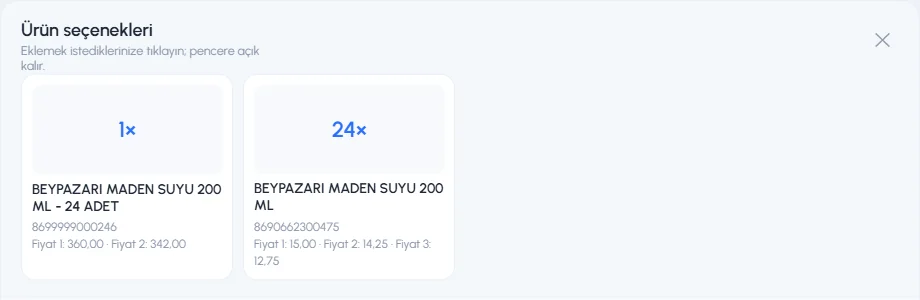
If the setting is Ask me, the Product options window opens when you scan the case: click a box to add 1 1 case or 2 as many single units as the case holds. If you chose Sell as case or Sell as single units, the window does not open and the product is added straight to the receipt.
 12
12When a case arrives on a purchase invoice
When you scan a 1 case barcode on the invoice (or a case comes in on an e-invoice), a 2 selection box appears under the product name. If Add to stock as case is selected, the 3 quantity and 4 unit price stay as a case.
 12345
12345When you select Add to stock as single units, the line changes to the single product: 3 the quantity is multiplied by the units in the case (2 × 24 = 48), 4 the unit price is divided (278,40 ÷ 24 = 11,60), and 5 the line total stays the same. You can change the choice as often as you like.
 12345
12345Scanning a case at checkout
Case links are set up on the product card in the web panel (Case / Pack tab) and reach the desktop app through sync. When you scan a case in the desktop app, the setting you chose on the web is applied:
- Ask me: the Product options window opens; click an option or press one of the keys 1–9.
- Sell as case: 1 case is added without opening the window.
- Sell as single units: as many single units as the case holds are added without opening the window.
Adding without asking is available in the latest version of the desktop app; older versions always ask. Adding cases, Open case and the case / single-unit choice on purchase invoices are in the web panel.
Scanning a case at checkout
Case links are set up on the product card in the web panel (Case / Pack tab). When you scan a case in mobile sales, the setting you chose on the web is applied: with Ask me, the Product options window opens; with Sell as case or Sell as single units, the product is added straight to the cart.
Adding cases, Open case and the case / single-unit choice on purchase invoices are in the web panel.
Details and common questions
The items below explain exactly what the case / pack link does on each screen.
What is the difference between an additional barcode and Case / Pack?
Additional barcode: the case is not a separate product; when scanned, the main product is added in that quantity, stock is kept in one place, and the case has no price of its own. Case / Pack: the case is a separate product card; it has its own stock and its own price, and is linked to the single product. A barcode cannot be used in both.Why does the single product show low stock in the product list?
In the list, each product shows its own stock: the single product shows only single units, the case card shows only cases. You see the total of both in single units in the green line on the Case / Pack tab of the product card (e.g. 144 single units + 5 cases × 24 = 264 units).
I scanned the case at checkout and no window opened; it was added directly.
If the case setting is Sell as case or Sell as single units, the window does not open. If you want it to ask, choose Ask me with Change settings on the product card.
I scanned the case, 24 single units were added and case stock did not go down.
If the setting is Sell as single units, the sale is deducted from single-unit stock and case stock is not touched. If you want to sell from case stock, set it to Sell as case.
I typed 3* and scanned the case.
Sell as case: 3 cases are added. Sell as single units: 3 × 24 = 72 units are added. Ask me: 3 cases or 72 units are added, depending on the option you choose in the window (web).Why does the setting sometimes not work?
The setting applies when a barcode is scanned. If you search for the case product by name or pick it from the quick product list, it is added as a case. In the desktop app, adding without asking is in the new version; older versions always ask. The price check screen always shows the case and the single product together.
The case is out of stock and I cannot sell it.
If stock tracking is on, a case with no stock cannot be sold. If cases arrived at the storeroom, enter the case stock with a purchase invoice; if you opened them onto the shelf, press Open case and sell single units. On mobile, in this situation the window shows the single-unit options.
I pressed Open case and 0 TL records appeared in purchase invoices and sales.
This is normal. To move the stock, Open case writes a 0 TL "No effect" issue from the case and a 0 TL entry to the single product. Their descriptions say "Paket bozma: 1 … → 24 …". They do not affect turnover, profit or the supplier account. Do not delete them: if you do, the stock transfer is reversed.
Open case showed a "not enough stock" warning.
The case stock is lower than the number you want to open. First correct the case stock (purchase invoice or stock count). If you choose Do it anyway, case stock goes negative.
The case line on the purchase invoice was converted to the single product, but I wanted a case.
The purchase setting of the case is Add to stock as single units. In the selection under the line, choose Add to stock as case; quantity and price are converted back. If you always want cases, change the setting on the product card.
Case stock became 0,5 on the purchase invoice.
The supplier put half a case on the invoice (e.g. 0,5 Box) and the line was taken as a case. For such suppliers, switch the line to Add to stock as single units (0,5 × 10 = 5 units) or set the purchase setting of the case to single units.
Did the invoice total change when the line was converted?
No. Quantity × units and unit price ÷ units are applied; the total, VAT and discount stay the same. The unit price is rounded to 4 decimal places.
Why did the sale price on the line change?
When the line is converted to the case or the single product, the sale price box gets that product's own sale price. When you save the invoice, the sale price on the line is written to that product's card (as with every purchase invoice).
I created the case card but it does not show in the other branch.
Case links and the case cards created here are saved only in the branch you are working in. Add them in the other branch with the same steps.
I deleted the case card.
The link disappears too; the single product is not affected. To add the case again, use the Case / Pack tab.
I removed the link. What happened to the stock?
Remove link deletes only the relationship between the two products. Both product cards and their stock stay as they are.What about the Sub-product Definitions page?
It uses the same links; the definitions and bulk purchase discounts you set up there keep working. For cases, the Case / Pack tab is easier.
I got a "This link creates a loop" warning.
A product cannot be both inside a case and the case of that case. Choose the right direction: add the case from the single product's card.
I got a "Quantity cannot be 1" warning.
A case cannot contain just 1 unit. For another barcode of the same product, add an additional barcode with quantity 1 on the Additional Barcodes tab.