How to print an exchange receipt (receipt without prices)
Print an exchange receipt without prices for gift purchases, right after the sale or for an older sale.
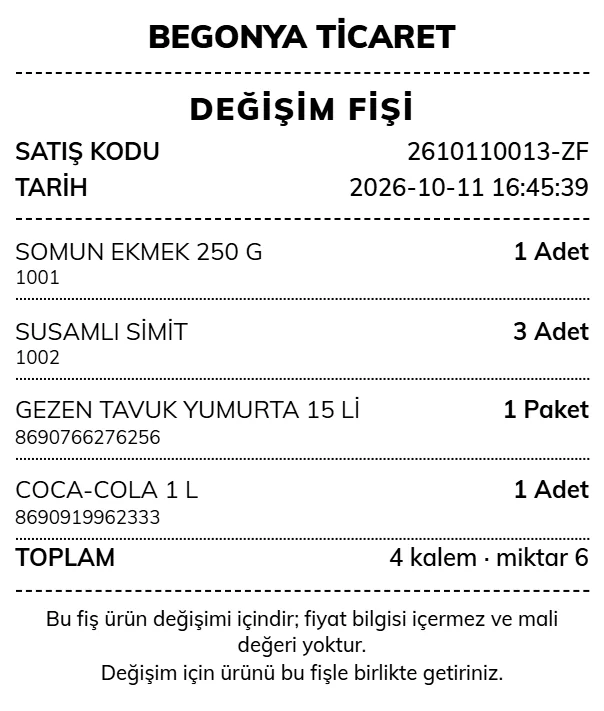
An Exchange receipt shows the name, barcode and quantity of the products but does not include prices. For gift purchases, your customer gives this receipt together with the gift; the person who receives the gift can bring the product to exchange it without seeing the price. An exchange receipt has no fiscal value.
Right after the sale
Open the Print menu
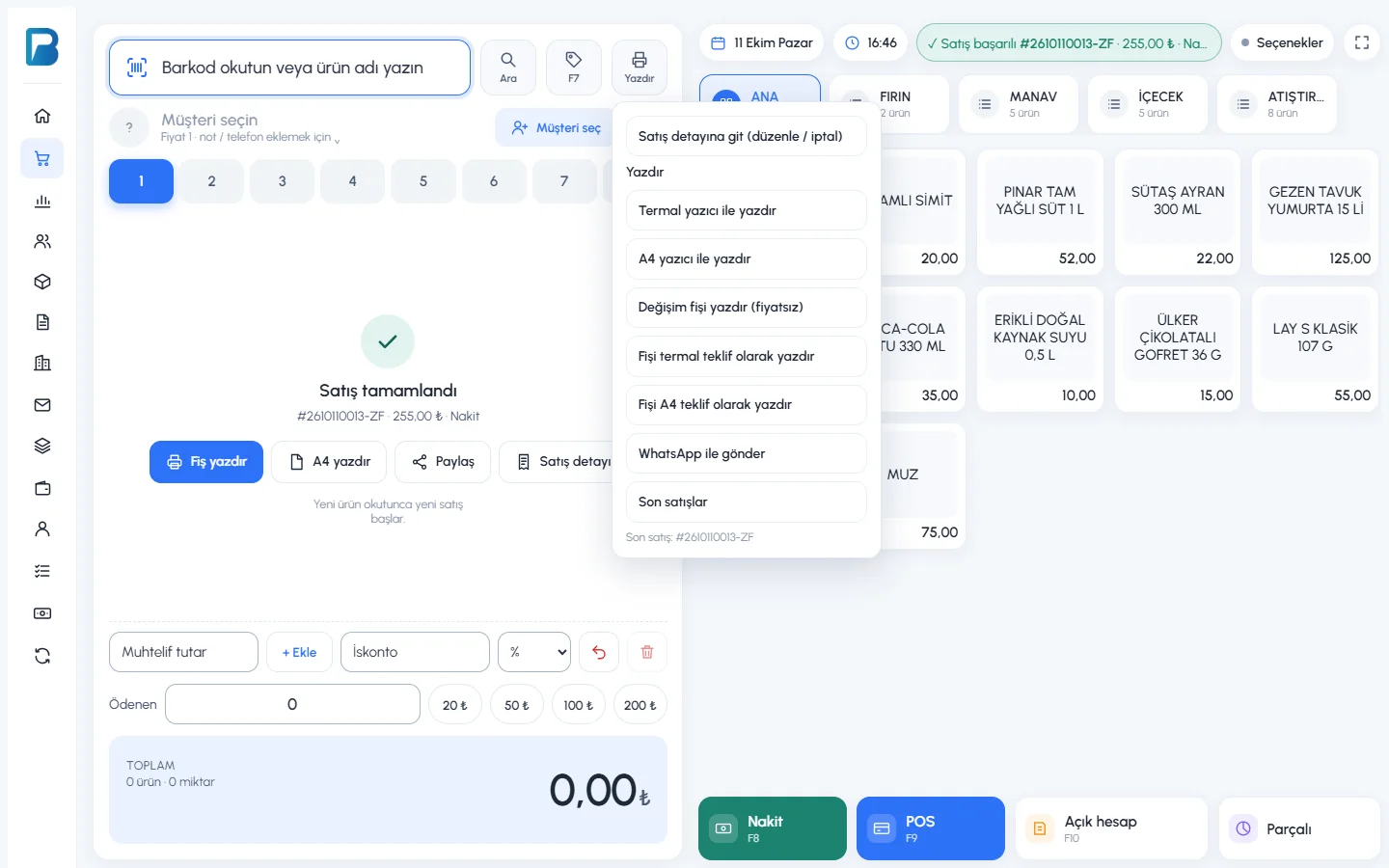
After completing the sale, press the 1 Print button at the top of the sales screen.
Choose the exchange receipt
Click 2 Print exchange receipt (no prices). The receipt comes out of your thermal printer.
 12
12
If the last transaction was a return, the exchange receipt option is grayed out; exchange receipts are only for sales.
For an older sale
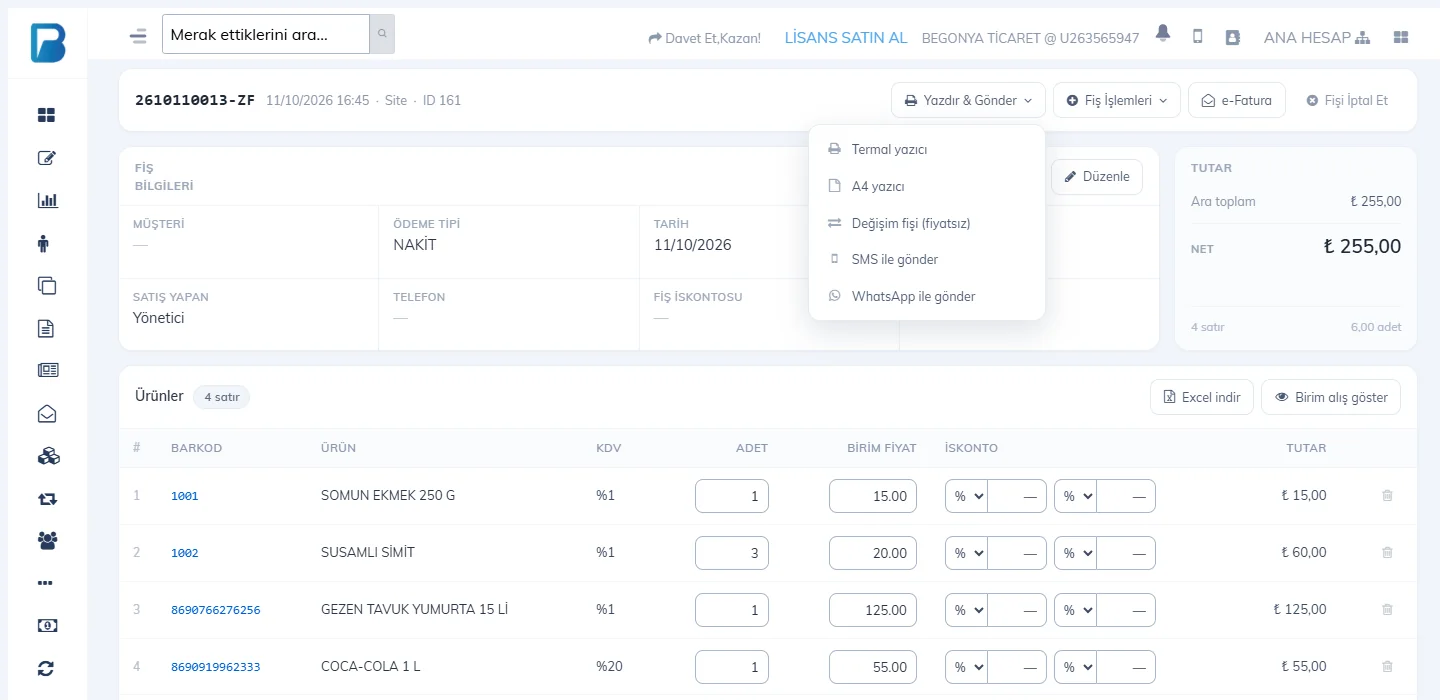
If the customer asks for an exchange receipt days later, open the sale details (by clicking the sale code in reports, or by searching for the product with Products › Accept Product Return). From the 1 Print & Send menu, choose 2 Exchange receipt (no prices).
 12
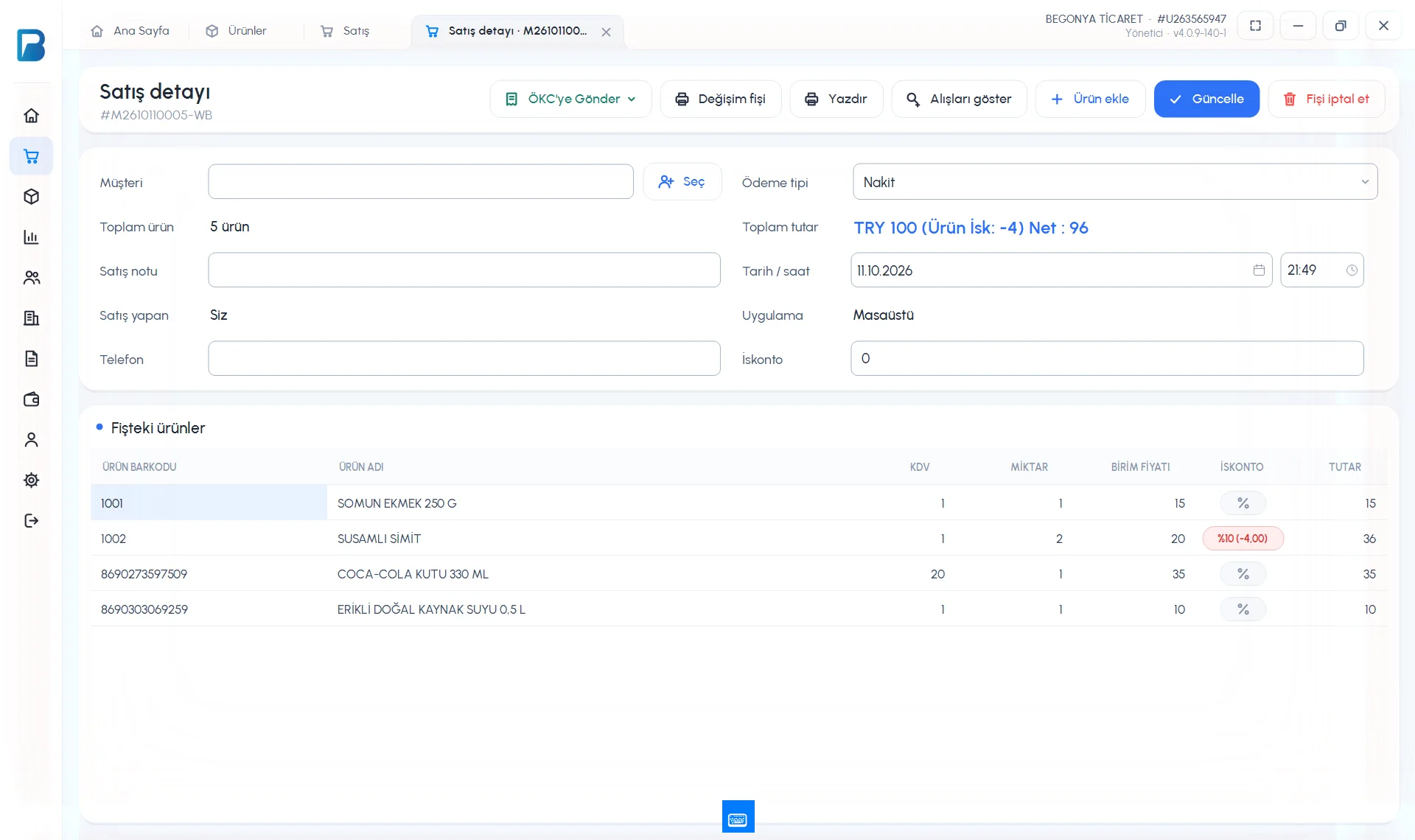
12An exchange receipt is a receipt that does not show prices; it is put inside the package for gift purchases. In the desktop app, you print the exchange receipt from the sale details.
Open the sale details
Right after the sale, press Sale details on the Sale complete card. For an older sale, double-click its row in Reports › Sales Report.
Print the exchange receipt
Press the 5 Exchange receipt button at the top of the sale details. The receipt is printed without prices on the Windows default printer.
 12345678
Exchange receipts on mobile
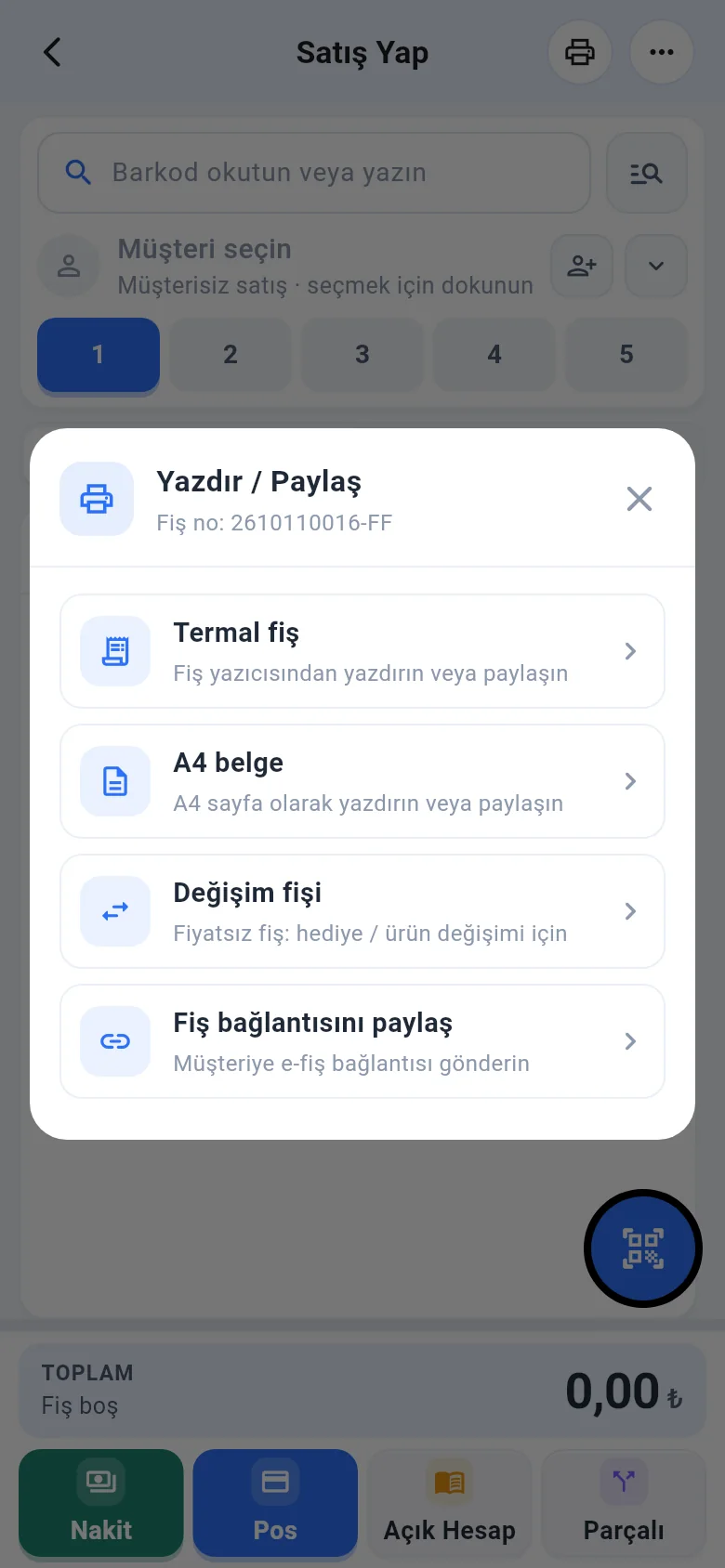
After the sale, tap the printer icon on the sales screen and choose Exchange receipt. For an older sale: Sale Details › Actions › Print / share receipt › Exchange receipt (no prices).