




The receipt printer doesn't print
Steps to check for the web, desktop and mobile Bluetooth printers when receipts don't print, or print cut off or too small.
If the receipt printer doesn't print, or receipts come out cut off, very small or blank, the problem is usually the printer selection, the driver or the receipt size setting. Follow the steps below for the app you use.
Web (printing from the browser)
Test the printer
Make sure the printer is on, has paper loaded and is installed in Windows. Print a test page from Windows; if nothing comes out, the problem is the printer driver.
Print window settings
In the window that opens when you print a receipt, choose your receipt printer as the Destination. Set Margins to None and Scale to Default / 100% ("actual size"); the paper size should be your printer's roll width. The browser remembers these choices.
Receipt width
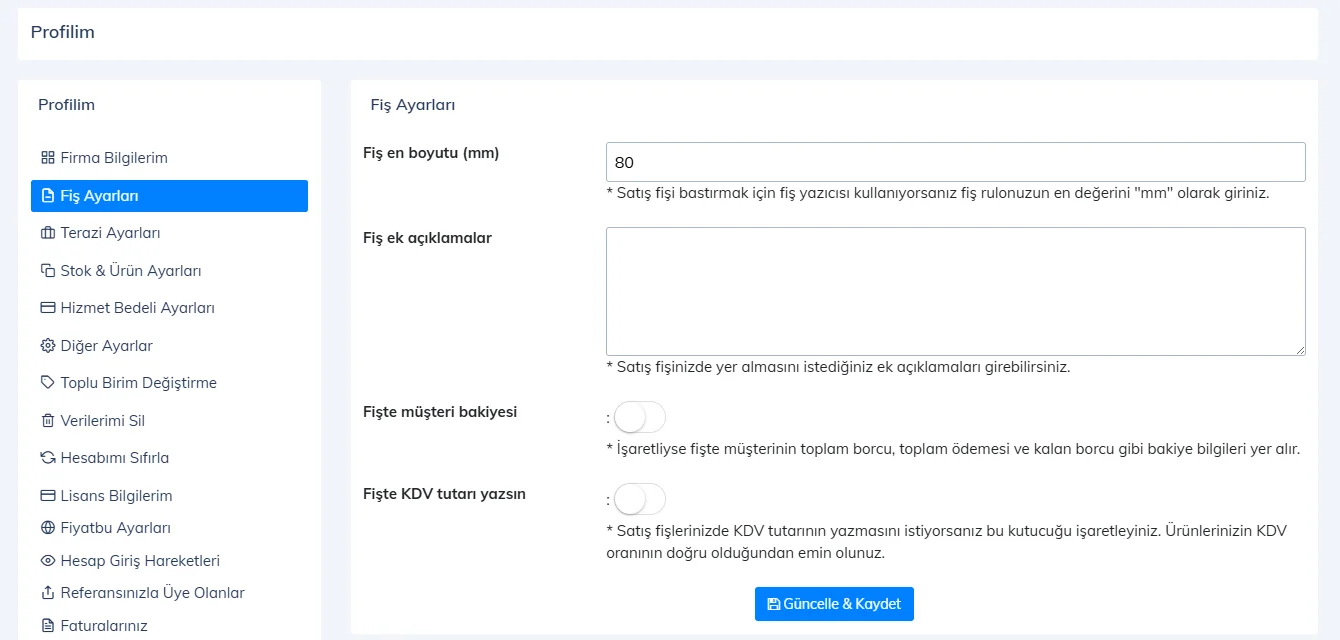
Receipt width (mm) in My Profile › Receipt Settings must match your roll (58 or 80). If you use a receipt template, check the receipt width in the template too.
 1234
1234Printer driver
Install the printer's own driver and choose the paper size for the receipt roll in the driver settings. The generic "Text printer" driver may print the receipt incorrectly.
To avoid the print window on every sale and get the most reliable printing at the till, you can use the desktop app; it sends the receipt straight to the default printer.
Desktop
Default printer
The desktop app sends the receipt to the Windows default printer. In Windows Settings › Printers & scanners, make your receipt printer the default (turn off "Let Windows manage my default printer").
Print preference
On the Settings › Profile settings › Receipt and sales card, set PRINT PREFERENCE to Print Directly and save. This fixes the "You need to install Adobe Reader" error.
Receipt width
Enter the RECEIPT WIDTH on the same card to match the width of your roll.
Try again
Reprint the last receipt with F9.
| Error | Solution |
|---|---|
| "Printer not found…" | The printer is installed in Windows but isn't the default, or it's turned off. Turn the printer on and make it the default. |
| "…you need to install Adobe Reader…" | Set PRINT PREFERENCE to Print Directly. |
| "…Spire.Pdf.dll and Spire.License.dll…" | App files are missing; an antivirus may have deleted them. Reinstall the app or write to the support team. |
| "You need to make a sale before you can print." | F9 prints the last sale; this appears when there is no sale yet. For an older sale, print from the sale details. |
A PDF copy of printed receipts is kept in the Sales Receipts folder in the app folder; if the receipt doesn't print, you can open this PDF and try printing it by hand.
Mobile (Bluetooth printer)
- First pair the printer in the phone's Bluetooth settings; the app only lists paired printers (the "No paired printer found" warning).
- On Android, give the app Bluetooth and Location permission (Open settings in the "Permission required" window).
- If Bluetooth is off, turn it on; if the printer is connected to another phone, disconnect it there.
- If the wrong printer is selected, use Change printer in the print window; if the connection gets stuck, tap Disconnect and connect again.
- If the receipt overflows or prints too small, set Profile › Receipt width (mm) to match your printer (58/80).
- For printers without Bluetooth, use the phone's print service with Standard print.