




Loyalty at the till: entering a number, using points and stamp rewards
At the till, enter the customer's mobile number, checkout code or card number to award points, and apply collected points or a stamp reward to the receipt as a discount.
At the till, enter the customer's mobile number, the checkout code on their phone or their card number, and the sale earns points. From the same window you can apply the customer's collected points or a ready stamp reward to the receipt as a discount. A customer whose number is entered for the first time gets a loyalty card automatically.
Add the products and press Loyalty
Add the products to the receipt on the sales screen. Press the 1 Loyalty button to the right of the amount paid field (shortcut: F4).
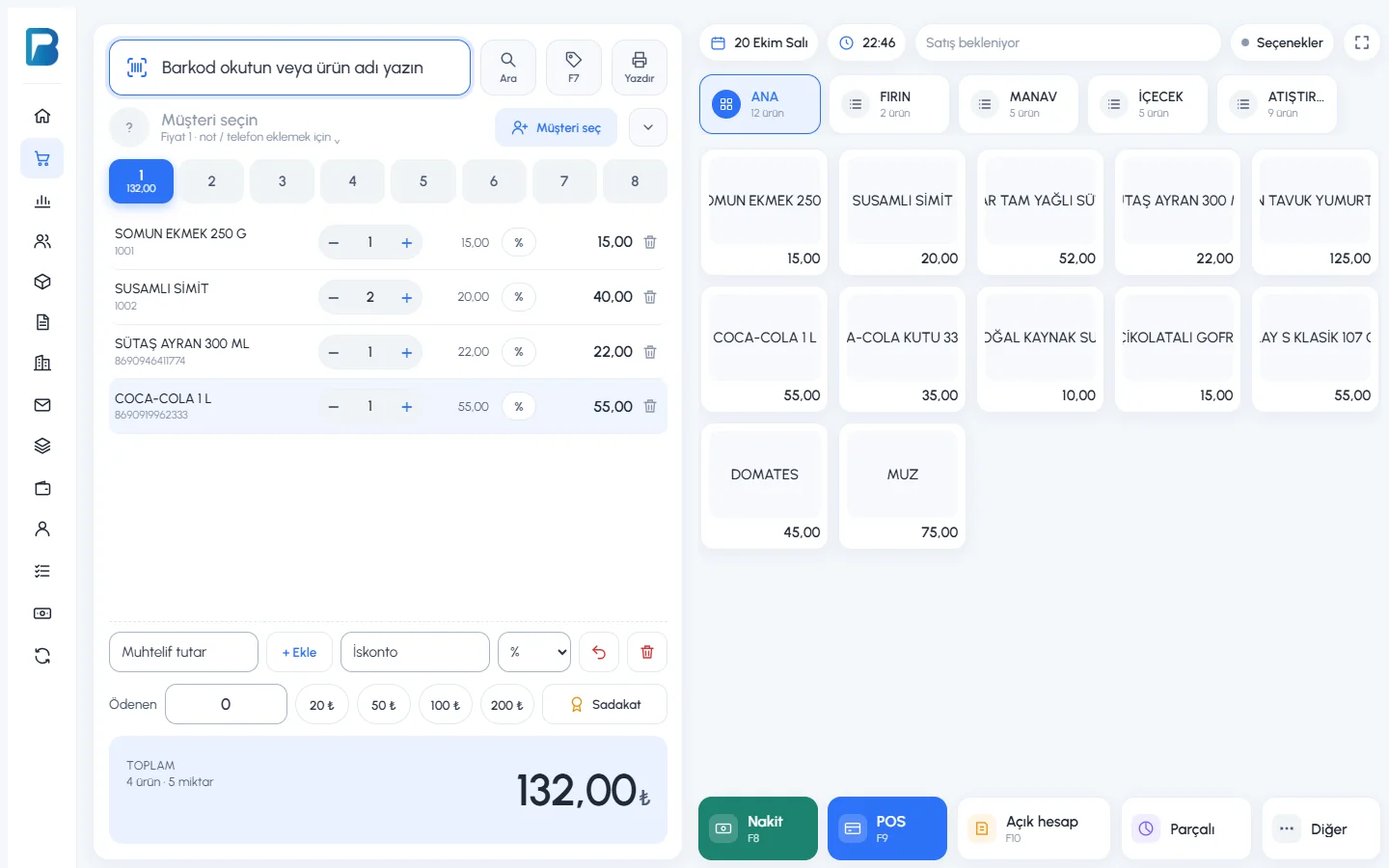 1
1Type the number, checkout code or card number
1 Type the customer's mobile number (e.g. 0532 741 85 60; for a foreign number use + and the country code, e.g. +994 50 123 45 67), the 6-digit checkout code on their phone or the card number, then press 2 Find.
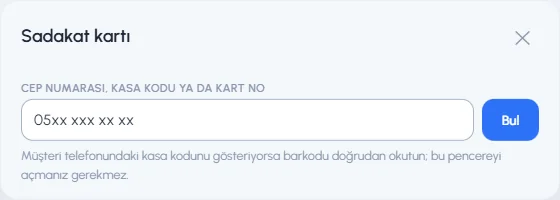 12
12If the customer has opened the checkout code on their phone, scan the barcode on their screen straight into the product barcode field; you don't need to open the window. If your laser scanner can't read the phone screen, type the 6-digit code by hand.
The customer is added to the receipt
The Loyalty button now shows the customer's name and balance. If you complete the sale like this, the customer earns points. Press the button again to see the customer's points and stamps; from here you can 1 Use stamp reward, 2 Use points, 3 Remove from receipt or enter an 4 Other number.
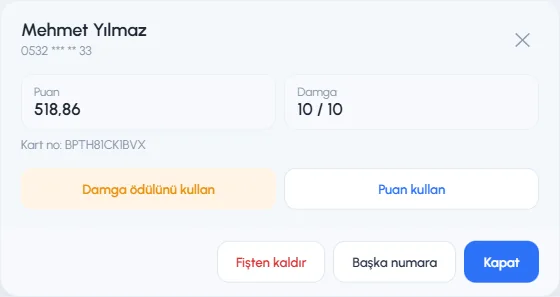 1234
1234
Customer selection and the loyalty card work together
- When you select a customer: if the customer's record has a mobile number, the loyalty card for that number is linked to the receipt automatically. You don't need to enter the number separately.
- When you enter a number for the loyalty card: if you have a customer saved with the same mobile number, that customer is selected automatically too. If the number is saved on more than one customer record, the Select the customer window opens; pick the right customer or press Skip to continue without a customer. Selecting one is optional.
- If you remove the customer from the receipt, the loyalty card that came with the customer is removed too (as long as no points or reward were used).
- This matching does not merge the customer record and the loyalty membership; they are separate records. If the customer record has no mobile number, no card is linked; enter the number yourself with the Loyalty button.
No SMS is sent to the customer's phone when points or rewards are used; if the number was typed by hand, the checkout code on the customer's phone is required. Below the no checkout code needed limit in the settings, no code is asked for. If the customer was found with the checkout code in the first place, the code is not asked again.
Using points
Press Use points. 1 You see the customer's available points and the most they can use on this receipt. 2 Type the points to use (1 point = 1 ₺) and press 4 Apply points. 3 If the customer was found with the checkout code, no extra code is asked for.
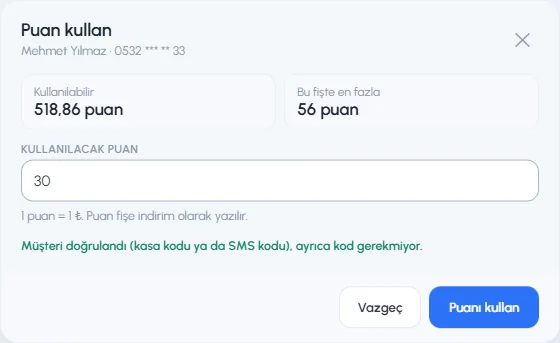 1234
1234If the number was typed by hand, the customer's checkout code is required so that nobody else can spend the points: the customer opens their card at benimpos.com/rewards, you type the checkout code into the 2 box or scan the barcode, then press Apply points. Because no SMS is sent, this works the same way for foreign numbers.
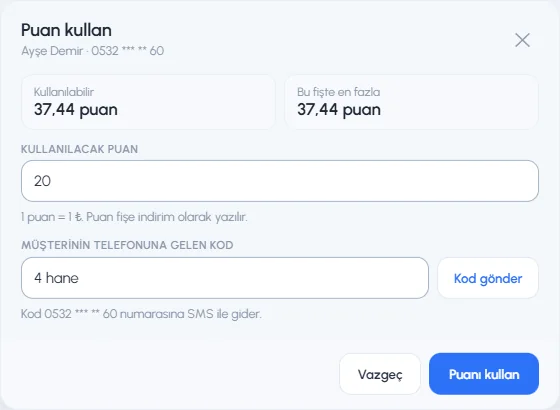 123
123Using a stamp reward
When the customer's stamp card is full, the Loyalty button shows reward ready. Press Use stamp reward.
Choose the free product
If the reward is "one product free" and you selected more than one product, the Which product is free? window opens. Products already on the receipt appear at the top with their prices. 1 Press the product the customer wants; if it isn't on the receipt, it is added automatically.
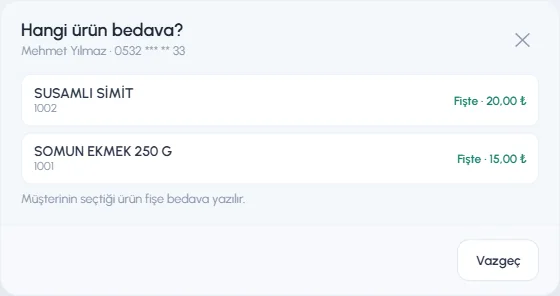 12
12Confirm the reward
1 The full stamp card and the reward are shown. 3 Press Use reward; the stamps are deducted from the customer's card and the discount is added to the receipt. If the customer has more stamps than the target, the extra stamps carry over to the next card.
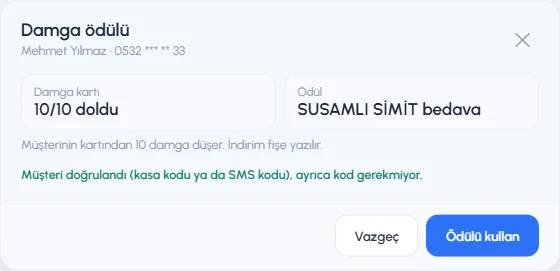 123
123
Discount on the receipt and completing the sale
2 The Reward and Points discounts are shown separately in the total area, and 1 the Loyalty button shows the points used. Complete the sale as usual with 3 Cash, Card or another payment type.
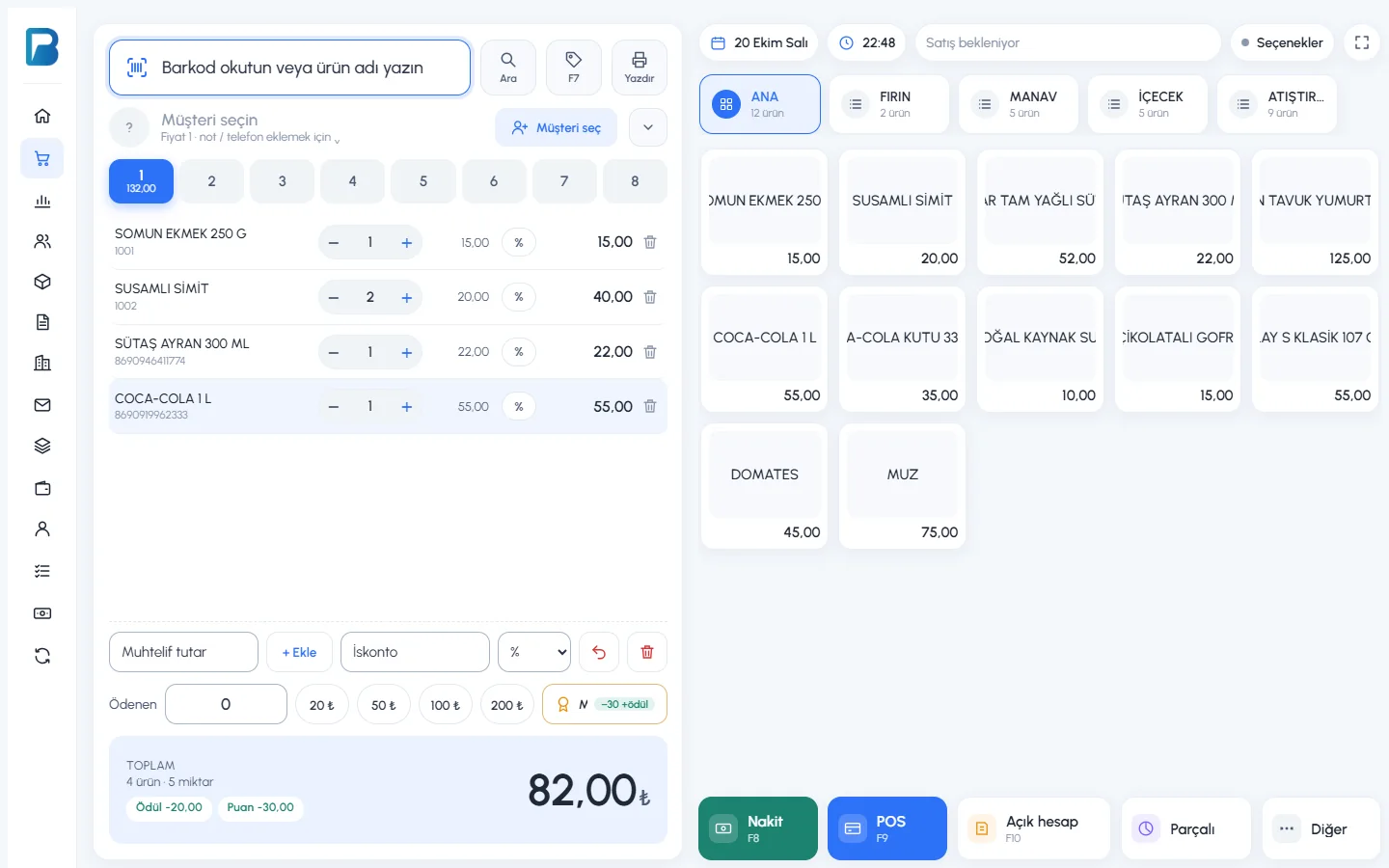 123
123Once the sale is saved, 2 the last sale card shows 1 the points earned, the customer's new balance and stamps.
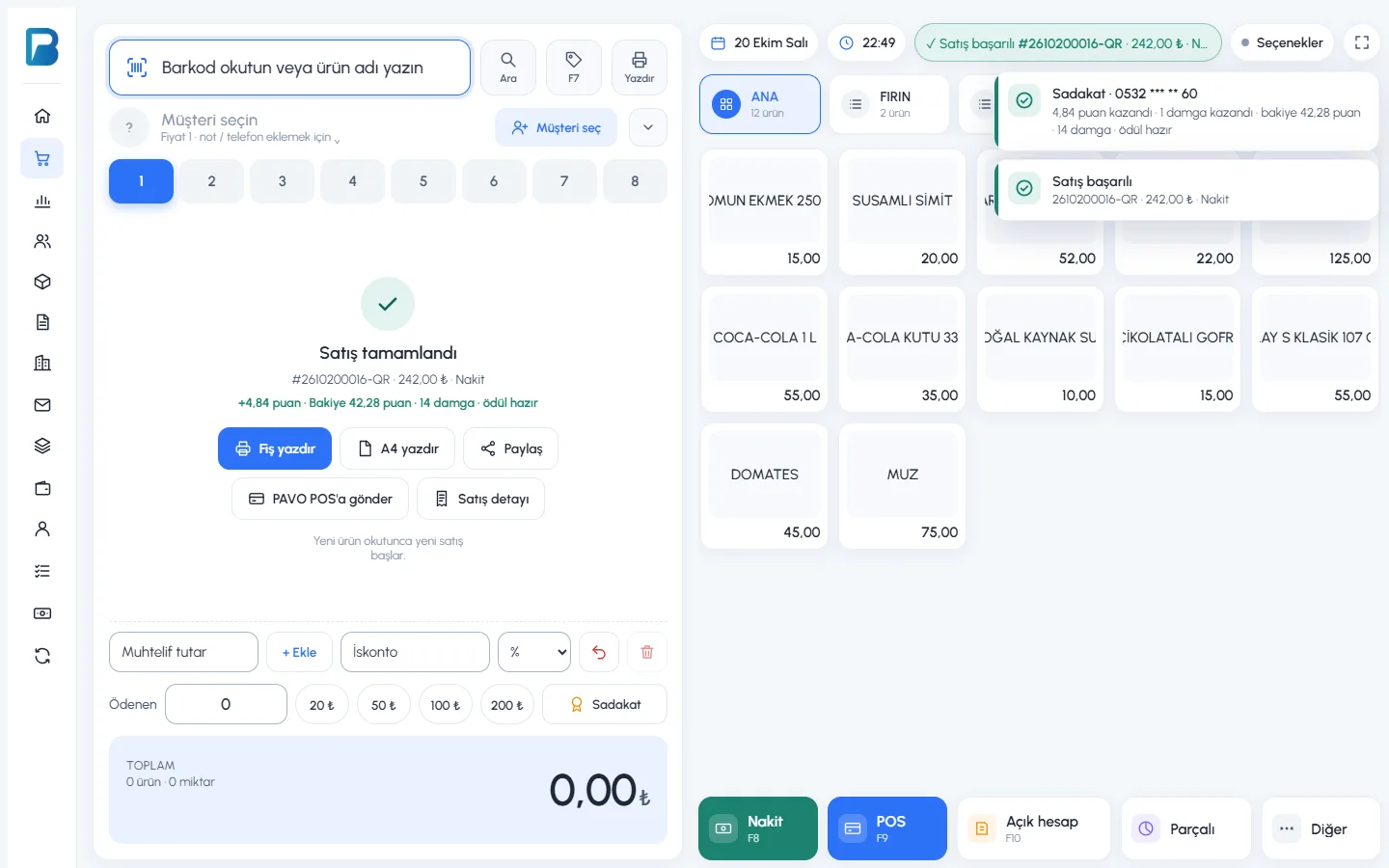 12
12- Points and rewards used are recorded on the receipt as a discount, so reports, profit, the fiscal cash register and e-fatura (e-invoice) all come out correctly.
- If points or a reward cover the whole receipt, the receipt is 0 ₺; 0 ₺ sales are not sent to the fiscal cash register automatically. If needed, you can send it by hand from the last sale card.
- If you remove a product from the receipt or increase the discount and the reserved points no longer fit, the points are released automatically.
- If you cancel the sale or take a return, the points earned are taken back and the points used are returned to the customer.
If you entered the wrong customer number, you can move the points to the correct number from the Loyalty card in the sale details. Details: "Loyalty members, transactions and manual points".
In the desktop app, loyalty works the same way as on the web sales screen. If the loyalty program is not turned on or the server can't be reached, the Loyalty button is hidden and sales go on as usual.
Add the products and press Loyalty
Add the products to the receipt. Press the 1 Loyalty button to the right of the paid field (shortcut: F8).
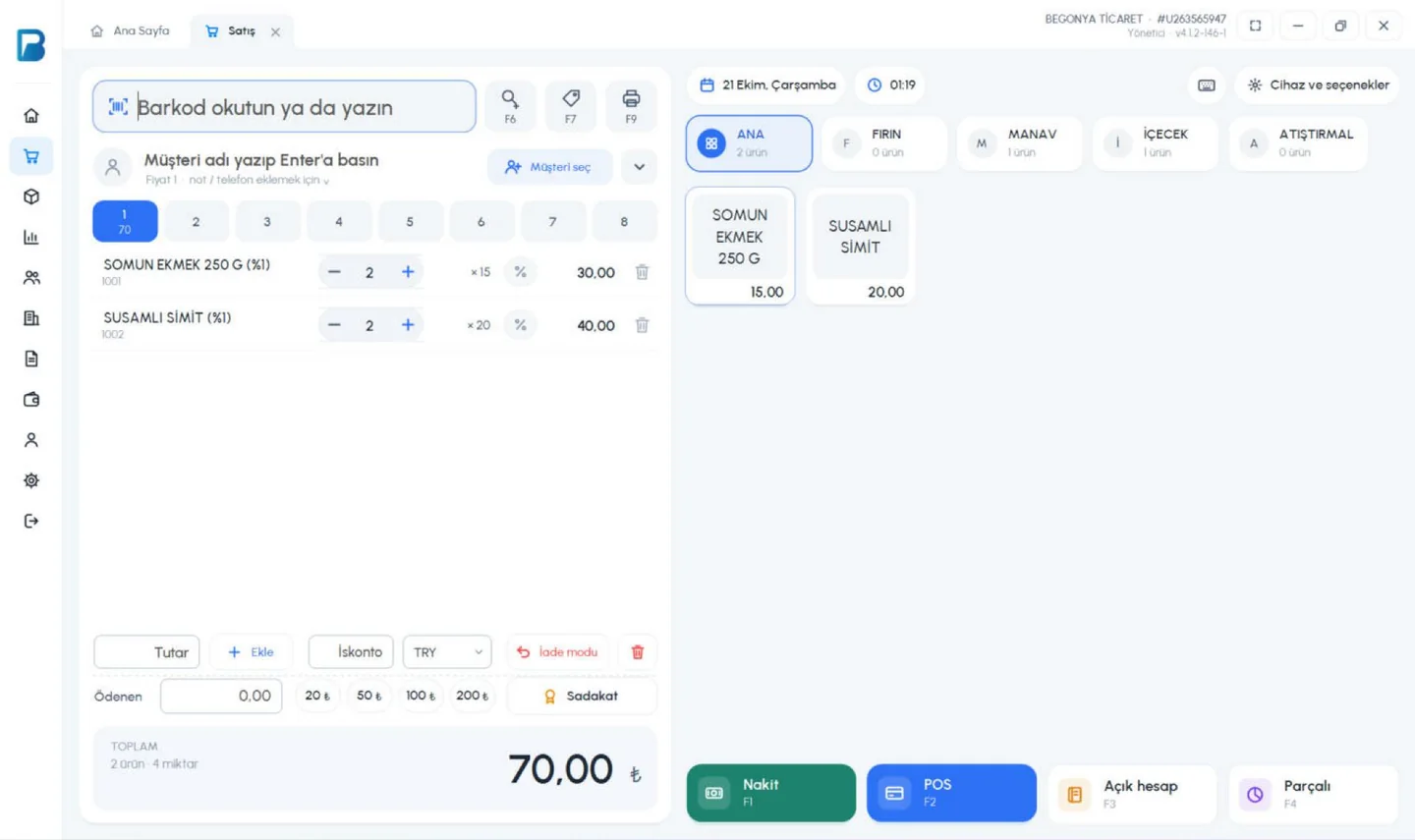 1
1Type the number, checkout code or card number
1 Type the customer's mobile number, the 6-digit checkout code on their phone or the card number, then press 2 Find. If the on-screen keyboard is open, the window stays above the keyboard.
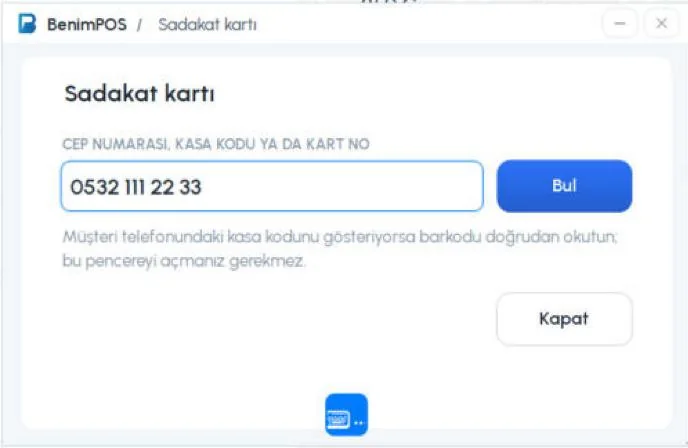 12
12If the customer shows the checkout code on their phone, scan the barcode straight into the barcode field; you don't need to open the window.
The customer is added to the receipt
If you have a customer saved with that number, 1 the customer is selected too. 2 The Loyalty button shows the customer's balance. If you complete the sale like this, the customer earns points.
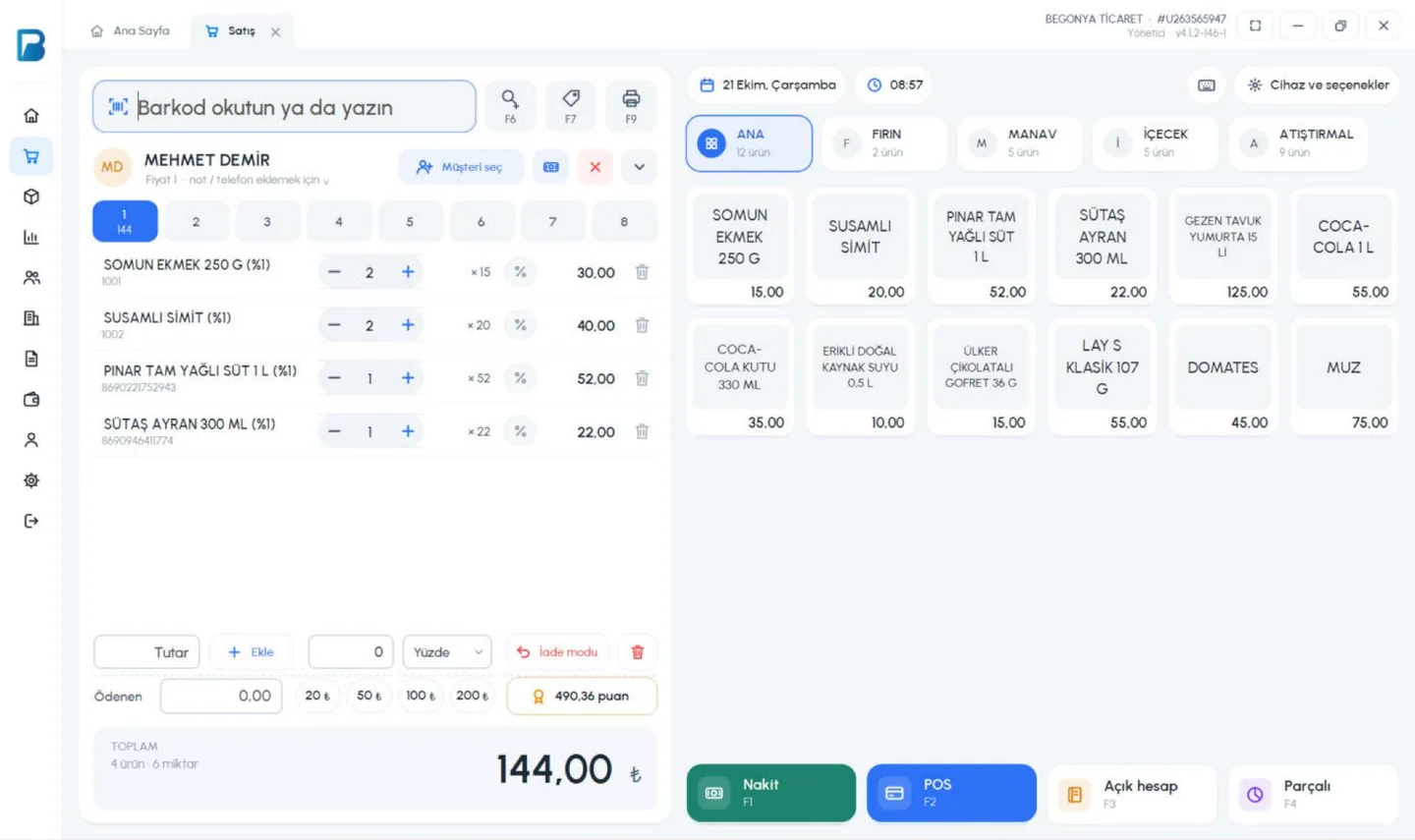 12
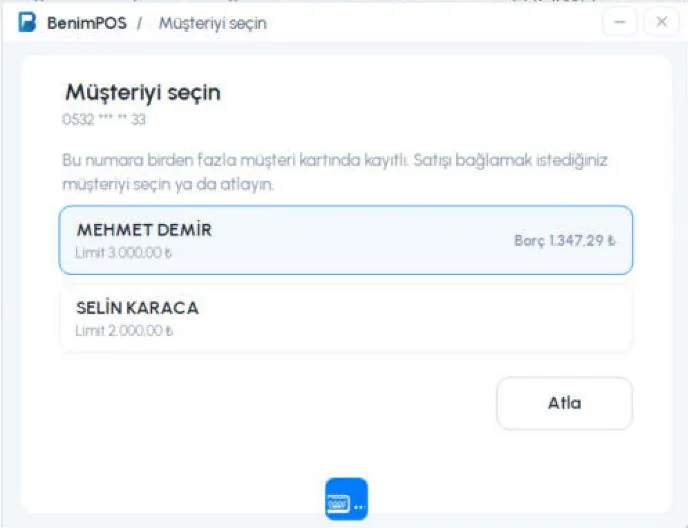
12If the number is saved on more than one customer record, 1 pick the right customer from the list or press 2 Skip to continue without a customer.
 12
12The customer's points and stamps
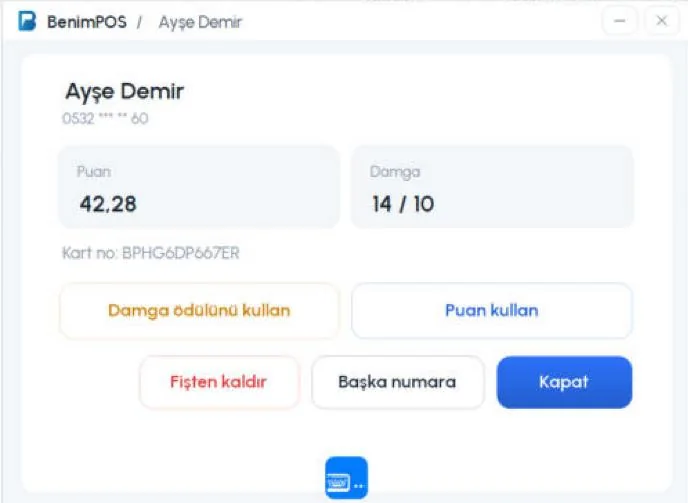
Press the Loyalty button again to see 1 the customer's points and stamps. From here you can 2 Use stamp reward, 3 Use points, 4 Remove from receipt or enter an 5 Other number.
 12345
12345
Selecting a customer links the card automatically
If the customer you pick with Select customer has a mobile number on their record, the loyalty card for that number is linked to the receipt automatically. When you remove the customer from the receipt (×), the card that came with the customer is removed too.
Using points
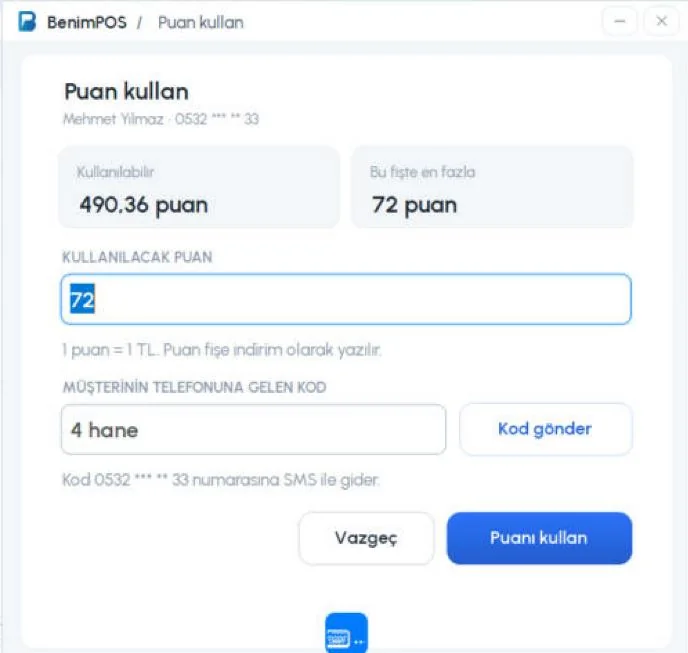
Press Use points. 1 You see the available points and the most that can be used on this receipt. 2 Type the points to use (1 point = 1 ₺). Press 5 Apply points. If the number was typed by hand, no SMS is sent: ask the customer for the checkout code on their phone and find the customer with that code (scan the barcode or type the 6-digit code); a customer found with the checkout code is not asked for a code.
 12345
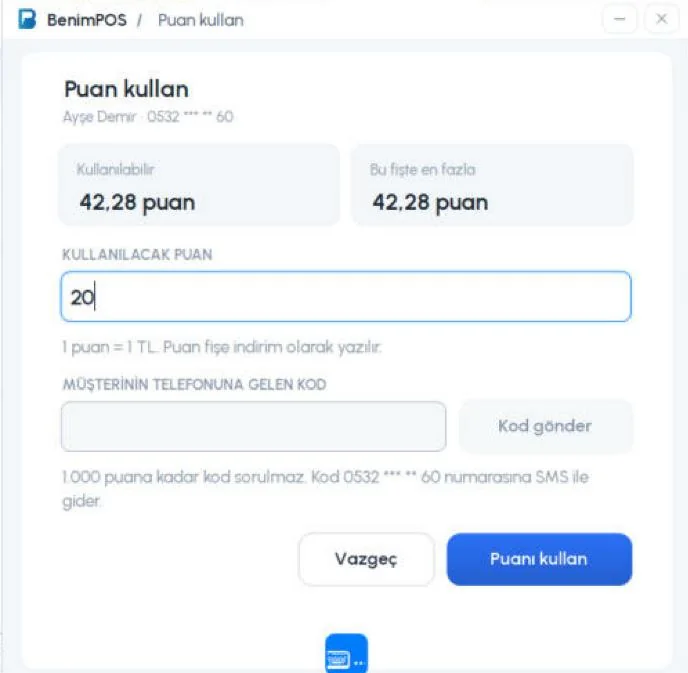
12345If the points to use are below the code limit in the settings, 1 the code field is disabled and 2 the limit is shown below it (1,000 points in the example). No code is asked for either if the customer was found with the checkout code.
 12
12Using a stamp reward
Choose the free product
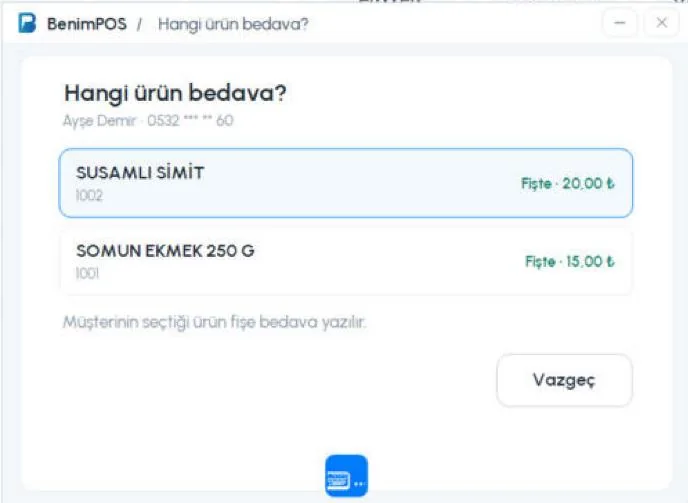
Press Use stamp reward. If the reward is one of several products, 1 2 choose the product the customer wants. A product that isn't on the receipt is added automatically.
 12
12Confirm the reward
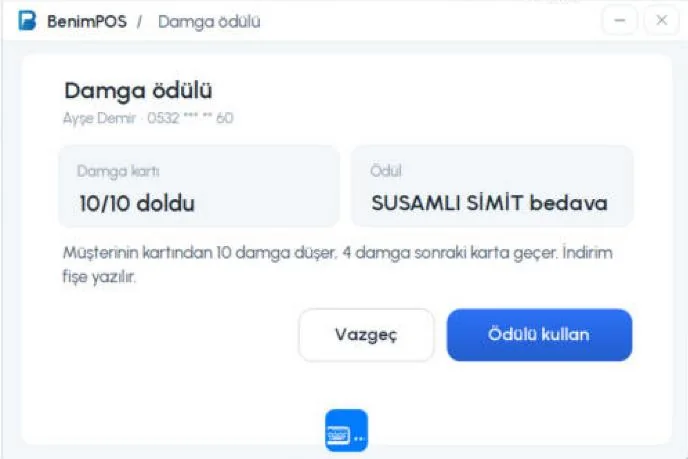
1 The full stamp card and the reward are shown; 2 stamps above the target carry over to the next card. Press 3 Use reward. If the reward amount is above the code limit, the customer's checkout code is required, just as with points.
 123
123
Discount on the receipt and completing the sale
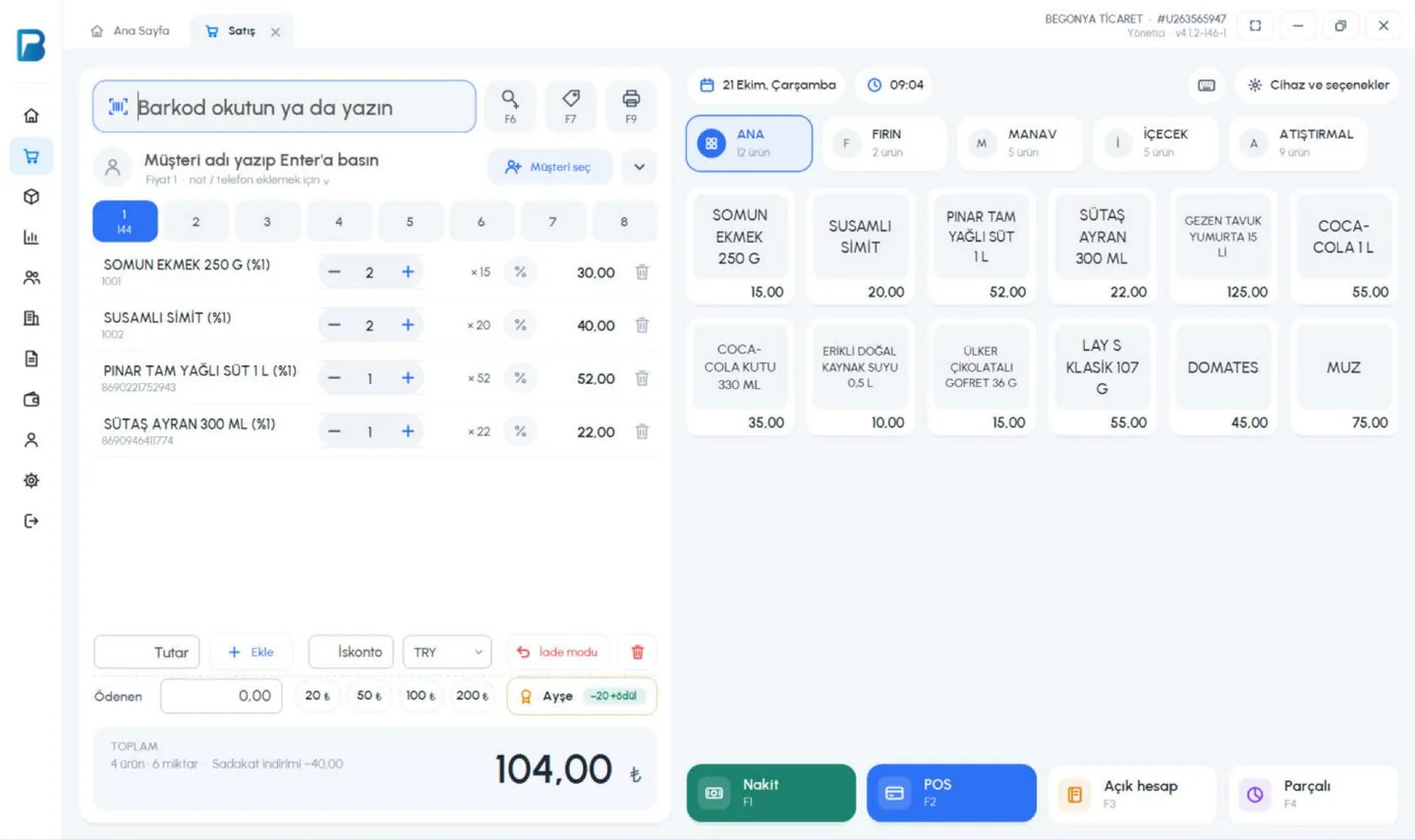
1 The Loyalty button shows the points and reward used, and 2 Loyalty discount appears below the total. Complete the sale as usual with 3 Cash, Card or another payment type.
 123
123- The customer earns the points; they are calculated when the sale syncs to the server. Without internet the sale is saved and the points are added once the connection is back.
- You can switch between receipts; each receipt has its own loyalty card.
- Loyalty can't be used in return mode or when adding products to an open receipt.
In the mobile app, loyalty is used with the Loyalty chip on the sales screen. If the loyalty program is not turned on, the chip is hidden.
Tap the Loyalty chip
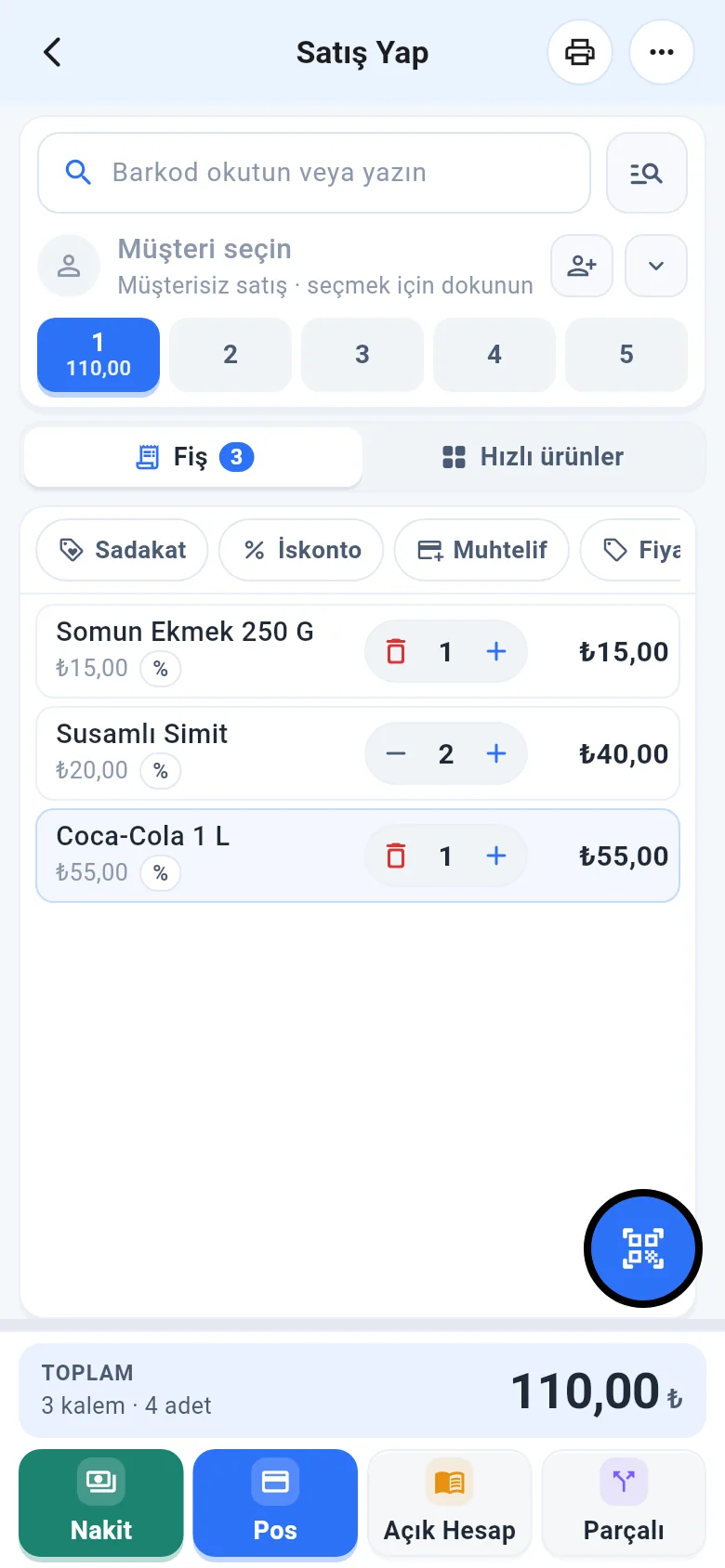
Add the products to the receipt. Tap the 1 Loyalty chip in the receipt tools row. 1 Type the mobile number, checkout code or card number and tap 2 Find.
 1
1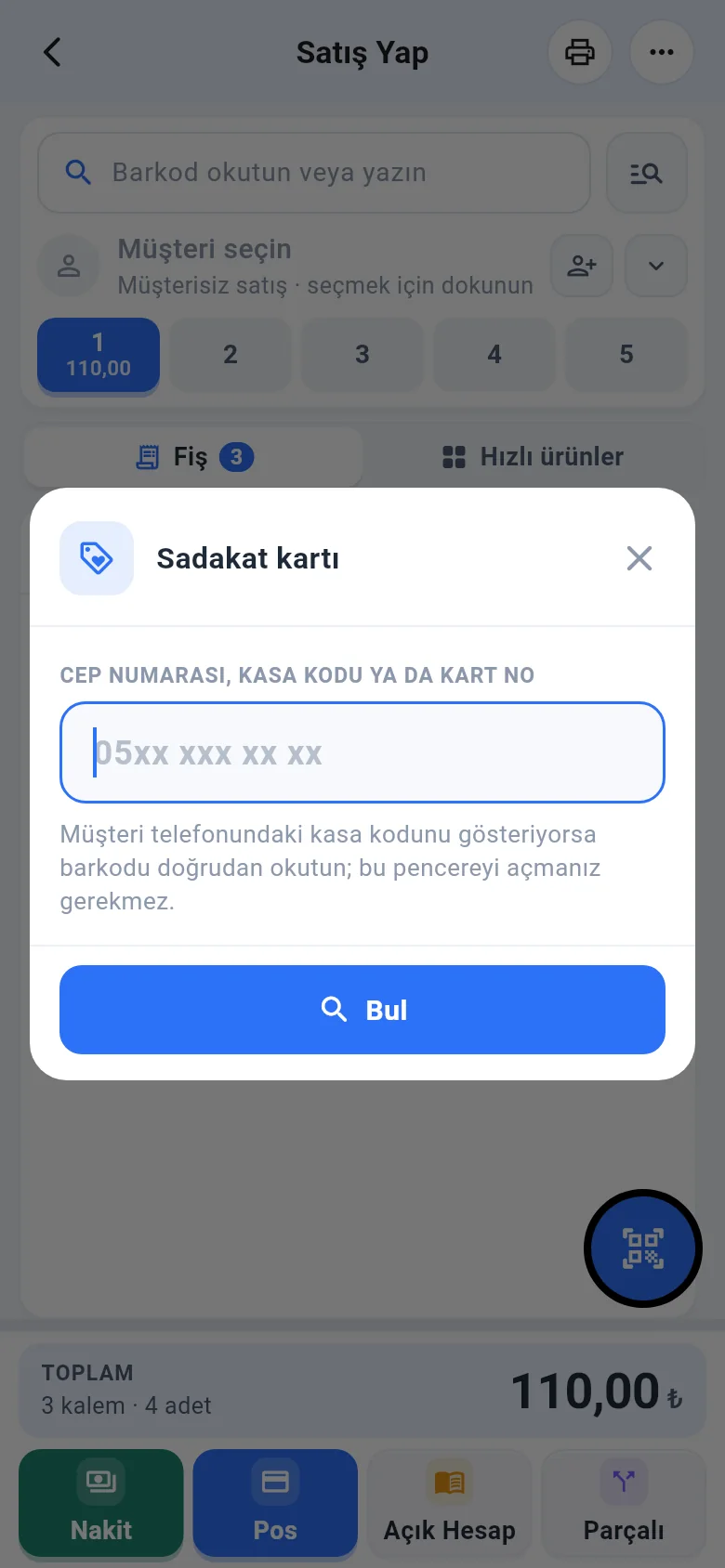 12
12If the customer shows the checkout code on their phone, scan it with the barcode scan button; the customer is found straight away.
The customer is added to the receipt
1 The chip shows the customer's name and points (it turns orange when a stamp reward is ready). Tap the chip again to see 1 points and stamps, 2 Use stamp reward, 3 Use points, 4 Remove from receipt and 5 Other number.
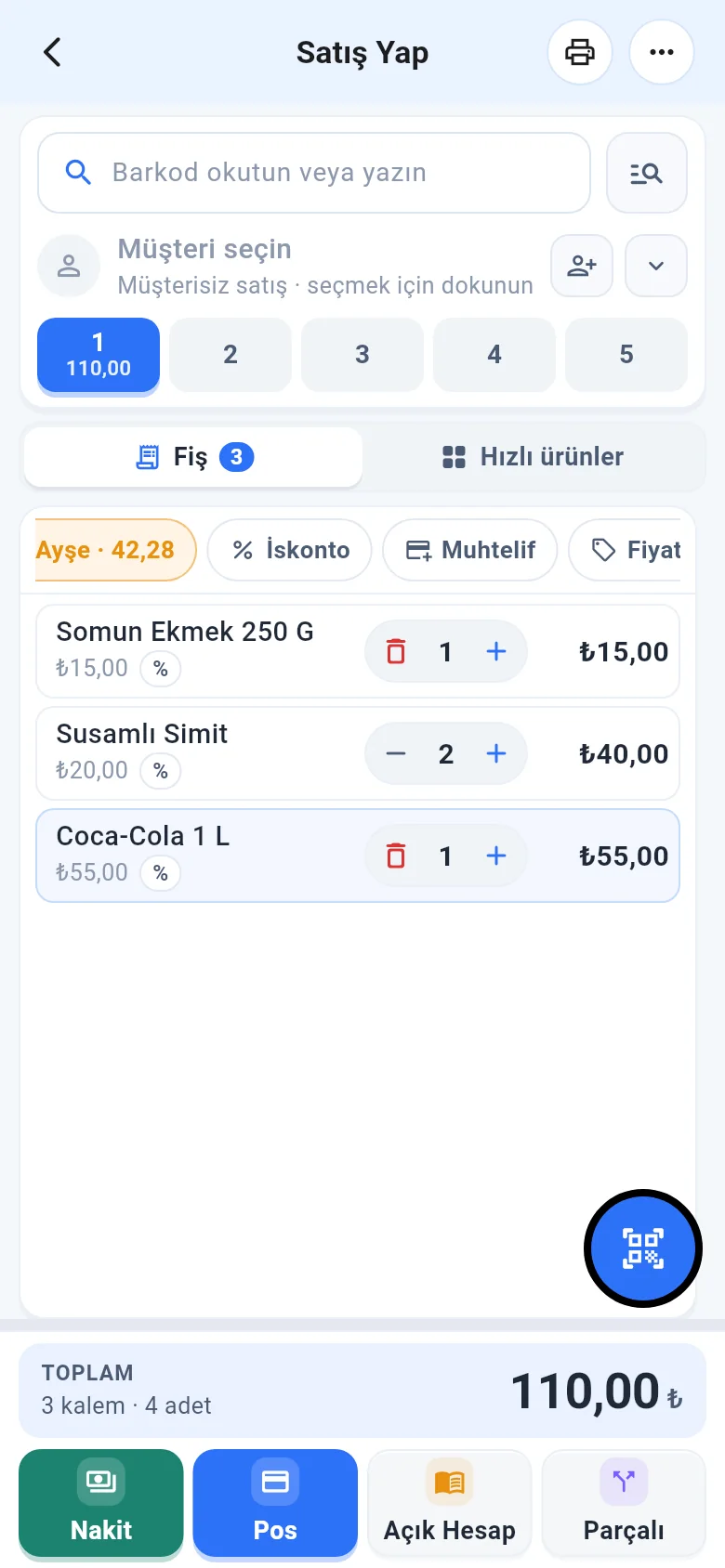 1
1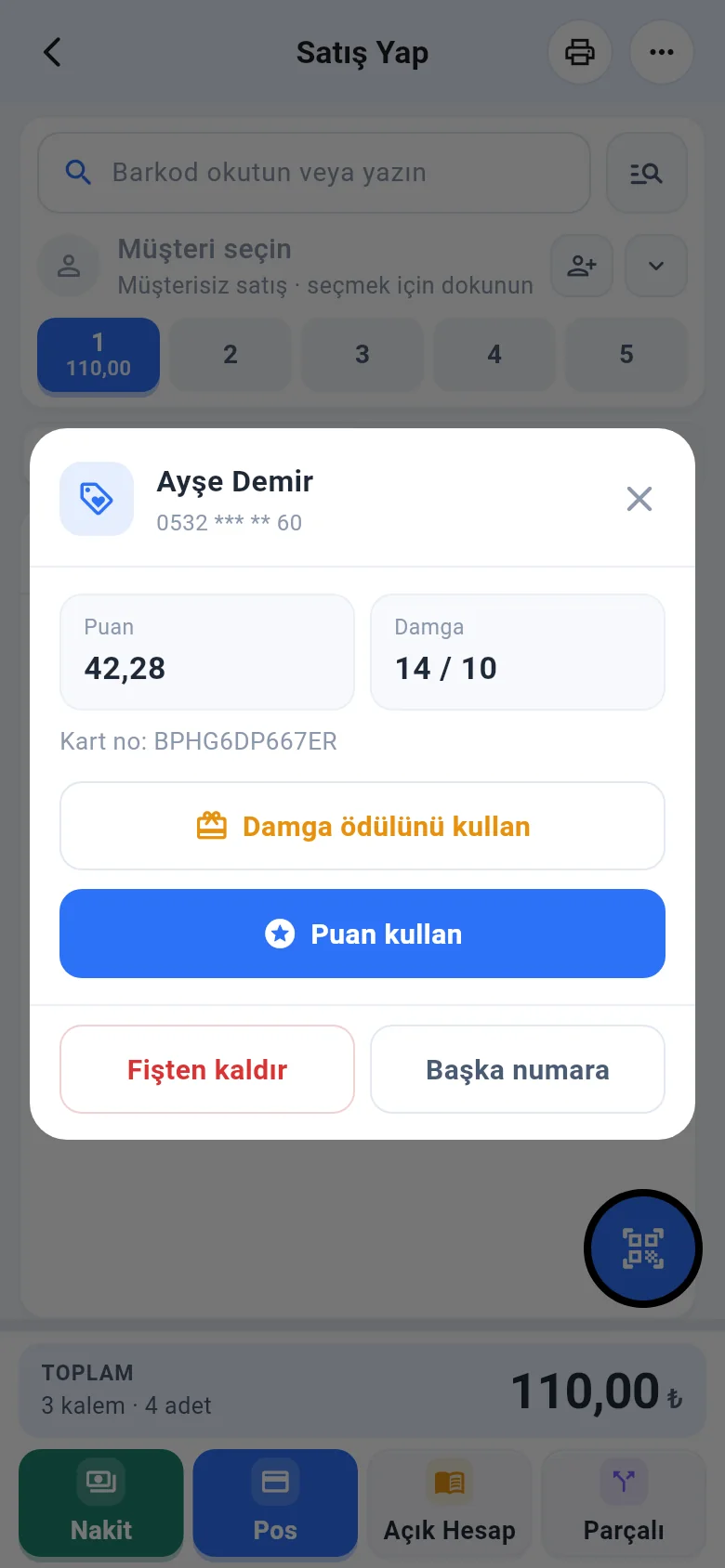 12345
12345
Using points
1 You see the available points and the most that can be used on this receipt. 2 Type the points to use. Tap 4 Apply points. If the number was typed by hand, no SMS is sent: scan the checkout code on the customer's phone; a customer found with the checkout code is not asked for a code.
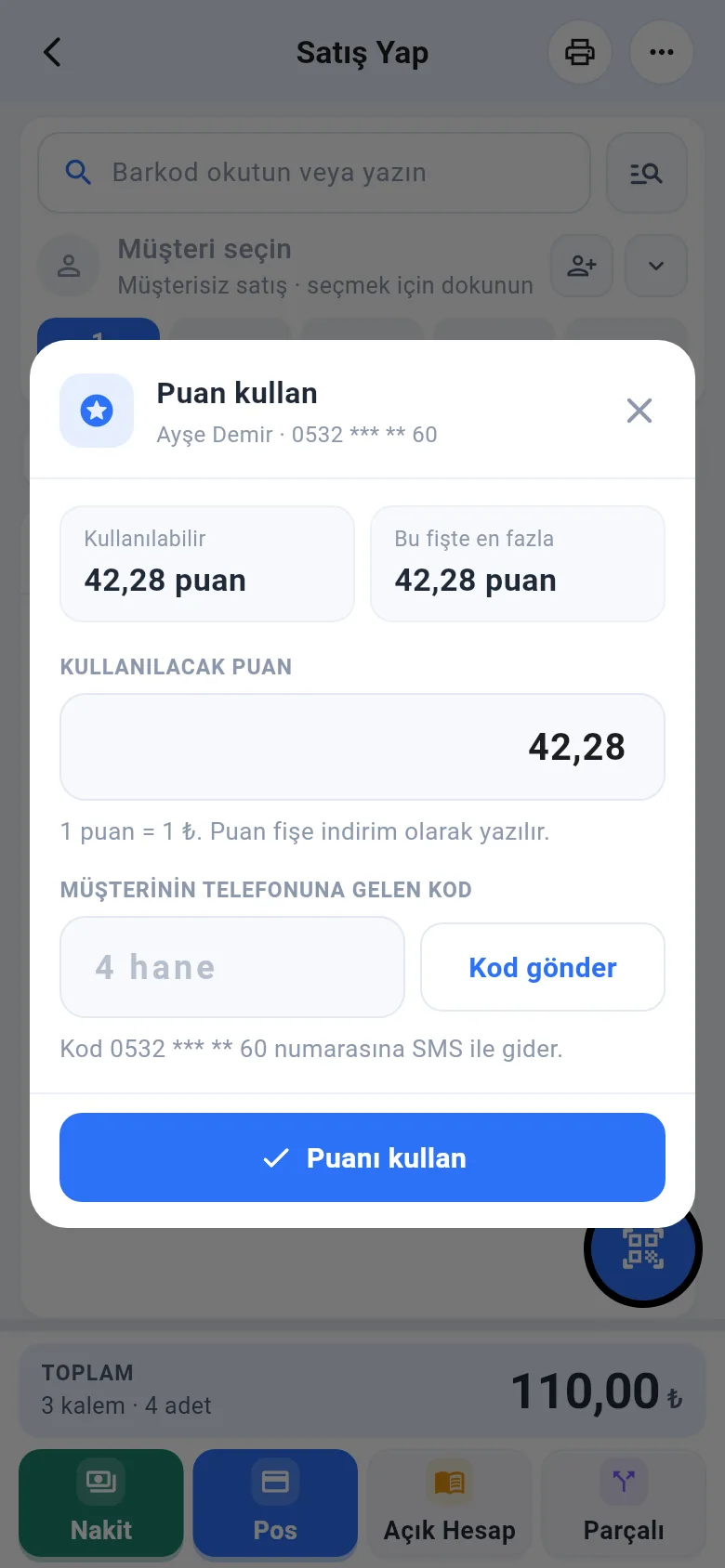 1234
1234Using a stamp reward
Tap Use stamp reward. 1 2 Choose the product the customer wants. 1 Check the reward, 2 type the code if needed and tap 3 Use reward.
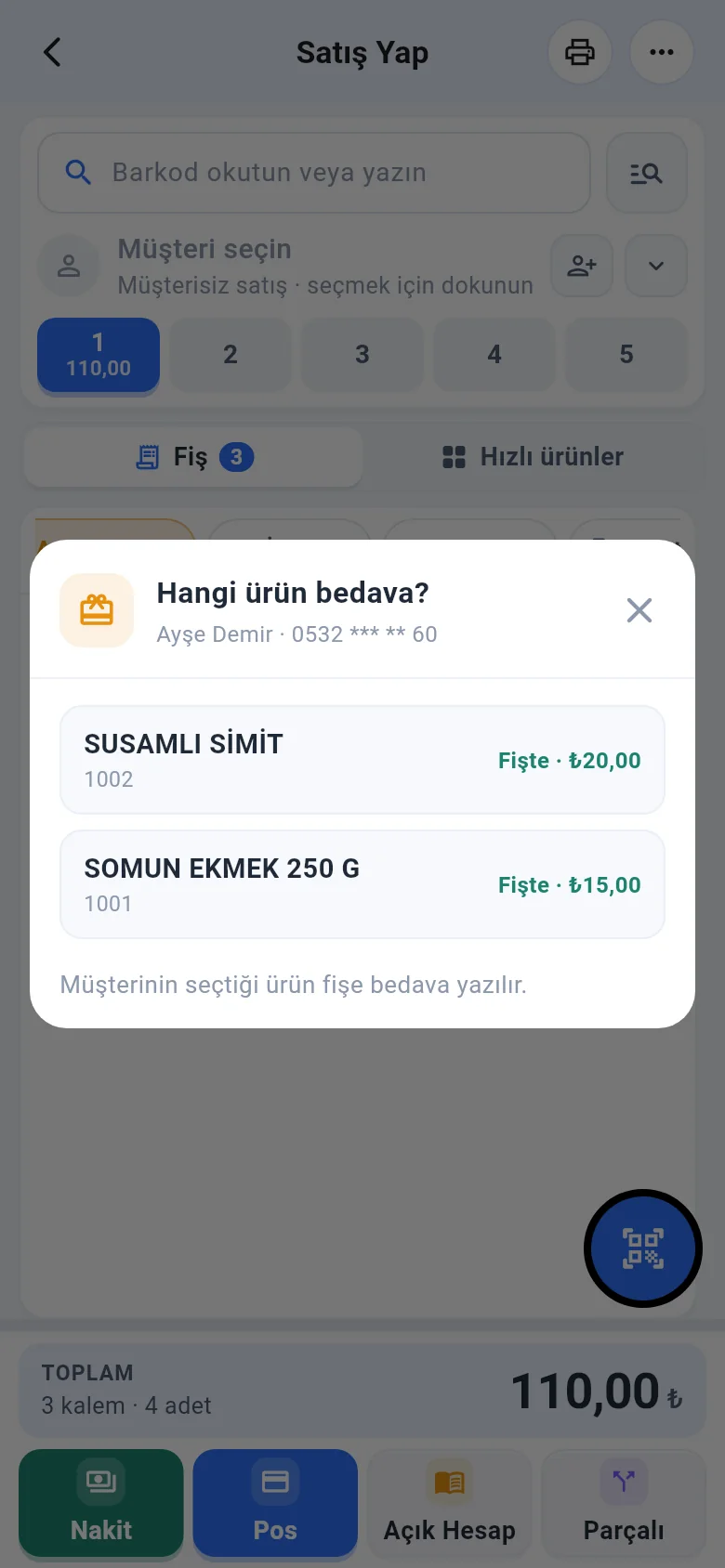 12
12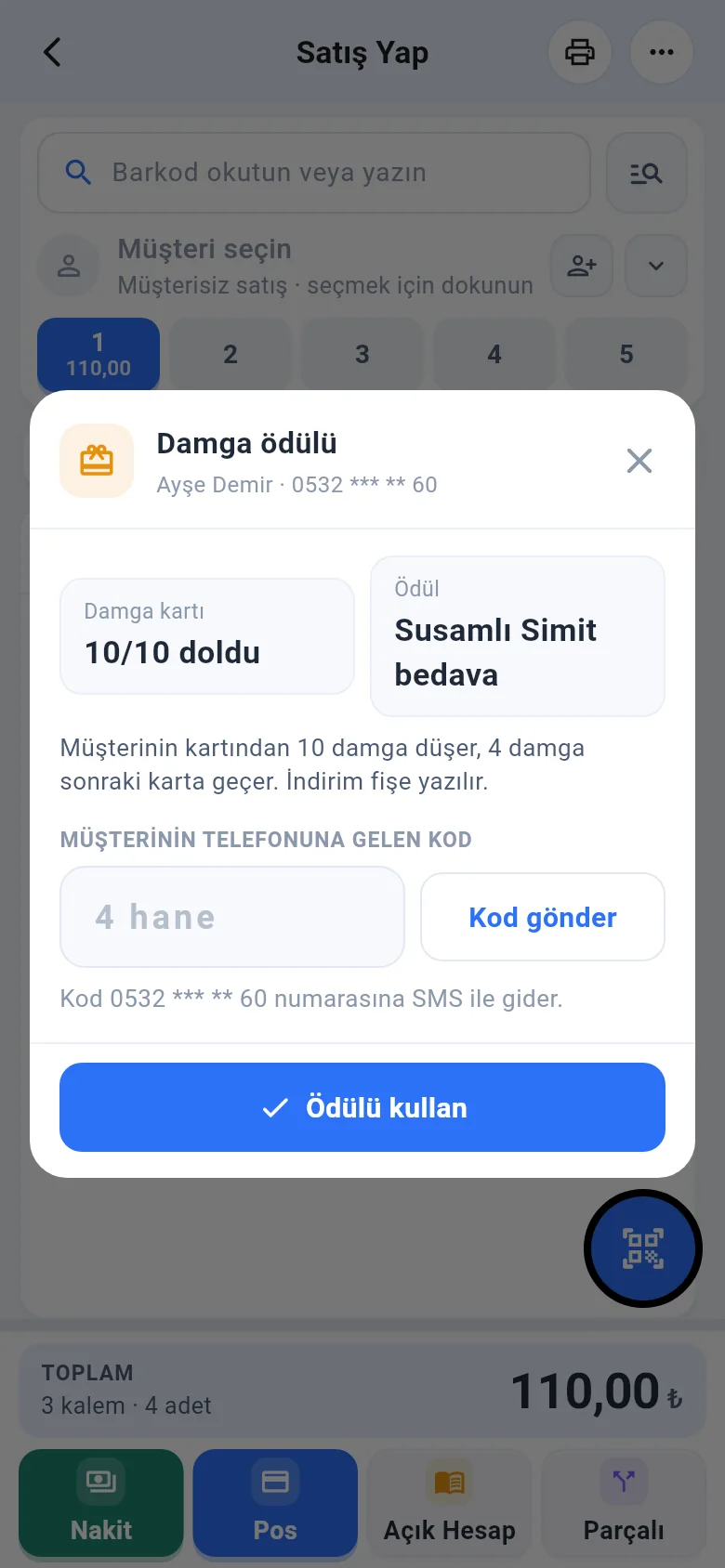 123
123The discount is added to the receipt: 1 the chip shows the amount used and 2 the discount appears below the total. Complete the sale with Cash, Card or another payment type.
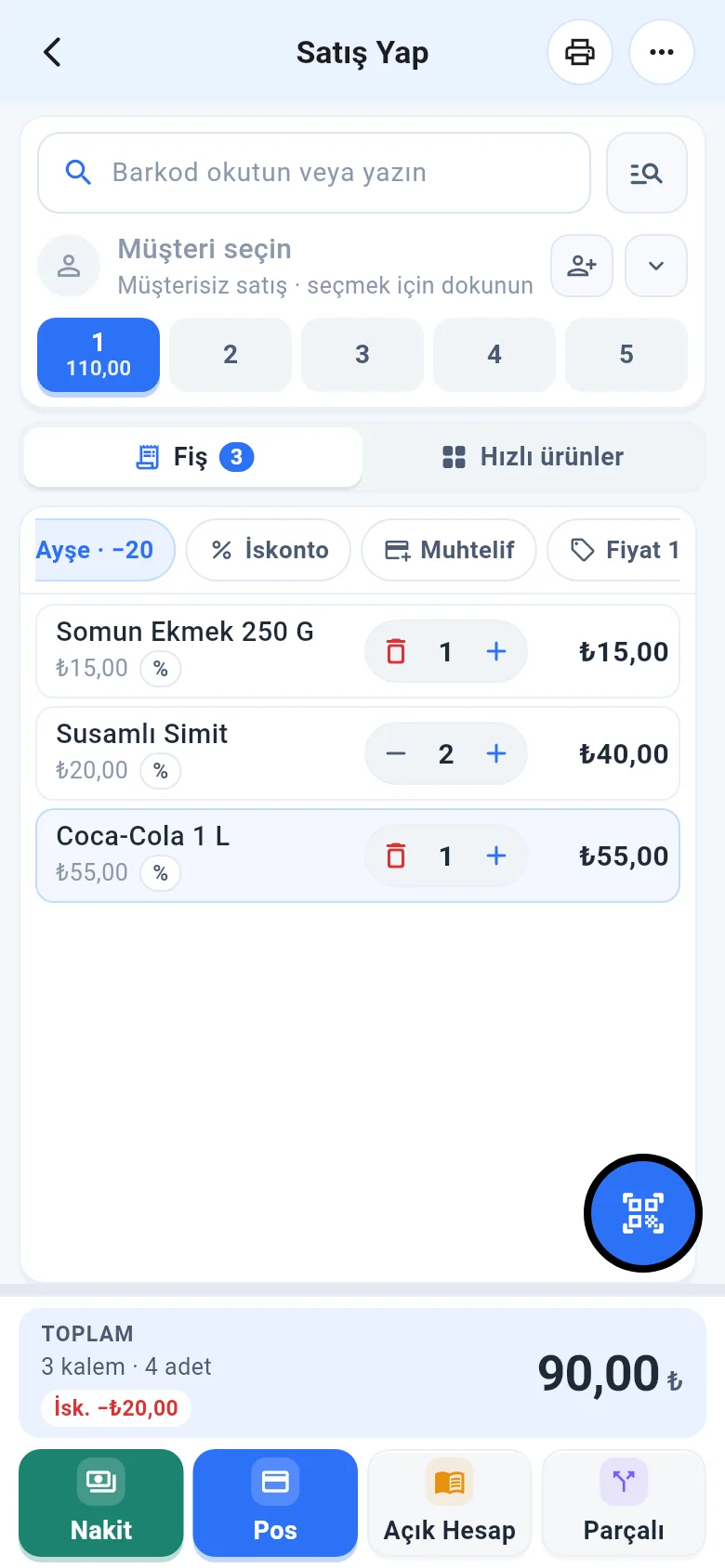 12
12Matching the customer and the loyalty card
When you select a customer who has a mobile number, the loyalty card is linked automatically. If the number you enter for the loyalty card is saved on more than one customer, 1 pick the right customer or tap 2 Skip. The customer you pick 1 appears at the top of the receipt and 2 their points show on the chip.
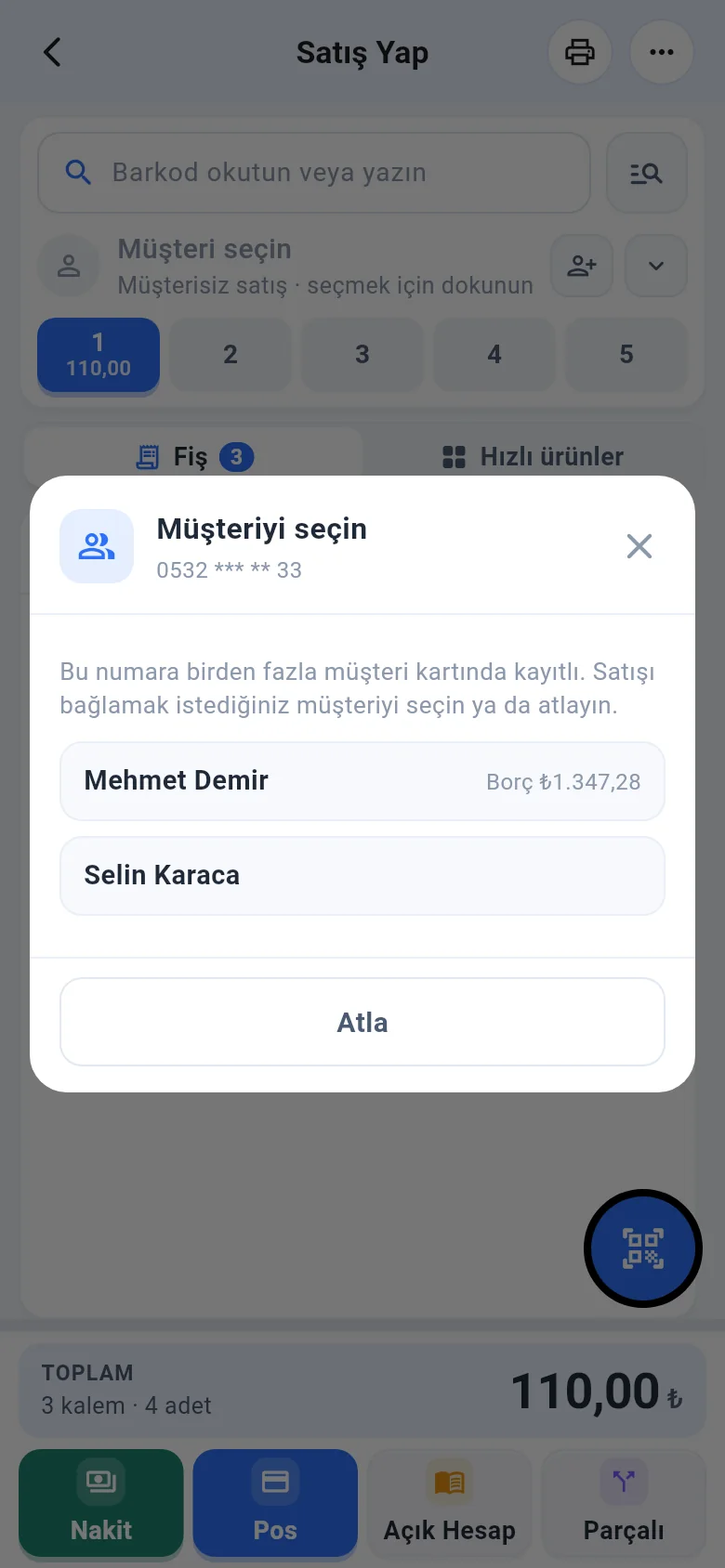 12
12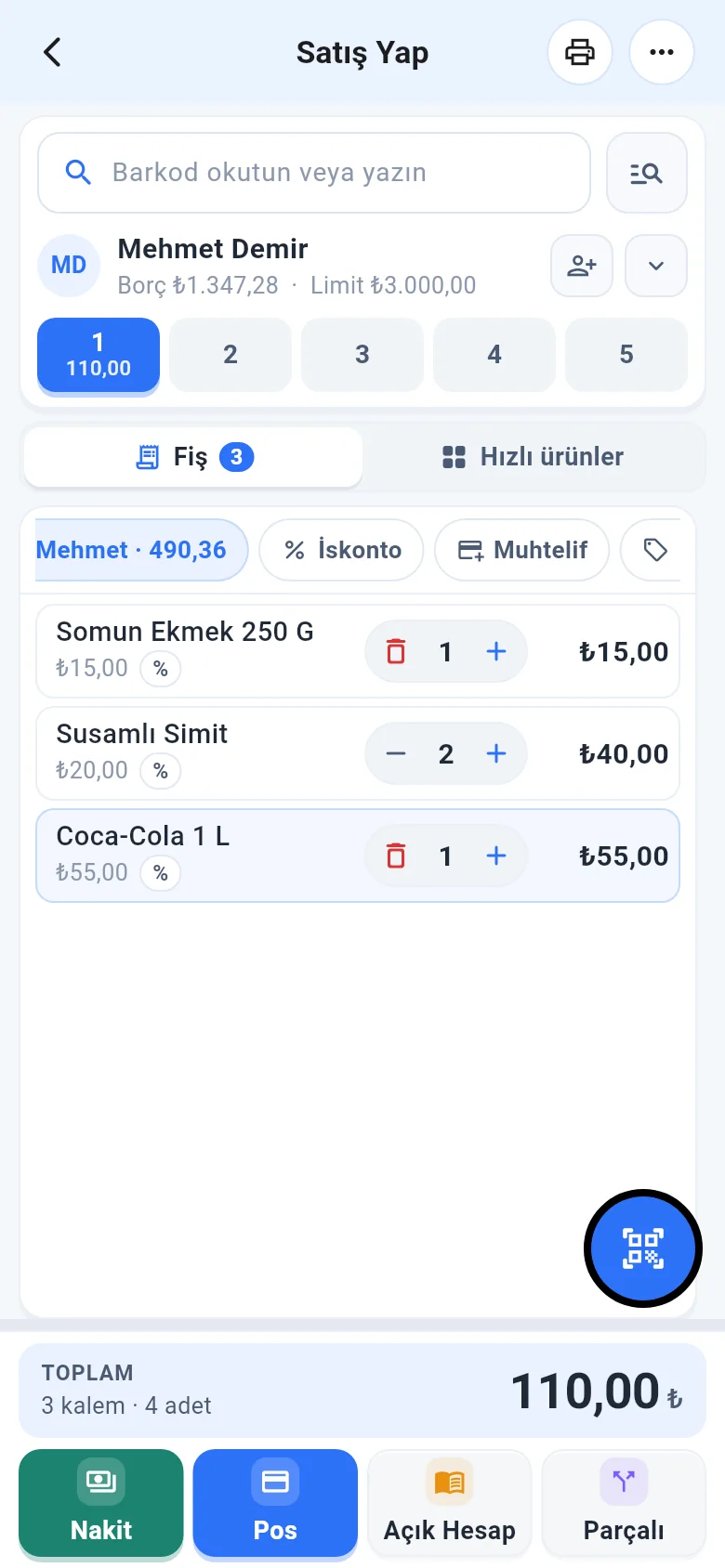 12
12