




Changing the language, country and region settings
Use the panel in Turkish, English, Azerbaijani, Russian or Arabic, and set the country, phone country code, currency, default VAT rate and time zone.
You can use BenimPOS in Turkish, English, Azerbaijani, Russian and Arabic. Settings that depend on where your business is, such as language, country, phone country code, currency, VAT rate and time zone, are on a single tab in the web panel.
Basic settings
On the My Profile page, open the 1 Basic settings tab, and after making changes press Update & Save.
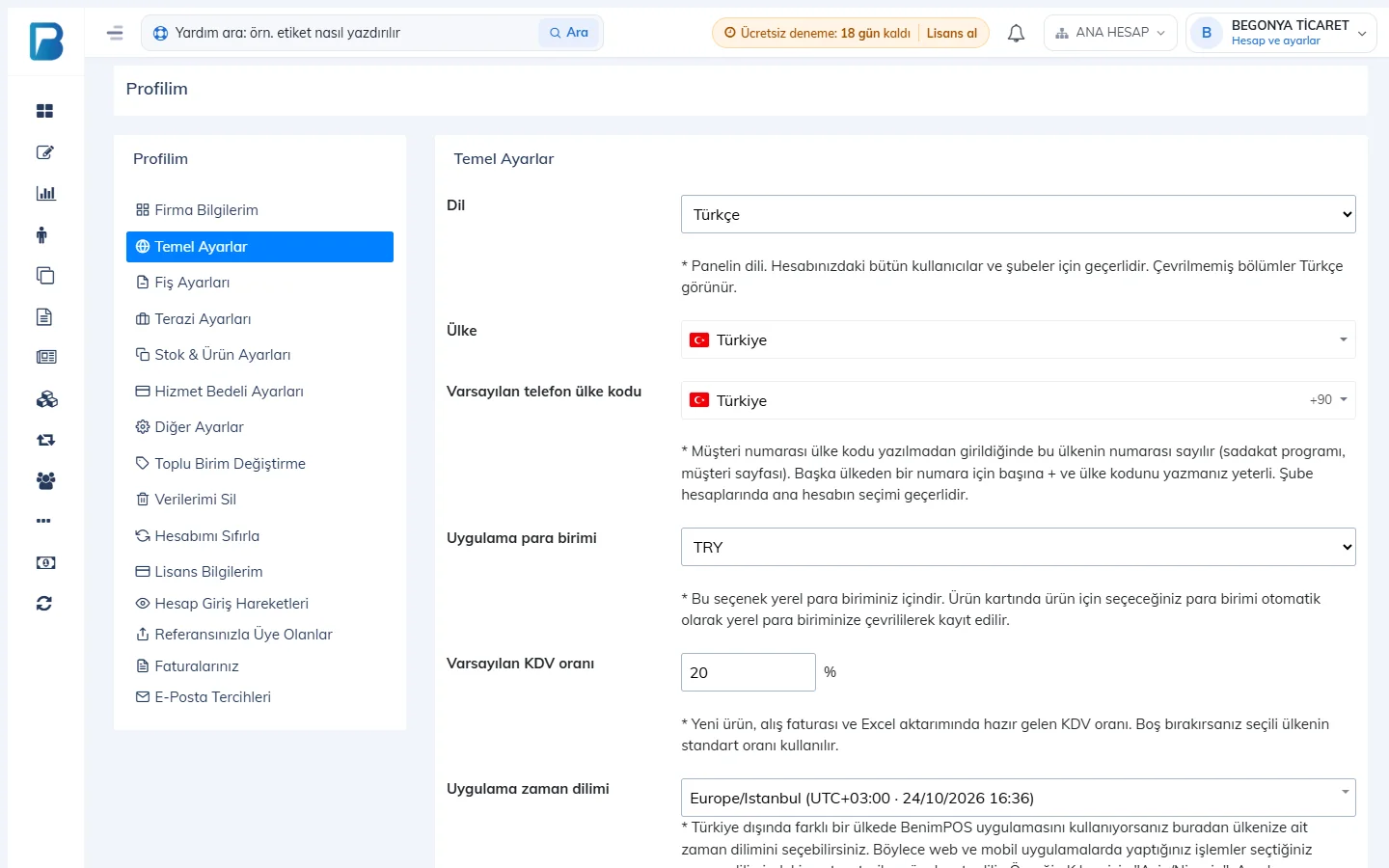 1234567
| Setting | Description |
|---|---|
| 2 Language | The language of the panel. It applies to all users and branches on your account; the desktop app also opens in this language the next time it starts. Only the account owner can change the language; this field doesn't show when logged in as staff. |
| 3 Country | Your business's country. When you choose a country other than Turkey, features that only apply in Turkey (such as e-fatura (e-invoice), fiscal cash register POS, bulk SMS and Phone Book) are hidden from the menu; the names of the tax fields on customer and supplier cards change to match the country (e.g. VÖEN in Azerbaijan). |
| 4 Default phone country code | Phone fields on customer and supplier cards and on the sales screen open with this country. When you change the country, this field changes to the same country; you can change it separately if you want. Branch accounts use the main account's choice. |
| 5 App currency | The local currency your sales and reports are kept in. Click the list and search by typing a code or name in the box that appears ("azn", "manat"). Exchange rates |
| 6 Default VAT rate | The VAT rate filled in by default on new product cards, purchase invoices and Excel product imports. If you leave it empty, the standard rate of the selected country is used (20% for Turkey). |
| 7 App time zone | The time of sales and other transactions is recorded in this time zone; weekly and monthly report emails are also sent according to it. The list shows the UTC offset and current time next to each zone; you can search by city name (e.g. "Baku"). |
What changes when you change the language?
- The panel, sales screen, receipts and reports appear in the selected language. Sections that haven't been translated yet stay in Turkish.
- In Arabic, pages are shown right to left.
- Unit names (Piece, Kg, Box of 12…) and products' country of origin appear in the selected language. Your records don't change; if you switch back to Turkish, everything looks as before.
- Receipt messages sent by WhatsApp and the loyalty program's verification message are sent in the selected language. Report emails are also in your account's language.
- You can choose the language before logging in too: on benimpos.com with the language button in the top menu, and on the login page with the language names at the bottom. In languages other than Turkish, license prices are shown in US dollars.
Letter differences in search
Product, customer and supplier searches ignore Turkish letter differences: i and İ, ö and o, ğ and g give the same result. In Azerbaijani, ə and e, and in Arabic, different forms of the same letter (أ إ آ and ا, ة and ه, ى and ي) are also treated as the same.
App language
Choose the language on the Language card at the bottom of the Settings › Profile settings page and press Restart now. The language is shared with the business language in the web panel: when you change it in the desktop app the web panel switches too, and when you change it on the web the app opens in that language the next time it starts.
All-letter support
For letters outside Turkish (ə, Кириллица, عربي …) to be stored correctly in product and customer names, the database on the computer needs a one-time update. On a new installation this happens automatically. On an account outside Turkey, or when the app opens in a language other than Turkish, you're asked once; the update runs when you confirm. With many records, the update may be spread over several startups.
To start it by hand, press Enable all-letter support on the same card; the app restarts and the update runs before sync. If the card says "The database supports all letters", nothing needs to be done. If you only use Turkish, you don't need this update.
Country, phone country code, default VAT rate and time zone are changed in the web panel under My Profile › Basic settings; the desktop app picks them up through sync. In the desktop app the sale time comes from the computer's clock, so check the Windows time zone too.
App language
Choose the language with the language button at the top right of the login screen or, after logging in, in Menu › Profile › Language. The mobile app's language is stored on the phone; it doesn't change the language of the web panel.
Country, phone country code, currency, default VAT rate and time zone are changed in the web panel under My Profile › Basic settings.