


Cash drawer: setup and automatic opening
Set up a cash drawer connected to the receipt printer or the computer in the desktop app; it opens by itself after a sale or by hand from the sales screen.
If your till has a cash drawer, the BenimPOS desktop app can open it automatically after a sale. The setting is made separately on each computer; tills without a drawer are not affected.
How is the drawer connected?
- Connected to the receipt printer: The drawer cable plugs into the drawer port on the back of the receipt printer (an RJ11 port that looks like a phone jack; most printers label it DK or Cash Drawer). This is the most common setup. It doesn't matter whether the printer is connected over USB, network or serial port.
- Connected to the computer (USB / COM): The drawer plugs directly into the computer with its own cable. Once its driver is installed, it shows up in Windows as a COM port.
You don't need to install any extra software. For a drawer connected to the receipt printer, the printer only needs to be installed in Windows and able to print receipts.
Setting up the cash drawer
Open the settings page
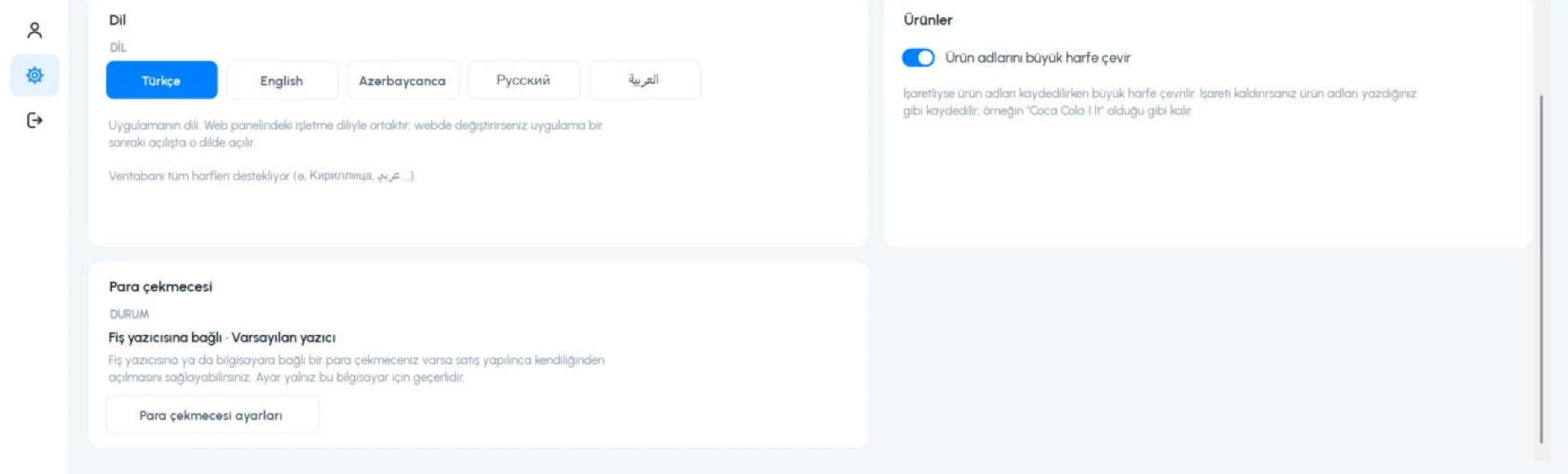
At the bottom of Settings › Profile settings, in the 1 Cash drawer card, press 2 Cash drawer settings. The settings open in a new tab. The card also shows the drawer's current status.
 12
Choose the connection type
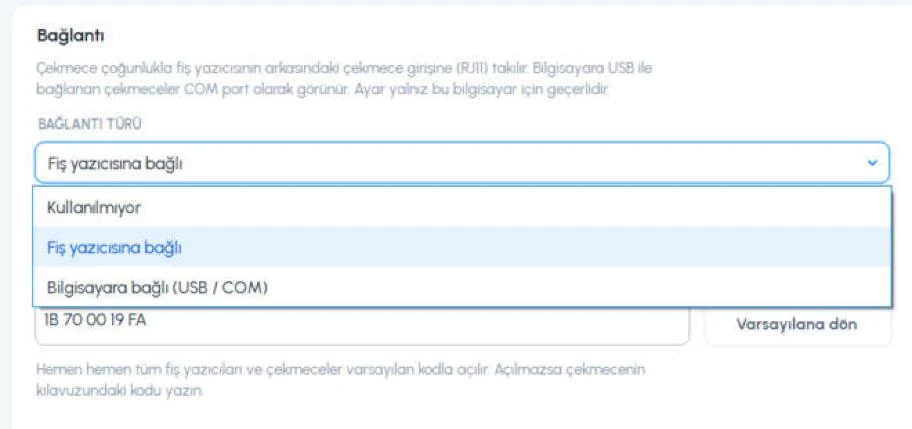
In 1 CONNECTION TYPE, choose Connected to receipt printer or Connected to computer (USB / COM). While Not in use is selected the drawer never opens and the drawer button is not shown on the sales screen.
Choose the printer or port
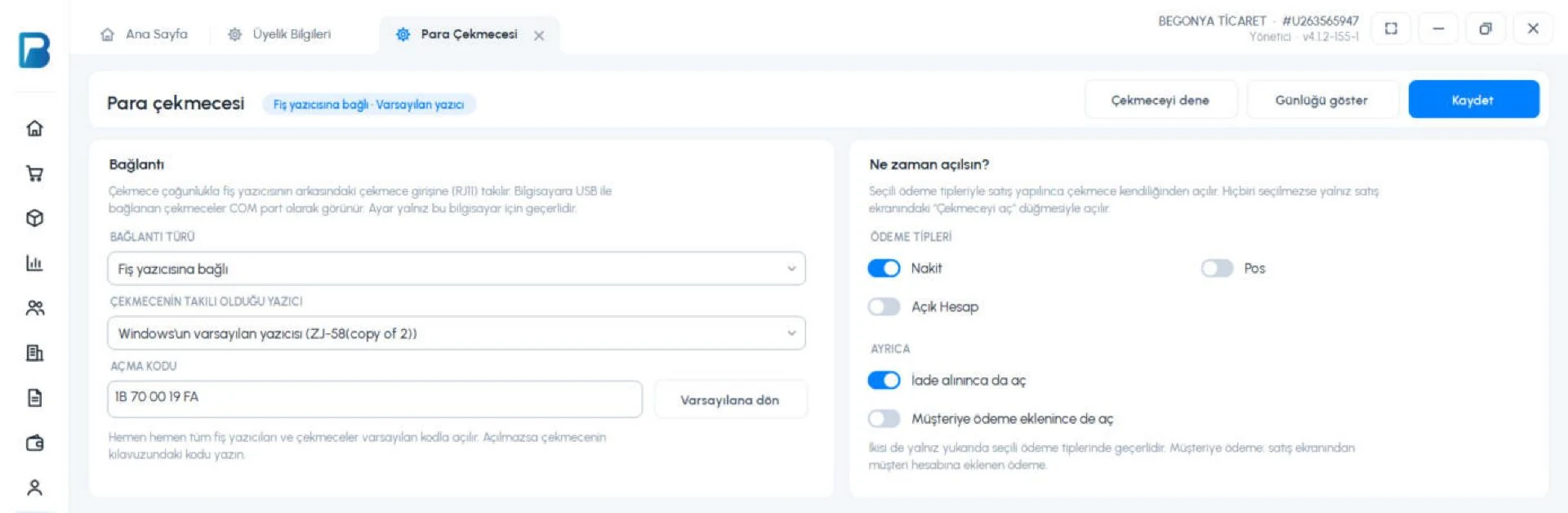
If it is connected to the receipt printer, choose the receipt printer the drawer is plugged into in 2 PRINTER THE DRAWER IS CONNECTED TO. If your receipts come out of the Windows default printer, the first option is enough. Virtual printers such as Microsoft Print to PDF cannot open a drawer; if you choose one, a warning appears below.
 12345678
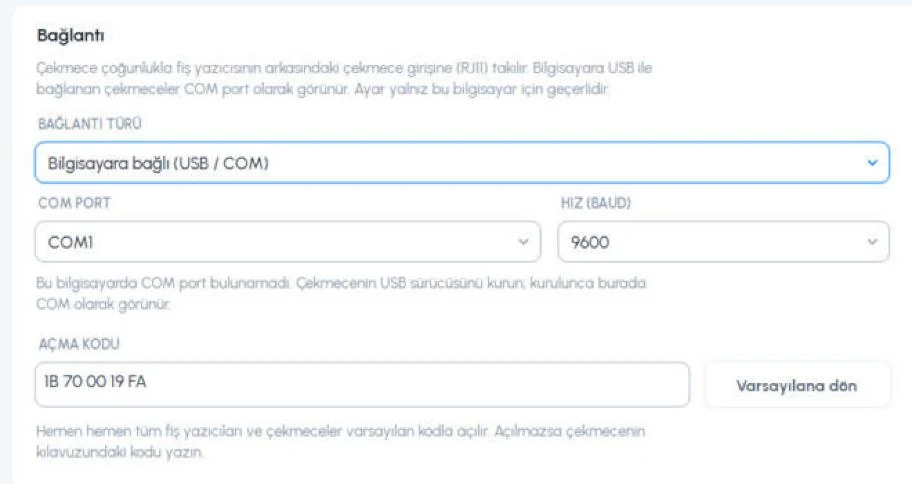
If it is connected to the computer, choose the drawer's port in 1 COM PORT. 2 SPEED (BAUD) stays at 9600 for most drawers. If the port isn't in the list, install the drawer's USB driver, then close and reopen the settings tab. You can see which port the drawer uses in Windows under Device Manager › Ports (COM & LPT).
 12
Leave the open code as it is
3 OPEN CODE is 1B 70 00 19 FA by default; almost all receipt printers and drawers open with this code. If your drawer doesn't open, enter the code from its manual. Restore default brings back the original code.
Choose when it opens
In 4 PAYMENT TYPES, tick the payments after which the drawer should open. Cash, POS, On account and the other payment types you have added to your account (meal cards, bank transfer and so on) are listed here. For most businesses Cash alone is enough. With a split payment, the drawer opens if any part is paid with a selected payment type.
Under 5 ALSO:
- Also open on returns: On by default, because the refund is paid out of the drawer.
- Also open when a customer payment is added: The drawer opens when an on-account balance is paid with Add payment to customer on the sales screen.
Both apply only to the payment types selected above. If no payment type is selected, the drawer opens only with the Open drawer button on the sales screen.
Test and save
Use 6 Test drawer to check that the drawer opens before you save. If it opened, press 8 Save. From then on, the drawer opens by itself after every sale paid with the payment types you selected.
If you have several tills, make the setting on each computer that has a drawer. On a computer without a drawer, Not in use can stay selected.
Opening the drawer by hand on the sales screen
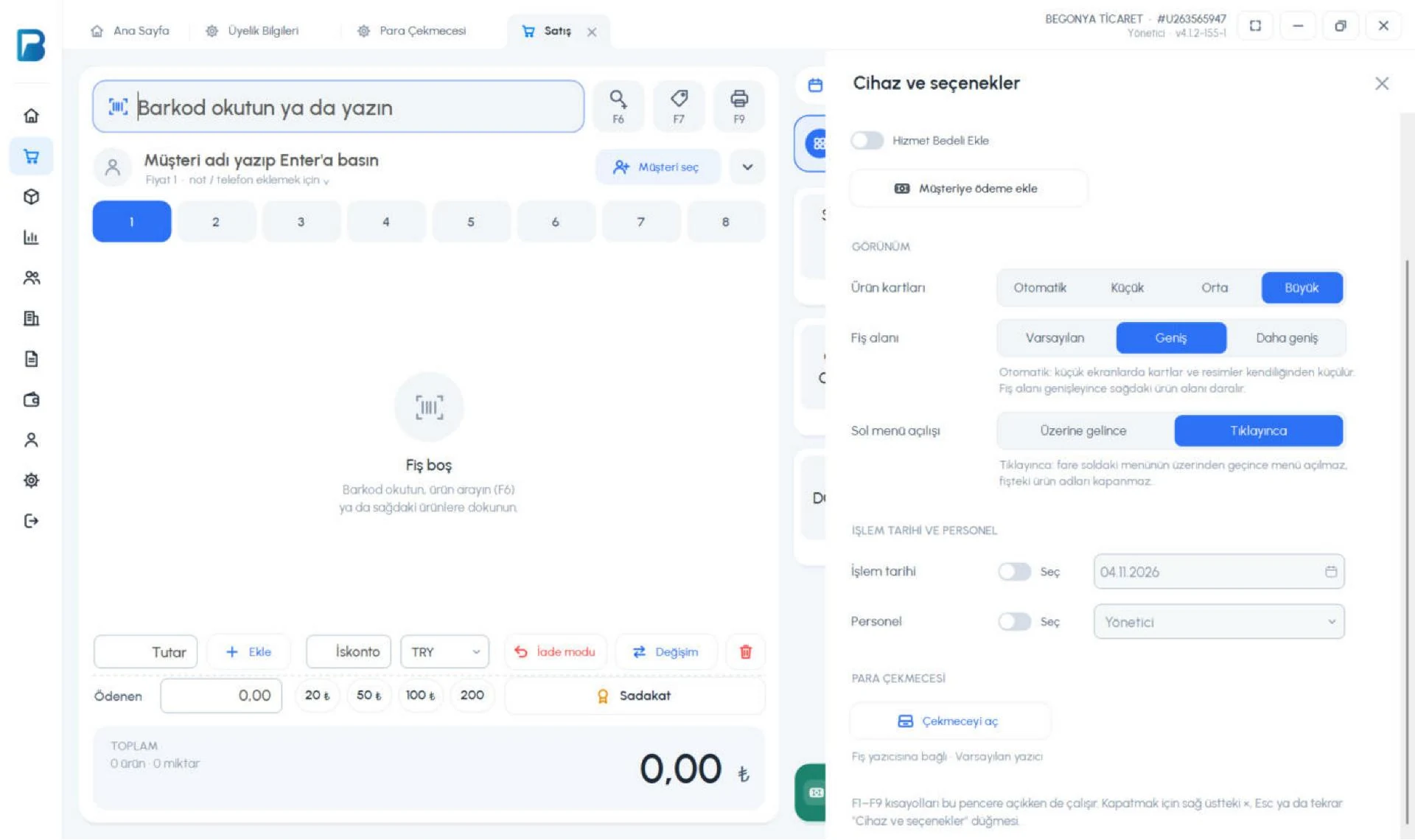
You can open the drawer without a sale, for change or a cash count. Press Options at the top right of the sales screen; at the bottom of the Devices and options list that opens, press Open drawer in the 1 CASH DRAWER section. Below the button you can see how the drawer is connected.
 1
This section appears only when a drawer is set up. Every manual opening is written to the activity log together with the staff member who opened it, as The cash drawer was opened manually.
Staff permission
The admin can always open the drawer by hand. For a staff member to use the Open drawer button, turn on Can open the cash drawer on the Sale tab of their permissions (on the web panel under Staff, in the desktop app under Staff › staff details). No permission is needed for the drawer to open by itself after a sale.
If the drawer doesn't open
- If Test drawer says the open command was sent but the drawer doesn't open, check that the cable is fully seated in the printer's drawer port and that the right printer is selected.
- If the receipt prints but the drawer doesn't open, replace the open code with the one in the drawer's or printer's manual.
- If the drawer is locked, turn the key to the open position; a locked drawer doesn't open even when it receives the command.
- For a drawer connected to the computer, if the port isn't in the list, install the drawer's USB driver.
- 7 Show log lists every drawer opening and any errors. Send these records along when you contact our support team.
Even if the drawer can't be opened, the sale is saved normally; a drawer error doesn't stop the sale or close the app.
The cash drawer works with the desktop app on the till computer, and it is set up there. On the web panel you can give staff the Can open the cash drawer permission under Staff › permissions › Sale, and see manual openings in the activity log.
The mobile app doesn't support a cash drawer. Use the drawer with the desktop app on the till computer.