


Restock and supplier orders
See what to buy and how much by supplier, based on sales rate and critical stock; place orders via WhatsApp, track your orders and turn them into purchase invoices when the goods arrive.
The Purchase Invoices › Restock page looks at your sales rate and critical stock and shows which products you need to buy and how many, grouped by supplier. You place an order from the list with one button and send it to the supplier on WhatsApp; when the goods arrive, you turn the order into a purchase invoice. Businesses that do not enter suppliers can still use the list as a shopping list on the way to the wholesaler.
How is the list prepared?
A product enters the list in two cases: its stock has dropped to the critical stock on the product card, or its current stock will run out before the period you choose. The suggested quantity is calculated as:
daily sales × "Cover for" period + critical stock − current stock
Example: for a product that sells 3 a day, with critical stock 5 and stock 8, if "1 week" is selected the suggestion is 3 × 7 + 5 − 8 = 18. The goods last one week and you keep a reserve equal to the critical stock.
- Daily sales are calculated from the last 14 / 28 / 56 days you select. Do not affect earnings transactions such as stock counts, stock adjustments and branch transfers are not counted as sales.
- Products that have never had a stock entry and are only sold (e.g. bags or services whose stock is not tracked) are not listed; their number is shown at the bottom of the page.
- The supplier is taken from the product's latest purchase invoice entered with a supplier selected. Products without one stay in the No supplier set group; you can assign the supplier from the list.
- Each branch's list is prepared with its own stock.
Viewing what to buy and placing an order
Open the page and choose the period
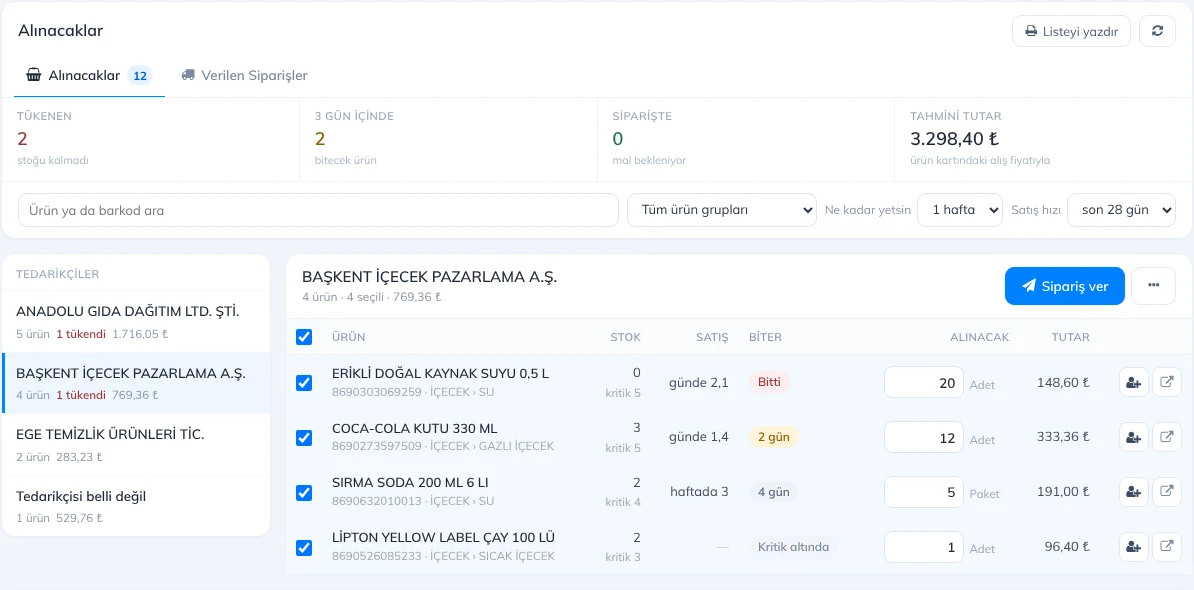
Open Purchase Invoices › Restock. In 4 Cover for, choose how many days the goods should last (1 week if your supplier comes once a week). Sales rate is how many days of sales the average is taken from; last 28 days suits most businesses. Your choices are saved to your account.
 12345678910
Choose the supplier
5 The list on the left shows each supplier's number of items, how many are out of stock and the estimated amount. Click a supplier to see only its items on the right. On a phone, choose the supplier from the drop-down above the list.
Check the items and quantities
Each row shows 6 stock, critical stock, daily or weekly sales and in how many days the product will run out. 7 You can change the suggested quantity. Tap the row of an item you do not want to buy to deselect it; tap again to select it.
Place the order
Click 8 Place order and choose how to send it (below).
- 1 The Restock tab is this list; your orders are kept on the Placed Orders tab.
- 2 Click the Out of stock, Within 3 days and On order boxes to filter the list to those items; click again to clear the filter.
- 3 Search by product name or barcode, or filter by product group (subgroups are included).
- 9 The ⋯ menu lets you print or copy the list without saving an order and assign a supplier to the selected items at once.
- 10 Use the button on the row to choose or change the item's supplier; the item moves to that supplier's list.
Sending the order
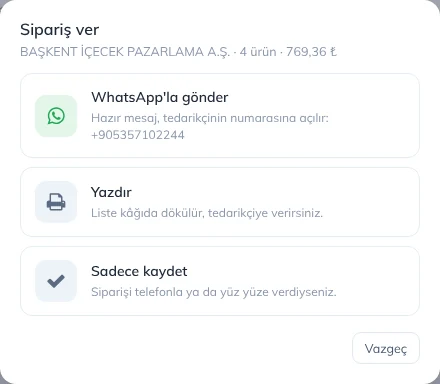
When you click Place order, a window with three options opens. Whichever you choose, the order is numbered and saved to Placed Orders.
 123
- 1 Send via WhatsApp: The order list opens as a ready message to the mobile number on the supplier card; you check it and send it yourself. If the supplier has no number, you pick the contact in WhatsApp. If the list is very long it is copied to the clipboard and you paste it into the message box (Ctrl+V).
- 2 Print: The list is printed; hand it to the supplier or tick it off at the wholesaler.
- 3 Just save: If you placed the order by phone or in person.
- If you placed it by mistake, click Undo at the bottom; the order is deleted.
Items on order stay in the list but appear faded, with a note such as Order #3 · 2 days ago · 24 below them, and the ordered quantity is deducted from the suggestion. Click the note to open the order. To order the same item again, tap its row; the suggested quantity fills in automatically.
Placed orders
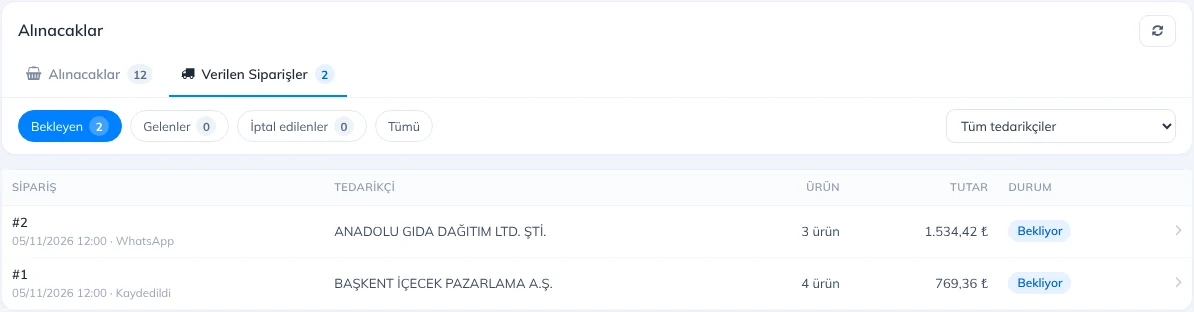
The Placed Orders tab lists all your orders with date, supplier, number of items and amount.
 123
- 1 Filter with Pending, Received, Cancelled and All. The number of pending orders is also shown next to the tab.
- 2 Filter by supplier.
- 3 Click an order to open its details.
Changing or cancelling an order, and turning it into an invoice when the goods arrive
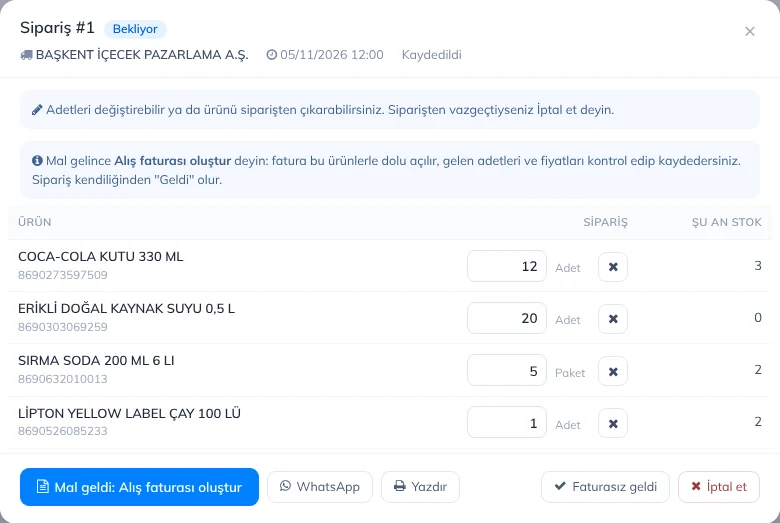 12345
- 1 In a pending order you can change quantities or remove an item with ✕; then click Save changes. If you remove all items, the order is cancelled.
- 2 When the goods arrive, click Goods arrived: create purchase invoice. The purchase invoice screen opens with the supplier selected and filled with the items, quantities, and the price, discount and VAT from the last purchase. Delete the rows of items that did not arrive, check the received quantities and prices, and save the invoice. The order becomes Received automatically; the invoice it was closed with and the received quantities appear on the order.
- 3 You can send the order again via WhatsApp or print it.
- 4 If you do not enter purchase invoices, close the order with Received without invoice.
- 5 If you changed your mind, click Cancel (click once more to confirm). A received or cancelled order can be reopened with Set back to pending.
If stock is entered in another way (purchase invoice, stock increase, stock count) for all items of an order after it was placed, the order becomes Received automatically.
Good to know
- For the list to work well, enter critical stock for your products and record incoming goods with a purchase invoice with the supplier selected. Add your supplier first on the Suppliers page.
- The button in the daily critical stock email opens this page.
- Staff see this page with permission to view purchase invoices or the stock movement report; placing orders and assigning suppliers requires permission to add purchase invoices or edit products.
- Placing an order does not change stock; stock increases with the purchase invoice you enter when the goods arrive.
Restock is currently in the web panel. It will come to the desktop and mobile apps in later versions; until then you can use it by opening the web panel in your phone's browser.