




Customer groups
Sort customers into groups, give a group a price level and discount, and filter the list and reports by group.
With customer groups you sort your customers into groups such as Wholesale, Staff or Corporate, and filter the list and reports by group. If you give a group a price level and a discount, these values are written to the card of each customer you add to the group. A customer belongs to only one group.
A sale always uses the price level and discount on the customer card. The group setting is a template written to the card; changing the group alone does not affect sales.
Creating a group
Open the Groups window
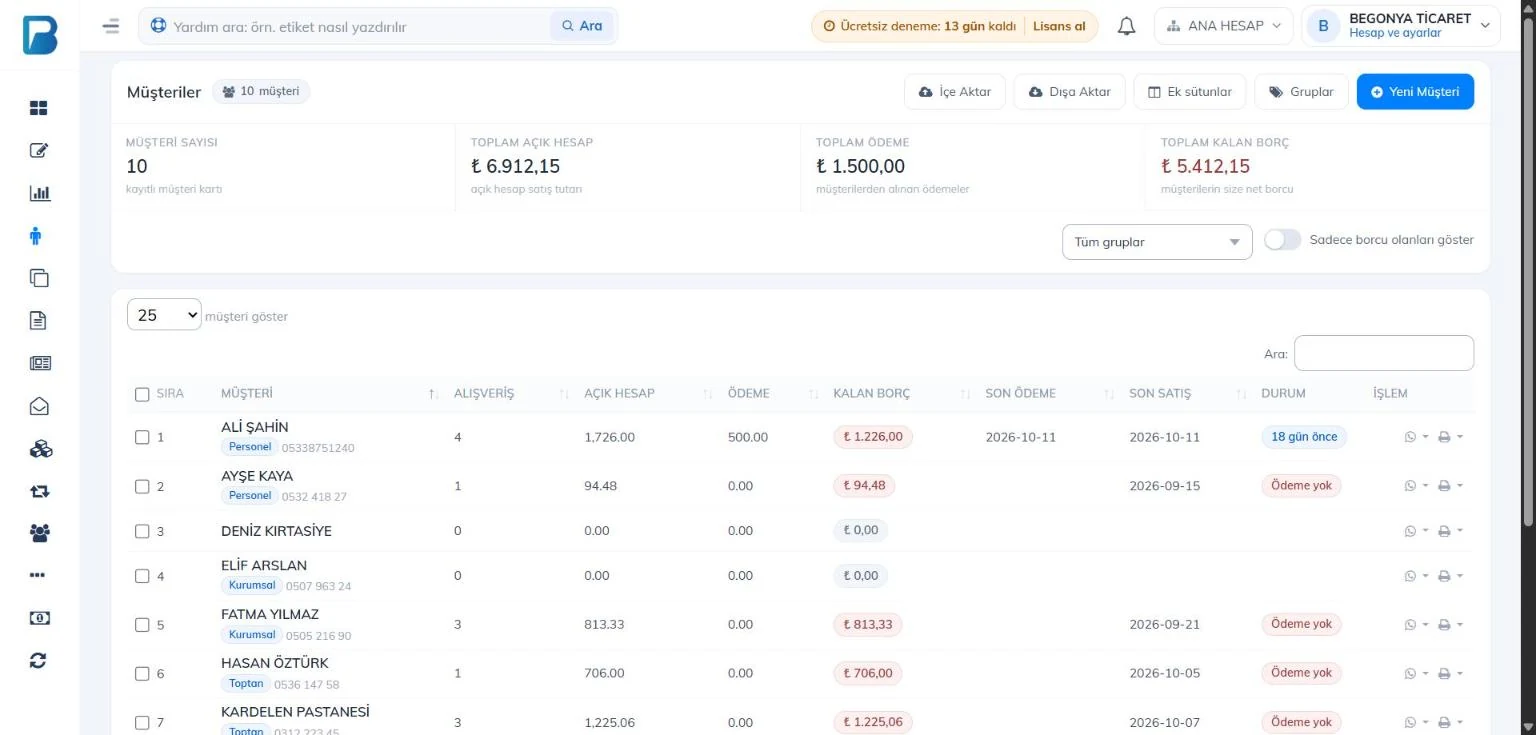
Click Customers in the left menu and press 1 Groups.
 123
123Add the group
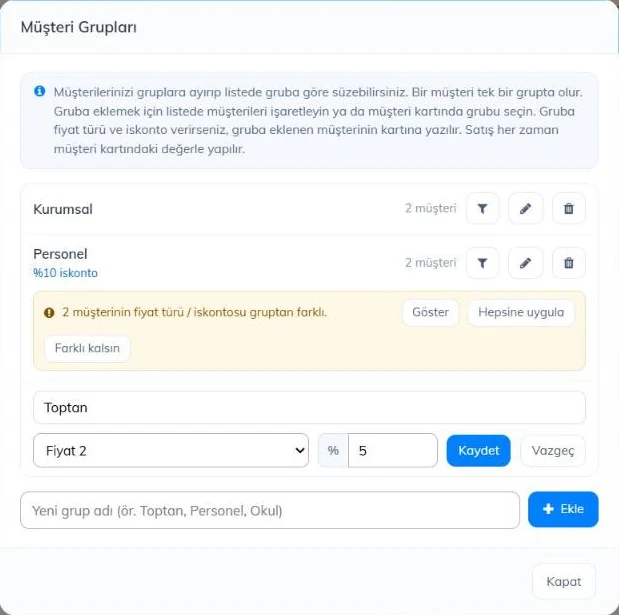
Type the name into the 1 New group name box and press Add. A second group with the same name cannot be created.
Set a price level and discount (optional)
Press the 2 pencil button on the group row. You can change the name and enter a 3 price level (Price 1, Price 2, Price 3) and a discount (%); press 4 Save.
 1234
1234
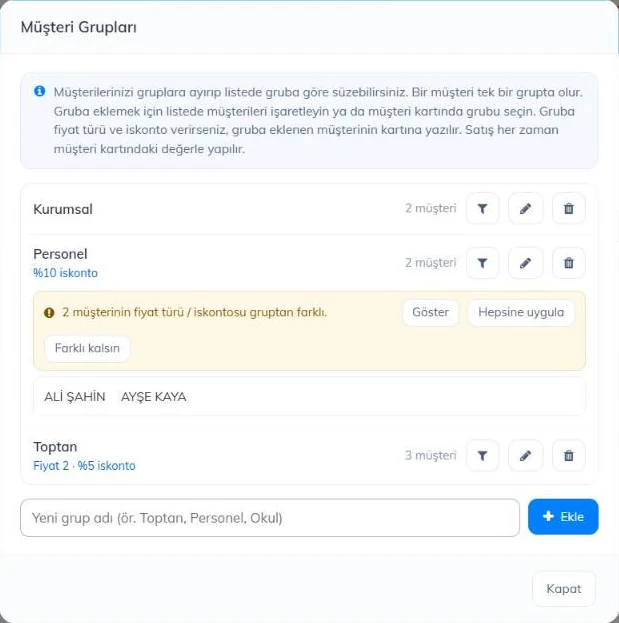
Buttons on the group row: the funnel filters the list by that group, the pencil edits the group and the bin deletes it. Customers in a deleted group are left without a group; the price level and discount on their cards do not change.
Adding customers to a group
Adding from the list in bulk
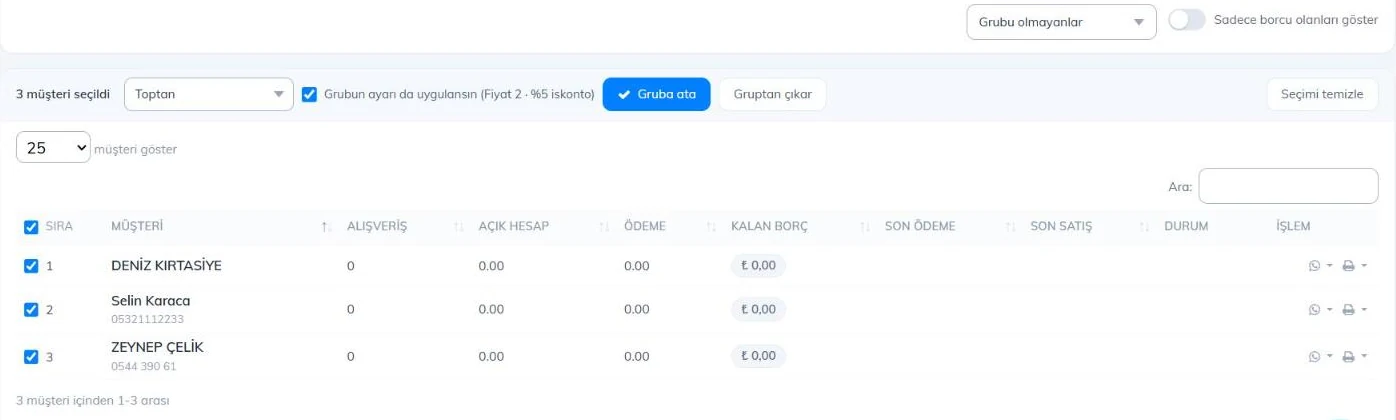
In the customer list (in the example the 1 filter lists customers without a group), tick the 2 customers you want to add (the box in the header selects everyone on the page). In the bar that opens at the top, choose the 3 group and press 5 Assign to group. If the group has a price level or discount, the 4 Also apply the group setting option appears; leave it ticked to write them to the selected customers' cards too. Use Remove from group to take customers out of their group.
 12345
12345From the customer card
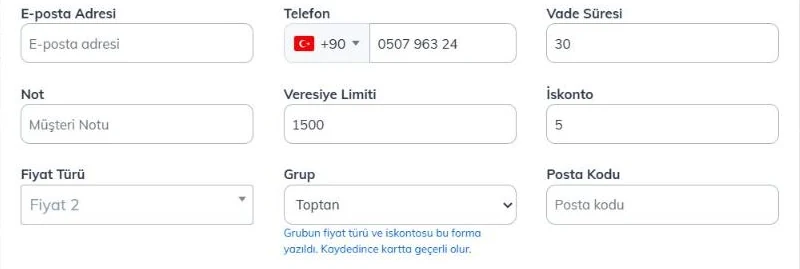
On the customer card press Edit. In the Customer Information window choose the 1 Group; the group's 2 discount and 3 price level are written to the form, and you can change them before saving. When you press Save, the group and the values are applied to the card.
 123
123- You can also choose a group in the New Customer window.
- When importing from Excel, write the group name in column K; a group that does not exist is created automatically. Importing and exporting customers with Excel
Filtering the list by group
On the Customers page, choose All groups, Without a group or a group from the 2 group filter. The 3 label under the customer name shows the customer's group. The list exported to Excel also includes a Group column.
Customers different from the group
If you later change the group setting or edit a customer's card by hand, the Groups window shows the warning "… customers have a price type / discount different from the group".
- 1 Show: lists the 4 customers that are different.
- 2 Apply to all: writes the group's price level and discount to these customers' cards.
- 3 Keep different: these customers keep their own setting and drop out of the warning. You can reverse this with Undo.
 1234
1234Customer groups in reports
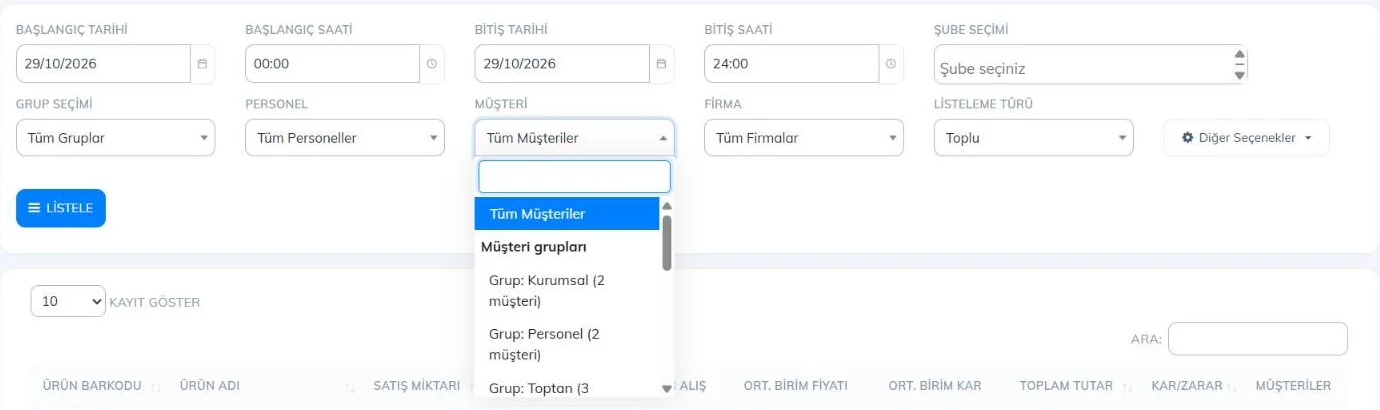
In the Product Report, open the 1 Customer filter; if you choose a group under the 2 Customer groups heading, the report shows the sales of the customers in that group.
 12
12In the Date Range Report and the Daily Report, if your business has groups, a By Customer Group table appears: each group's sales, on-account sales and payments received in the selected period. Only sales made with a customer selected and payments received from customers are counted.

Groups are per branch. If you have branches, create your groups in each branch; groups with the same name are combined in reports.
Groups are created in the web panel and reach the desktop app through sync. In the desktop app you can assign customers to groups and filter the list by group.
Groups in the list
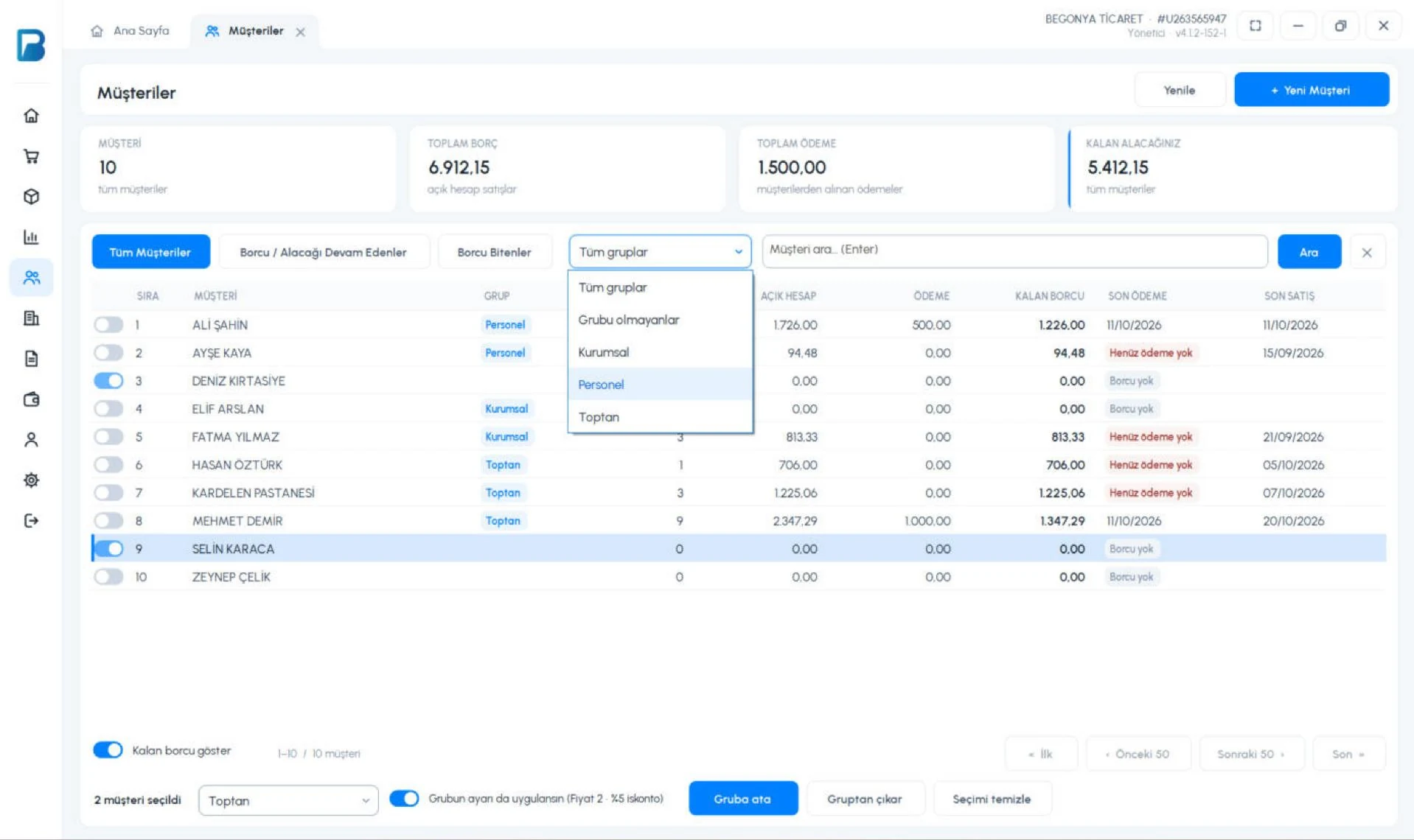
Click Customers in the left menu. Choose All groups, Without a group or a group from the 1 group filter; the 2 GROUP column shows each customer's group.
Assigning a group in bulk
3 Select customers with the switch at the start of each row. 4 Choose the group in the bar at the bottom and press Assign to group. If the group has a price level or discount, the Also apply the group setting option is on; turn it off to assign only the group. Remove from group takes the selected customers out of their group and Clear selection clears the selection.
 1234
1234Group on the customer card
Double-click the customer in the list. The 1 customer's group appears on the Customer Information tab.
 1
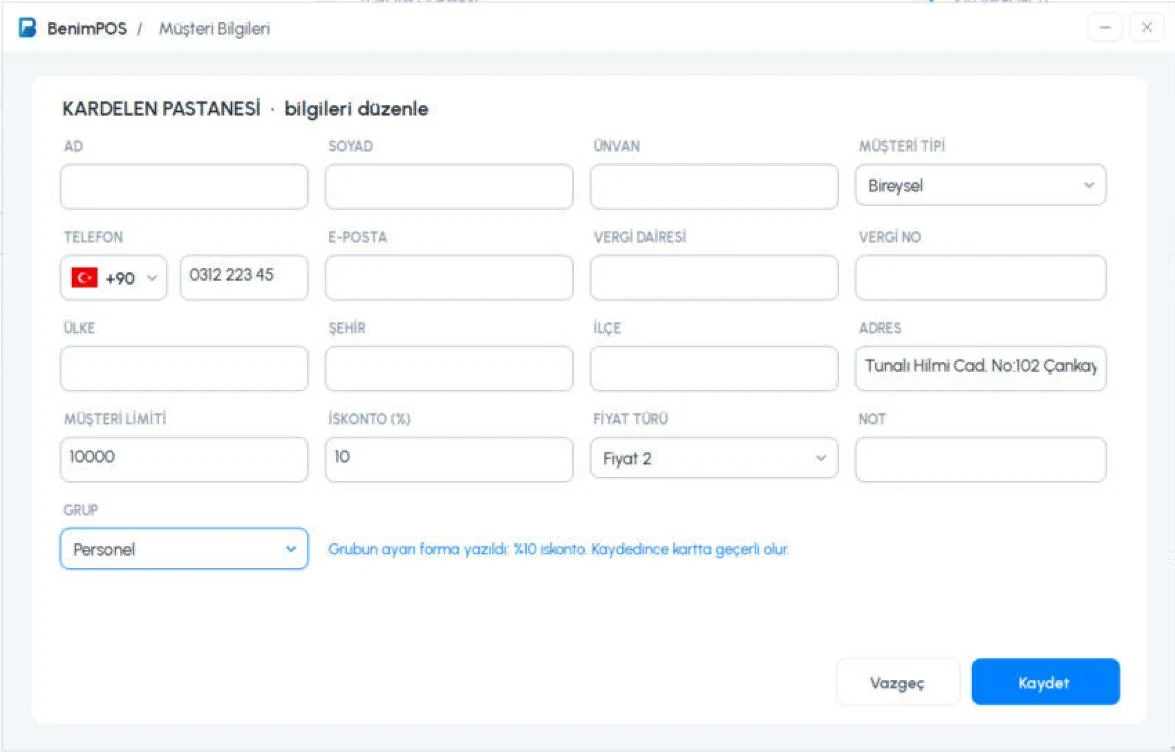
1To change the group, press Edit Information and choose the 1 GROUP. The group's 2 discount and 3 price level are written to the form; 4 the line next to it shows which values were written. Press 5 Save to apply them to the card. You can also choose a group when creating a new customer.
 12345
12345Adding, deleting, renaming groups and changing their settings is only possible in the web panel. You need the latest version of the desktop app.
Groups are created in the web panel. In the mobile app you can assign customers to groups and filter the list by group.
Groups in the list
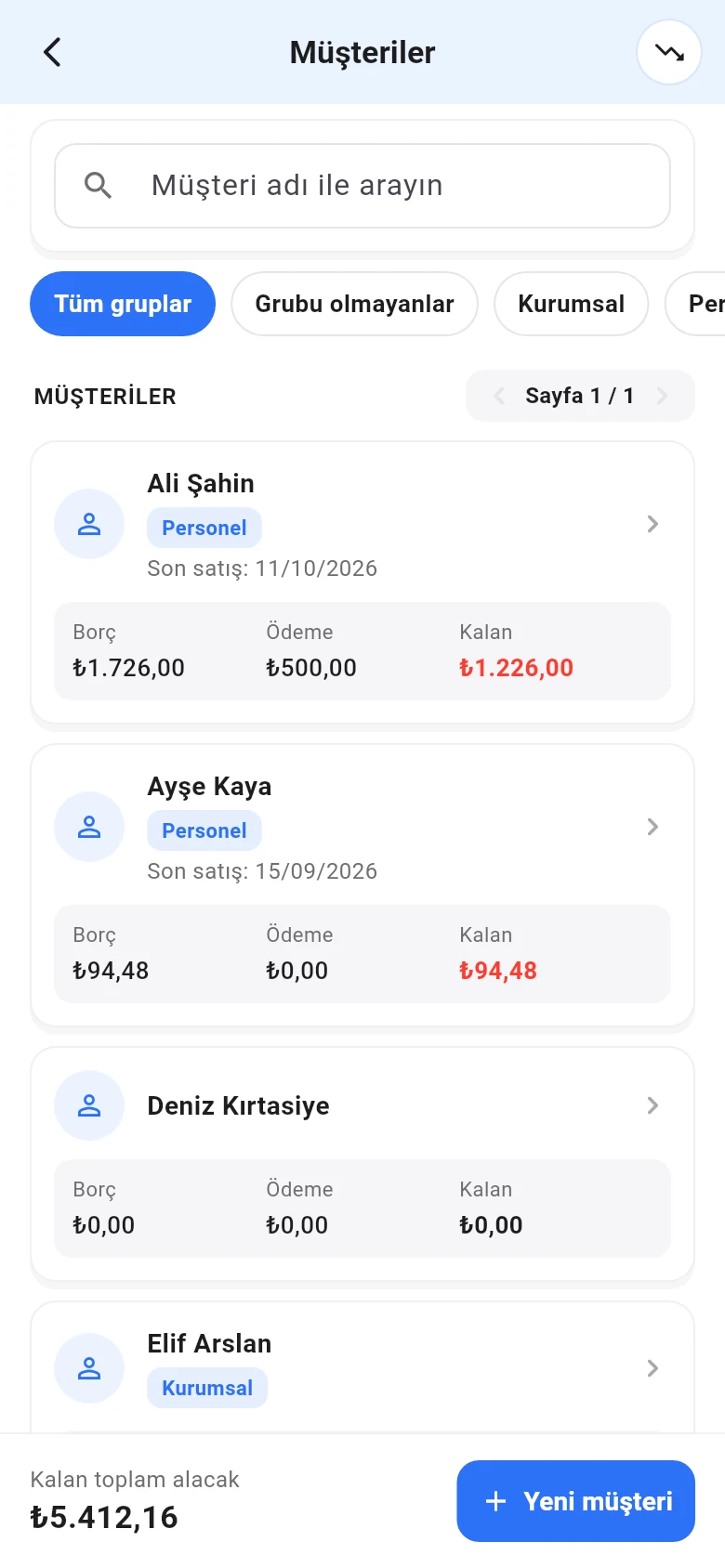
On the Menu › Customers page, filter the list with the 1 group buttons below the search box. The 2 label under the customer name shows the customer's group.
Assigning a group in bulk
Long-press a customer to start selecting. Tap other customers to 1 add them to the selection and tap 2 Assign to group at the bottom. In the window that opens, choose the 1 group; if the group has a price level or discount, 2 Also apply the group setting is on. Finish with 3 Assign to group. Remove from group at the bottom takes the selected customers out of their group.
 12
12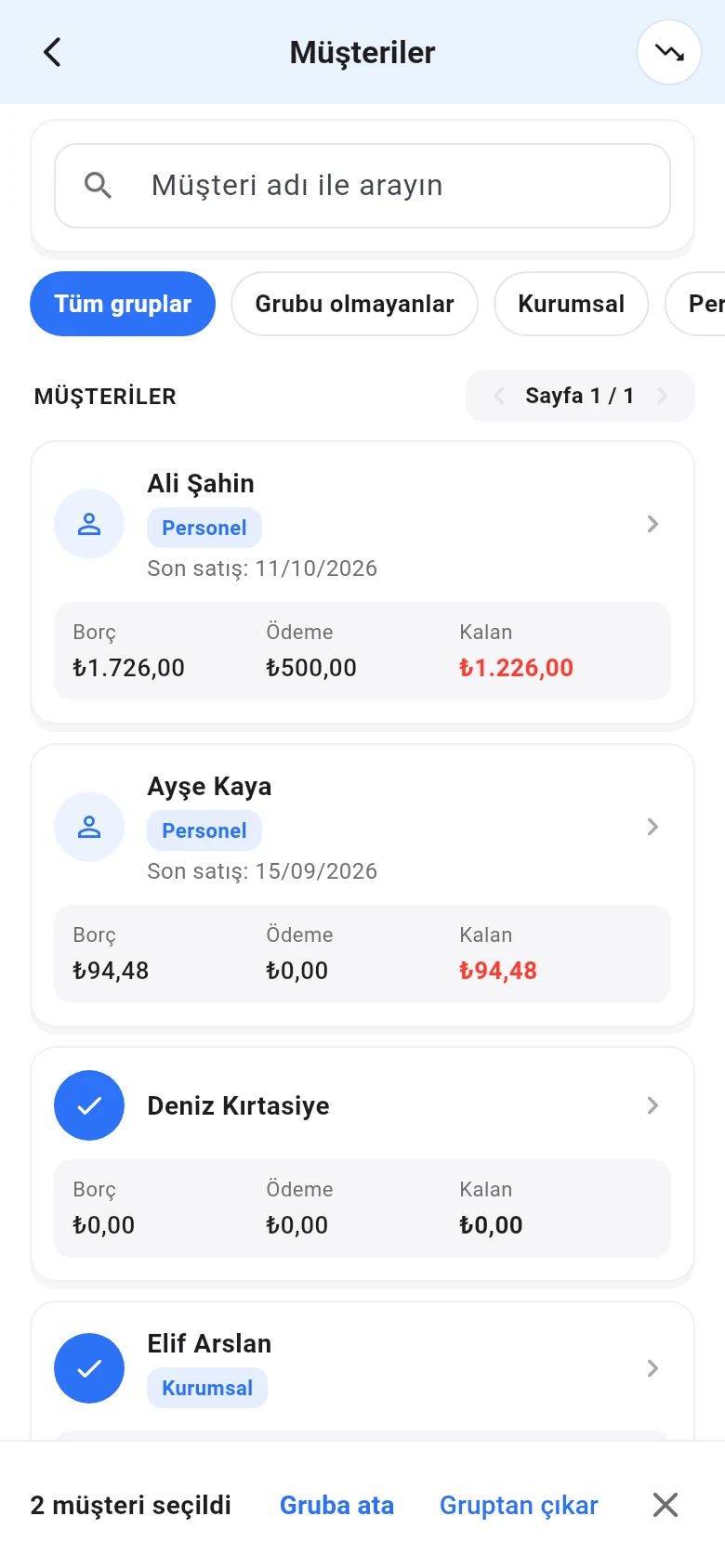 12
12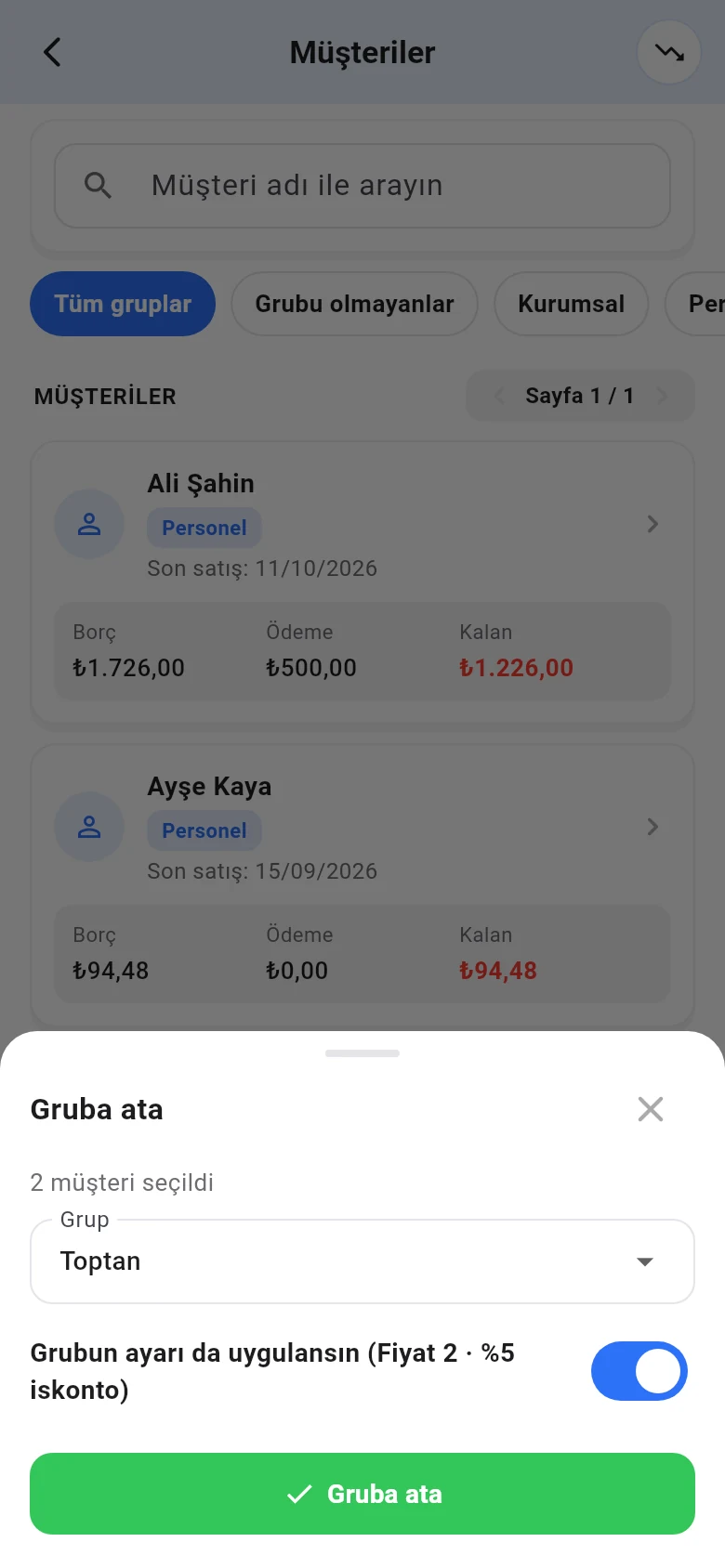 123
123Group on the customer card
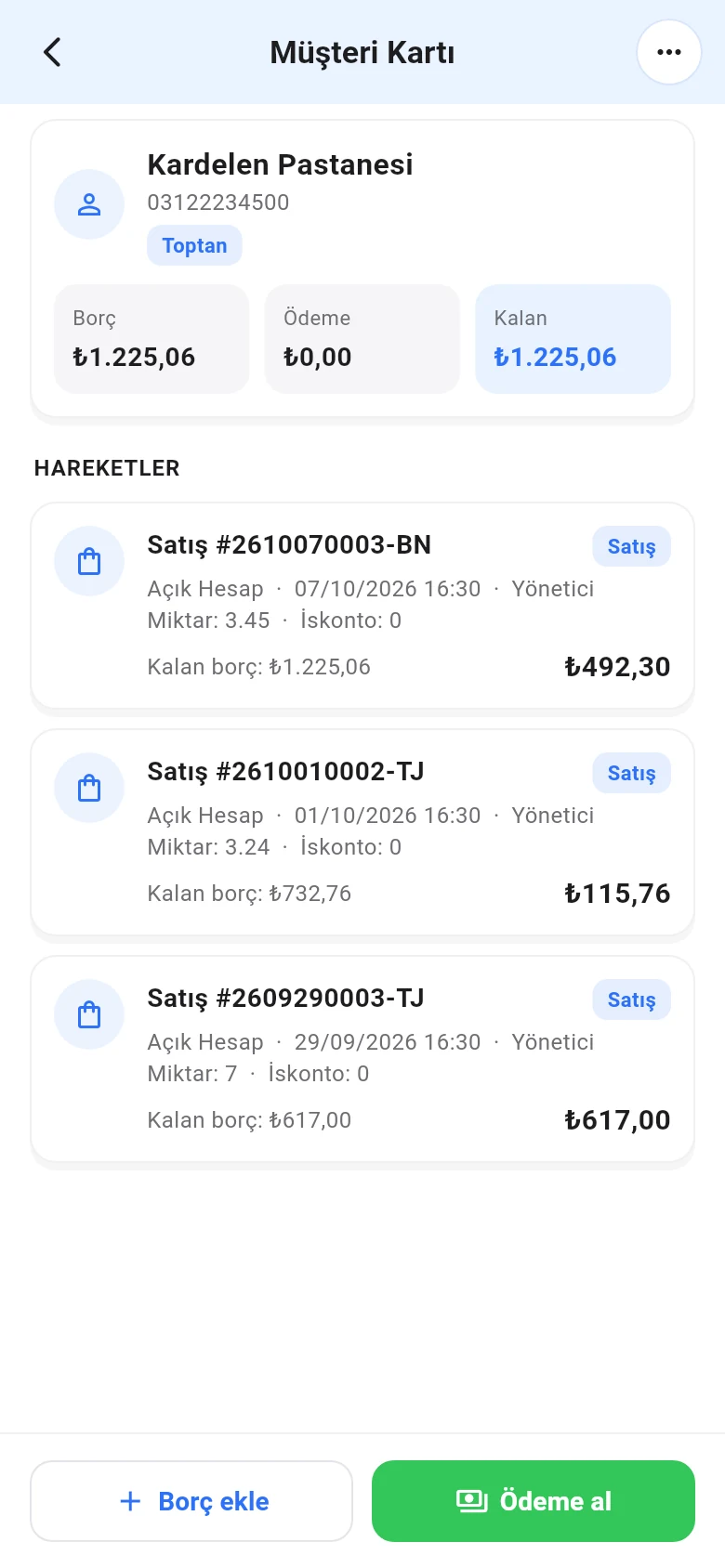
On the customer card the 1 group label appears under the name. To change the group, open Actions (⋯) at the top right › Personal information and choose the 1 Group. The group's 3 discount and price level are written to the form, and 2 the line below shows which values were written. Tap Save changes. You can also choose a group in the New customer window.
 1
1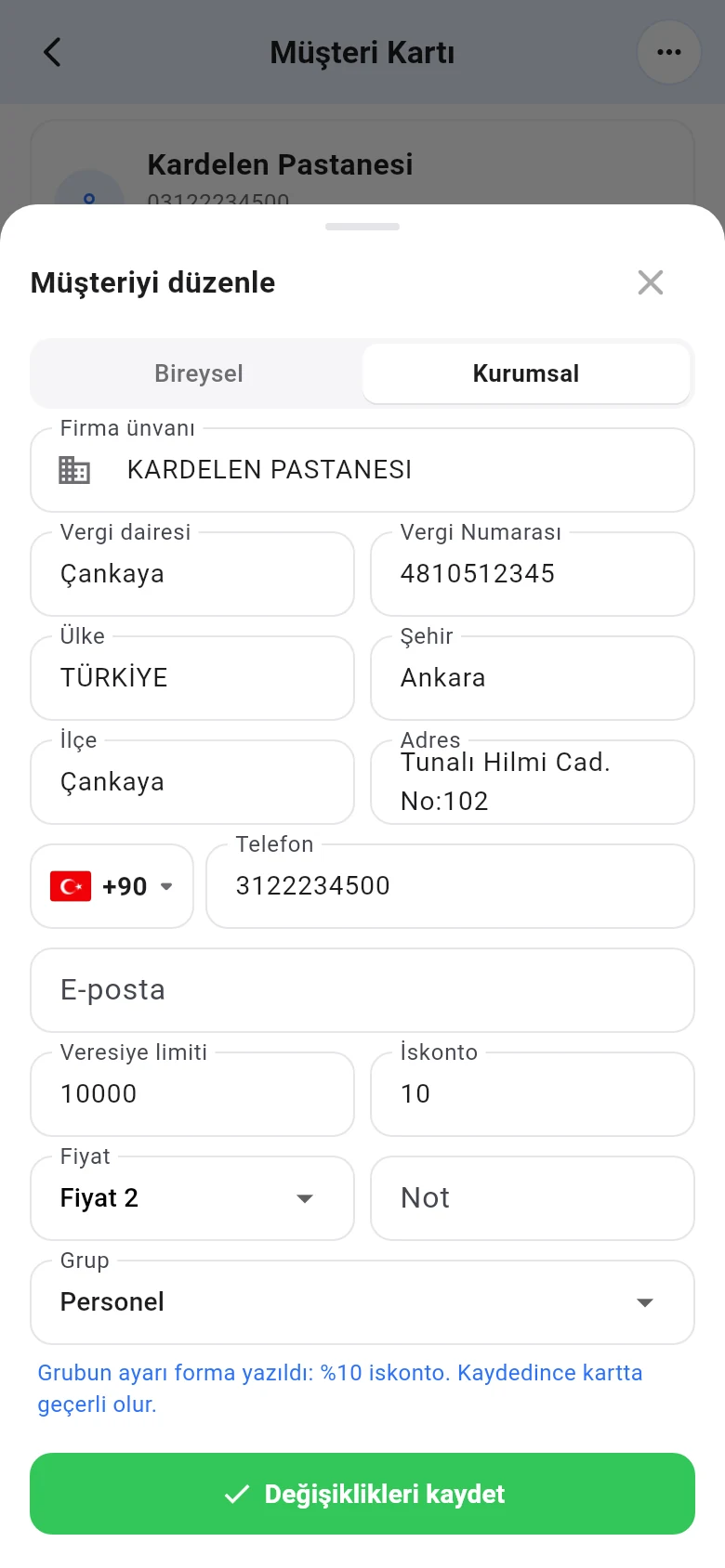 123
123You need the latest version of the app.