



Customer display content: images, videos and promotion images
Adding images and videos that play on the customer display while there is no sale, duration and order, showing them by branch, preview, promotion images, video format (H.264) and staff permission.
When there is no sale at the till, the customer display shows your images, videos and promotion images in turn. When a product is scanned, the screen switches to the cart and goes back to the slideshow when the sale is finished. Content is added from the web panel and shown on the web customer display and on the desktop program's customer display.
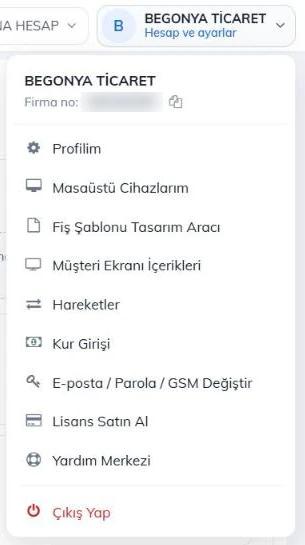
Open the page by clicking your business name at the top right and choosing Customer Display Content; the Customer Display Content tab on the Promotions & Discounts page opens the same page. Content is managed from the main account; if you have branches, each image and video can be shown in all branches or only in the branches you choose.
 12
Adding an image or video
Choose the file
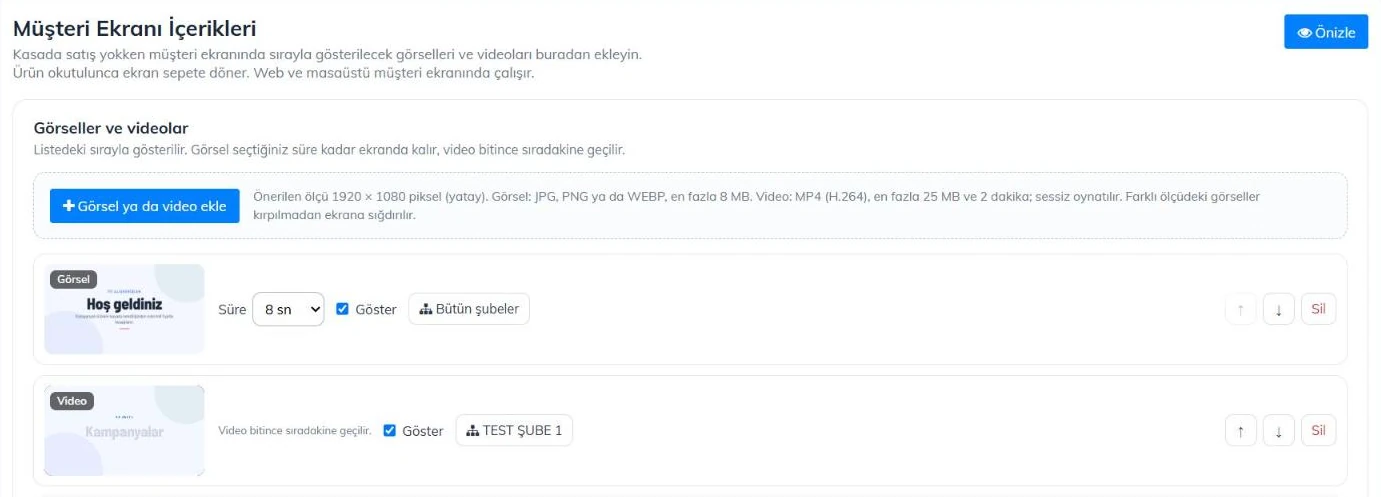
Press 2 Add image or video and choose the file on your computer. When the upload finishes, the file is added to the end of the list.
Choose the duration
Choose how long an image stays on screen with 3 Duration (5–30 seconds). A video plays to the end, so it has no duration.
Choose what is shown
If you clear 4 Show, the file is not deleted, it is just not shown. Handy for short-term promotions.
Change the order
6 Use the arrows to move a file up or down; Delete removes it from the list.
Preview
1 Preview shows, inside this page, how the customer display will look while there is no sale.
 123456
| File | Format | Limit |
|---|---|---|
| Image | JPG, PNG, WEBP | Up to 8 MB. Recommended size 1920 × 1080 (landscape). Other sizes are fitted without cropping; the empty space is filled with a blurred copy of the image. |
| Video | MP4 (H.264) | Up to 25 MB and 2 minutes. Played without sound. |
| Total | Up to 30 images / videos. |
If you have branches
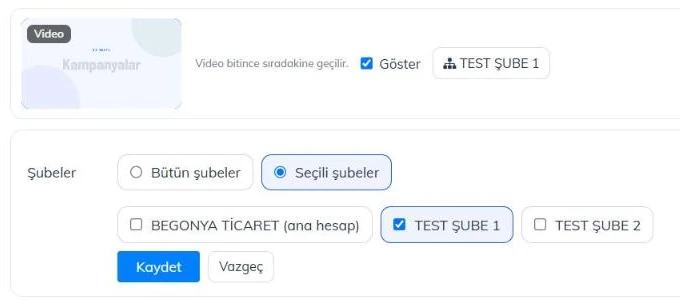
Every image and video you add is shown in all branches at first, so you do not need to add it to each branch. To show an item only in some branches, press the 1 branch button on its row. In the 2 Branches row choose Selected branches, 3 tick the branches where it should appear and press 4 Save. The button then shows the branch name or the number of branches.
 1234
- Promotion images follow the promotion's branch selection: the image is shown only in the branches where the promotion is valid.
- When you sign in with a branch account the page is view-only; what that branch shows is changed from the main account.
Preview
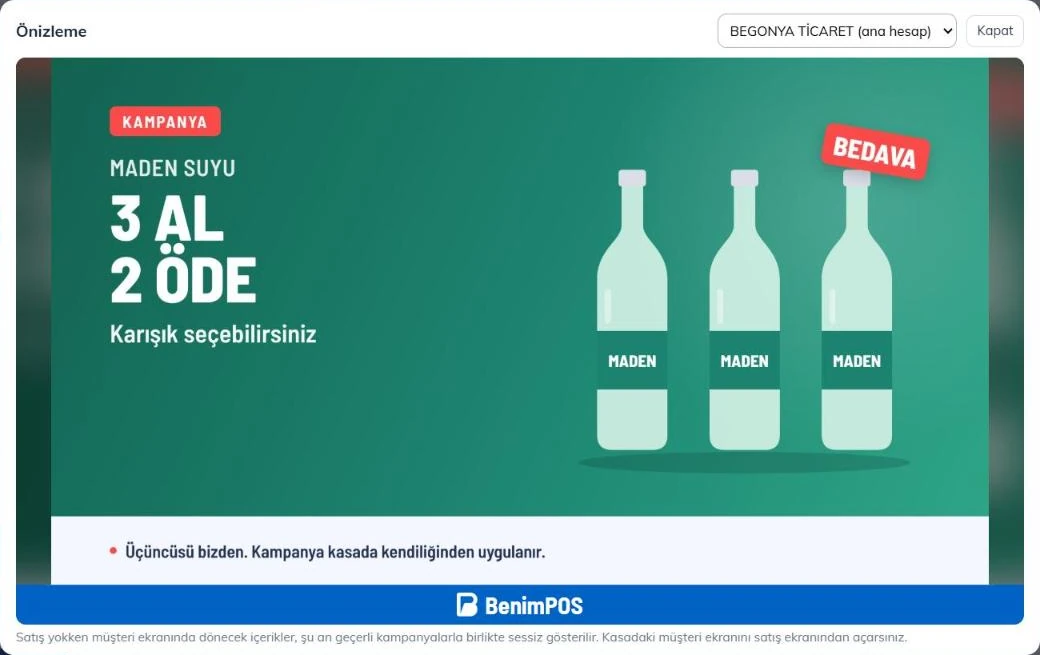
Preview opens the customer display inside this page; images play with the durations you chose and videos play without sound. Promotions valid right now are included, just as on the sales screen. If you have branches, choose a 1 branch to see 2 what that branch's screen will show.
 12
The preview is only on this page and does not affect the customer display at the till. The customer display at the till is opened from the sales screen (see below).
Promotion images
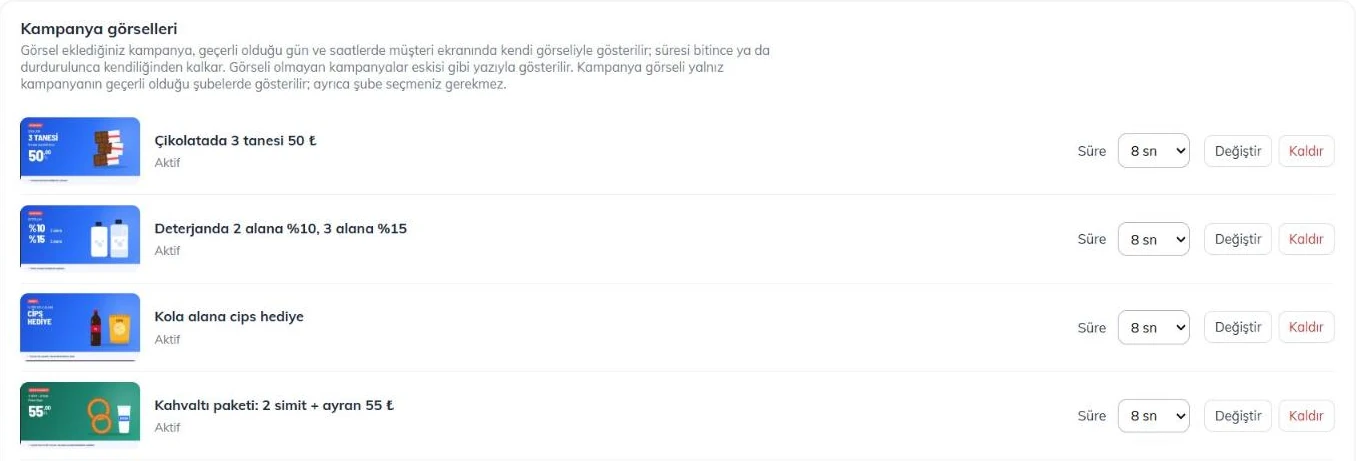
The promotions you set up under Promotions & Discounts are listed at the bottom of the page. If you add an image or video to a promotion, it is shown on the customer display 1 with its own image or video on the days and hours it is valid. A video moves on to the next item when it ends. When the promotion ends or is stopped, its image disappears by itself. Promotions without an image or video are shown as text when Show campaigns without an image or video as text on the customer display in this section is on. If you turn it off, only promotions with an image or video and your own images / videos rotate on the display; the promotion still applies to sales. The option is on by default.
2 Duration is how long the image stays on screen; it is kept even if you change the image. 3 Change lets you pick a new image and 4 Remove takes the promotion back to text. You can also add an MP4 video to a promotion instead of an image; a video has no duration setting and moves on to the next item when it ends.
 1234
If a video will not upload
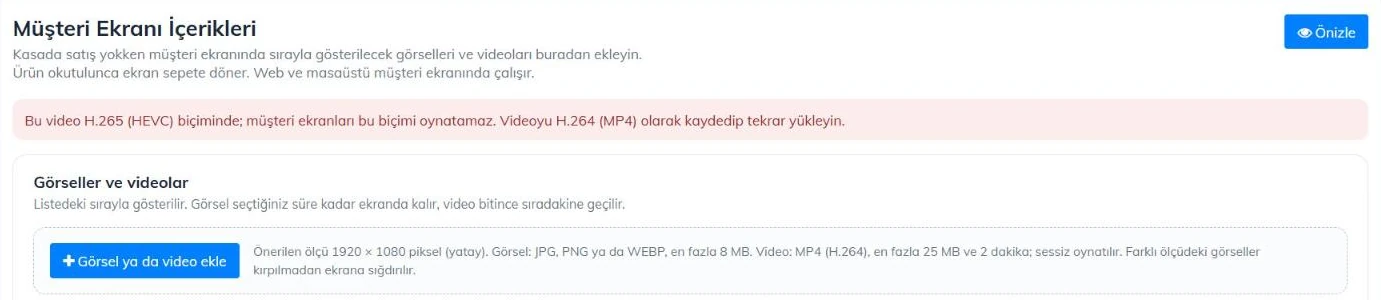
Customer displays can only play MP4 videos recorded in H.264. If you choose a video in another format, it is not uploaded and 1 the reason is shown at the top of the page.
 1
- iPhone videos are usually recorded in H.265 (HEVC). On the iPhone choose Settings › Camera › Formats › Most Compatible and record again, or export the video as H.264 MP4 on a computer.
- 10-bit or 4:4:4 colour H.264 videos do not play on tills either. In your video editor choose standard H.264 (8-bit, 4:2:0) output.
- Save MOV, AVI or WEBM files as MP4 (H.264) first.
On the customer display
While the cart is empty, images and videos play in list order, with promotion images first. As soon as a product is scanned, the screen switches to the cart.
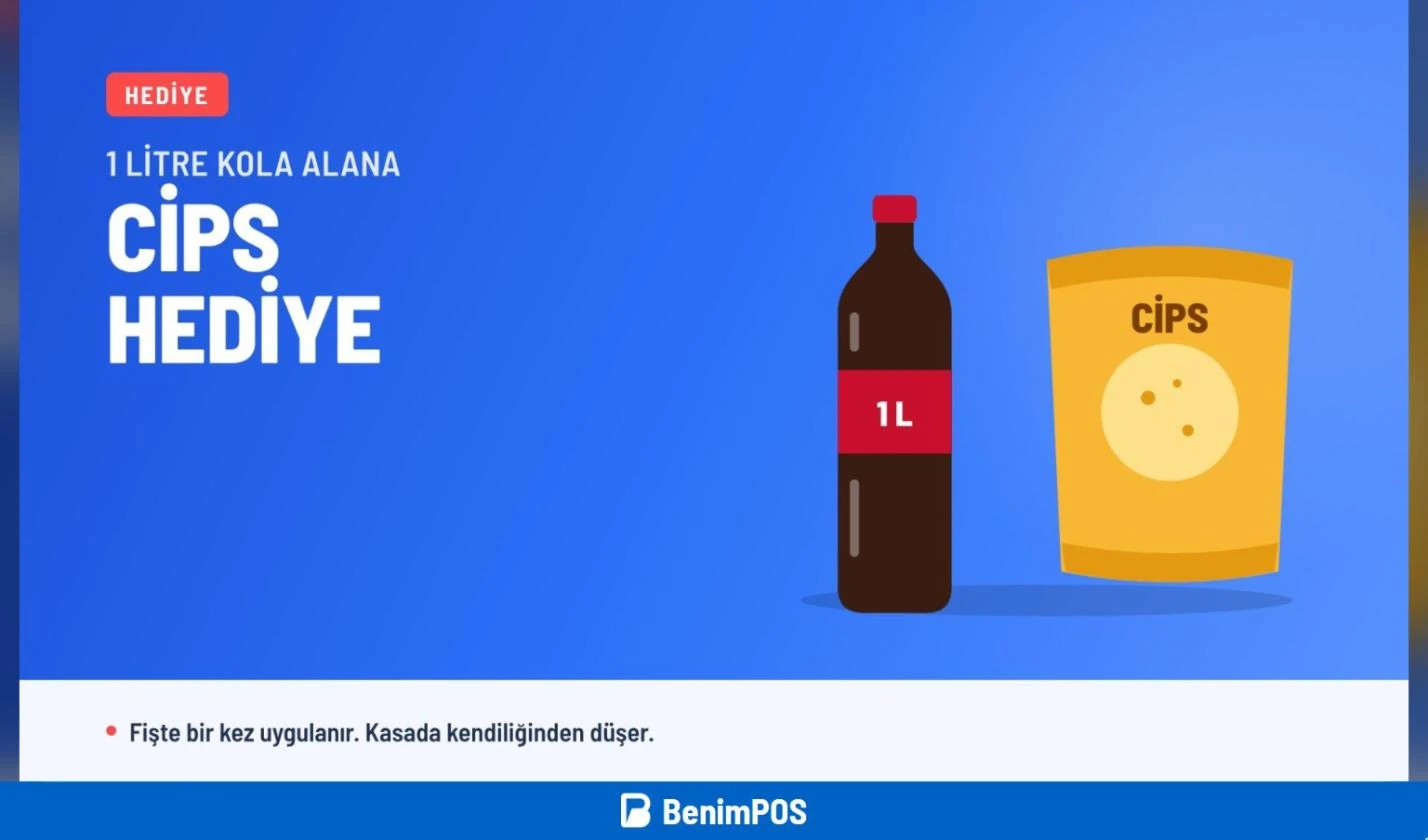
On the web sales screen, open the customer display with Options › Open customer display on second monitor. The screen refreshes the list every few minutes; a new image appears within 5 minutes, or straight away if you refresh the page.
In the desktop program, if a second screen is connected, open it with the Open Customer Display button on the sales screen. The program downloads images and videos once and keeps them on the computer, so they are shown even without internet. A new image is downloaded within a few minutes. This works in the latest version of the desktop program.
Staff permission
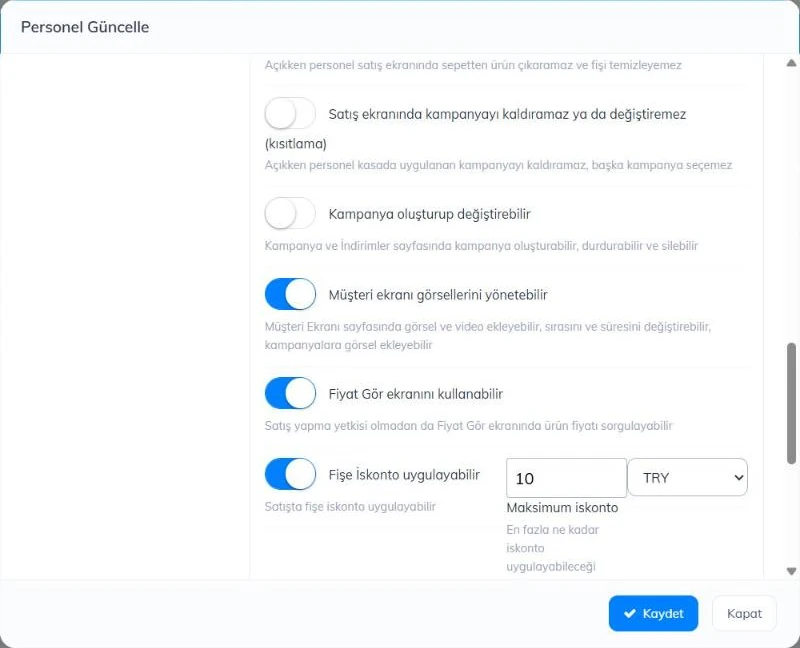
The account administrator can change the content. To let a staff member change it too, open the staff member on the Staff page, turn on 1 Can manage customer display images and press 2 Save. Staff with this permission see the page in the top right menu. Can create and edit promotions alone is not enough; staff without the permission can only view and preview the page.
 12
- Every image added, deleted or linked to a promotion is written to the Activity Log page with the staff member's name.
- Uploaded files are stored on the BenimPOS image server; a file you delete from the list disappears from the customer displays.