



Cheque and promissory note tracking
Track the cheques and notes you receive and issue: portfolio, bank collection, endorsement, bounced cheques, due date calendar, sales on notes, note and slip printing. Posted to accounts automatically.
On the Cheques / Notes page you track the cheques and promissory notes you receive from customers and give to suppliers in one place: what is in the portfolio, which is at the bank for collection, which was endorsed or bounced, what will be collected and paid this week. Documents are posted to customer and supplier accounts automatically; every action such as collection, endorsement or bounce is reflected correctly in balances. Sales on notes (instalment notes), note and slip printing, a due date calendar and due date reminders are included. Cheque / note tracking is available on licensed accounts.
In-page tour
The first time you open the page, a Shall we take a quick tour? card appears at the bottom right. Click Start tour and the parts of the page are 1 highlighted one by one, with 2 a short explanation next to each. 3 Use Next and Back; arrow keys and Esc also work. 4 Detailed help opens this article. You can open the tour again any time with 5 How does it work?.
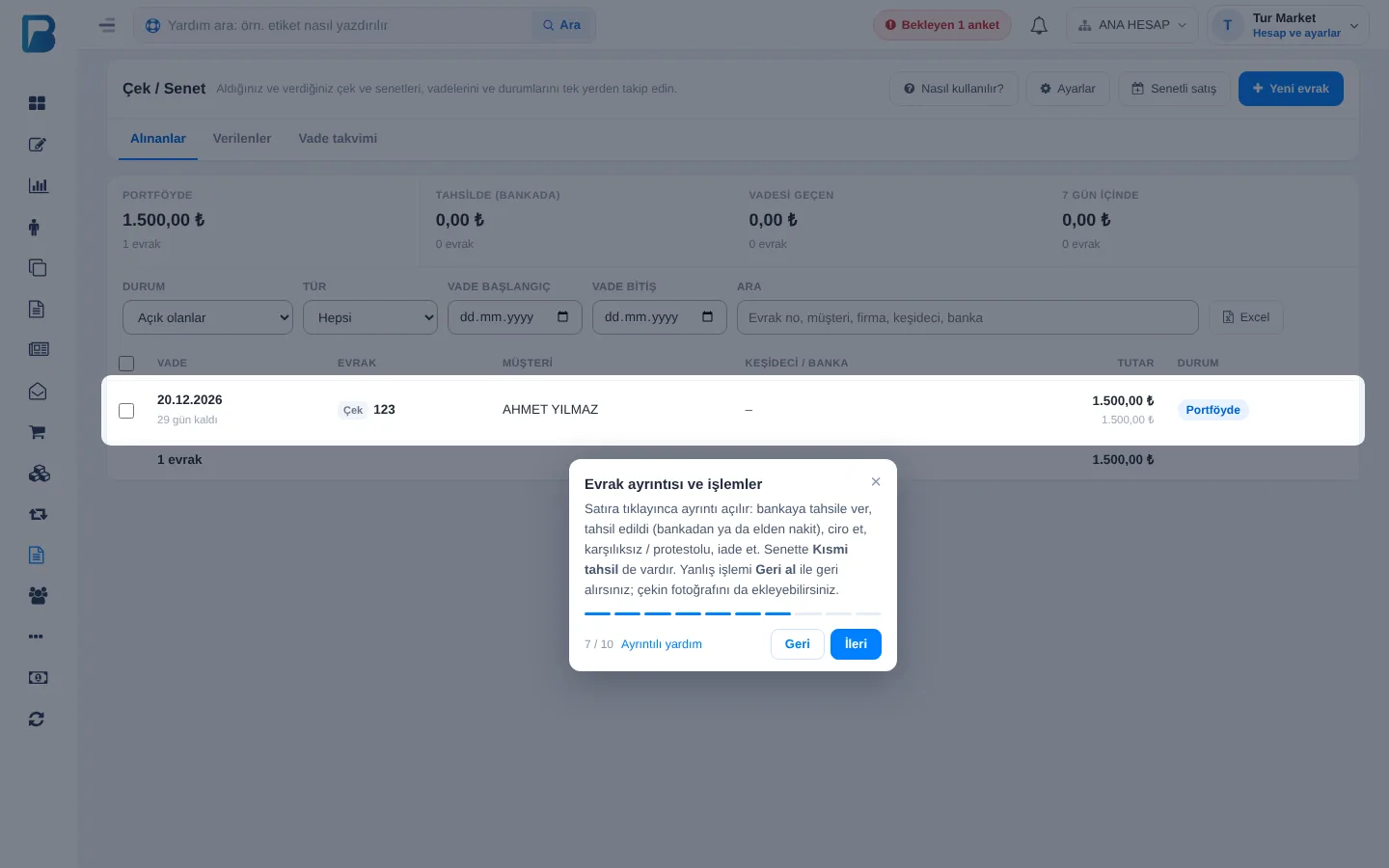 12345
Permissions
The account owner can do everything. For staff, use the Cheque / Note Permission section on the Staff › staff member › Income - Expenses tab: Can view, Can add (entering documents and sales on notes), Can process and edit (deposit for collection, collect, endorse, bounce, pay, undo and correct), Can delete. Only the account owner changes the settings.
When should documents be posted to accounts?
First, choose under Settings at the top right when cheques and notes are posted to customer and supplier accounts:
- 1 When the document is received / issued (most common): the cheque or note is deducted from the customer's debt on the day it is received. If it bounces or is returned to the customer, the amount is charged back to the customer. A document you issue counts as payment to the supplier on the day it is issued.
- 2 When collected / paid: the customer's debt decreases when the cheque is collected or endorsed to another supplier; documents waiting in the portfolio do not affect the balance. A document you issue counts as payment to the supplier on the day it is paid.
Changing the setting affects only documents entered afterwards; saved documents keep the setting they were entered with. 3 Enter how many days before the due date to remind; 4 when ticked, the account owner gets a notification every morning for documents due today, upcoming and overdue.
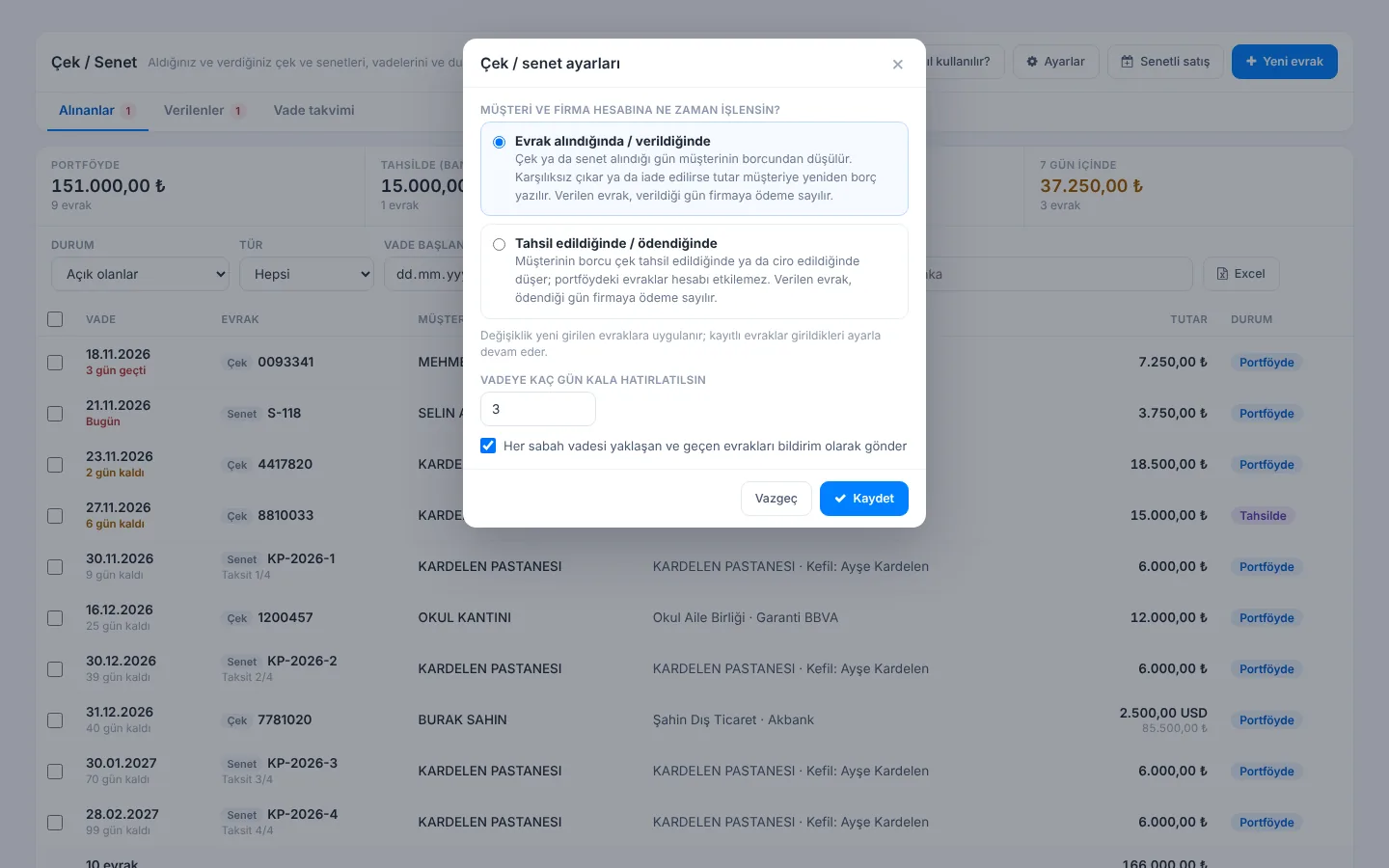 1234
Entering a cheque or note
Open a new document
Open Cheques / Notes from the left menu and click New document. Other › Receive cheque / note on the customer card opens the same window with the customer selected. 1 Choose Received if you received it from a customer, or Issued if you gave your own cheque or note to a supplier; then choose Cheque or Promissory note.
Select the customer or supplier
2 Search the customer by name, title or phone and select from the list (for issued documents, select a supplier). 3 If the customer has documents not yet settled (in portfolio, at the bank or endorsed), their count and total are shown. If the customer is left empty, the document is tracked but not posted to an account. For a document you receive from a supplier (e.g. a refund from a supplier) or give to a customer (e.g. paying back a customer in credit), switch the counterparty with the Customer / Supplier choice at the top: a document received from a supplier is posted to the supplier's account as debt (the supplier paid you), and a document given to a customer is posted to the customer's account as debt (you paid the customer). In the list, Supplier or Customer is shown next to their name.
Enter the details
4 Amount and, if needed, Currency (a rate is asked for foreign currency cheques and the converted amount is posted), 5 Due date are required. For a cheque enter bank, branch, account no and drawer; for a note enter debtor, tax / ID no, address and guarantor. For a note, debtor, address and tax number are filled in when you select the customer.
Save several documents together
If you receive several cheques from the same customer, click 6 Add to list, one more: the document 7 goes to the list, the customer and bank stay, and the document number increases by one. 8 Save saves all of them in one go and offers to print the receipt slip.
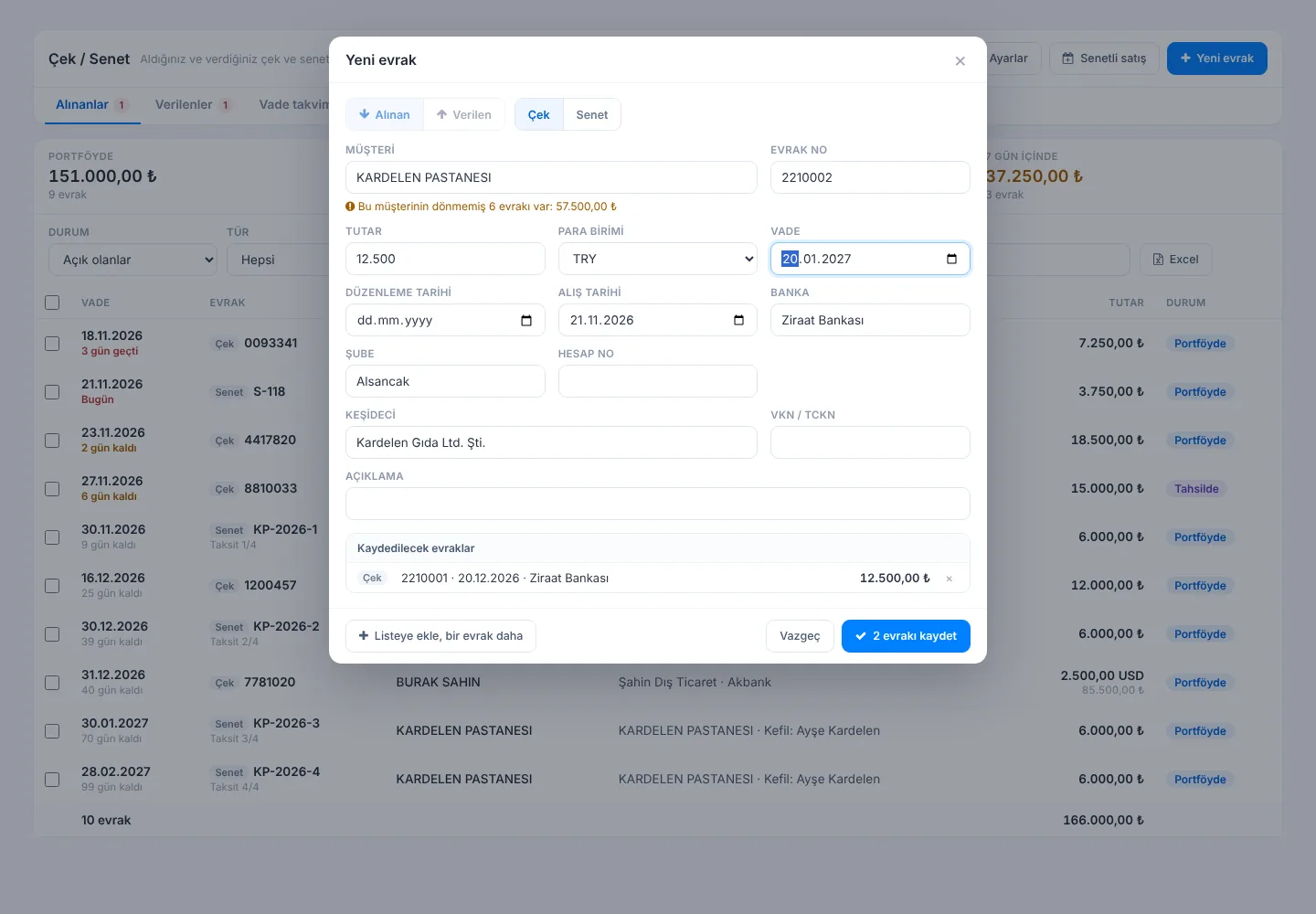 12345678
Tracking in the list
3 On the Received and Issued tabs open documents are sorted by due date; overdue and upcoming ones are marked red and orange, and the number next to the tab is the count of overdue documents. 4 Clicking a summary box (in portfolio, in collection at bank, overdue, within 7 days) filters the list. 5 Filter by status, type, due date range and search; All also shows collected, endorsed and returned documents. 7 Excel downloads the list.
6 When you tick rows, the total and the actions common to the selected documents appear: for example you can deposit 5 cheques for collection or endorse them to a supplier at once. Print list prints the selection.
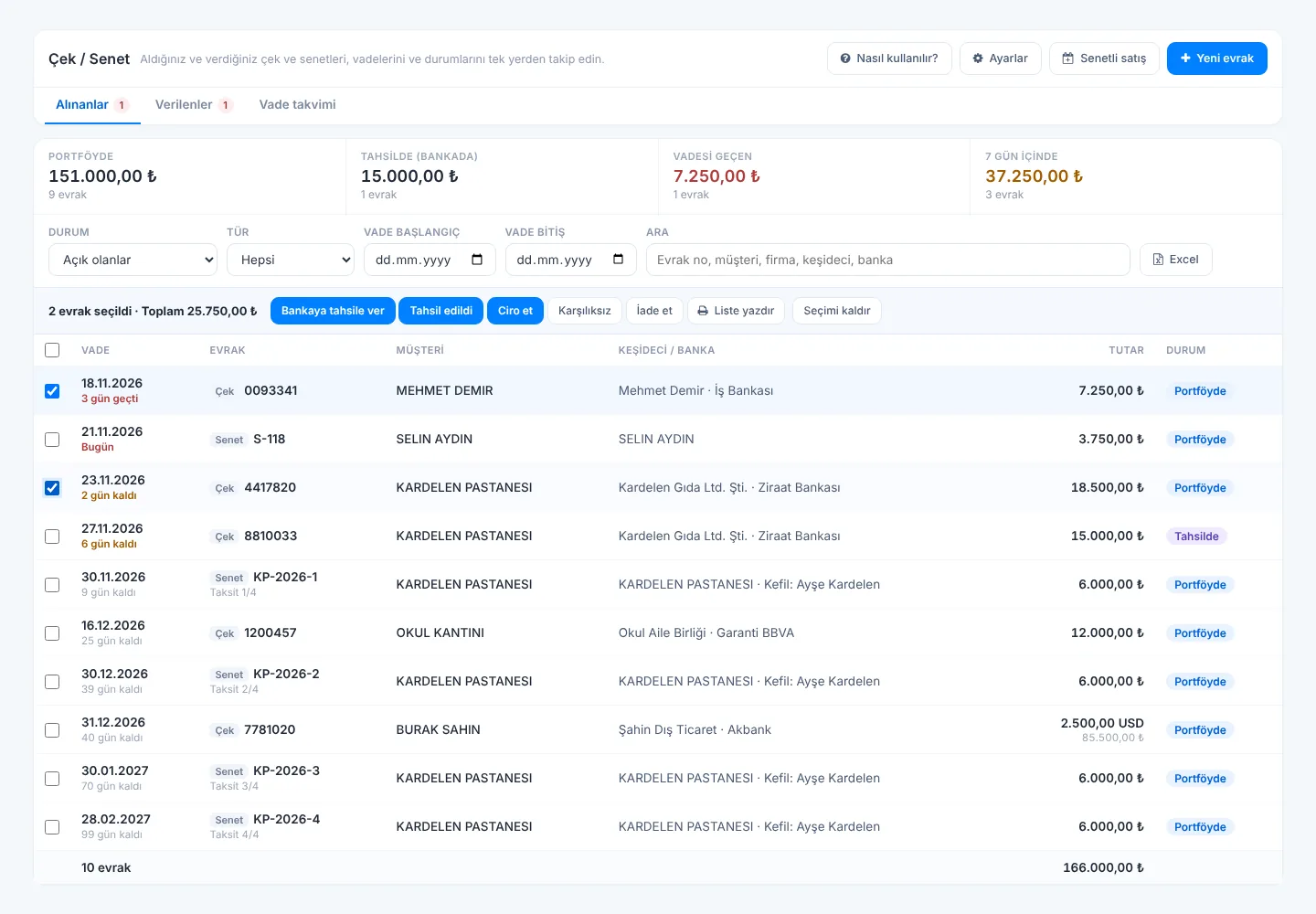 1234567
Collection, endorsement, bounce and other actions
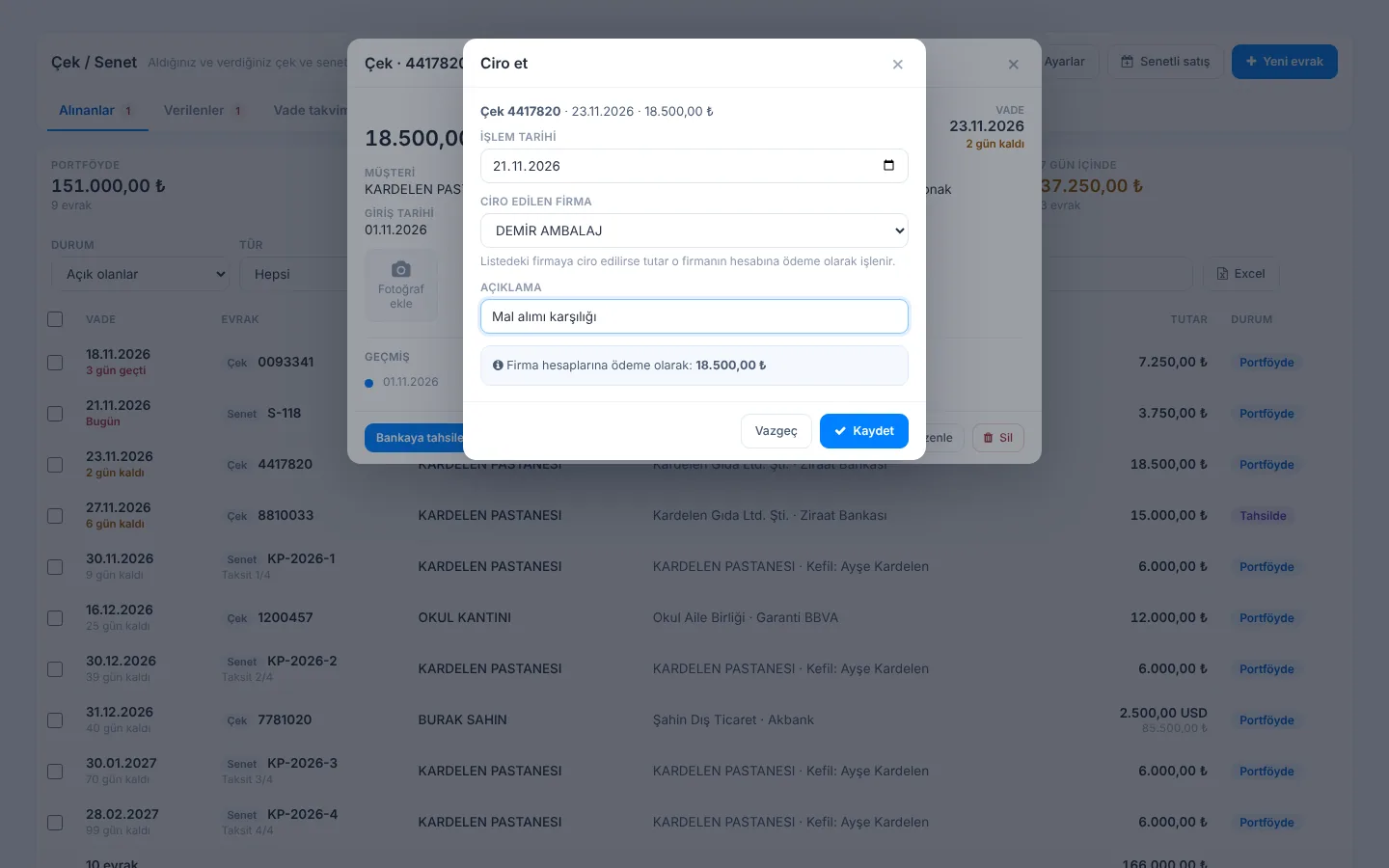
Click a document to open its details. 1 Only the actions possible in its current status are shown at the bottom:
| Action | When | Effect on accounts |
|---|---|---|
| Deposit for collection | When you deposit the cheque at your bank; you can enter the bank | None |
| Collected | When the money reaches your account or the customer pays in person | With the “when collected” setting the customer's debt decreases |
| Endorse | When you give the cheque to a supplier as payment | If endorsed to a supplier in the list, the amount is posted to that supplier as payment; with “when collected” the customer's debt also decreases |
| Bounced / Protested | When a cheque bounces or a note is not paid and is protested | The amount deducted from the customer is charged back; if endorsed, it is also charged to the supplier |
| Return | When you give the document back to the customer | The amount deducted from the customer is charged back |
| Return to portfolio | When you take it back from the bank or supplier | The endorsement entry is reversed |
| Paid / Taken back | When your cheque is paid by the bank / taken back from the supplier | With “when paid” a payment is posted to the supplier / the supplier payment is reversed |
In the action window 1 enter the action date (today or a past day); for endorsement 2 select the supplier, or type a name if it is not in the list. 3 Before saving you see what will be posted to customer and supplier accounts. 4 After Save you can print the slip.
 1234
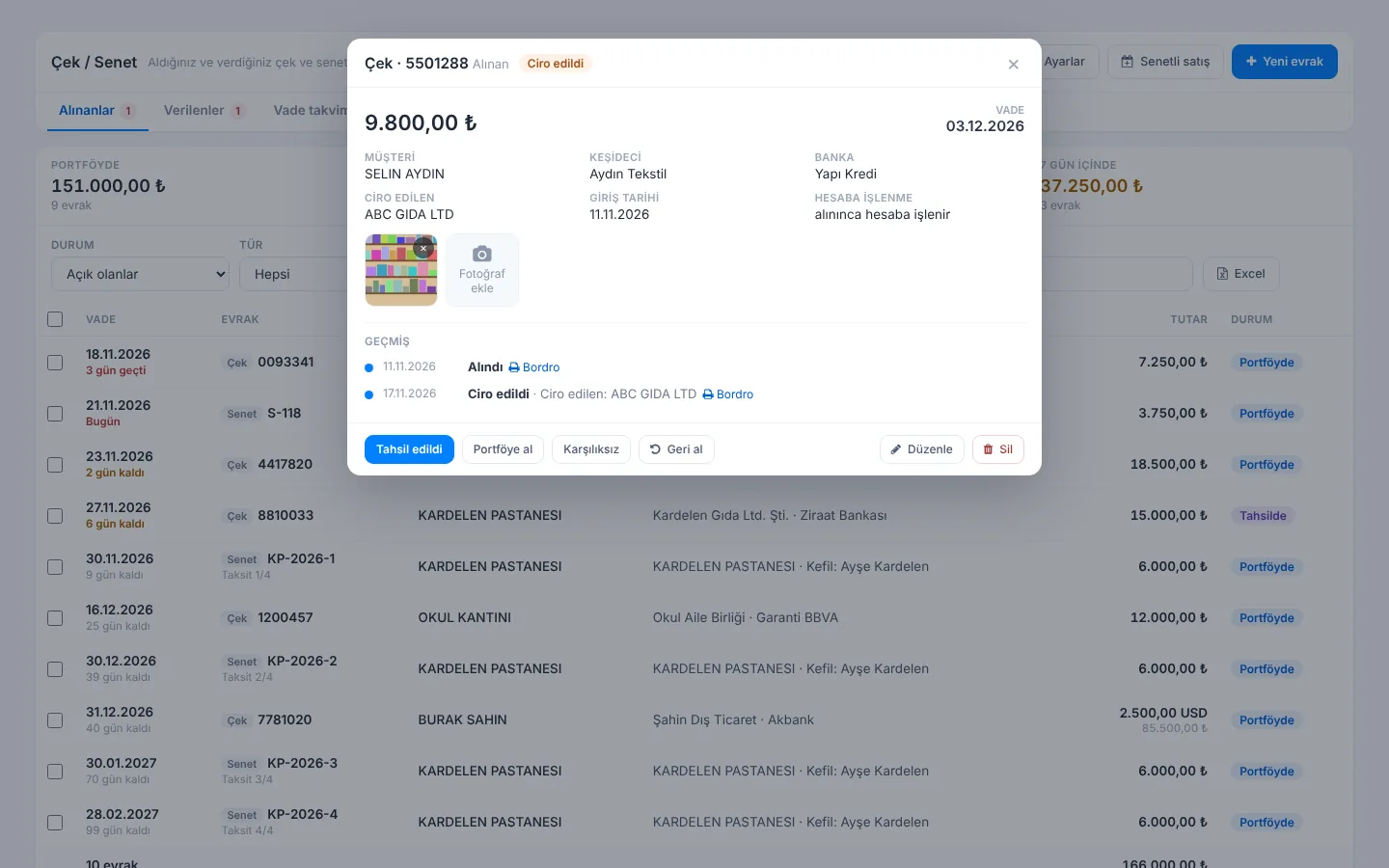
In the details 4 you can add photos of the front and back of the cheque and 5 see the whole history of the document with the slip of each action. Undo a mistaken last action with 3 Undo: the document returns to its previous status and the entries that action made to accounts are deleted. 6 Use Edit to correct amount, due date, customer and so on (account entries are corrected too); Delete is for documents entered by mistake.
 123456
Entries made to accounts by cheques and notes appear on the customer and supplier cards with payment type Çek (cheque) or Senet (note). They cannot be deleted or changed from the cards, the mobile app or the desktop app; the button next to them opens the Cheques / Notes page. A customer or supplier with unsettled cheques / notes cannot be reset or deleted.
Collection method and partial collection
When you mark a received cheque or note as Collected, you are asked How was it collected?: Via bank (credited to account) or Cash in hand (goes into the till). If you choose cash in hand, the amount is recorded on the customer account as a cash payment and appears as cash in the till report; the customer's balance does not change. For notes the default is cash in hand.
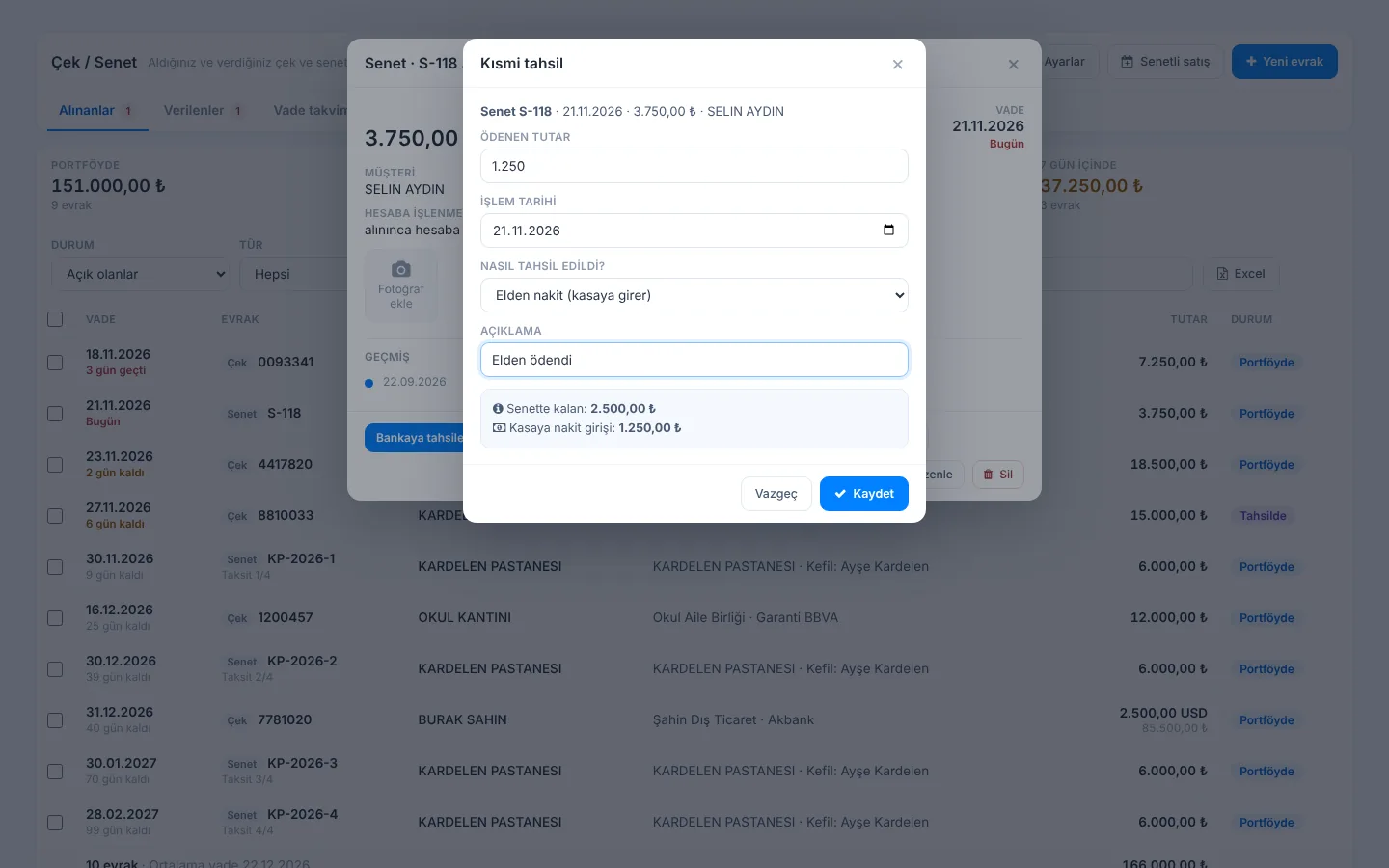
If the customer paid only part of a note, open the note and click Partial collection: 1 enter the amount paid, 2 choose how it was paid; 3 the amount remaining on the note and the cash going into the till are shown. 4 After Save, the note stays open with the remaining amount; the paid part is listed as a separate row with the status Collected and appears with its amount in the note's history. If you made a mistake, open the note and click Undo: the amount returns to what it was. Partial collection is possible for received notes that are in the portfolio or protested.
 1234
Sale on notes (instalment notes)
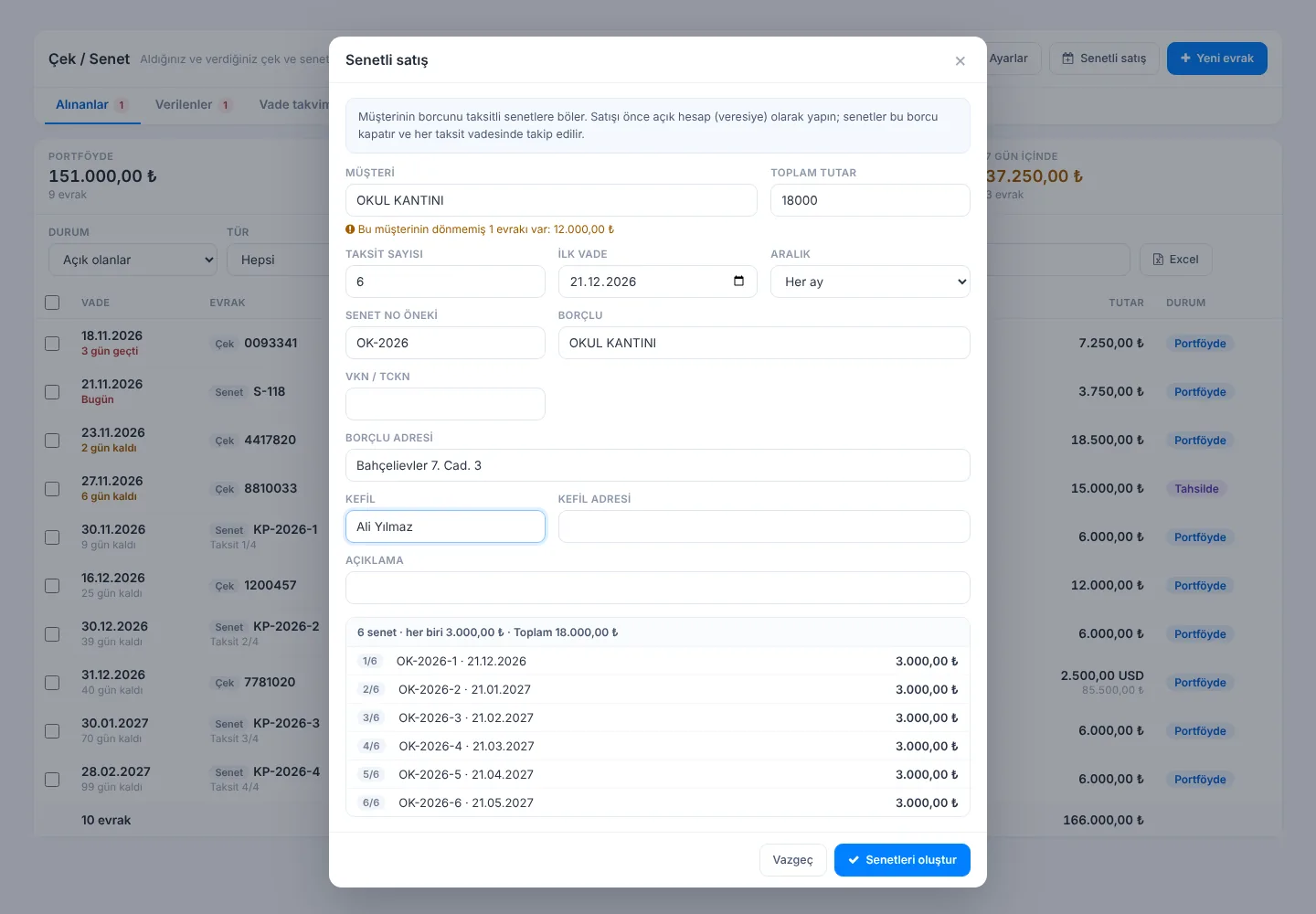
First make the sale to the customer on open account (credit). Then click Sale on notes: 1 select the customer and enter 2 the total, 3 the number of instalments, 4 the first due date and 5 the interval (monthly, every 15 days, weekly). Optionally add a note no prefix (e.g. OK-2026 → OK-2026-1, OK-2026-2…), guarantor and description. 6 Instalments and due dates are previewed; the cents difference is added to the last instalment, and for monthly instalments the 31st falls on the month end in short months. 7 Create notes saves the notes and offers to print them. Each note is tracked separately and appears in the list as Instalment 2/6.
 1234567
Printing notes and slips
Print note in the note details, or Print notes after a sale on notes, prints promissory notes three per A4 page: place and date of issue, due date, amount in figures and words, debtor and guarantor details are filled in; signatures and the competent court are filled in by hand. 1 Click Print and 2 cut the notes along the lines. (The note text is in Turkish legal form.)
The slip of every action (receipt, bank collection, endorsement, return, payment) can be printed right after the action or from the Slip link in the document history: document list, total, amount in words and delivered by / received by signature fields.
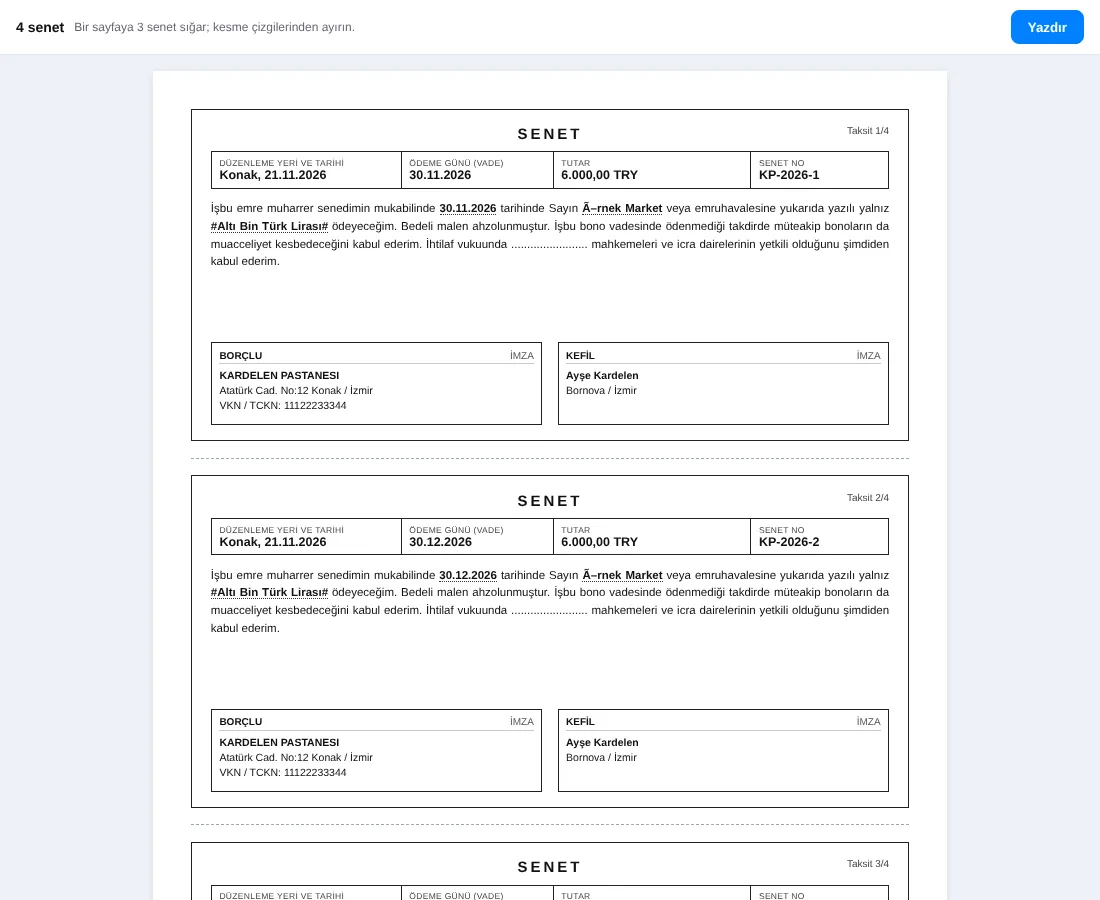 12
Due date calendar
On the Due date calendar tab 1 choose a month; 2 each day shows the totals of open documents to collect (green) and to pay (red), and clicking a day lists its documents. 3 On the right, totals to collect, to pay and the difference for the next 6 months help with cash planning.
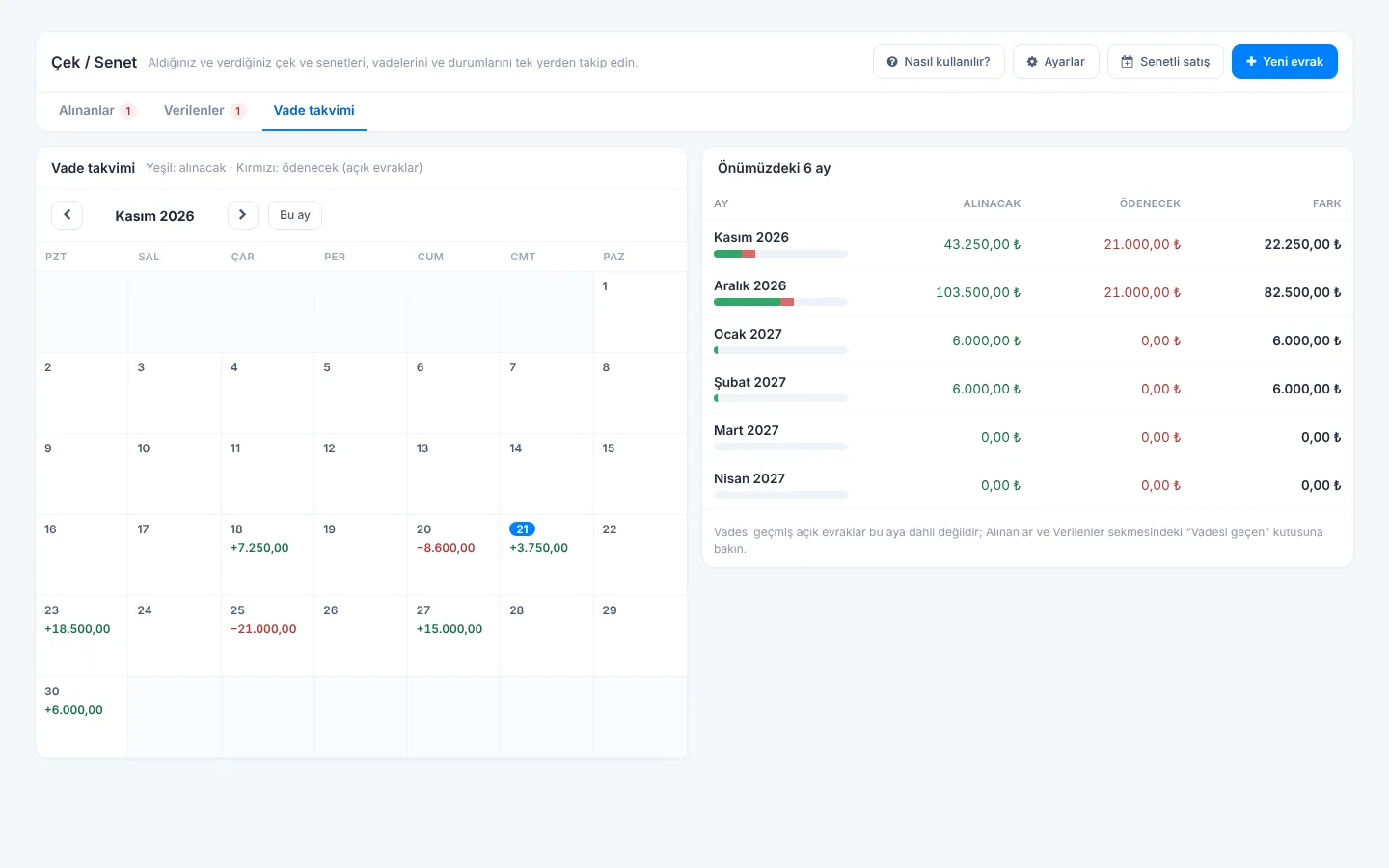 123
- On the customer card Other › Cheques / notes opens that customer's documents; the Cheques / Notes button on the supplier card opens documents issued and endorsed to that supplier.
- If a customer is renamed, cheque / note records move to the new name.
- In the Add Payment window on the customer card, choosing Cheque / Note as the payment type opens document entry with that customer selected. In the Add Payment / Debt window on the supplier card, Payment - Issue cheque / note lets you enter your own cheque or note for the supplier, and Payment - Endorse a cheque from the portfolio lets you endorse portfolio cheques with that supplier preselected.
- Average due date: when several documents are selected, below the list, in the list of documents entered together and on slips, the amount-weighted average due date is shown.
Cheque / note tracking is not in the desktop application. Enter documents from the web panel or mobile app; payments posted to accounts also appear on desktop after synchronisation.
Cheques / notes in the mobile app
Open Menu › Finance › Cheques / Notes. 1 Switch between Received and Issued; 2 totals to collect, overdue and within 7 days are shown at the top. Filter with the status buttons and search. 4 Each row shows the due date, document, customer, amount and status. If documents are due today, upcoming or overdue, a Cheque / note due dates card appears on the home page.
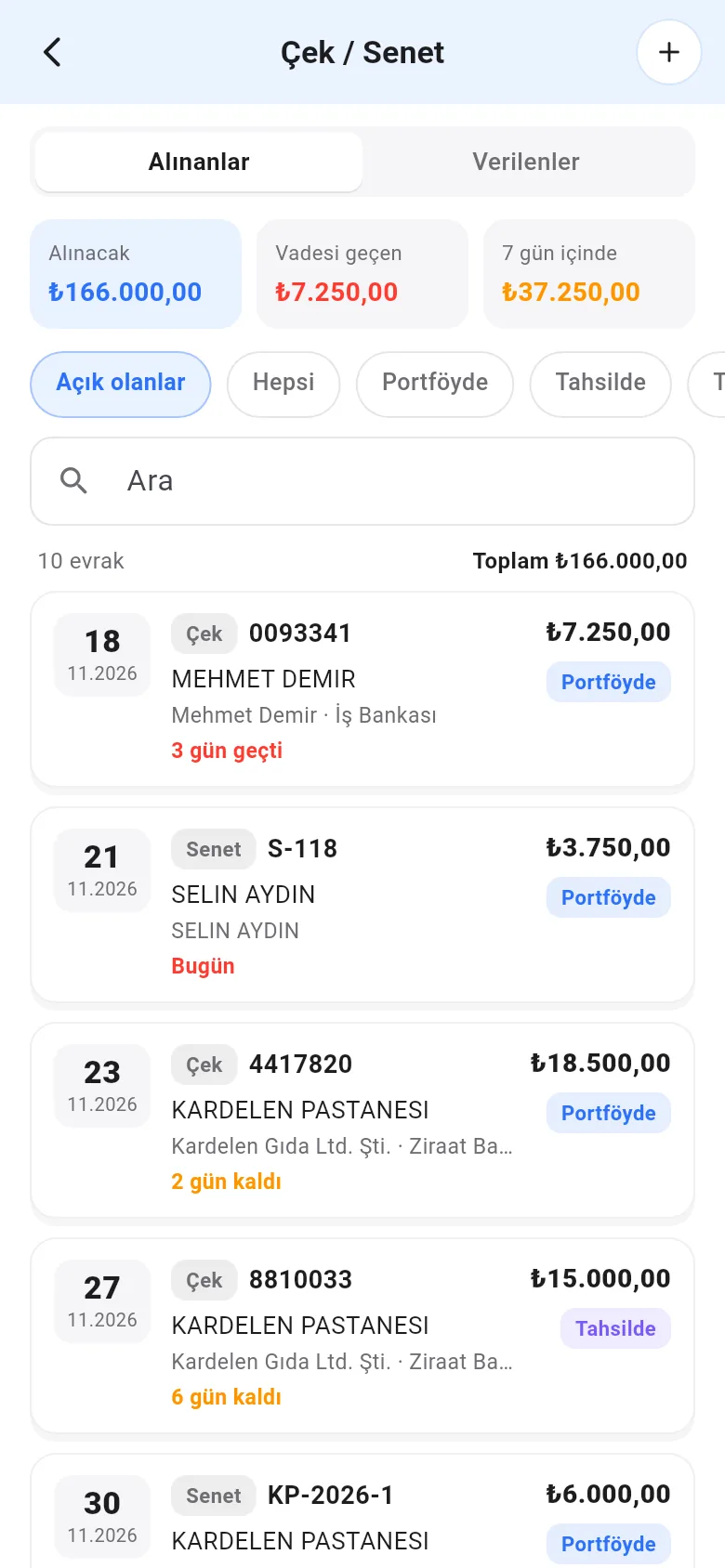 1234
3 Enter a new document with + at the top right: 1 choose cheque or note, 2 search and select the customer; 3 their unsettled documents are shown. Enter amount, due date, bank and drawer, take photos of the front and back of the cheque and tap Save. For a document received from a supplier or given to a customer, use the Customer / Supplier choice at the top.
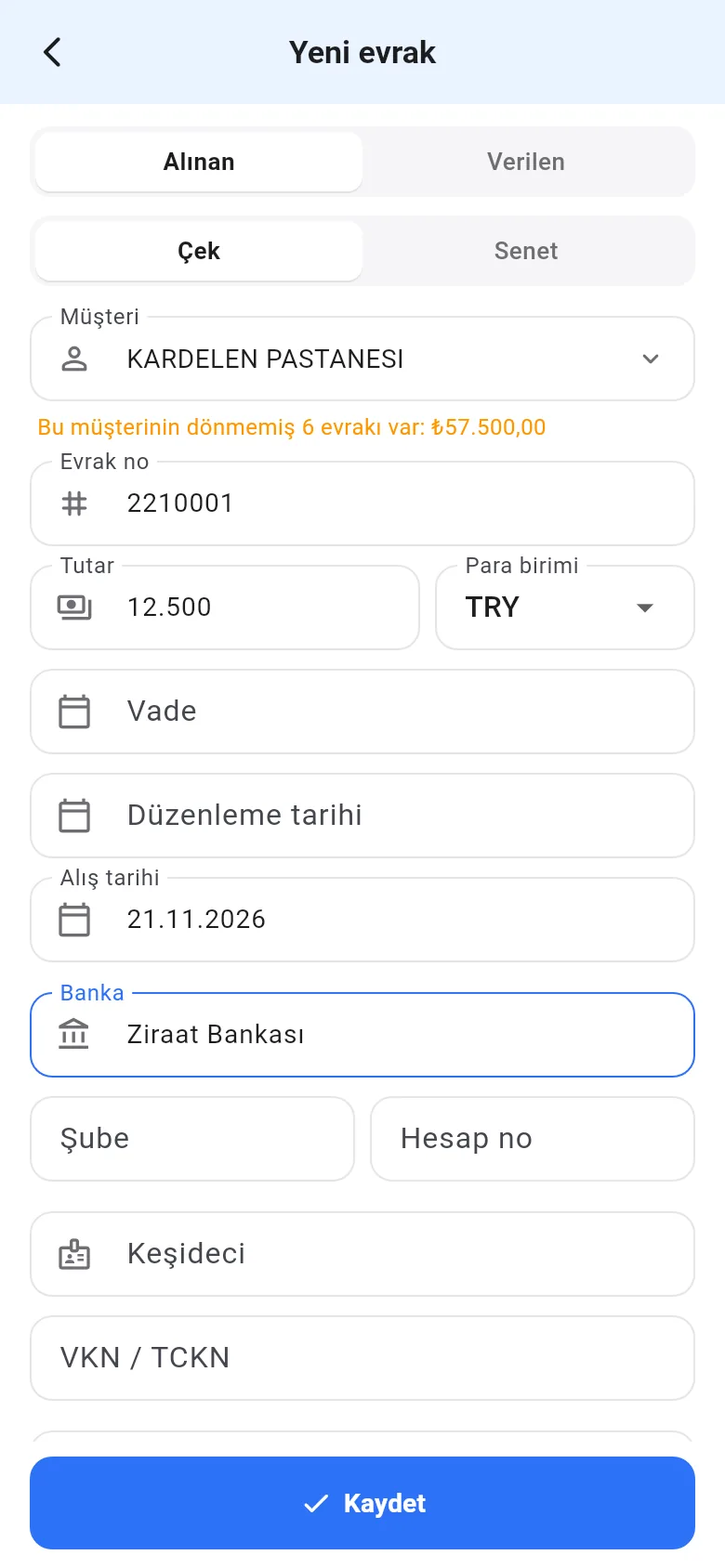 123
Tap a document. 2 You can add photos and see its history. Tapping 1 Take action lists 1 the actions possible in its status and Undo last action. Choose an action and enter the date and, if needed, the supplier; 1 what will be posted to accounts is shown before saving.
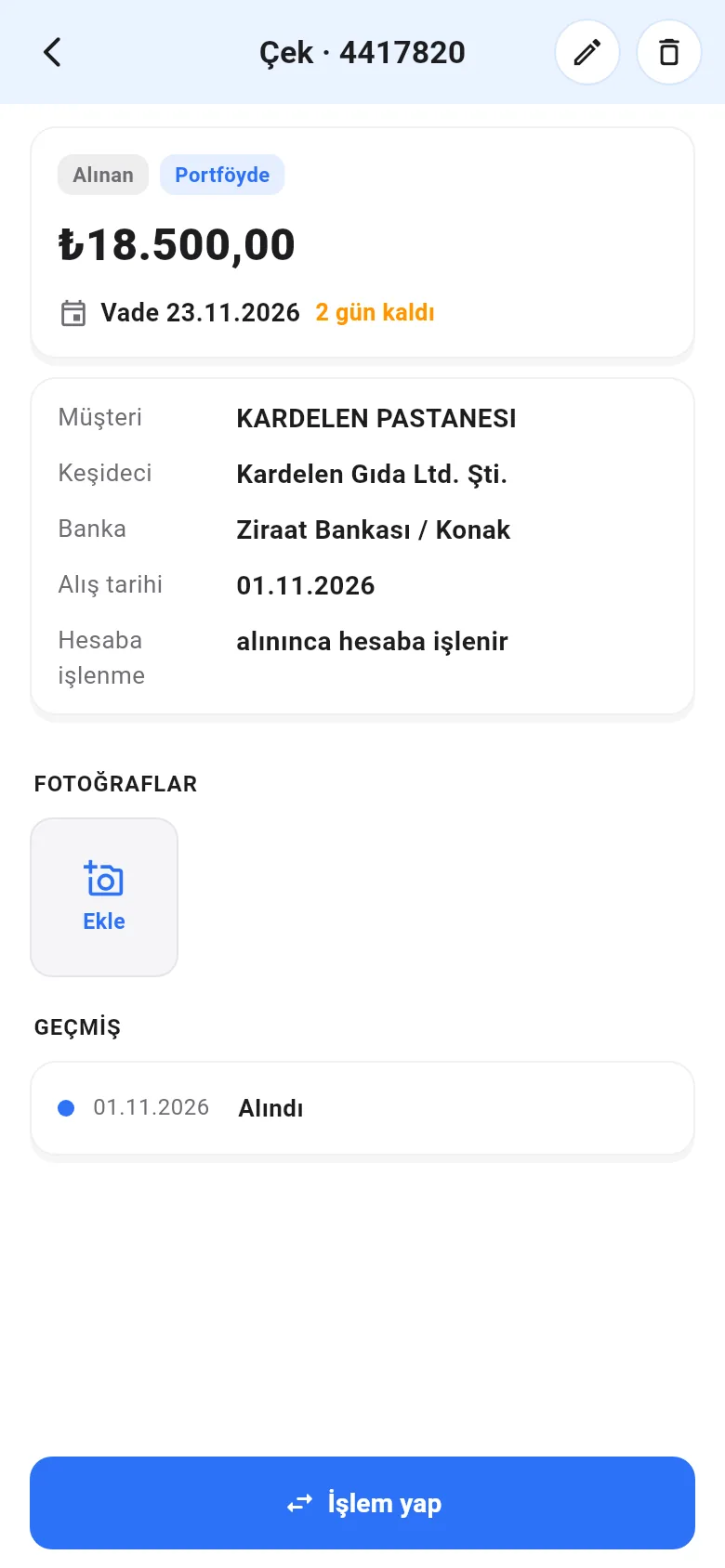 12
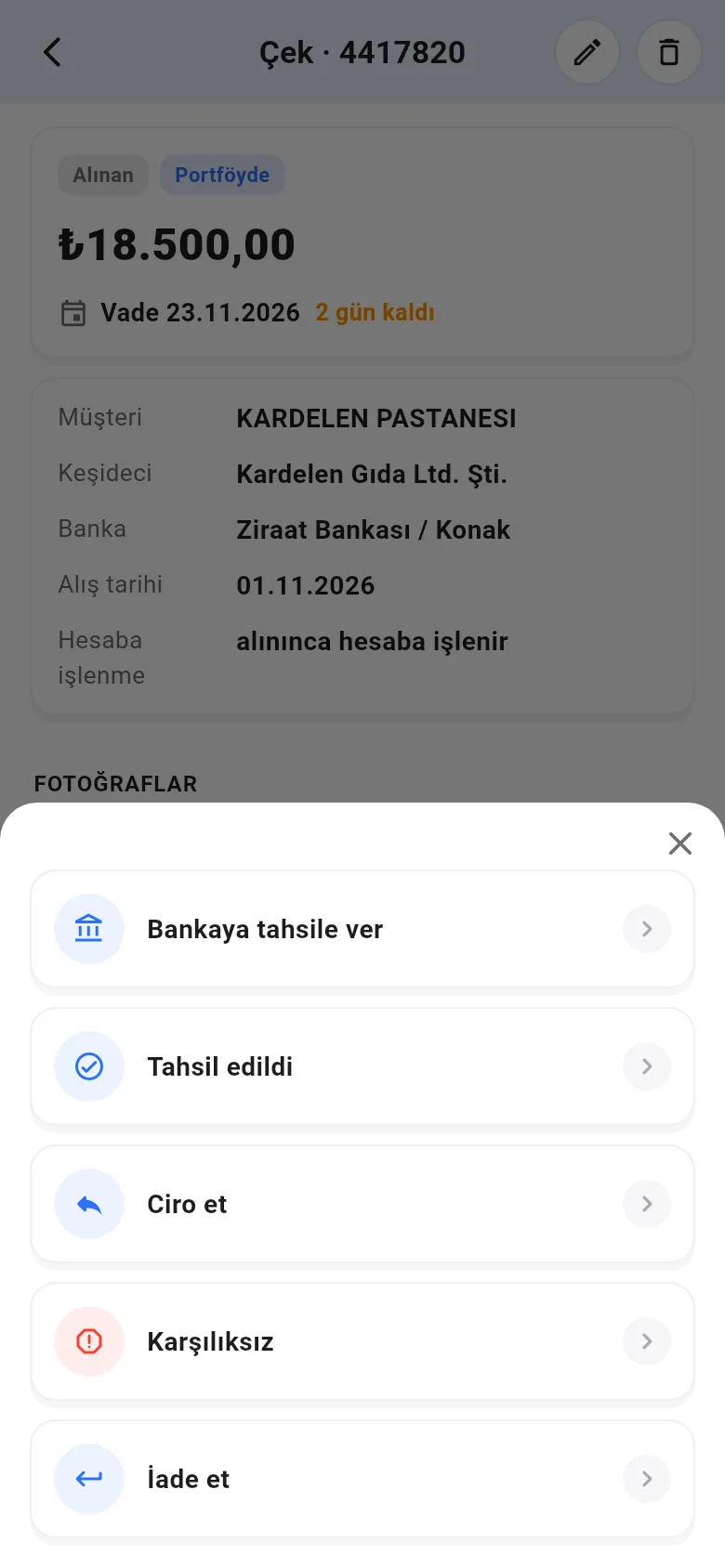 1
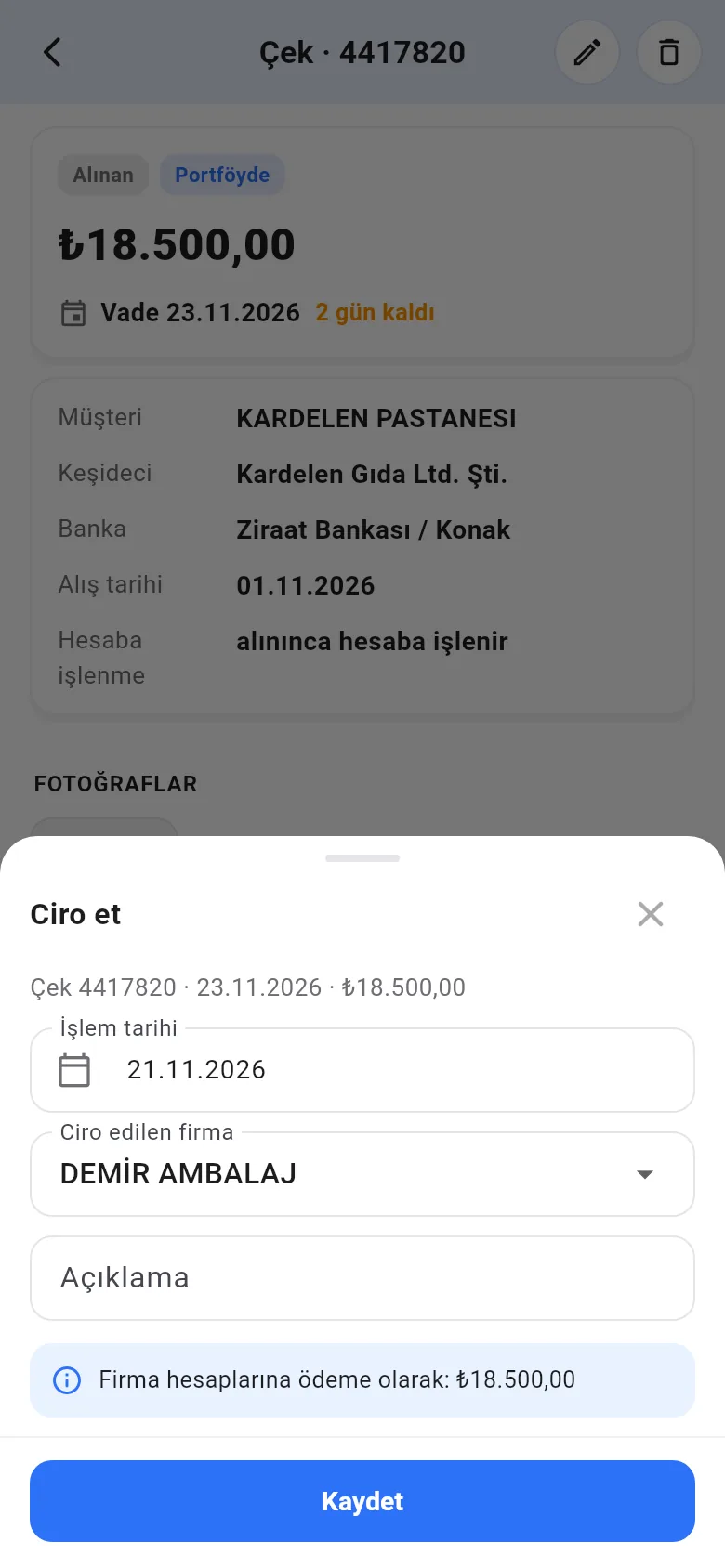 1
When you choose Collected on mobile, the collection method is asked as well. For notes, the Take action list also has Partial collection: 1 enter the amount paid, 2 choose how it was paid; 3 the amount remaining on the note and the cash going into the till are shown.
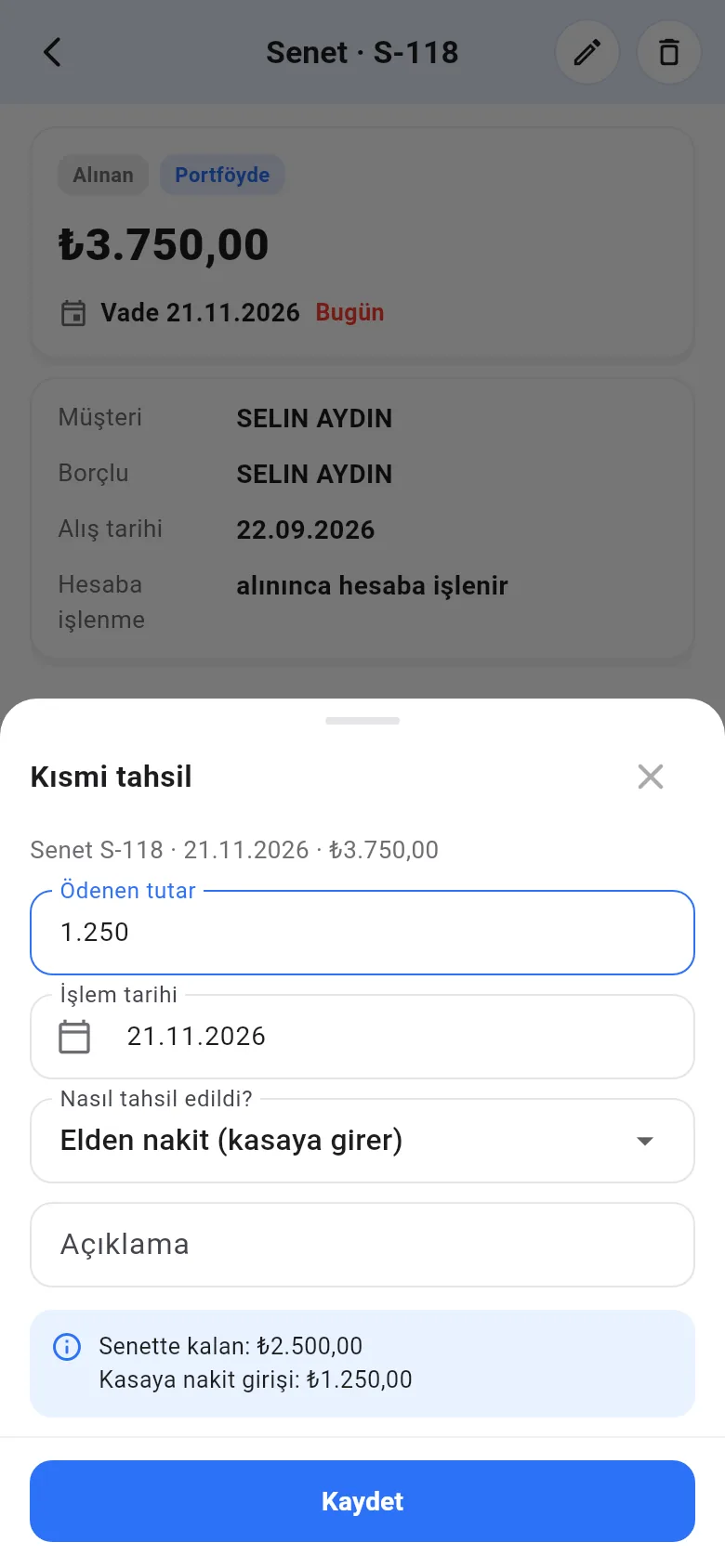 123
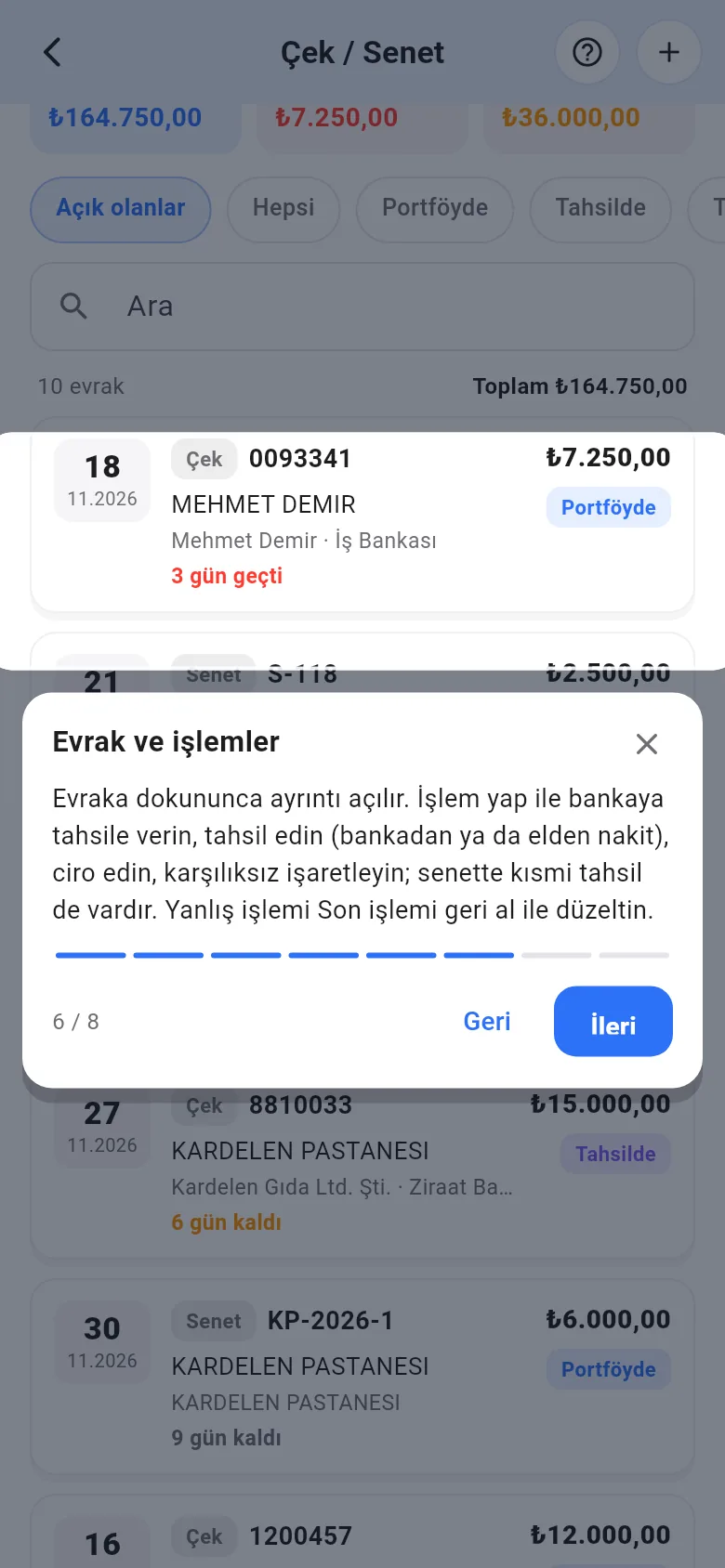
On mobile, the same tour is offered the first time you open the screen: 1 an area is highlighted and 2 its explanation appears below it. Open the tour again any time with the 3 ? icon at the top right.
 123
Sales on notes, printing notes and slips, and settings are on the web panel.