



Preparing and tracking quotes
Save a quote on the sales screen, print the A4 quote or send it by link, track quotes by status and convert them to an order or a sale.
A quote lets you record the price you offer a customer and find it again later. A quote does not reduce stock or appear in reports; it is kept with its number, validity date and status on the Quotes tab of the Orders / Quotes page. Quotes are part of the order module; if the module is off, first turn on Order / Quote module under My Profile › Other Settings.
Preparing a quote
Choose the products and the customer
Add the products on the sales screen and enter line and receipt discounts if needed. Select the customer if you want their company name, address and tax details on the quote. The text you type in the note field appears on the quote as the Description (e.g. delivery time).
Save it as a quote
Click Other among the payment buttons and choose Save as quote. The quote gets a number that runs through the year, such as TKL-2026-0001, and the receipt is cleared.
Print it or save it as PDF
After saving, click the green Quote saved text at the top. The A4 quote document opens; print it with Print / Save as PDF, or choose "Save as PDF" as the printer to get a PDF file.
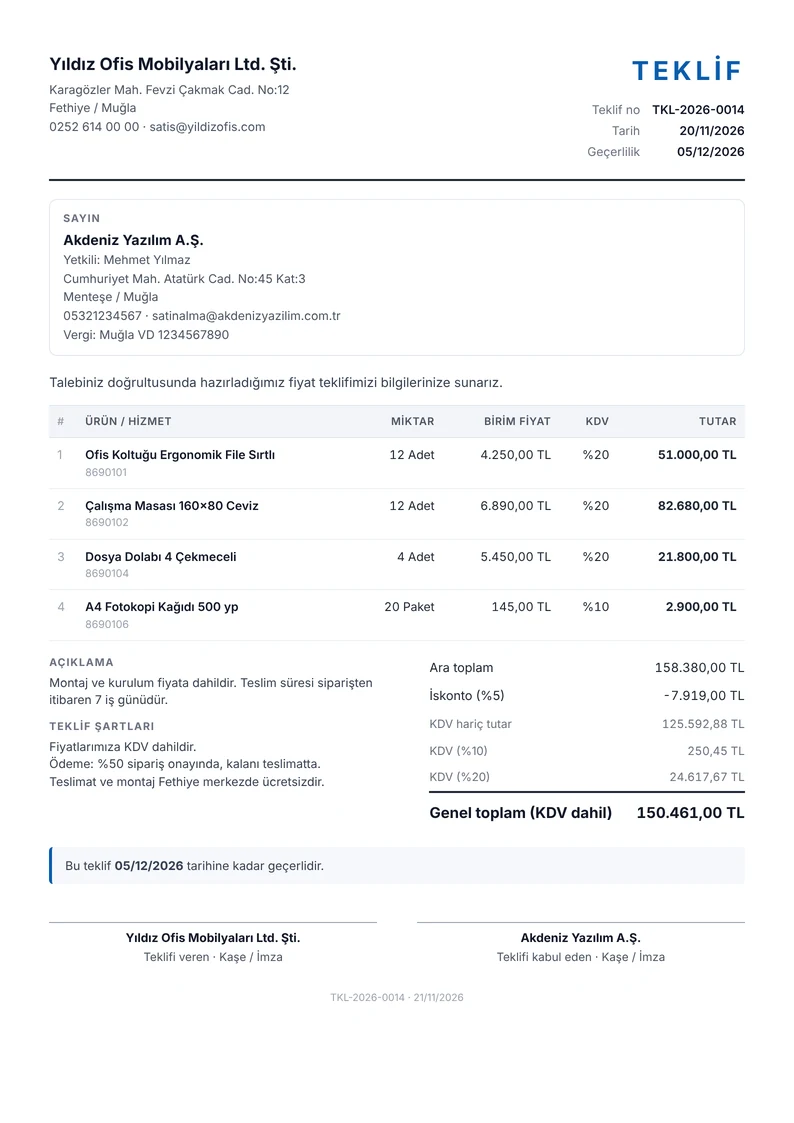
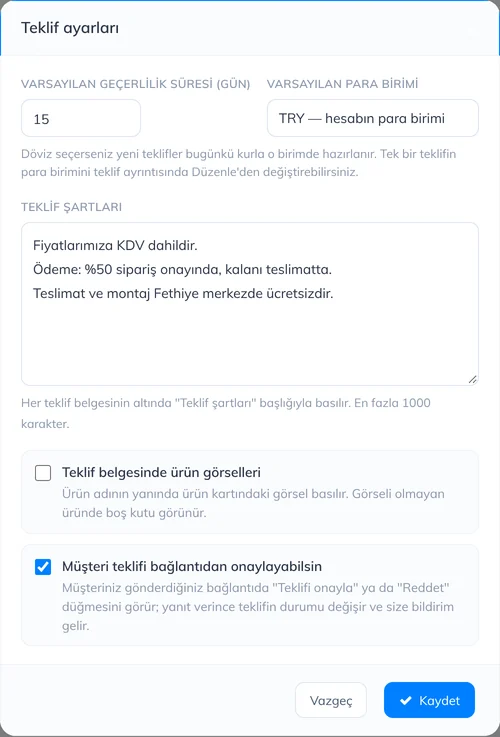
A quote is valid for 15 days by default; you can change this in Quote settings. A quote whose validity date has passed and that has not been accepted or rejected appears as Expired in the list.
Tracking quotes
Open Orders / Quotes in the left menu, switch to the Quotes tab at the top, choose the date range and click List. With the status chips you can see Ready, Sent, Accepted, Rejected and Expired quotes separately.
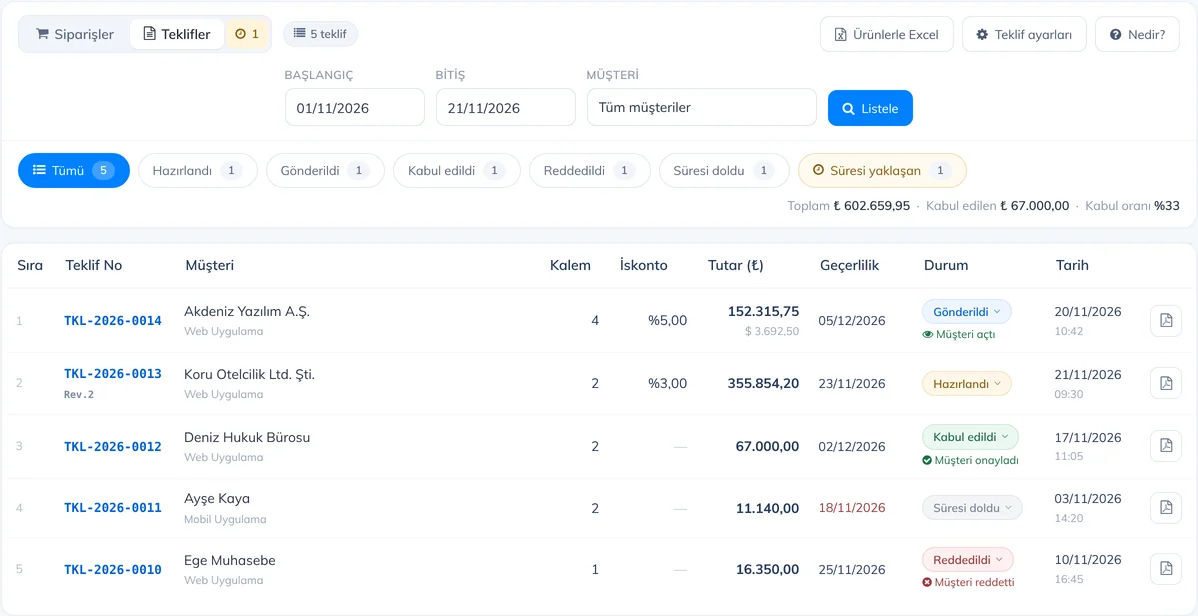
- To change the status, click the status label on the row and pick the new status.
- The document icon at the end of the row opens the A4 quote document.
- If the customer has opened the link, Opened by customer appears under the status.
- The Expiring soon chip shows ready or sent quotes that expire in 3 days or less. If there are any, a number with a clock icon appears next to the Quotes tab; click it to list them.
- Above the list you see the total amount for the selected dates, the amount of accepted quotes and the Acceptance rate (accepted quotes ÷ accepted, rejected and expired quotes).
Quote details
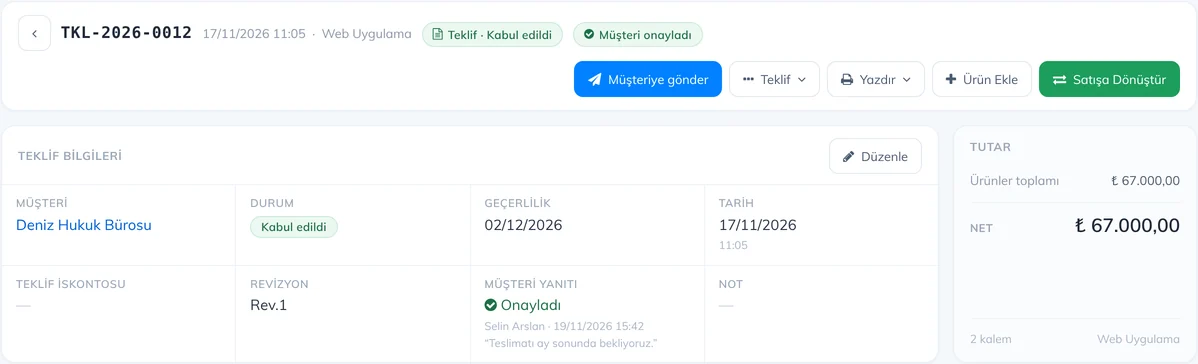
Click the quote number to open the details. Quote Details shows the status, validity (with the days left), revision and whether the customer has opened the link. Change the status, validity date and discount with Edit; update item quantities and prices in the list below. If the customer responded from the link, it appears in the Customer response box. For a quote in a foreign currency, Edit also has the currency and rate.
Sending the quote to the customer
Click Send to customer at the top of the details. A link unique to the quote is created; share it with Send via WhatsApp, Send by email or Copy. If the customer card has a phone number and email, the recipient is filled in automatically. Your customer opens the quote from the link without signing in, and can print it or download it as a PDF.
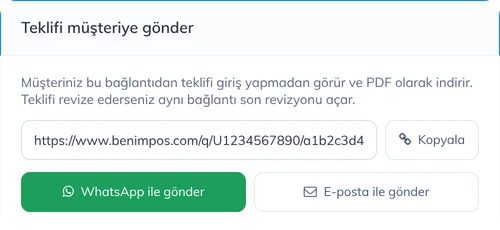
- When you send it, a Ready quote becomes Sent.
- When the customer opens the link, the time appears in Quote Details.
- If you revise the quote, the same link opens the latest revision; you do not need to send it again.
- If the quote has expired or been rejected, the customer sees this at the top of the document.
Customer acceptance
When your customer opens the link, they see Do you accept this quote? above the document. They click Accept quote and enter their name, or choose Reject; they can add a note too. When they respond, the quote status changes to Accepted or Rejected automatically and you get a notification on your phone.

- Accepted by customer or Rejected by customer appears under the status in the list. Who responded, when, and their note are shown in the Customer response box in Quote Details.
- An Accepted online line is printed under the signature area of an accepted quote.
- A customer can respond to a quote only once. The buttons do not appear on expired, revised or converted quotes.
- If you do not want customers to respond from the link, turn off Let customers accept the quote from the link in Quote settings.
Revising a quote
When the customer negotiates or the items change, do not delete the quote; revise it. In the details choose Quote › Revise: a copy of the quote opens with the same number as Rev.2, and you change prices and items there. The old revision is kept as it is; only the latest revision appears in the list, and you reach earlier ones from the Revision box in Quote Details.
Copying a quote
To give another customer a quote with the same items, choose Quote › Copy (new quote) in the details. The items, with their discounts, are added to a new receipt on the sales screen; choose the customer and use Other › Save as quote to create a quote with a new number.
Converting to an order or a sale
If the customer has accepted but the goods are not ready yet, use Quote › Convert to order: the record moves to the Orders tab, and the order details show which quote it came from. To sell right away, use Convert to Sale; once the sale is saved, the quote automatically becomes Accepted. If you need an invoice, create it from the sale as usual so that stock and reports stay correct.
Quotes in a foreign currency
You can give a quote in a currency such as US dollars or euros. In the details click Edit and choose the currency in Quote currency; today's rate appears in Exchange rate, and you can change it. If you always quote in the same currency, choose Default currency in Quote settings; new quotes are prepared in that currency at today's rate.
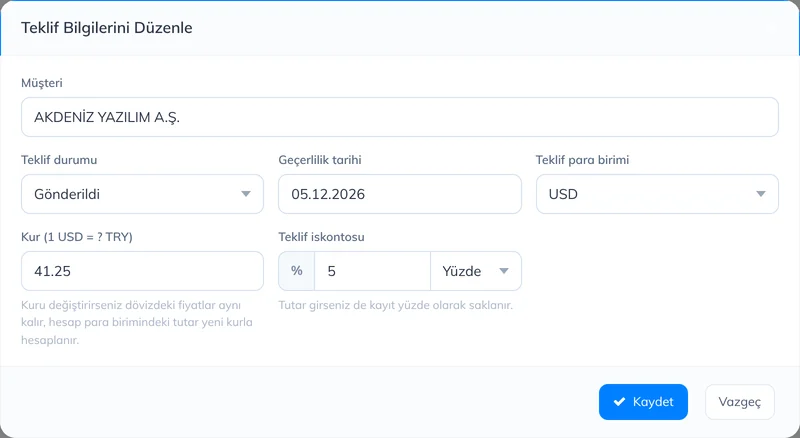
- Prices and amounts on the quote document, the customer link and the quote details are shown in the quote currency; the currency and rate appear at the top of the document. In the details you also enter prices in that currency.
- In the list the amount is shown in your account currency, with the foreign-currency amount in small text below.
- If you change the rate, foreign-currency prices stay the same and the amount in your account currency is recalculated. When you revise, the new revision opens at today's rate.
- When you convert the quote to an order or a sale, prices are converted to your account currency at today's rate. Sales, stock and reports are always kept in your account currency.
Quote terms and validity
With Quote settings on the Quotes tab you set up the following once:
- Default validity (days) and Default currency.
- Quote terms, such as payment conditions, delivery time and VAT information. They are printed at the bottom of every quote under Quote terms.
- Product images on the quote document: the image from the product card is printed next to the product name.
- Let customers accept the quote from the link: the accept and reject buttons on the customer link.
The account owner and admin staff can change these settings.
Quotes do not appear in the order list or in the customer's account statement. Saving a quote requires the permission to create orders; changing the status, revising and converting require the permission to edit orders.
Quotes are prepared in the web panel and the mobile app. They cannot be saved in the desktop app.
Preparing a quote
Choose the products and the customer on the sales screen, tap Other among the payment buttons and choose Save as quote. The quote gets a number and stock is not reduced.
Tracking quotes
In Menu › Orders, switch to Quotes at the top, choose the dates and tap List. The list shows each quote's status, validity date and whether the customer has opened it.
Tap a quote to open the details. Tap the Status and Valid until boxes to change them. From the Actions menu:
- Send to customer: shares the quote link via WhatsApp, email or any app you choose; the quote becomes Sent.
- Quote document (PDF): opens the document the customer sees, which you can save as a PDF and share. Opening it yourself does not count as "opened by customer".
- Revise, Convert to order and Convert to sale work the same as in the web panel.
- If the customer responded from the link, Accepted by customer or Rejected by customer appears in the list and the details.
- The details of a quote in a foreign currency show the currency and rate. Change the currency and rate, copy quotes and edit quote settings in the web panel.