



Customer debt aging report
See how long customers' outstanding balances have gone unpaid: 0–30, 31–60, 61–90 and older than 90 days; by sale date or due date, with Excel and printing.
The debt aging report shows how long your customers' outstanding balances have gone unpaid. It splits the total balance into 0–30 days, 31–60 days, 61–90 days and older than 90 days, so you can see whom to call first when collecting and whom you should stop selling to on credit. The report only displays data; it changes no records.
Opening the report
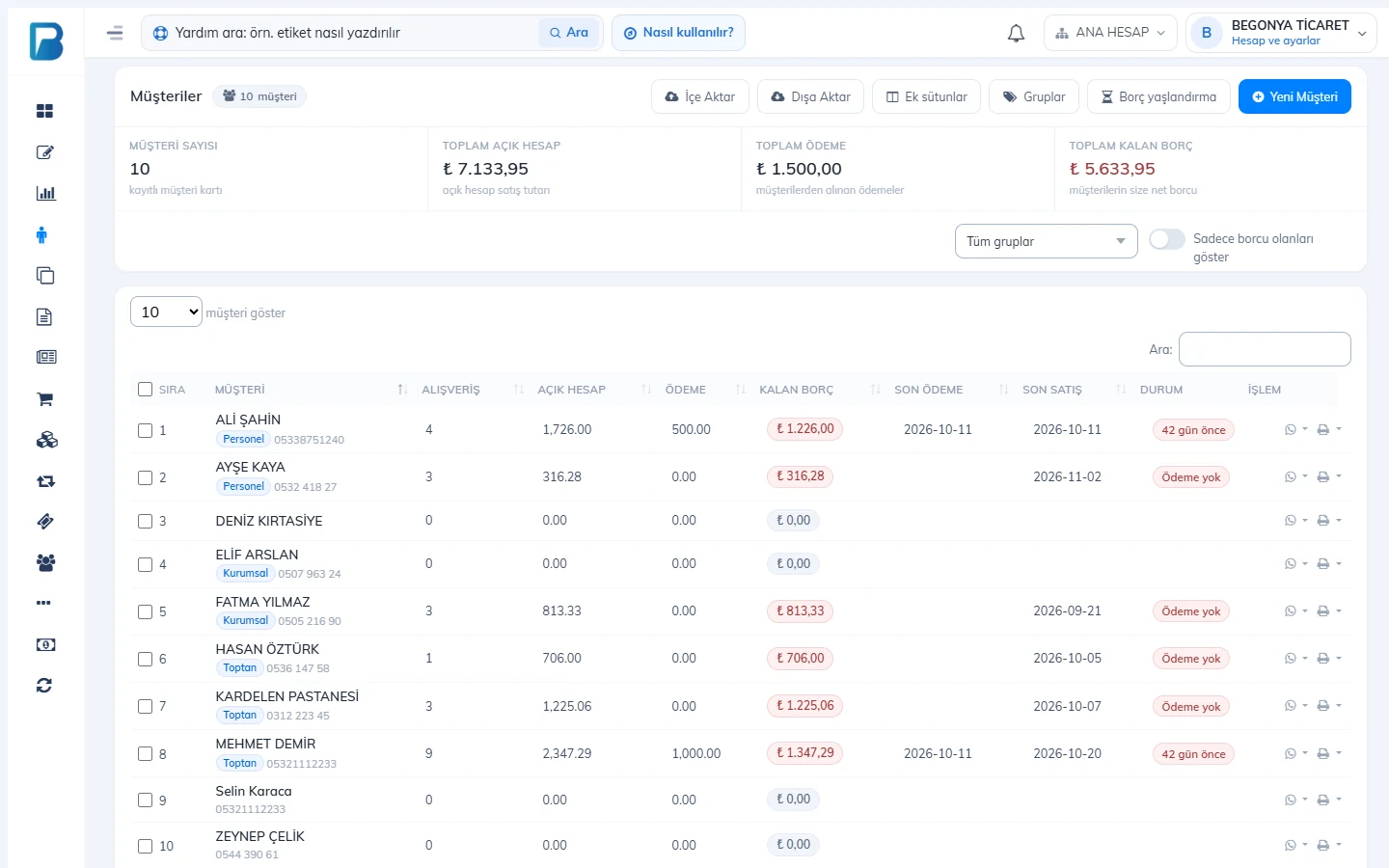
Open Customers › Debt Aging from the left menu, or press the 1 Debt aging button at the top of the Customers page.
 1
Reading the report
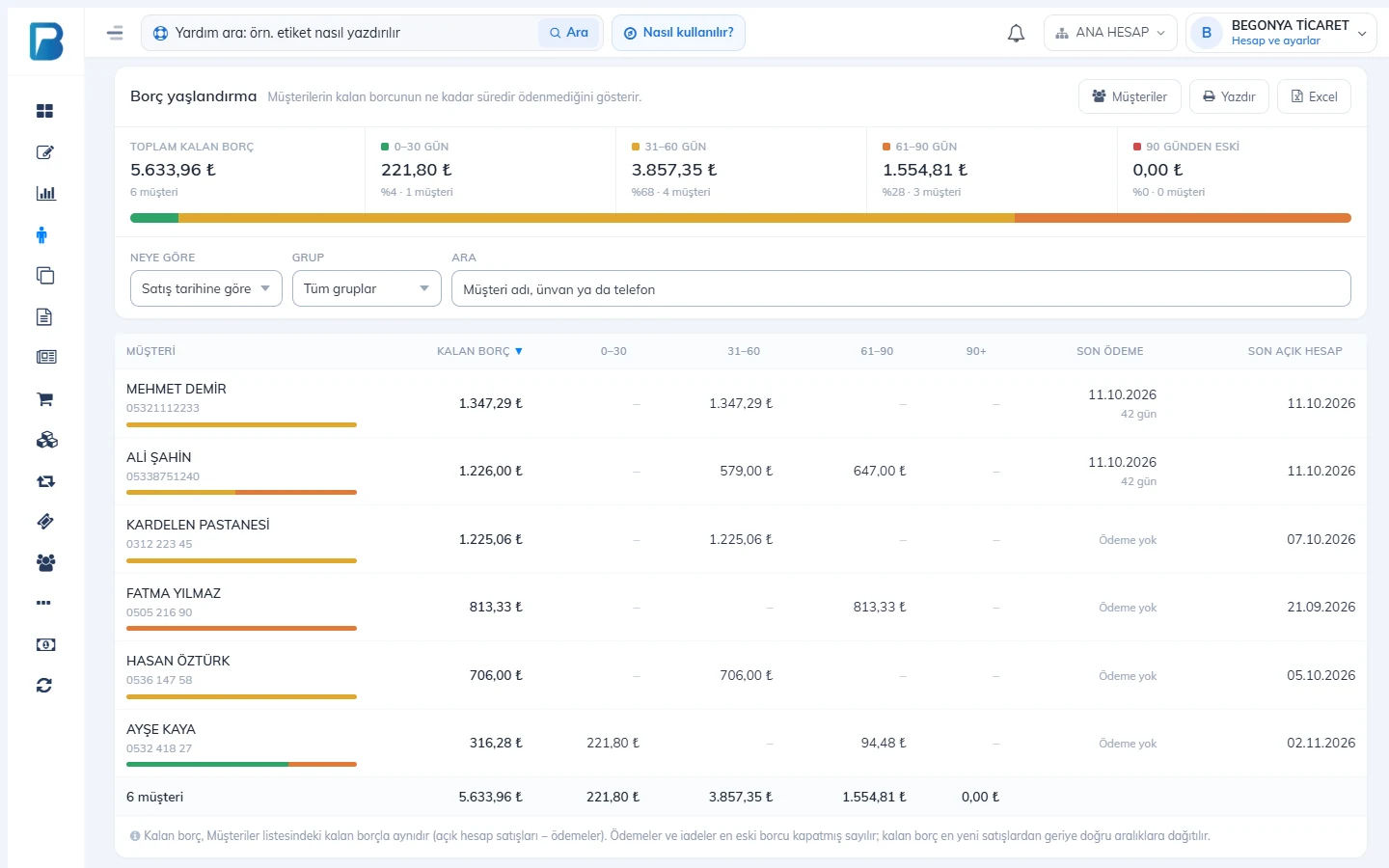
1 The boxes at the top show the total outstanding balance and the part that falls into each range; below them you see its share of the total and the number of customers with a balance in that range. 2 The coloured bar shows the distribution at a glance: green is the newest, red the oldest debt. Click a box to filter the list to customers with a balance in that range, sorted by that column; click it again to clear the filter.
3 Use Based on to calculate by sale date or by due date (see below). If you use customer groups, a Group selector appears next to it. 4 Search by name, company name or phone.
5 The customer with the largest balance is at the top. Each row shows the outstanding balance, how it splits into ranges, a small colour bar, the last payment date (and how many days ago it was) and the date of the last credit sale. Customers who have never paid show No payment. 8 Click a column header to sort. Click a customer to open their account summary in a new tab, where you can add a payment.
6 Print prints the list in A4 layout, 7 Excel downloads it. Both use the filter and sort order on screen.
 12345678
By sale date or by due date?
- By sale date (default): shows how many days ago the sales behind the balance were made. Use this if you do not give your customers payment terms.
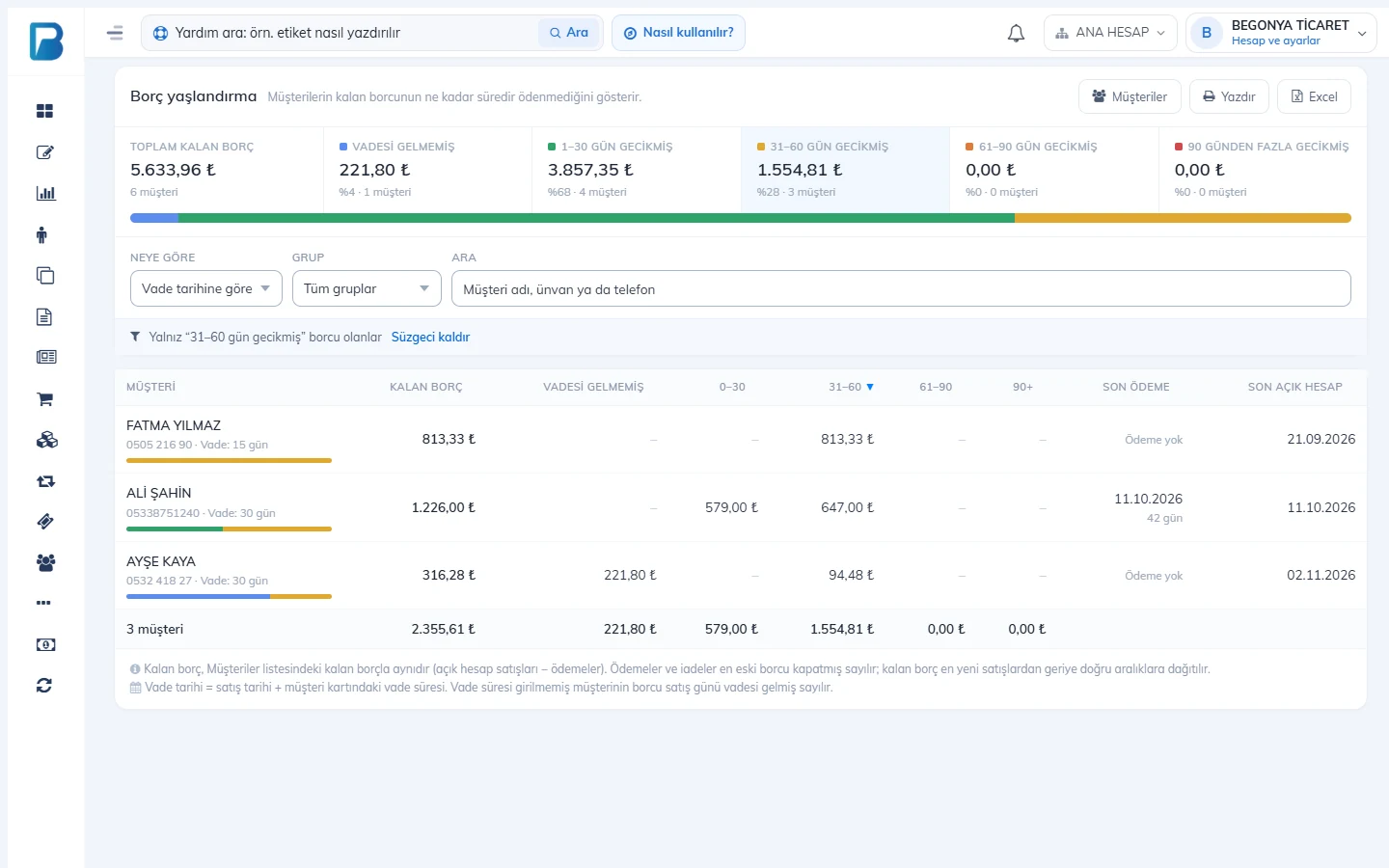
- By due date: each sale's due date is the sale date plus the Payment term (days) on the customer card. 1 With this option 2 the Not yet due balance appears in a separate box; overdue balances 3 are split by how many days they are late into 1–30, 31–60, 61–90 and more than 90 days overdue. 4 Clicking a box shows the filter bar; Clear filter brings back the full list. 5 Each row also shows the customer's payment term.
 123456
6 If no payment term is set for a customer, the debt is considered due on the sale date. You can enter the payment term in Customer Detail › Edit.
How is it calculated?
The outstanding balance is the same as in the Customers list: credit sales minus payments. Payments and returns are treated as closing the oldest debt first, so the remaining balance is spread into ranges starting from the newest sales. Example:
| Transaction | Amount | Days ago |
|---|---|---|
| Credit sale | 1,000 | 75 |
| Credit sale | 1,000 | 40 |
| Credit sale | 1,000 | 10 |
| Payment | −1,500 | 5 |
The outstanding balance is 1,500. The payment closes the oldest sale (1,000) and 500 of the second sale. The report shows this customer as 0–30 days: 1,000 and 31–60 days: 500; the 61–90 day range stays empty.
Customer credits (amounts you owe the customer) and the due dates of open cheques / notes are not included in this report; for cheque and note due dates use the Due date calendar on the Cheques / Notes page. Staff can open this report if they have permission to view customers.
The debt aging report is not available in the desktop app. Sales and payments entered on the desktop reach the web panel through synchronisation; open the report from the web panel or the mobile app.
Debt aging in the mobile app
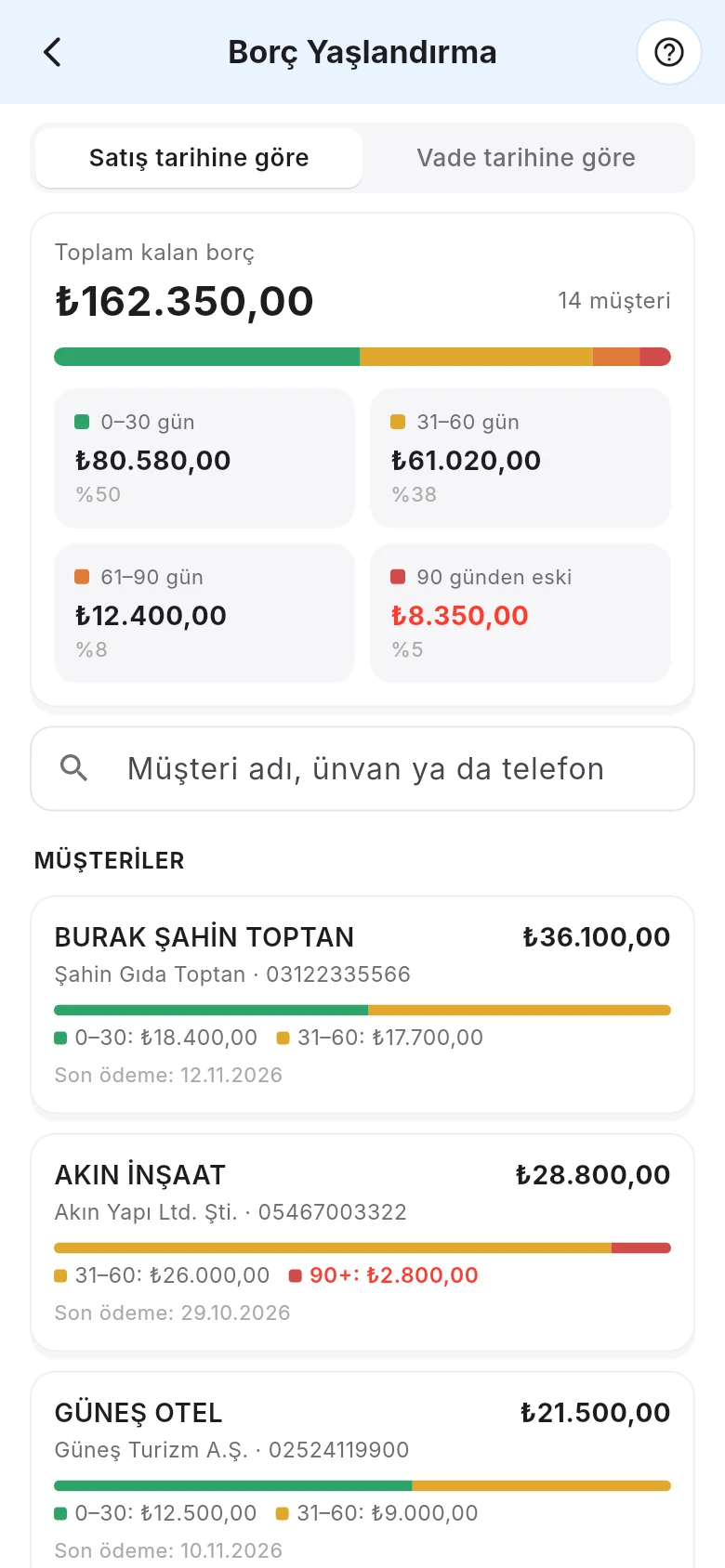
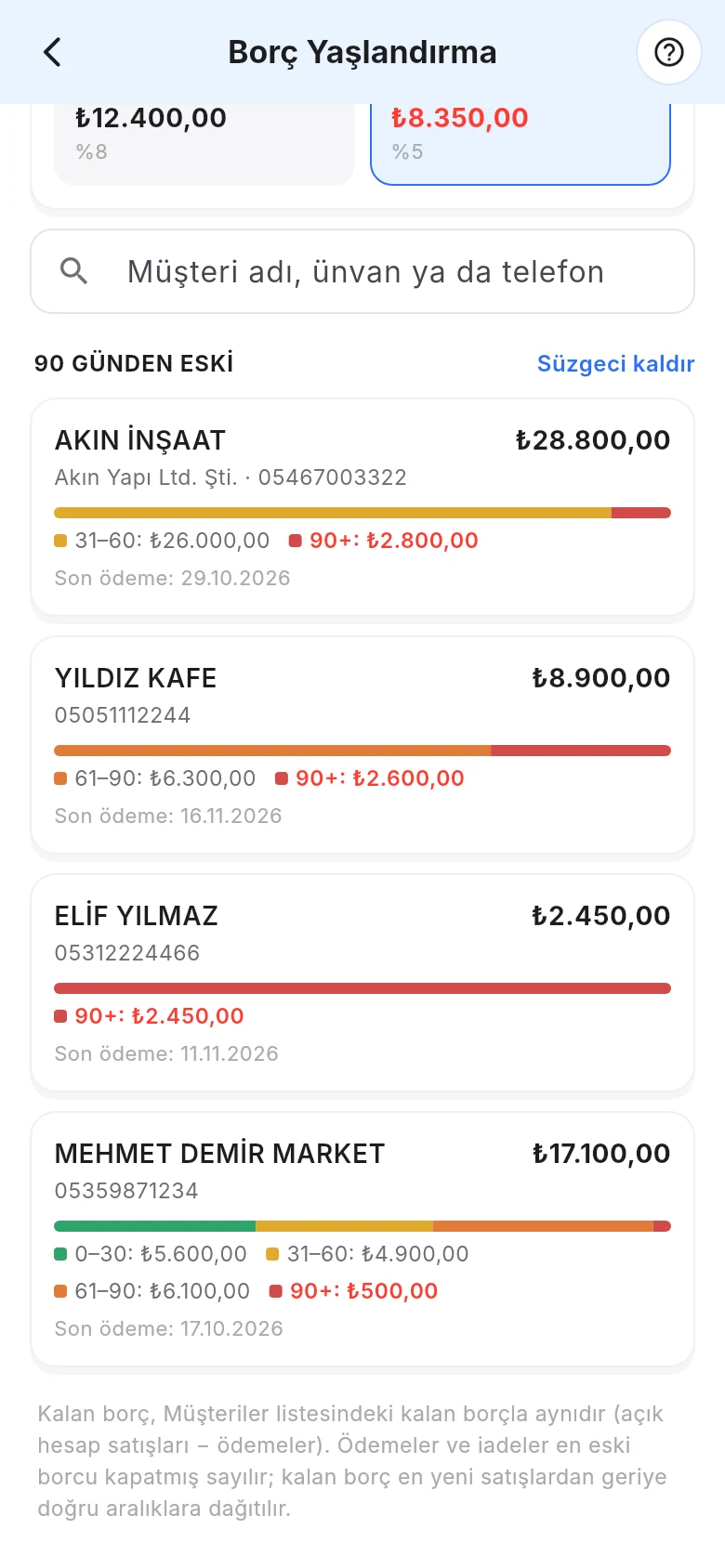
Open Menu › Accounts › Debt Aging; the hourglass icon at the top of the Customers screen opens the same screen. 1 Choose by sale date or by due date. 2 The total outstanding balance, the colour bar and the range boxes appear. 3 Search by customer name, company name or phone. 4 Each customer shows the balance, its split into ranges and the last payment date; tap a customer to open their card.
 12345
1 Tap a range box to filter the list to customers with a balance in that range; 3 the largest amount comes first. 2 Use Clear filter to return to the full list. Pull down to refresh. You can open the tour any time with the 5 ? icon at the top right.
 123
Excel and printing are available in the web panel.