


In-page tour: "How does it work?"
A short tour that shows the parts of a page one by one: how to open it, move through it and turn off the suggestion card; pages with a tour on web, mobile and desktop.
Most pages in BenimPOS have a short in-page tour: the parts of the page are highlighted one by one, each with a note on what it does. It is the easiest way to show the app to a new staff member or to refresh your memory of a page you rarely use. The tour does not change anything; it only shows.
Tours in the web panel
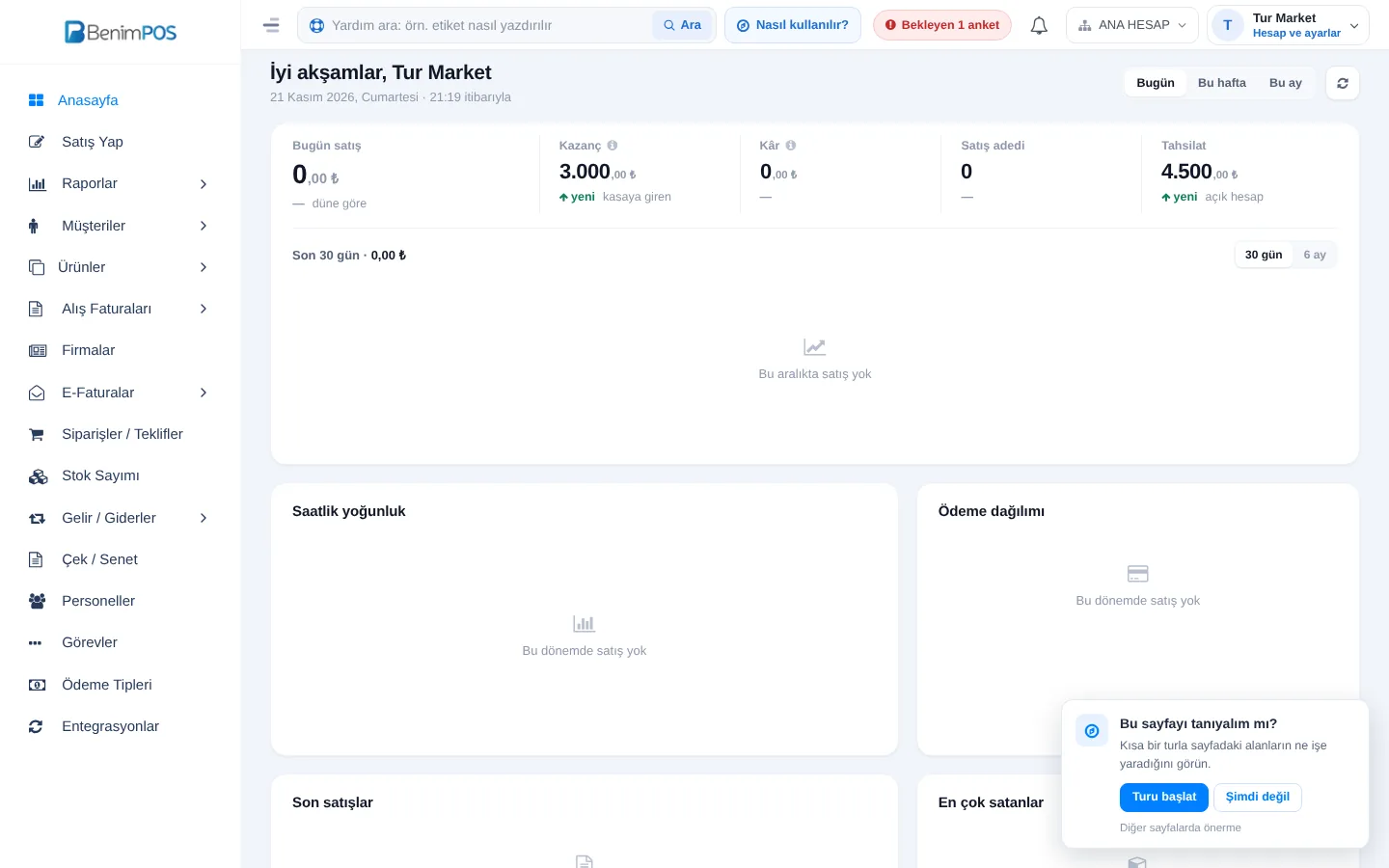
The first time you open a page that has a tour, a 1 Shall we take a quick tour? card appears at the bottom right. 2 Start tour opens the tour; Not now closes the card. If you don't want the card on other pages, click 3 Don't suggest on other pages; the tours can still be opened. Open the tour any time with the 4 How does it work? button in the top bar.
 1234
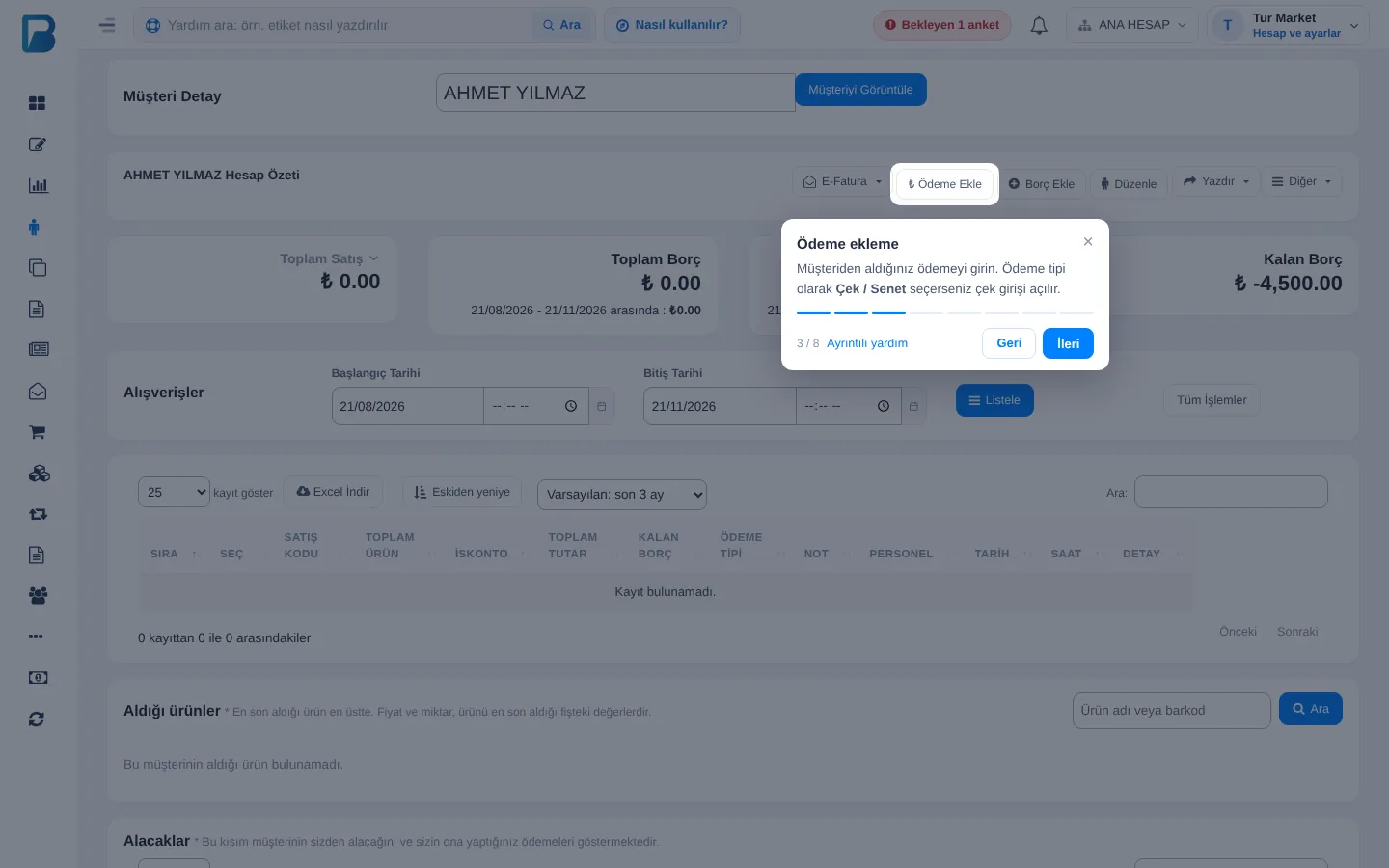
During the tour, 1 the highlighted area gets 2 a short explanation beside it. 3 Use Next and Back; the right / left arrow keys, Enter and Esc also work. For a guide with screenshots, click 4 Detailed help; the page's help article opens in a new tab. Restart the tour with 5 How does it work?.
 12345
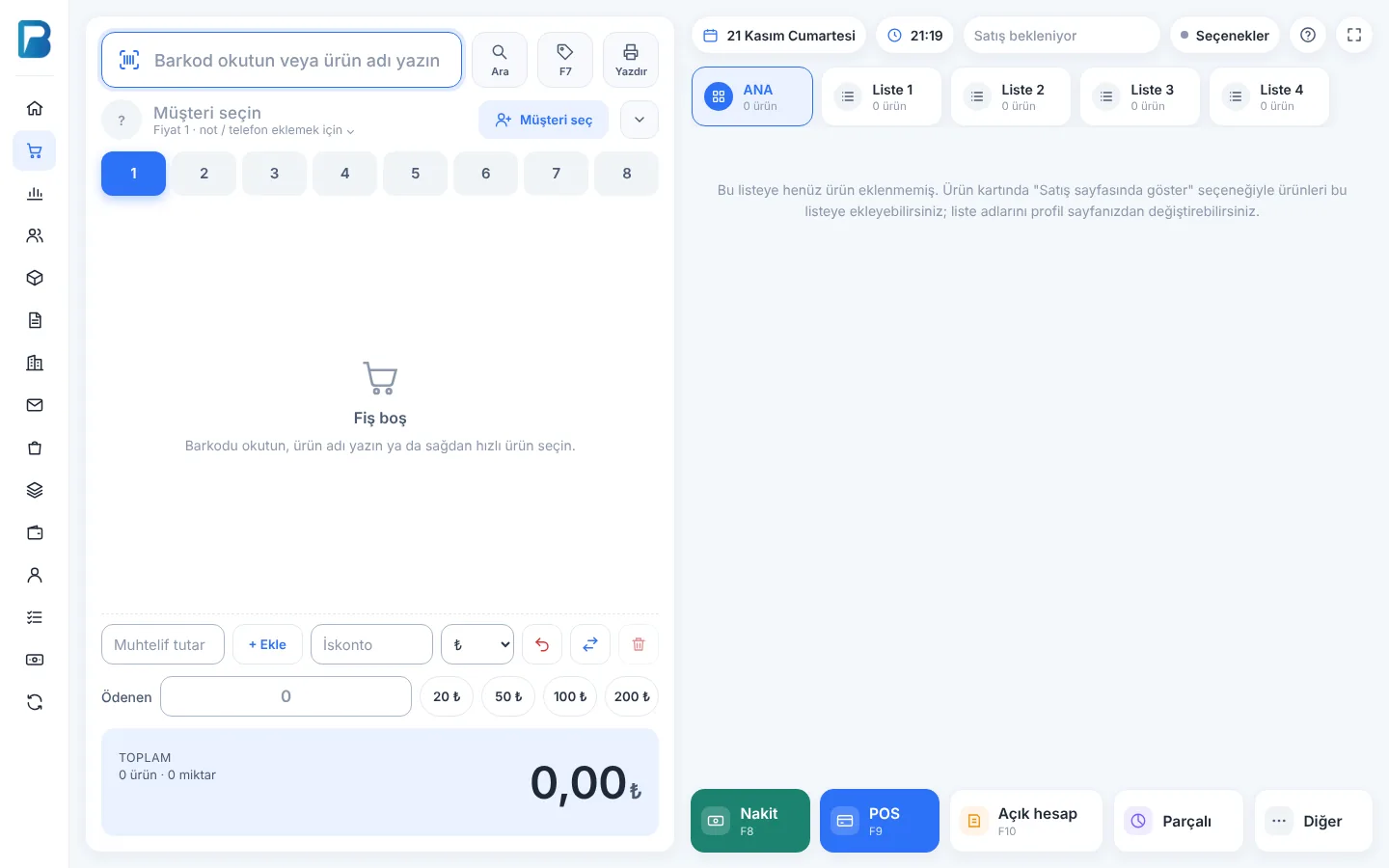
The New Sale screen has no top bar; the tour opens from the 1 ? button at the top right. On this screen the suggestion card appears at the bottom left so it doesn't cover the payment buttons.
 1
Areas you don't have permission for, or that aren't on screen at the moment (an empty list, a module that isn't active), are skipped automatically, so the number of steps can differ from user to user.
Pages with a tour
- Home, New Sale and sale details
- Customers, customer card, Suppliers and supplier account
- Income / Expenses and their types, Cheques / Notes, Payment types
- Products, product card, product groups, sub-product definitions, variants, shelf labels, label designer, scale file
- Stock count, Restock, product transfers, Purchase invoices and creating an invoice, product returns and return requests
- Orders / Quotes, daily and date range reports, product, group, correlation and stock movement reports, expiry tracking
- Staff, staff activity, Tasks, promotions, loyalty programme, routes, AI sales analysis
- Integrations, bank accounts, marketplace pages and e-invoice pages
Whether you have seen a tour is saved in that browser or phone; on another device the suggestion card may appear again.
On the desktop, tours are available on the home screen, the sales screen and every page that opens in a tab.
Tours in the desktop app
The first time you open the sales screen, while the receipt is empty, a 1 Shall we take a quick tour? card appears at the top right of the catalog area. Start with 2 Start tour; 3 Don't suggest on other screens turns the card off on every screen. The card doesn't get in the way of selling: you can keep scanning, and it closes by itself once a product is added to the receipt. Open the tour any time with the 4 ? button in the top bar.
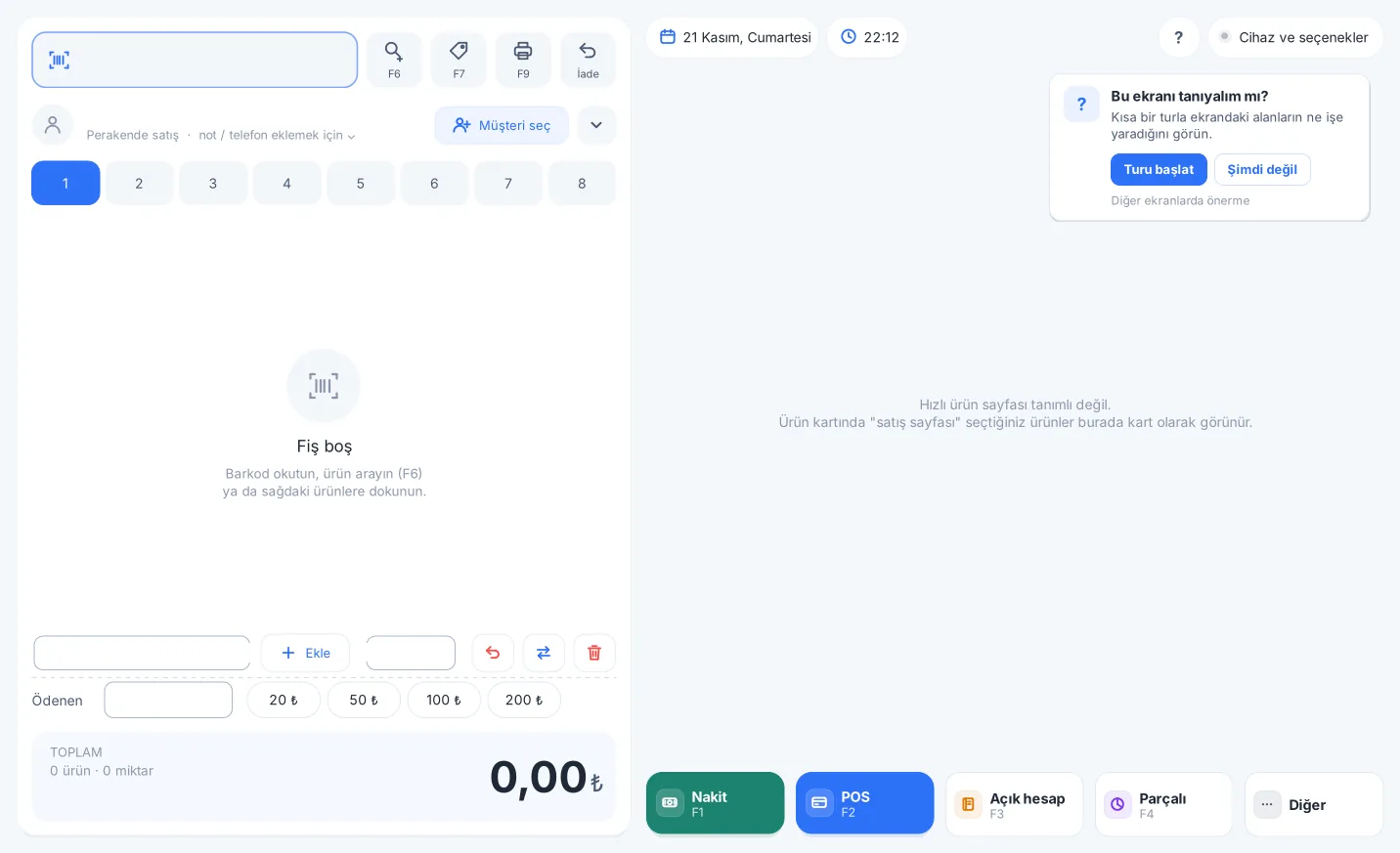 1234
During the tour 1 an area is highlighted and 2 its explanation appears beside it; continue with 3 Next or the right arrow and Enter keys, and close it with Esc. While the tour is open, the F keys and the barcode scanner don't work, so no sale is made by mistake. Reopen the tour with 4 ?.
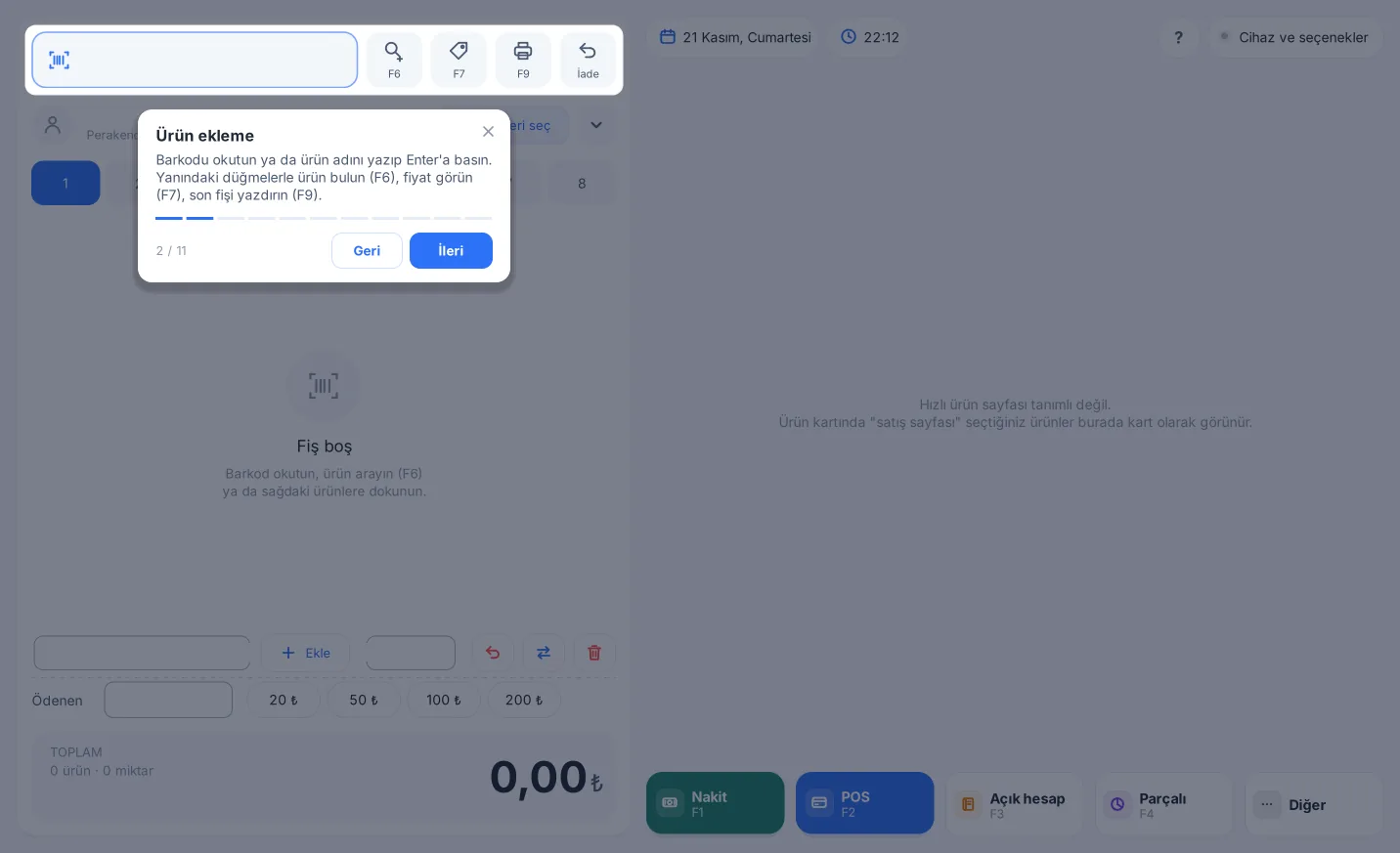 1234
Other desktop screens
On the home screen and on pages opened in a tab, open the tour with the 1 ? (How does it work?) button in the top bar, to the left of the window buttons. The first time you open a screen, a suggestion card appears once at the bottom right. The tour dims the whole window; when it explains an area further down, the page scrolls to it by itself.
On the desktop, the tour is available on the home screen, the sales screen and every page that opens in a tab: products and the product card, customers, suppliers, purchase invoices, income / expenses, reports, stock counts, staff, exchange rates, settings, cash drawer… Small confirmation windows have no tour.
 1
Tours in the mobile app
On mobile too, the first time you open a screen that has a tour, a 1 Shall we take a quick tour? card appears. Start with 2 Start tour; 3 Don't suggest on other screens turns the card off on every screen. Open the tour any time with the 4 ? icon at the top right.
During the tour 1 an area is highlighted and 2 its explanation appears below or above it; continue with 3 Next, or close it with the cross. Tapping the screen while the tour is open does nothing.
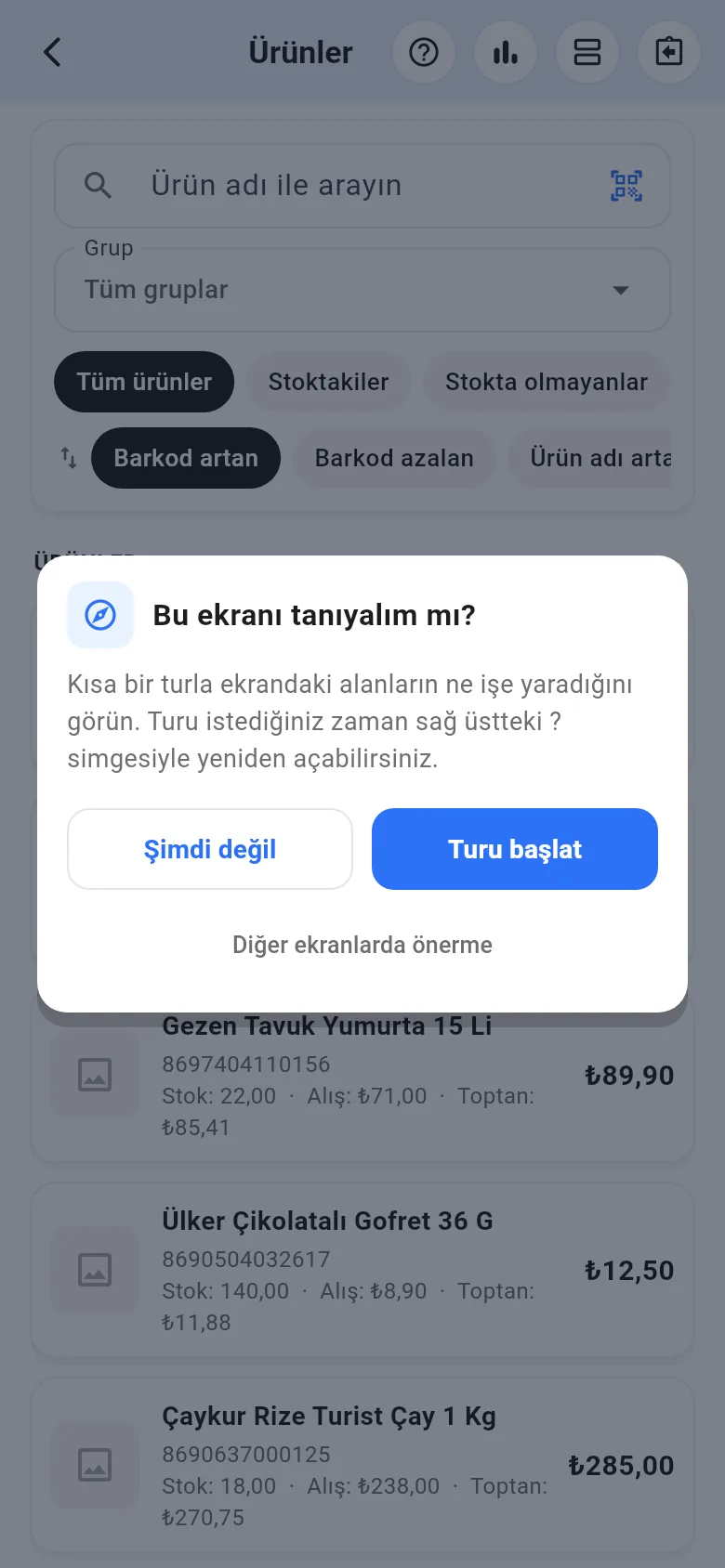 1234
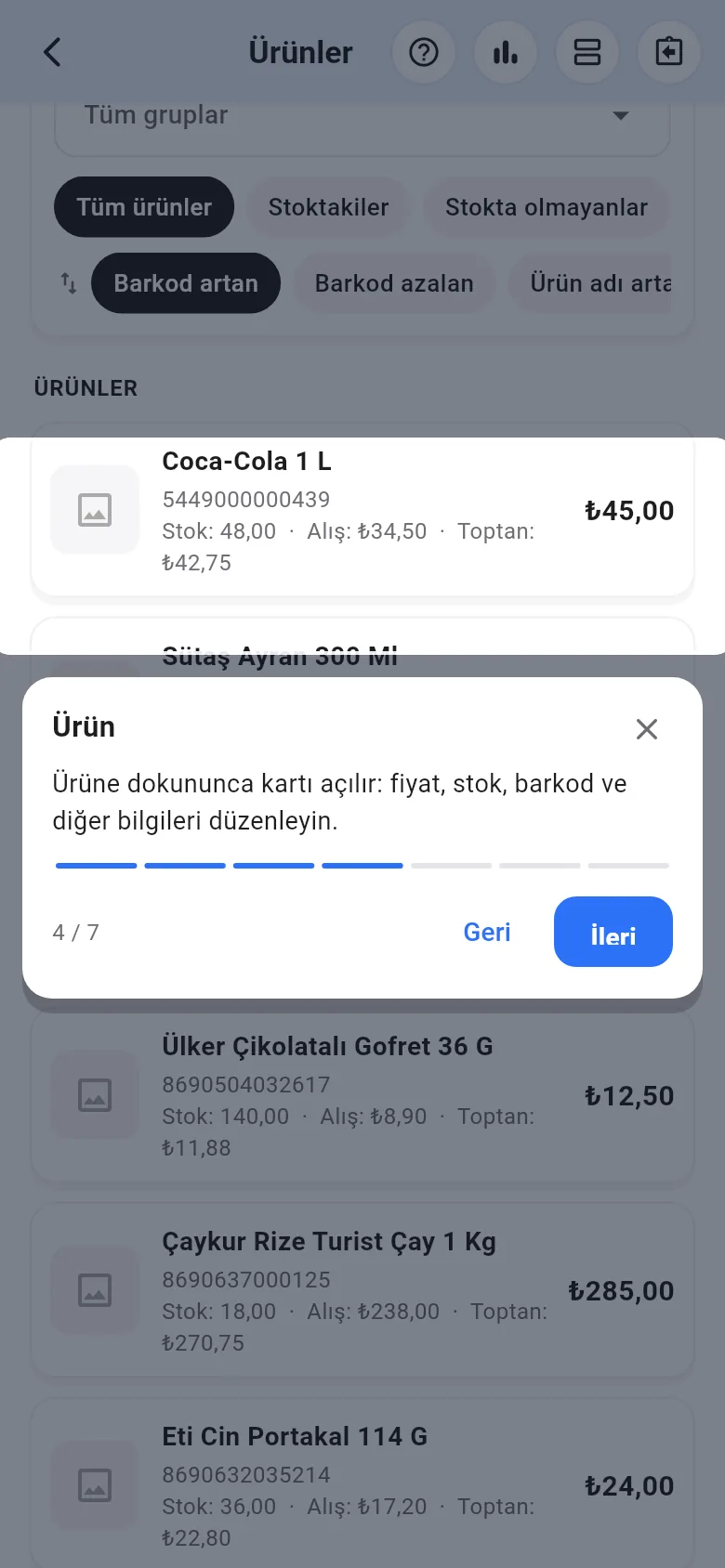 1234
Screens with a tour
Home screen (the ? icon is at the top, next to notifications), New Sale, Products, Customers and customer card, Suppliers and supplier card, Sales Report, Orders / Quotes, Income, Expenses, Stock Counts, Cheques / Notes and My Route.
Whether you have seen a tour is saved in that browser or phone; on another device the suggestion card may appear again.