




Credit card tracking
Track the statement, due date and amount due of card payments to suppliers, expenses and purchase invoices; installments, paid mark, due date calendar and reminders.
When you pay suppliers, expenses or purchase invoices with your own credit card, you also need to keep track of when that amount is charged on the card. The Credit Cards page builds statements from each card's statement day and due day and shows you the amount due and the due date. Payments are recorded as before: supplier balances, expenses, the cash register and reports do not change at all; only the card used for the payment is stored separately.
1. Add your card
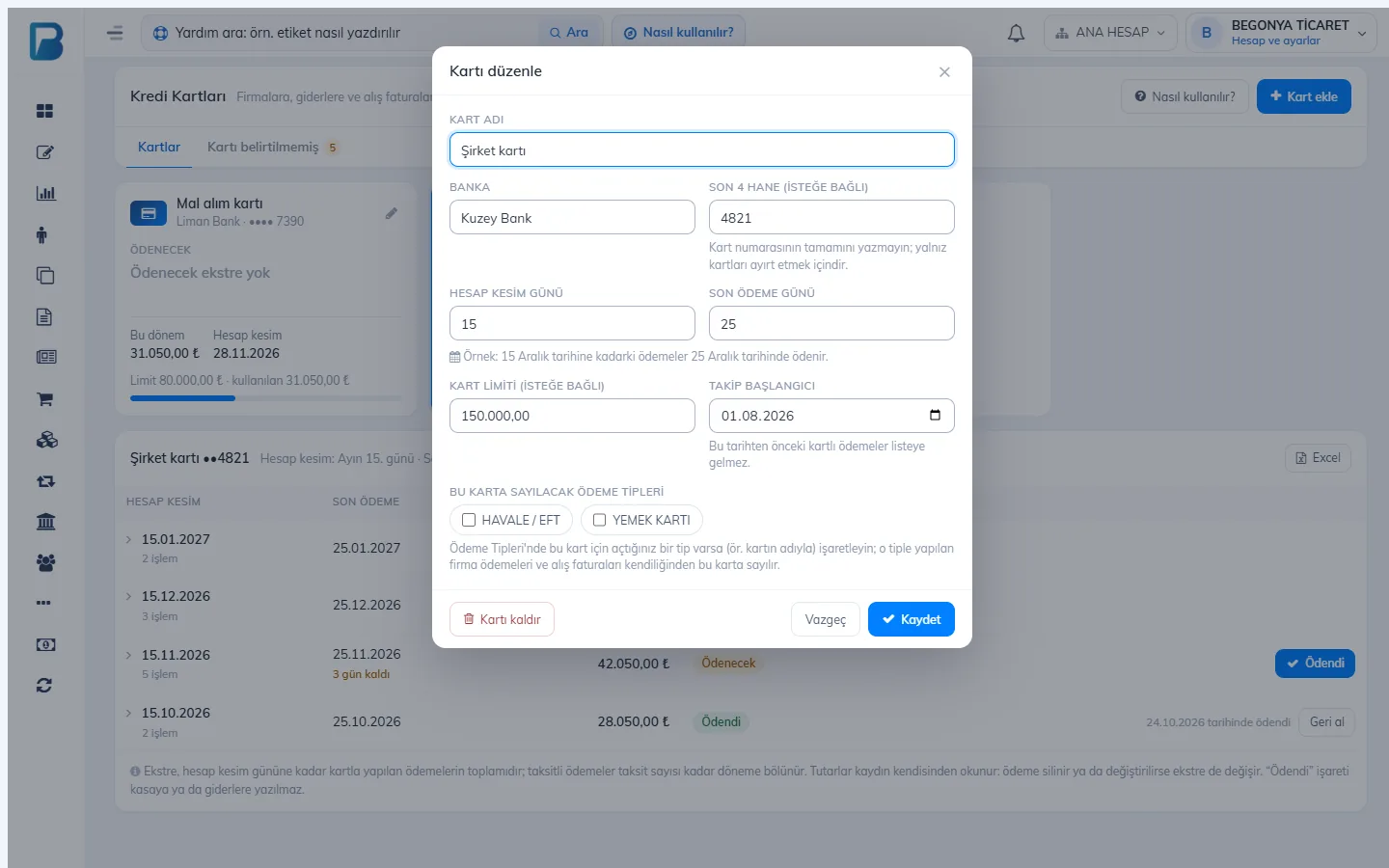
Open Finance › Credit Cards in the left menu and press Add card. Enter the card name 1; the bank and last 4 digits 2 are optional and only help tell cards apart. The full card number is never asked for or stored. Fill in the statement day 3 and due day 4 shown on your statement; the example below 5 shows which payments are due on which date. The limit is optional. Tracking start 6 keeps card payments before that date out of the list. If you created a separate type for this card under Payment Types (for example with the card's name), tick it under Payment types counted on this card 7; supplier payments and purchase invoices with that type are counted on this card automatically.
 1234567
2. Cards and statements
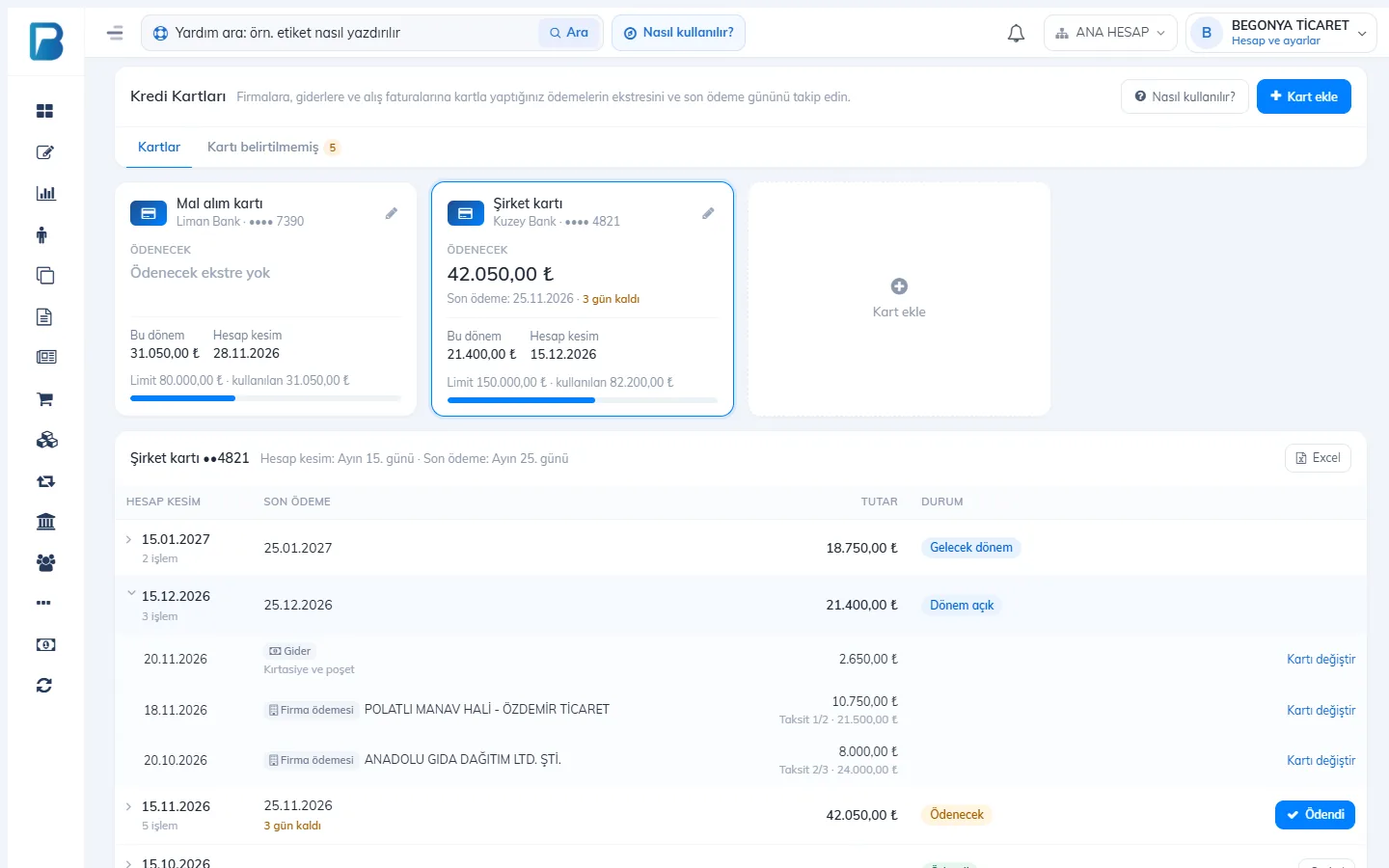
Each card 1 shows the statement amount due, the due date and days left, this period's spending and the next statement date; if you entered a limit, the used part is shown as a bar. Click a card to open its statements below. Each row is a statement period 3: click it to see the supplier payments, expenses and purchase invoices in that period. Installment payments are split across as many periods as installments (for example Installment 2/3).
When you pay the statement to the bank, press Paid 4 and choose the payment date. This mark is not written to the cash register or expenses, because the card payments were already recorded to suppliers and expenses. If you marked it by mistake, use Undo. If a payment was put on the wrong card, fix it with Change card 5 on its row.
 12345
Statuses: Period open (statement day not reached), To be paid (statement issued), Overdue (due date passed, not marked paid), Paid, Future period (installments falling in later months).
3. Select the card when paying by card
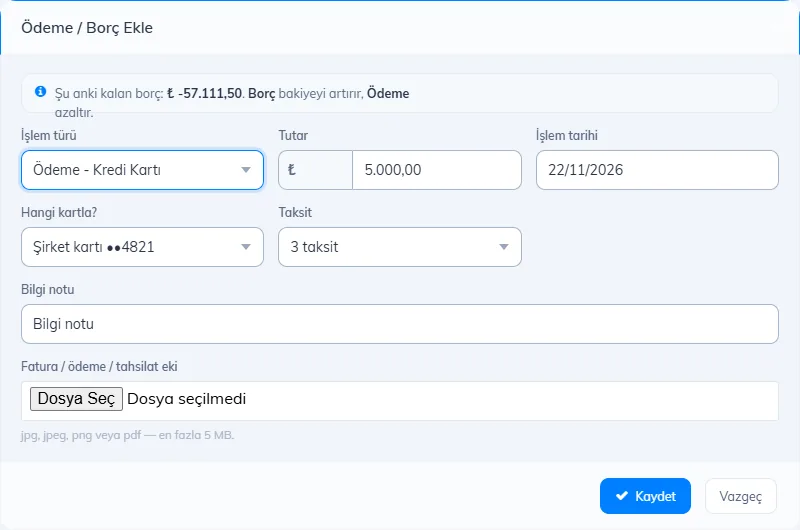
In a supplier account, under Add Payment / Debt, choosing Payment - Card 1 shows With which card? 2 and Installment 3. The same choice appears in Expenses when a row is paid by Card, and in Create Purchase Invoice when the payment type is Card. Selecting a card is optional; if you don't, the payment is saved as before and goes to the Card not specified list. Expenses don't ask for installments because installment expenses are already written to each month separately. The Add payment rows of an open-account purchase invoice and expense invoices paid partly by credit card also show the card selection. In the mobile app you choose the card when entering a supplier payment or an expense.
 123
4. Payments without a card
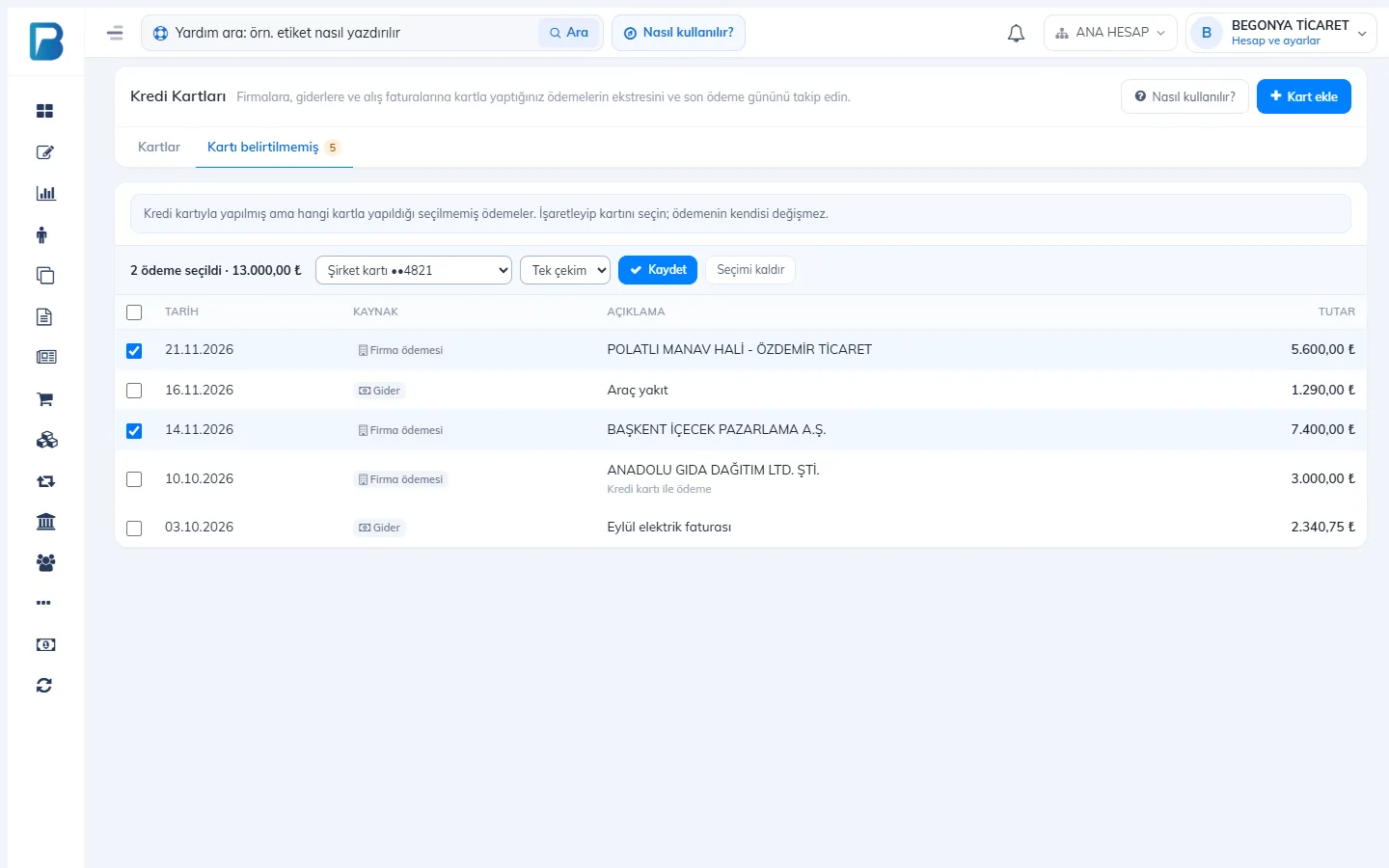
Credit card payments without a selected card (entered from the desktop app, an older version or without choosing a card) are collected on the Card not specified tab 1. Tick the payments 2, choose the card 3 and installments 4 and press Save 5. For payments not made with a tracked card, choose Not paid with a tracked card; they leave the list and you can restore them at any time. If the account has only one card, payments without a card are counted on that card.
 12345
5. Due date calendar and reminders
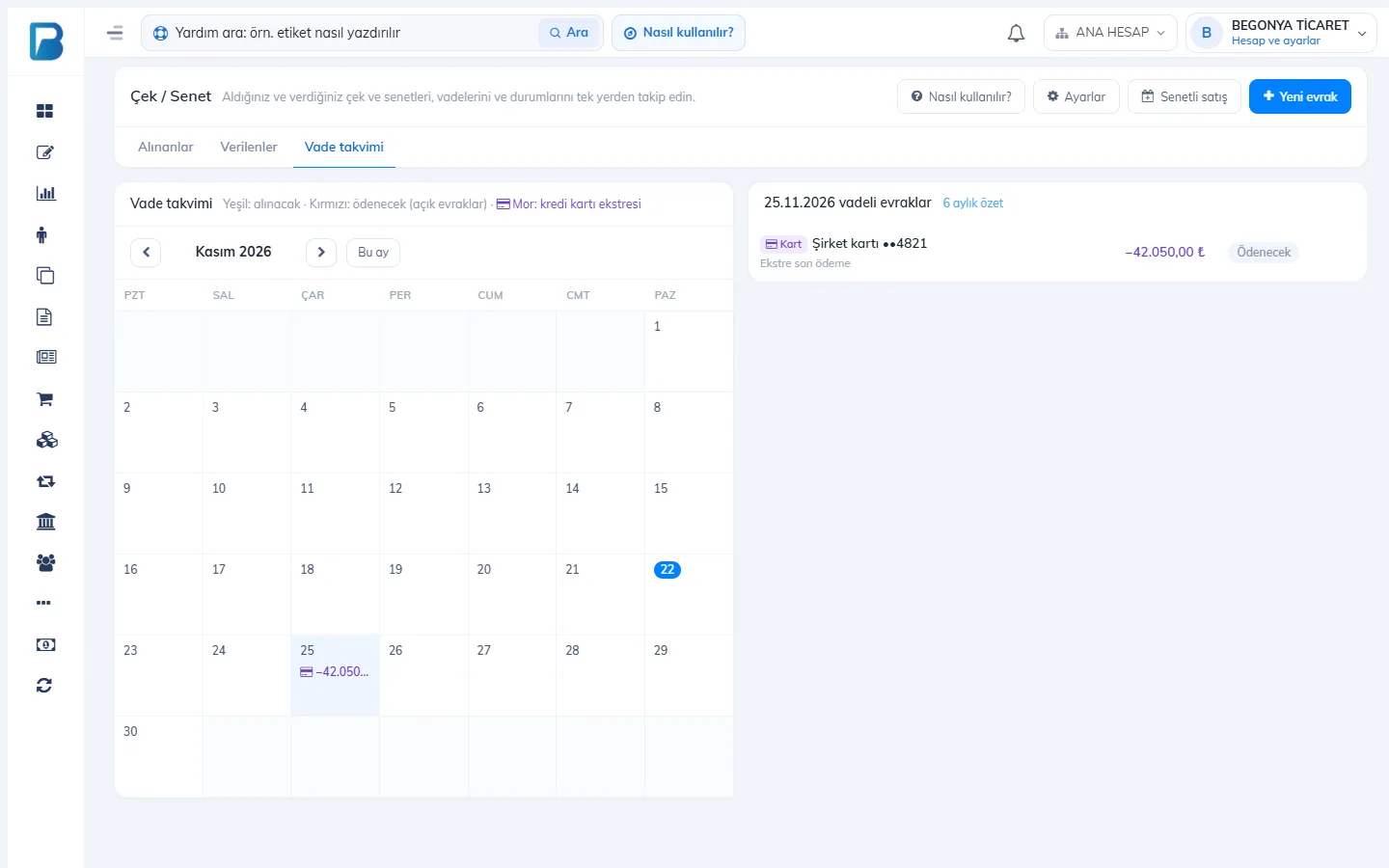
Unpaid statements appear in Cheques / Notes › Due date calendar on their due day in purple 1 2; click the day to list the card and amount 3. Cheque, note and card payments are shown in one calendar. Unpaid statements also appear in the Payments list on the home page and on the Summary screen of the mobile app. You also get a morning notification 3 days before the due date, on the due date and the day after (if not marked paid).
 123
How is it calculated?
Payments up to and including the statement day go into that statement. If the due day is after the statement day, it is paid in the same month; otherwise in the next month. In shorter months the last day of the month is used. Example: a card with statement day 15 and due day 25:
| Payment date | Statement | Due date |
|---|---|---|
| 10 November | 15 November | 25 November |
| 15 November | 15 November | 25 November |
| 16 November | 15 December | 25 December |
| 20 October, 3 installments | 15 November, 15 December, 15 January | 25 November, 25 December, 25 January |
Amounts are always read from the payment record itself: if you delete a payment or change its amount, the statement changes automatically. Removing a card does not delete payments; those made with it go back to the Card not specified list. Credit card tracking is available for licensed accounts; staff get view and edit rights under Staff › Credit Cards Permission.
The desktop app has no card selection; credit card supplier payments and expenses entered on the desktop appear in the web panel and mobile app under Card not specified, where you choose the card. Supplier balances and cash on the desktop do not change.
In the mobile app
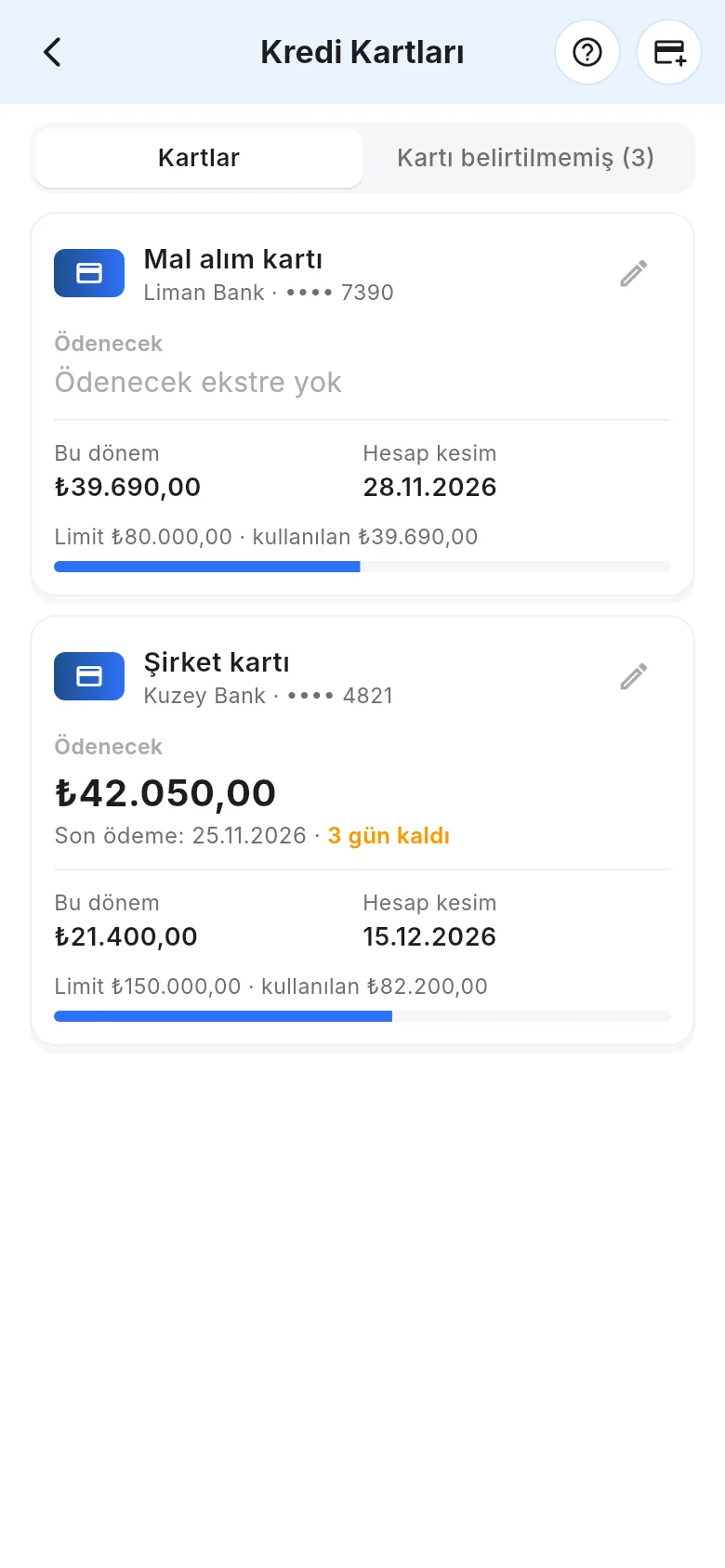
Menu › Finance › Credit Cards. If a statement is due soon, a card also appears on the Summary screen. At the top are the Cards and Card not specified tabs 1. Each card 2 shows the amount due, the due date, this period's spending and the limit. The pencil 4 edits the card, the icon at the top right 3 adds a new card.
 1234
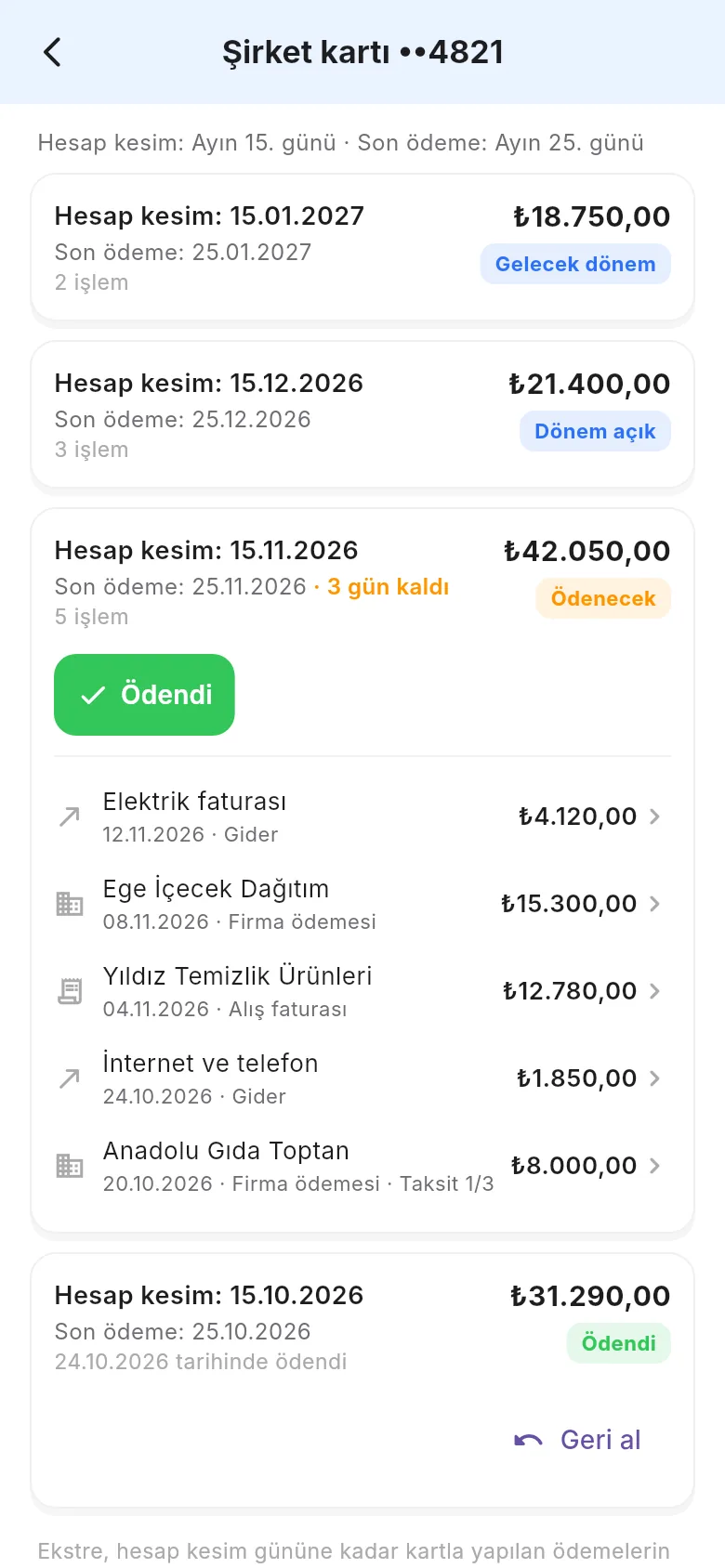
Tap a card to open its statements 1. Tap a statement to see its payments 3; tap a payment to change its card. When you pay the statement, mark it with Paid 2.
 123
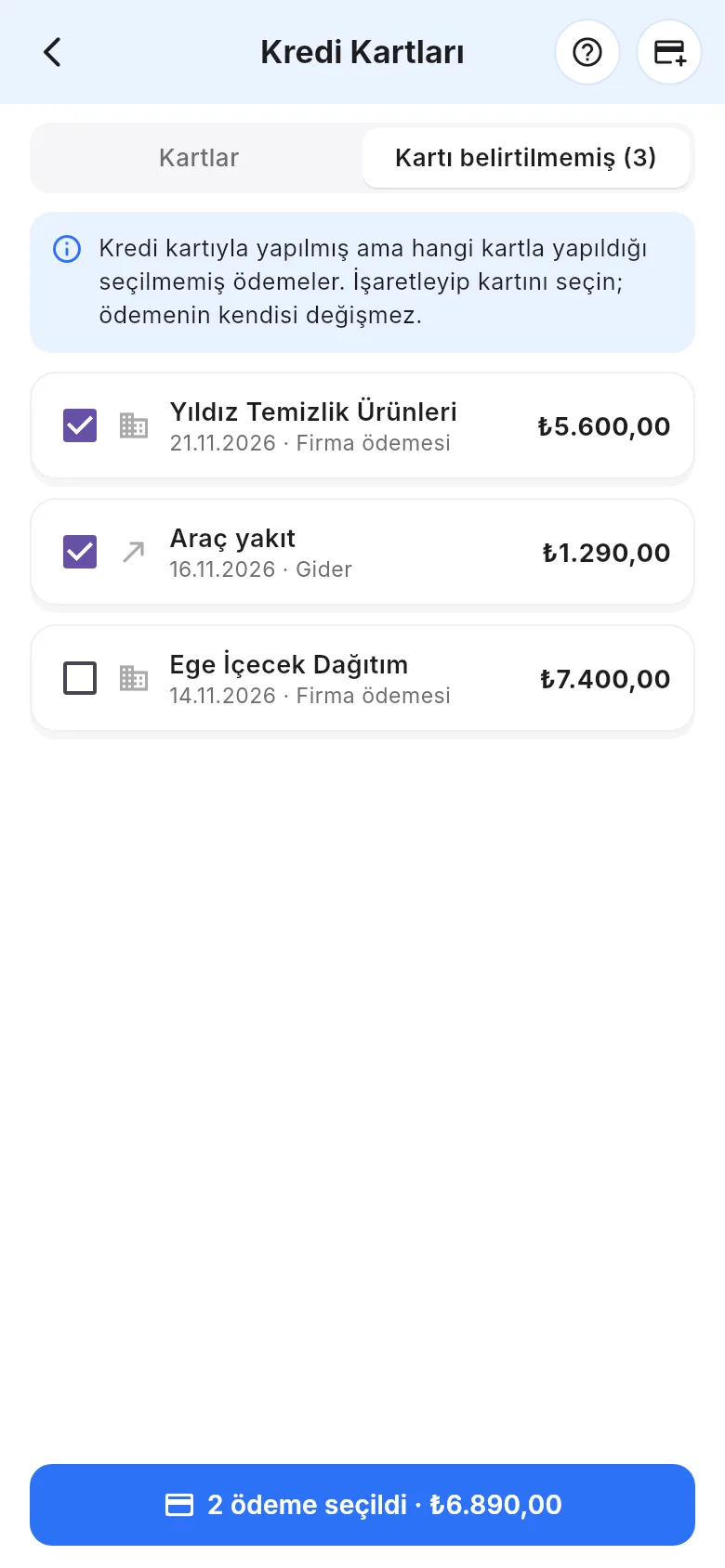
On the Card not specified tab 1, tick payments 2, press the button at the bottom 3 and choose the card and installments.
 123
Amounts are always read from the payment record itself: if you delete a payment or change its amount, the statement changes automatically. Removing a card does not delete payments; those made with it go back to the Card not specified list. Credit card tracking is available for licensed accounts; staff get view and edit rights under Staff › Credit Cards Permission.