




Calendar: due dates, card payments and notes
Customer receivables, supplier payments, cheques / notes and credit card statements in one calendar; add repeating notes and timed reminders for yourself or your staff.
The Calendar brings your upcoming collections and payments together on one screen: customer receivables falling due, payments to suppliers, cheques and notes, credit card statements and your own notes. You see what you will receive and pay on which day without opening separate pages.
Open the calendar
Open Finance › Calendar in the left menu. Click the headings at the top 1 to hide or show a type; your choice is remembered. Next to the month title, the month's receivable and payable totals are shown 5.
Each day shows its entries in colour; click a day 2 to open its list on the right 3. Click a row to open the related customer, supplier, cheque or card page.
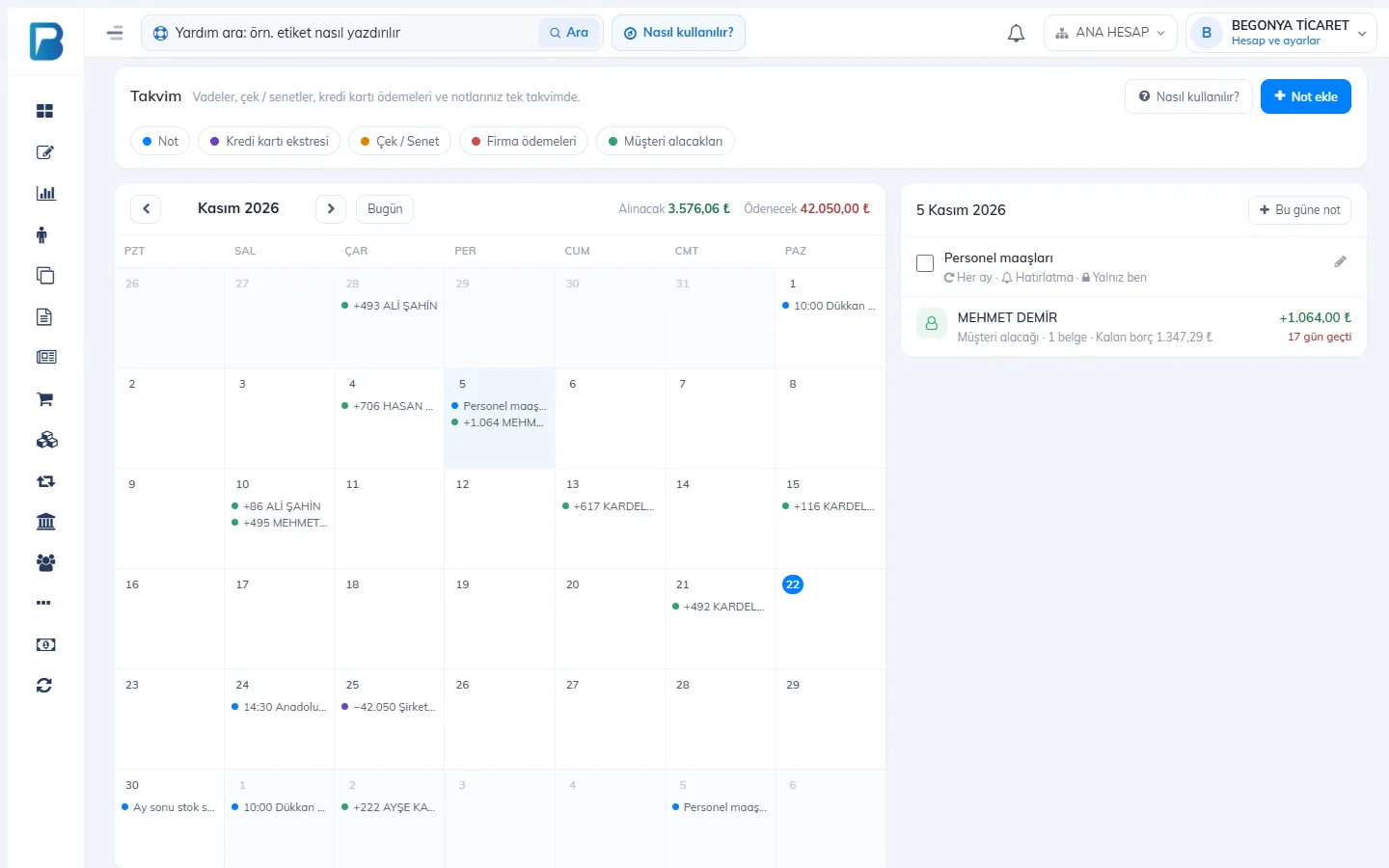 12345
What is in the calendar
- Customer receivables (green): due dates of open-account sales of customers with a payment term. Same calculation as "Due soon" on the home page.
- Supplier payments (red): due dates of open-account purchase invoices and debts to suppliers with a payment term.
- Cheques / Notes (orange): due dates of documents in portfolio, in collection and to be paid.
- Credit card statement (purple): due dates of unpaid statements.
- Note (blue): your own notes and reminders.
Add notes and reminders
Press Add note 4, write the note 1, choose the date 2 and, if you like, the time 3.
Use Repeat 4 to repeat the note every week, month or year (e.g. rent, salaries, stock count). Who can see it 5 makes the note visible to you only or to all staff. If you tick Send a notification to the phone 6, the mobile app gets a notification at that time (at 09:00 that day if no time is set).
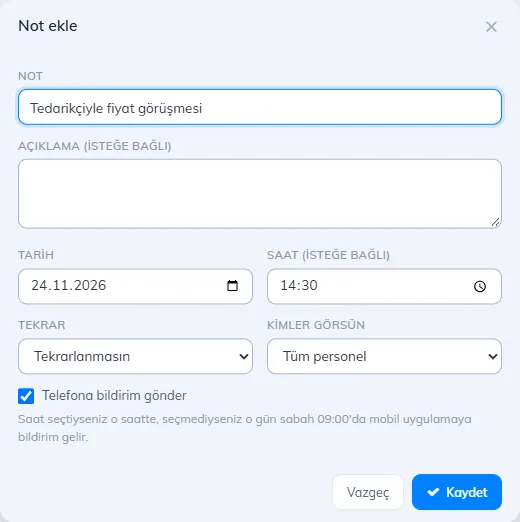 123456
When you have done it, tick the box next to the note in the list; for a repeating note only that day is ticked. The person who wrote the note (and the account owner) can edit and delete it.
The calendar only displays; your sales, payments and documents do not change. Staff see only what they have permission for (customers, suppliers, cheques / notes, credit cards); notes are available to everyone.
In the desktop app
Calendar in the left menu. The month view is on the left 1, with filter chips above it to hide or show each type 2; click a day to open its list on the right 3. Change the month with the ‹ › buttons or PageUp / PageDown, and return to today with Today.
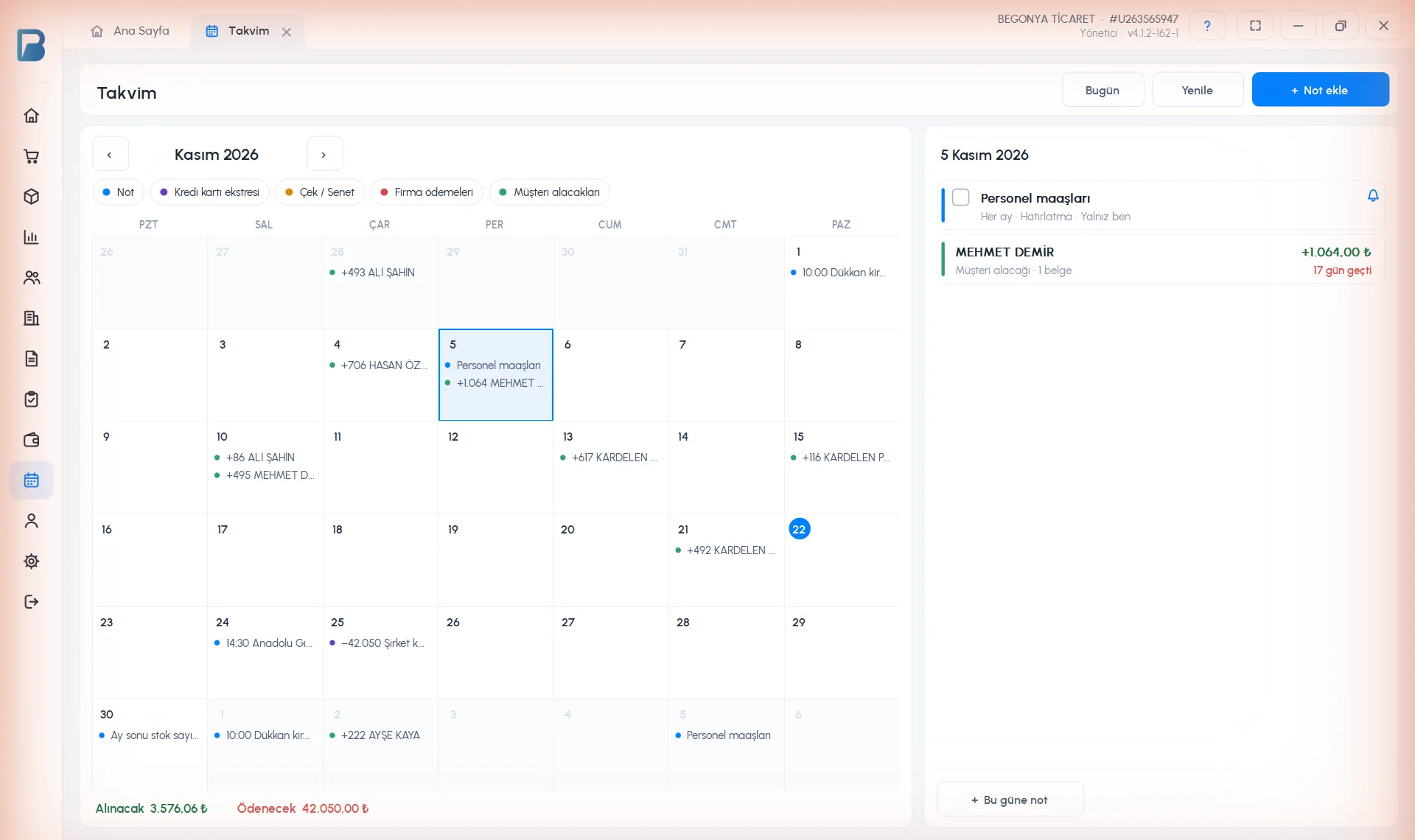 1234
Add a note with + Add note 4 or by double-clicking a day; the note 1, description, date and time 2, repeat and who can see it 3, and Send a notification to the phone 4 options are the same as on the web. Tick a note's box in the list to mark it done for that day; click the note to edit it. Click a customer or supplier row to open its card.
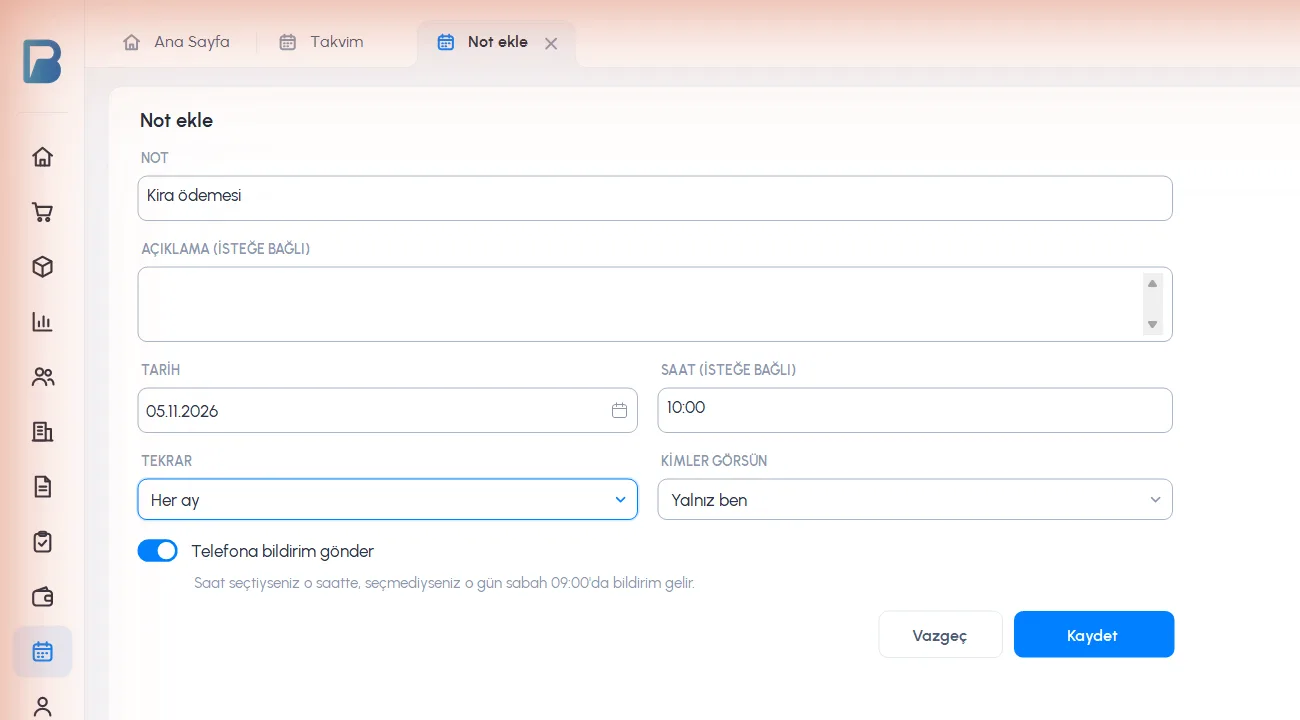 1234
The desktop calendar needs an internet connection; it shows the same calendar and the same notes as the web and mobile app. Cheques / promissory notes and credit cards are managed in the web panel or the mobile app.
In the mobile app
Menu › Finance › Calendar. In the month view 1, coloured dots show the day's entries; tap a day 2 to open its list below 3.
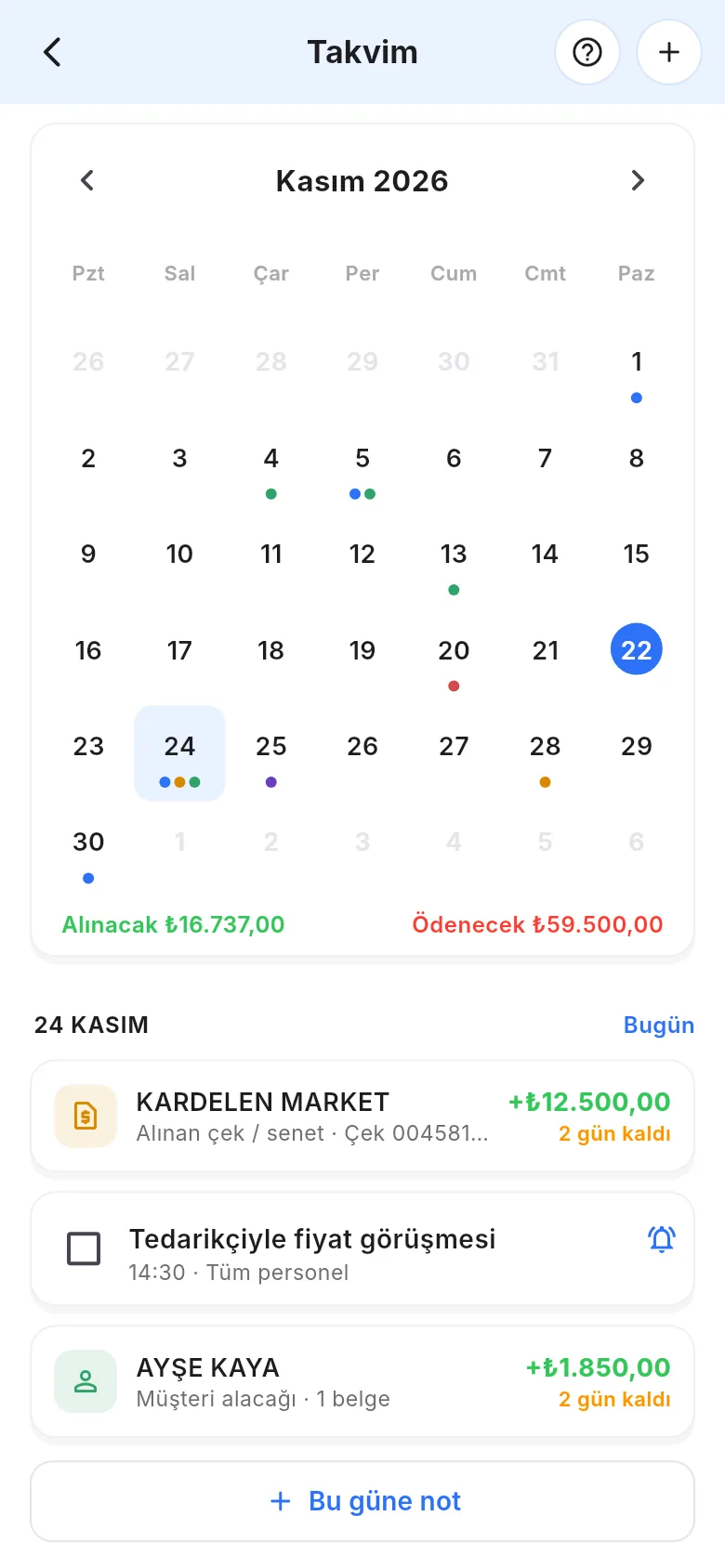 1234
Add a note with + at the top right 4: write the note 1, choose date, time, repeat and who can see it, and turn on Send a notification to the phone 2.
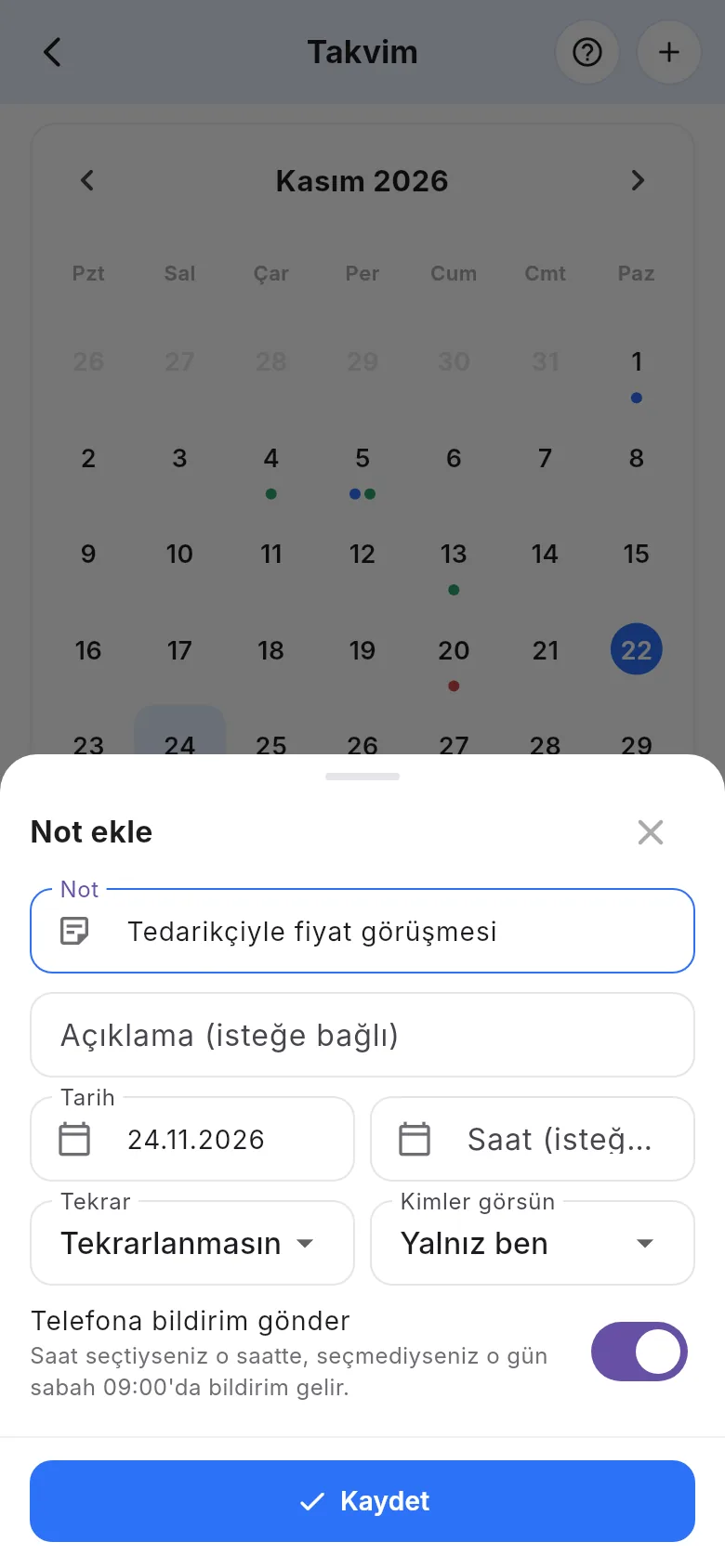 12
The calendar only displays; your sales, payments and documents do not change. Staff see only what they have permission for (customers, suppliers, cheques / notes, credit cards); notes are available to everyone.