




Bank tracking: POS, transfers and bank balance
See which bank account your card sales and transfer payments go into and out of, with commission and crediting day; account statement, manual transactions, POS terminals from several banks and comparison with the bank balance.
Bank Tracking shows which of your bank accounts your card sales and the payments you receive and make by bank transfer go into and out of. It deducts the POS commission, works out the day the money reaches the account and shows each account's balance. You don't enter anything twice: the amounts are recalculated every time from the sales and payment records you already enter in BenimPOS. When you cancel a receipt or delete a payment, it also drops out of the account automatically. This page does not change any sale, payment or cash report.
1. Add your account
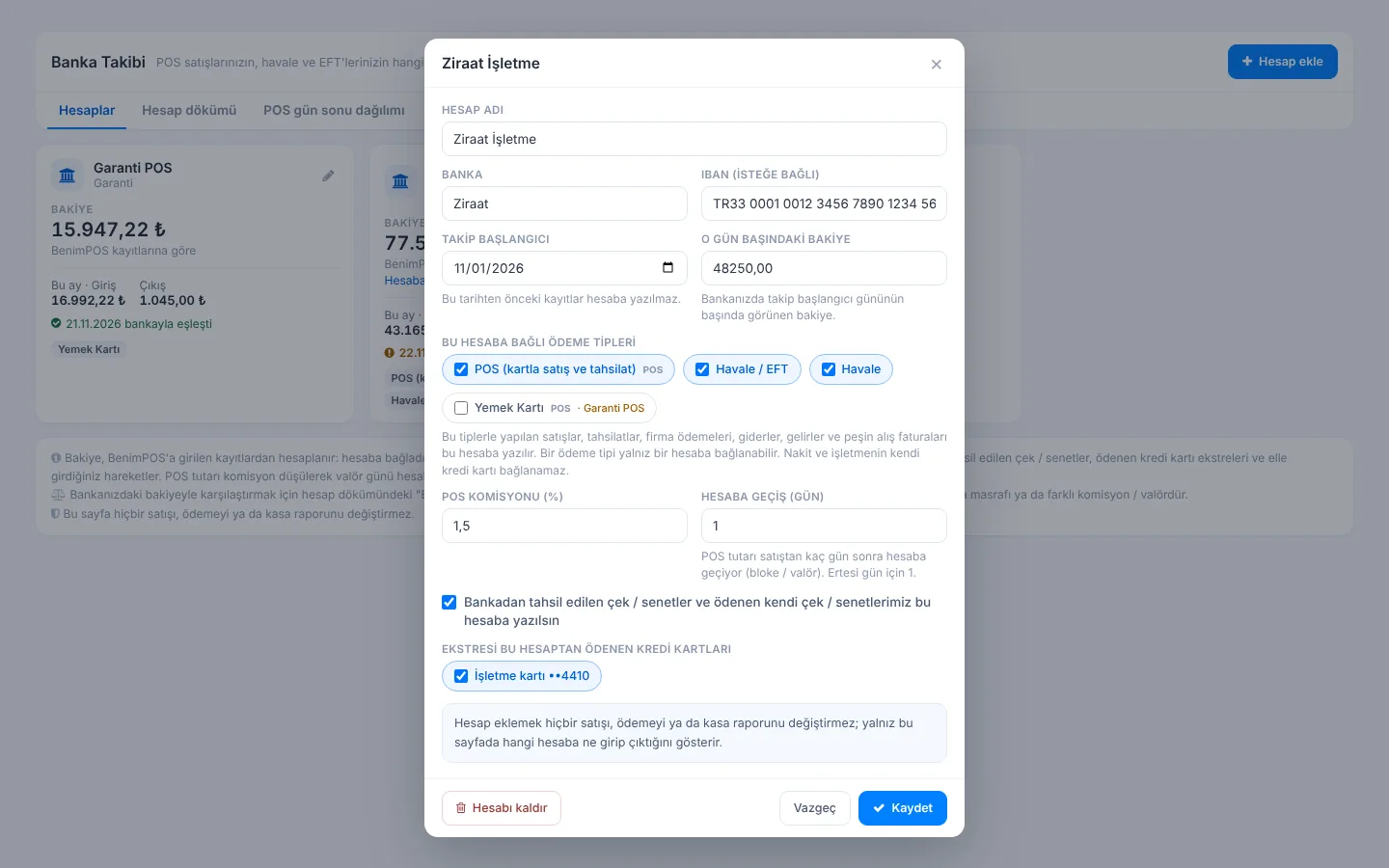
In the left menu go to Finance › Bank Tracking and click Add account. Give the account a name (e.g. "Business account"); bank and IBAN are optional.
 1234567
- 1 Payment types linked to this account: sales, customer collections, supplier payments, expenses, income and paid purchase invoices with these types are written to this account. POS covers card sales at the till and payments collected by card. Bank transfer is the type used by payment plan payments. Types you created under Payment Types (e.g. "Transfer", "Meal card") are listed too. A payment type can be linked to one account only; if it is on another account, that account's name is shown next to it and ticking it moves it here. Cash cannot be linked.
- 2 Tracking start: records before this date are not written to the account. 3 Balance at the start of that day: the balance your bank showed at the start of that day. If you enter these two correctly, the balance in BenimPOS starts the same as at the bank.
- 4 POS commission (%) and 5 Credited after (days) appear only when you select a card type such as POS. For example, with 1.5% commission and 1 day, a card sale of 1,000 is credited the next day as 985.
- 6 If you use Cheques / Notes: cheques / notes collected through the bank are written as incoming, and your own paid cheques / notes as outgoing (those collected in cash are not).
- 7 If you use Credit Cards: tick the cards whose statements are paid from this account; a statement is written as outgoing on the day you mark it paid.
2. Accounts
 1234
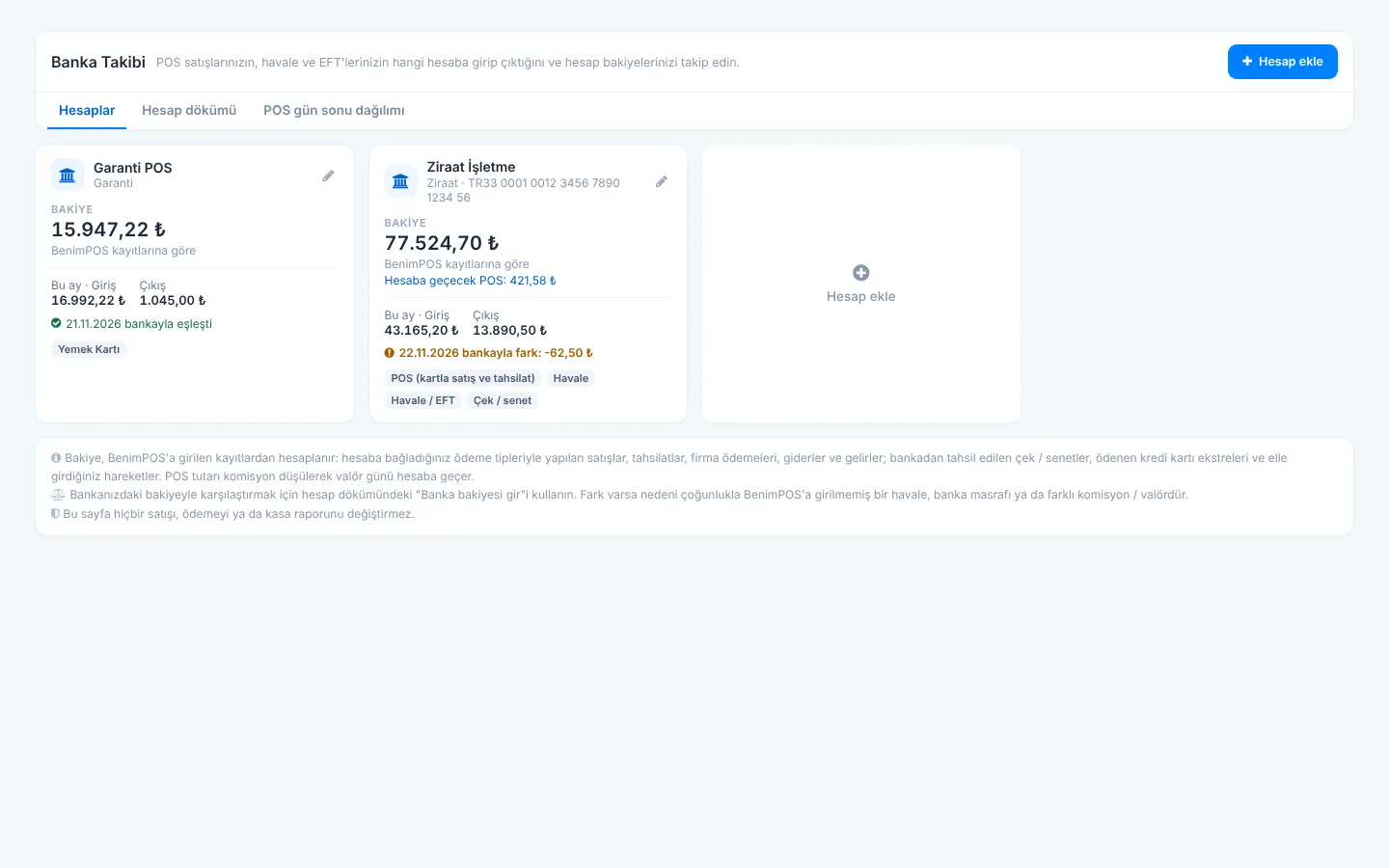
1 Add a new account here. 2 Each card shows the account's balance today according to BenimPOS records, this month's in and out, and the POS amount not yet credited. Edit the account with the pencil icon; click the card to open the account statement. 3 If you entered the bank balance, the result of the last comparison: matches the bank or difference. 4 Use the tabs to switch to the Account statement and the POS end-of-day split.
3. Account statement
 123456
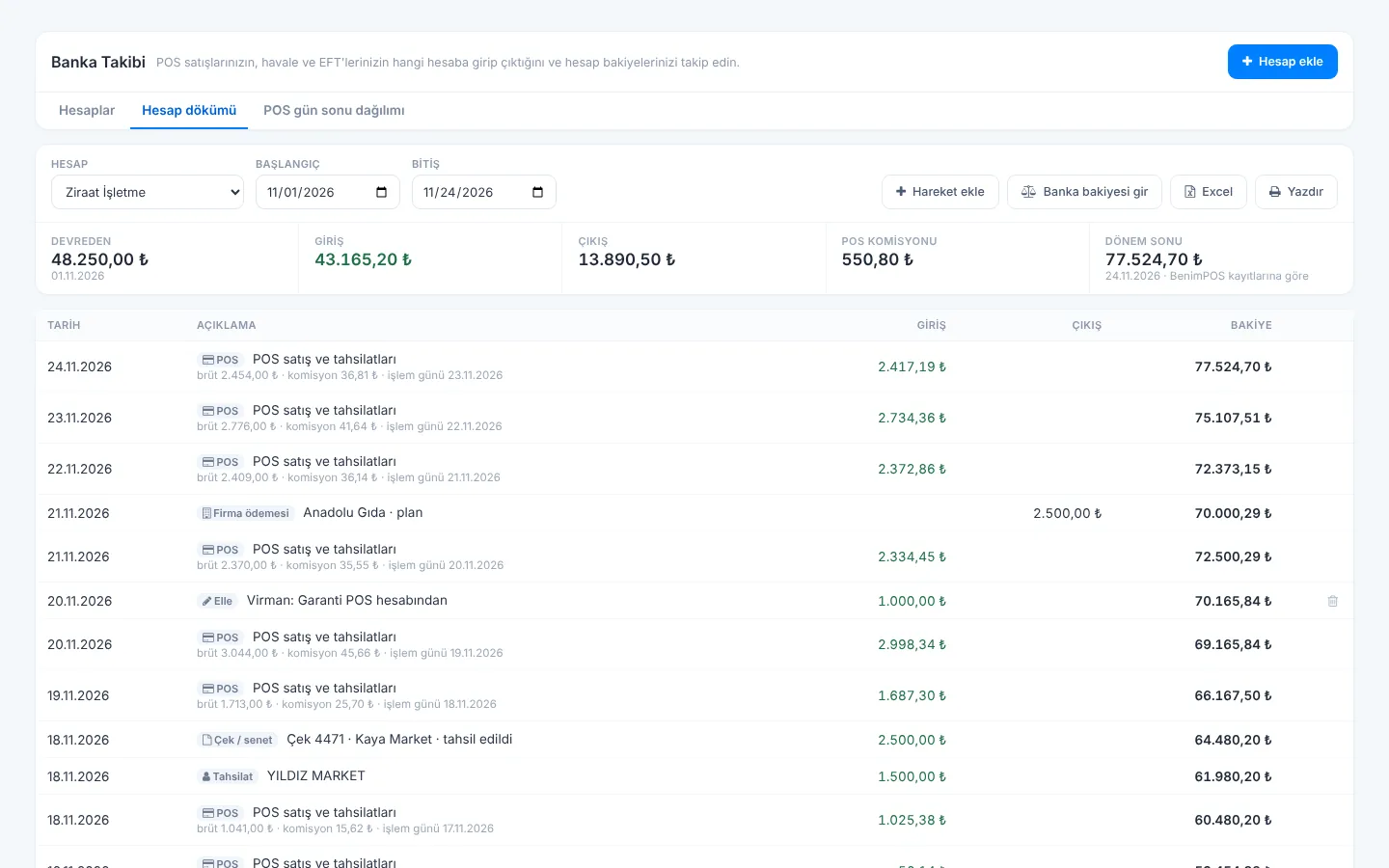
- 1 Choose the account and date range. 4 At the top you see the balance brought forward, in, out, POS commission deducted and the closing balance.
- 5 The label at the start of each line shows where the record comes from: Card (POS), Sale, Payments received, Supplier payment, Expense, Income, Purchase invoice, Cheques / notes, Card statement or Manual. Card (POS) lines also show the gross amount, commission and the day of the sale. POS amounts not yet credited are listed below under POS amounts to be credited.
- 2 Add transaction: enter bank transactions that have no counterpart in BenimPOS: deposit, withdrawal, bank charge / commission, interest, other incoming / outgoing and transfer between accounts. When you deposit money from the till, the cash report does not change; it is written to the bank account only. Delete manual transactions with the bin icon at the end of the line.
- 3 Enter bank balance: saves the balance you see at your bank for comparison (see below).
- 6 Download the statement with Excel or print it on A4 with Print.
4. Comparison with the bank balance
Because the balance on screen is calculated from records entered in BenimPOS, it can differ from the bank if a transaction was not entered. To see the difference, click Enter bank balance in the account statement and enter the end-of-day balance from online banking or your bank statement.
 123
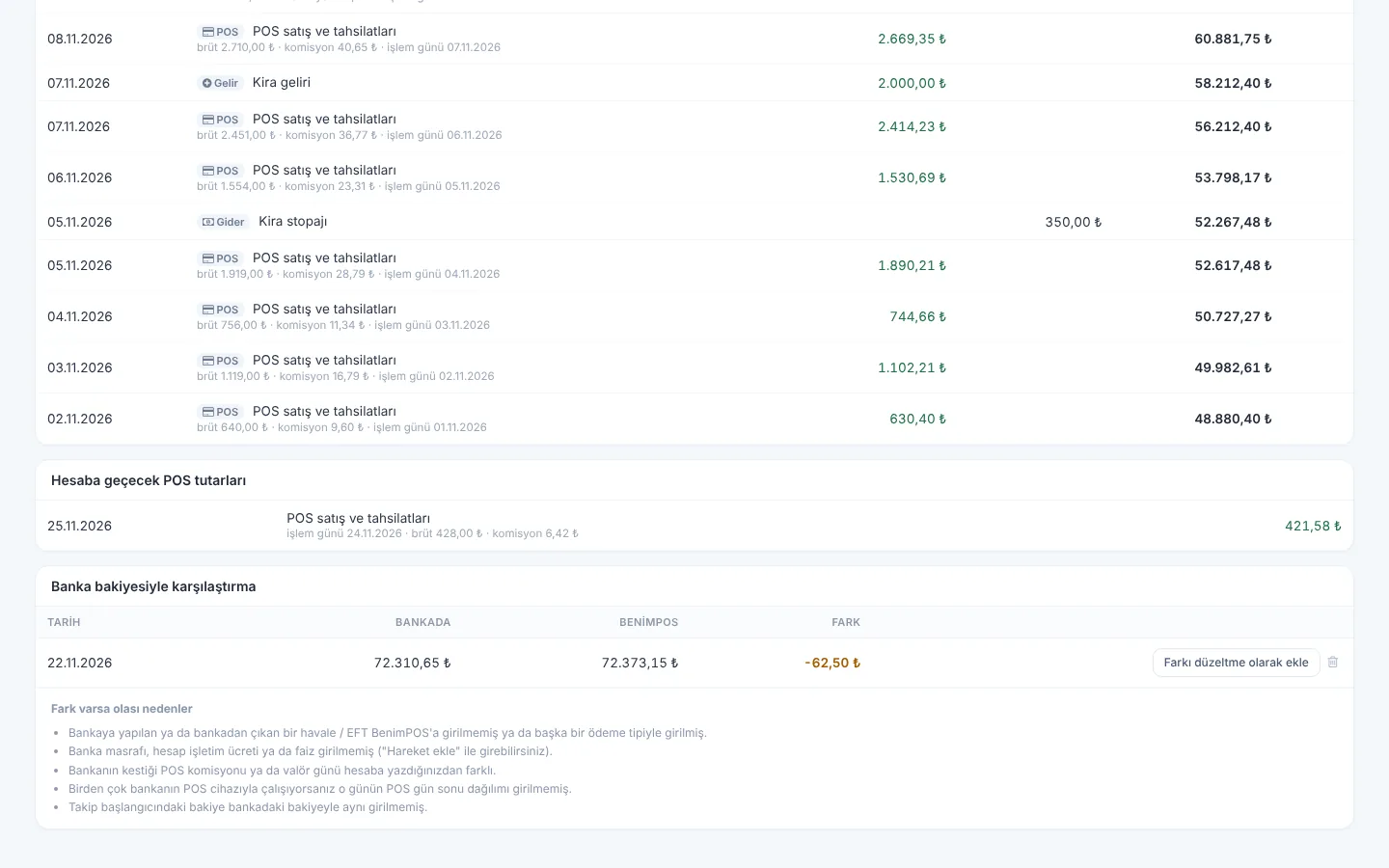
1 The table shows the bank balance for that day, the balance in BenimPOS and the difference. A difference is usually caused by one of these: a transfer not entered in BenimPOS or entered with another payment type, a bank charge or interest not entered, a commission or crediting day at the bank different from what you entered, a missing POS end-of-day split, or a wrong balance at the tracking start. When you enter the missing record, the difference closes by itself.
2 If you can't find the cause, Add difference as adjustment adds a Balance adjustment on that day and the two balances become equal. The adjustment changes no other record and you can delete it at any time. 3 POS amounts not yet credited are added to the balance on the crediting day.
5. POS terminals from several banks
If you use POS terminals from several banks, there are two ways:
- A separate payment type for each terminal: create a type for each terminal under Payment Types (e.g. "Garanti POS") and sell with that type at the till. Link each type to its own account and the amounts go to the right account automatically.
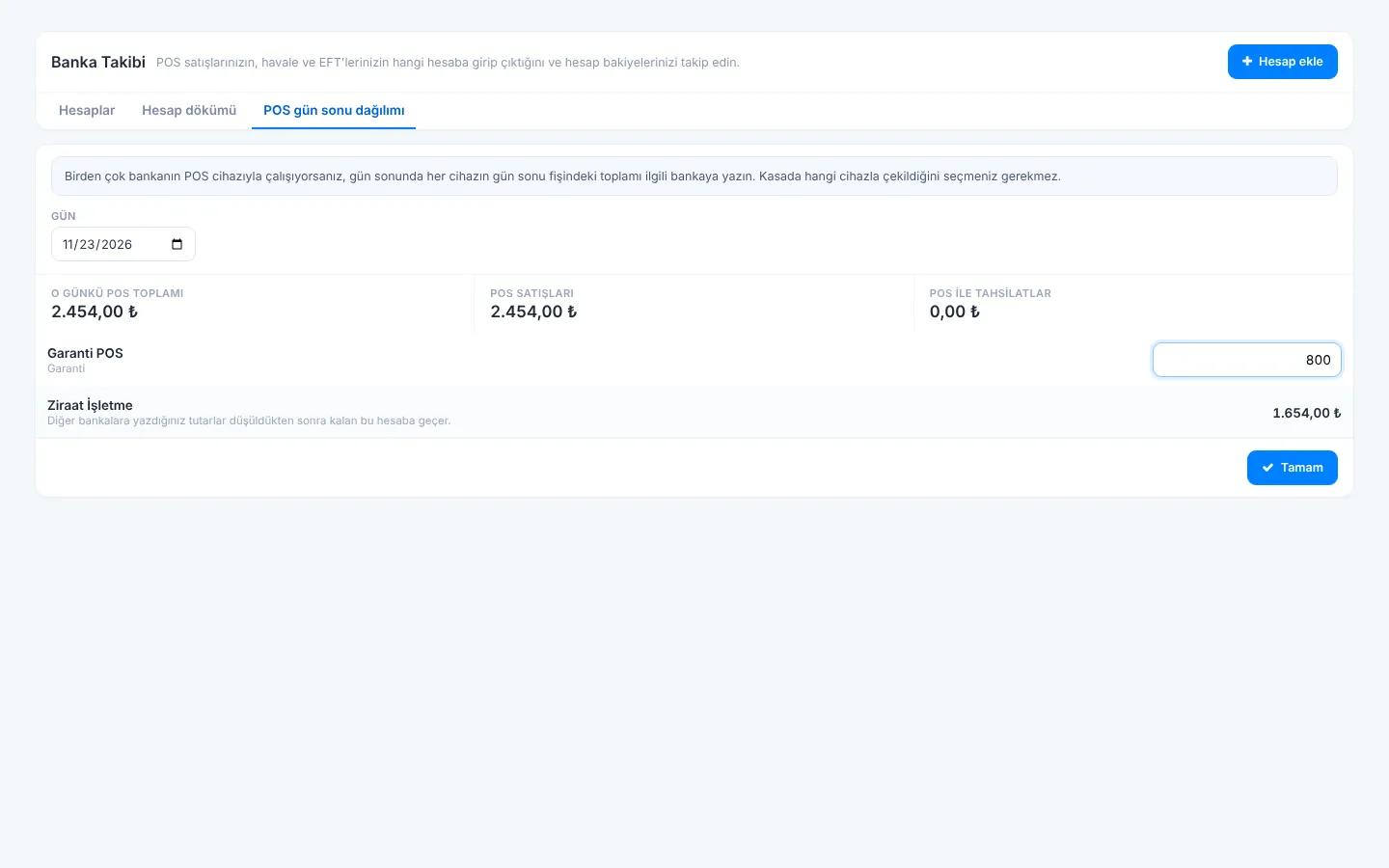
- End-of-day split: take card payments at the till as usual. At the end of the day, in the POS end-of-day split tab, enter the total on each terminal's end-of-day slip for its bank; the remainder goes to the account the "POS" type is linked to.
 1234
1 Choose the day. At the top you see the total of that day's POS sales and POS collections. 2 Enter the other bank's end-of-day total; 3 the remainder is calculated automatically. 4 Save with OK. On days without a split, the whole POS amount is written to the account the "POS" type is linked to.
If you use the Bakiyem or Finekra integration, the Bank Accounts page in the left menu shows your bank's actual transactions. Bank Tracking calculates from BenimPOS records; they are separate pages. You can enter the bank balance in Bank Tracking to compare.
Removing an account does not touch sales, payments or other records. To let staff see this page or add accounts, turn on Bank Tracking Permission under Staff.