




Adding a price difference to credit debt
When product prices change, compare the credit items a customer has not paid for yet with today's prices and add the difference you confirm to their debt as a single line; past sales do not change.
When product prices change, the debt for items a customer bought on credit earlier does not change by itself; the debt stays at the price at the time of sale. If you wish, Price Difference compares the items the customer has not paid for yet with today's prices and adds the difference you confirm to their debt. Past sales, the cash register and reports do not change; the difference is added to the debt as a single line. No debt changes without your confirmation.
Turning on price difference
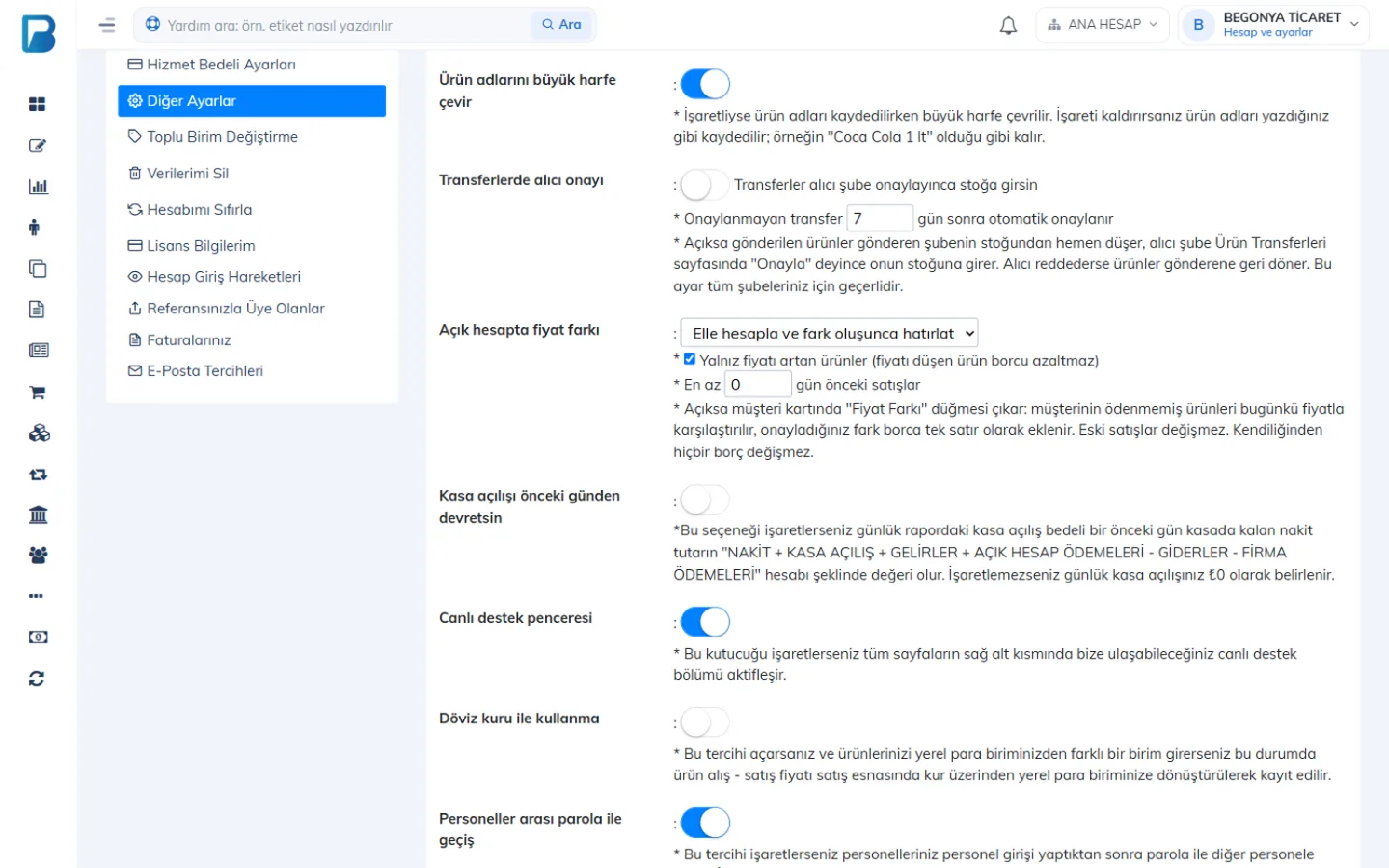
The feature is off at first. On the My Profile page open 1 Other Settings, choose an option in 2 Price difference on credit sales and click Update & Save:
- Calculate manually on the customer card: a Price Difference button appears on the customer card.
- Calculate manually and remind me when there is a difference: in addition, a reminder appears on the card of a customer whose unpaid items have gone up in price.
- 3 Only items whose price went up (default): a lower price does not reduce the debt. If you untick it, the difference for items that got cheaper is deducted from the debt.
- 4 Sales at least … days old: no difference is added for recent sales. For example, if you enter 30, sales from the last 30 days are not included.
 1234
On the customer card
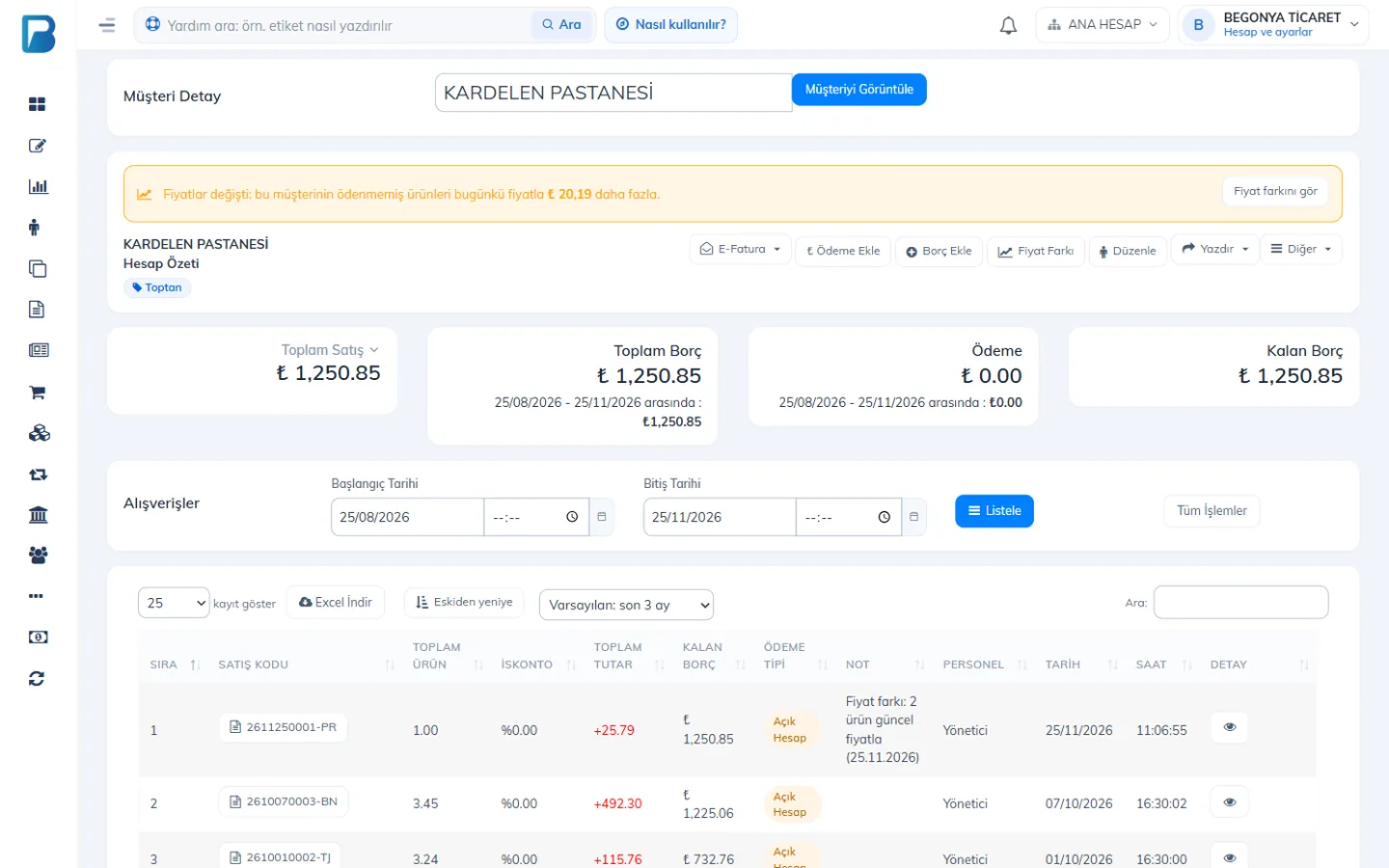
On the customer card click 2 Price Difference. If the reminder is on and the customer's unpaid items have gone up in price, 1 a reminder appears at the top of the card; See price difference opens the same window.
 12
Adding the difference to the debt
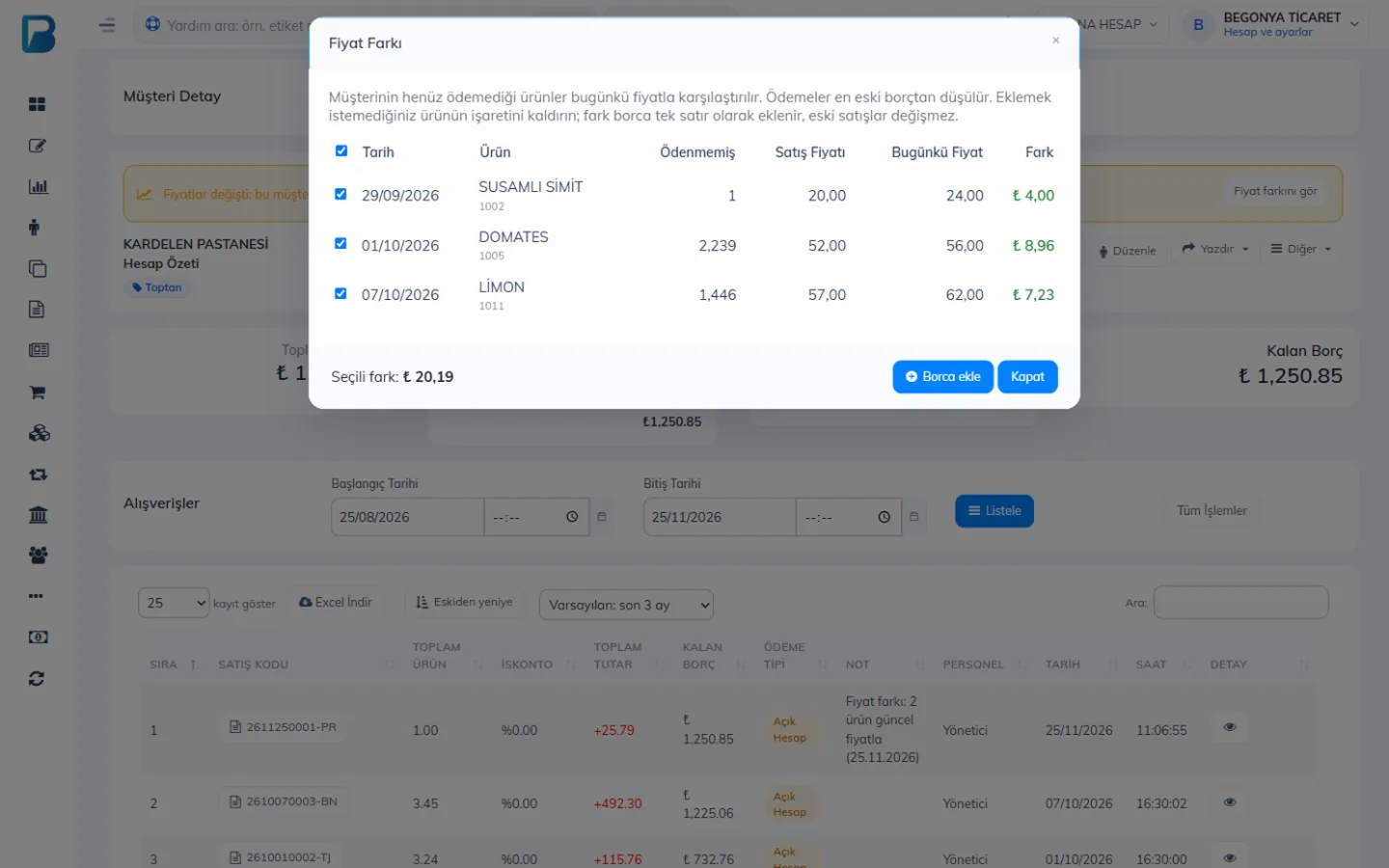
The window lists the items the customer has not paid for yet. 2 The Unpaid column shows the unpaid quantity; for a partly paid line it shows unpaid / sold quantity. 3 You see the sale price and today's price, and 4 the difference per item. 1 Untick any item you don't want to add. 5 Click Add to debt; the button changes to Confirm, and the second click adds the difference to the debt.
 12345
- Which items are unpaid? Payments and returns are counted as paying off the oldest debt first; the remaining debt is spread back from the newest sales. For example, if 40 of a 100 line for 10 pieces is unpaid, the difference is calculated for 4 pieces.
- Today's price follows the customer's price type (Price 1, Price 2…). The discount rate of the sale is applied to the difference too.
- Once a difference has been added for an item, the price you added becomes its base price; if the price goes up again, only the new increase is added, so the same difference is never charged twice.
- Items whose price has not changed since the sale, items priced in a foreign currency and deleted items are not listed. Debts entered with Add Debt are not repriced.
- The difference appears in the account statement as a single line with the note "Price difference: … items at current prices (date)" and is recorded as a credit sale, like a debt entered with Add Debt. If you added it by mistake, cancel the receipt with Cancel Receipt in the receipt details like any other sale; the difference for those items is then recalculated.
- Staff need the Can add on-account debt permission to add a difference.
Customers with a price difference
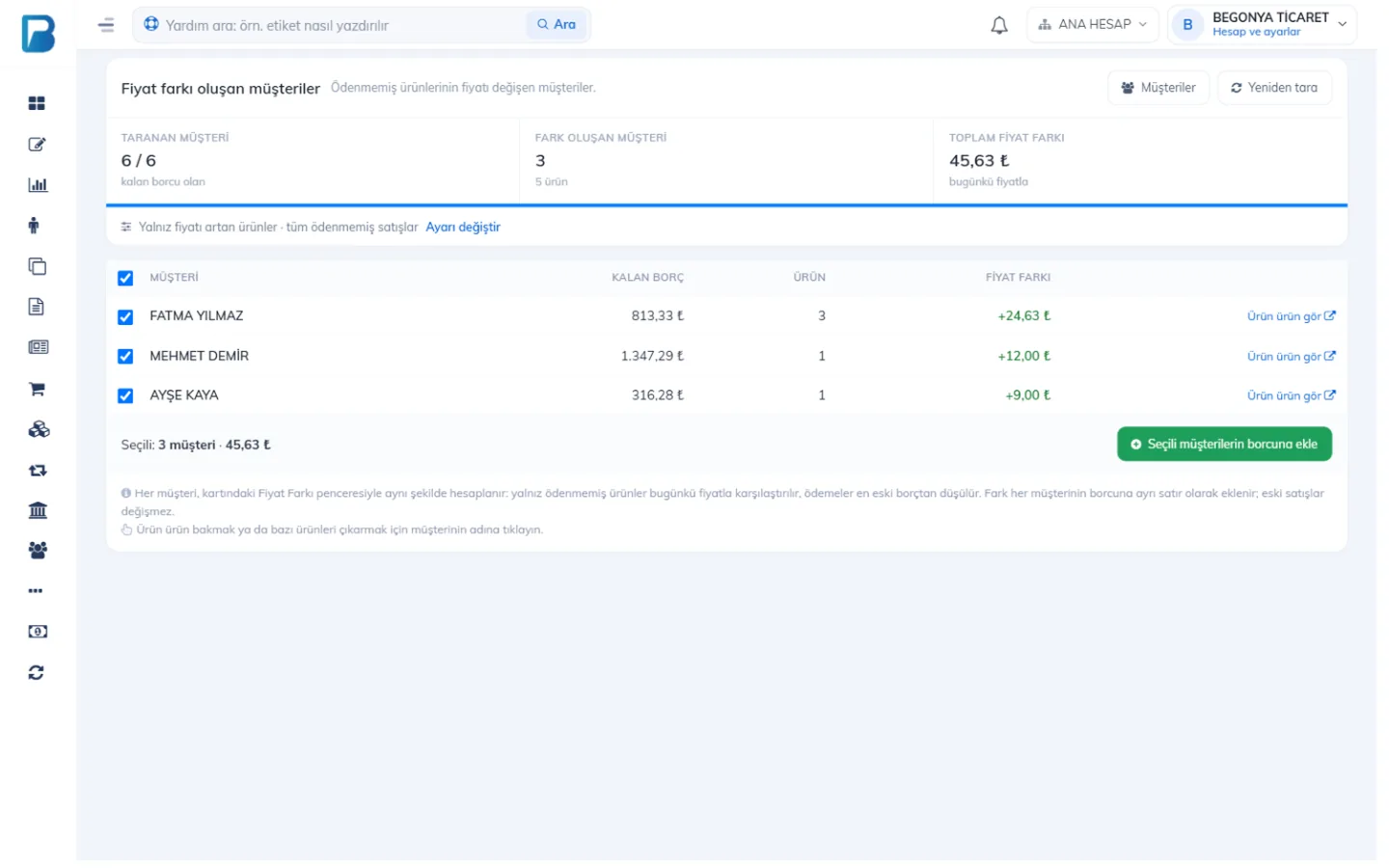
When you update prices in bulk, you don't need to open customers one by one. The Price difference button at the top of the Customers list (visible only when the setting is on) checks all customers with a balance due and lists those with a difference. 1 At the top you see how many customers were checked, how many have a difference and the total difference.
 1234
2 Untick any customer you don't want to add the difference for. 3 View items opens the customer's card in a new tab with the Price Difference window open; there you can leave some items out. 4 Click Add to selected customers' debt; the button turns into Confirm, showing how many customers and the total amount, and the second click adds it.
- Each customer is calculated the same way as in the window on their card, and a separate Price difference line is added to their debt.
- If the customer paid or the price changed again between the check and adding, nothing is added for that customer and Changed appears next to it. Use Scan again to see the current difference.
- A customer it was added for does not appear in the next check; if the price goes up again, only the new difference appears.
Giving the customer a price difference statement
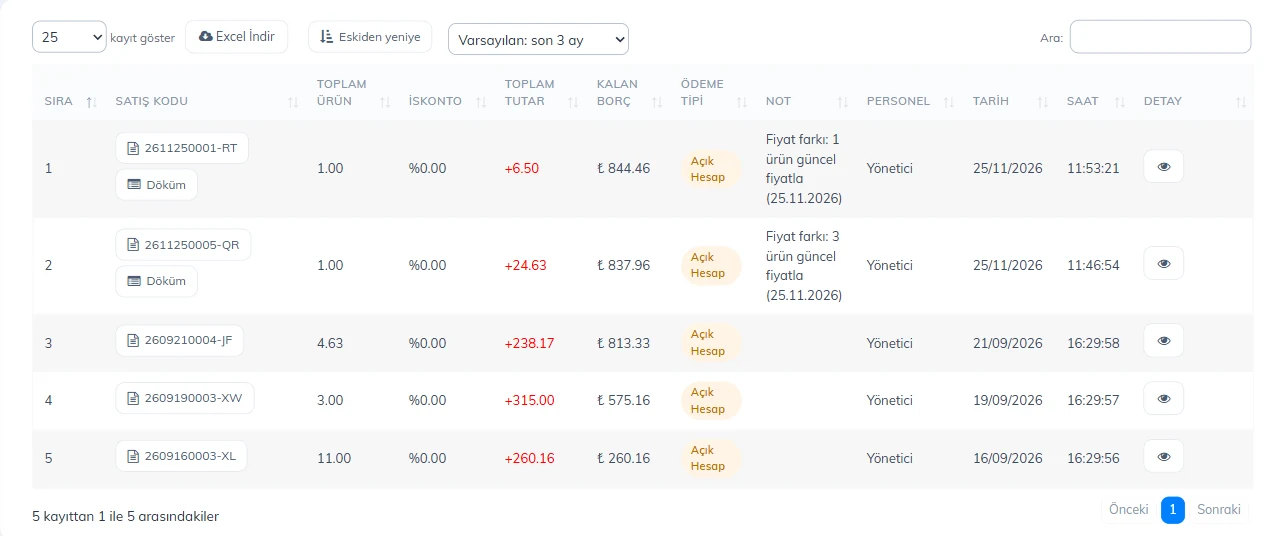
When a customer paying asks “which items went up”, show them the statement. In the transactions on the customer card, a price difference line has a 1 Statement button under it; 2 the note shows how many items the difference was added for.
 12
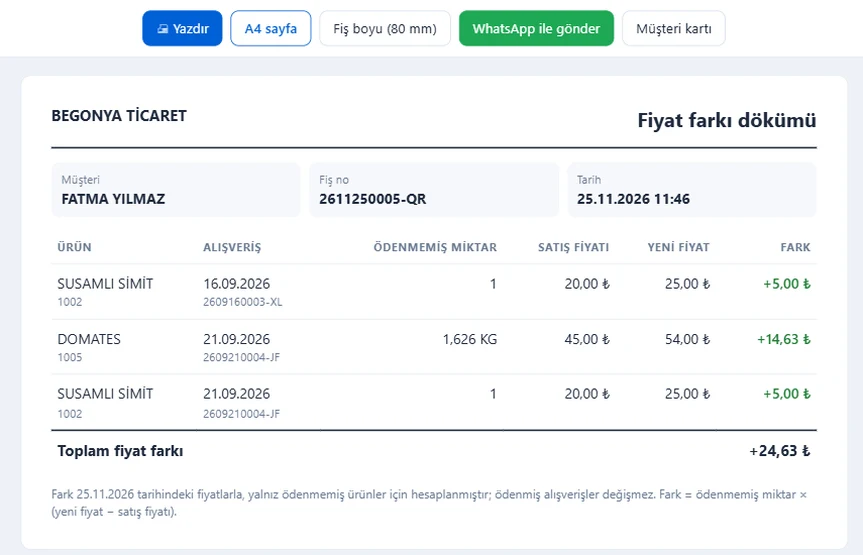
The statement opens in a new tab: each item, which purchase it came from, the unpaid quantity, the sale price, the new price on the day the difference was added, and the difference. 1 Print it with Print, 2 choose A4 page or receipt size (80 mm). 3 Send via WhatsApp prepares the statement as a message to the customer's saved number. 4 The total difference is at the bottom.
 1234
- Right after adding the difference to the debt, a View statement button appears at the top of the page; on the bulk screen, added customers also have a Statement link.
- When you take the account summary with Print › A4 printer (Detail) or Thermal printer (Detailed), and in the account summary link you send to the customer by SMS / WhatsApp, the items are listed one by one under the price difference line.
- The statement shows the prices on the day the difference was added, not on the day you open it; it stays the same even if prices change later. Even if you turn the price difference setting off, statements of added receipts still open.
The price difference screen is not available in the desktop app. A difference added from the web panel or the mobile app is reflected in the customer balance on the desktop through syncing.
Price difference in the mobile app
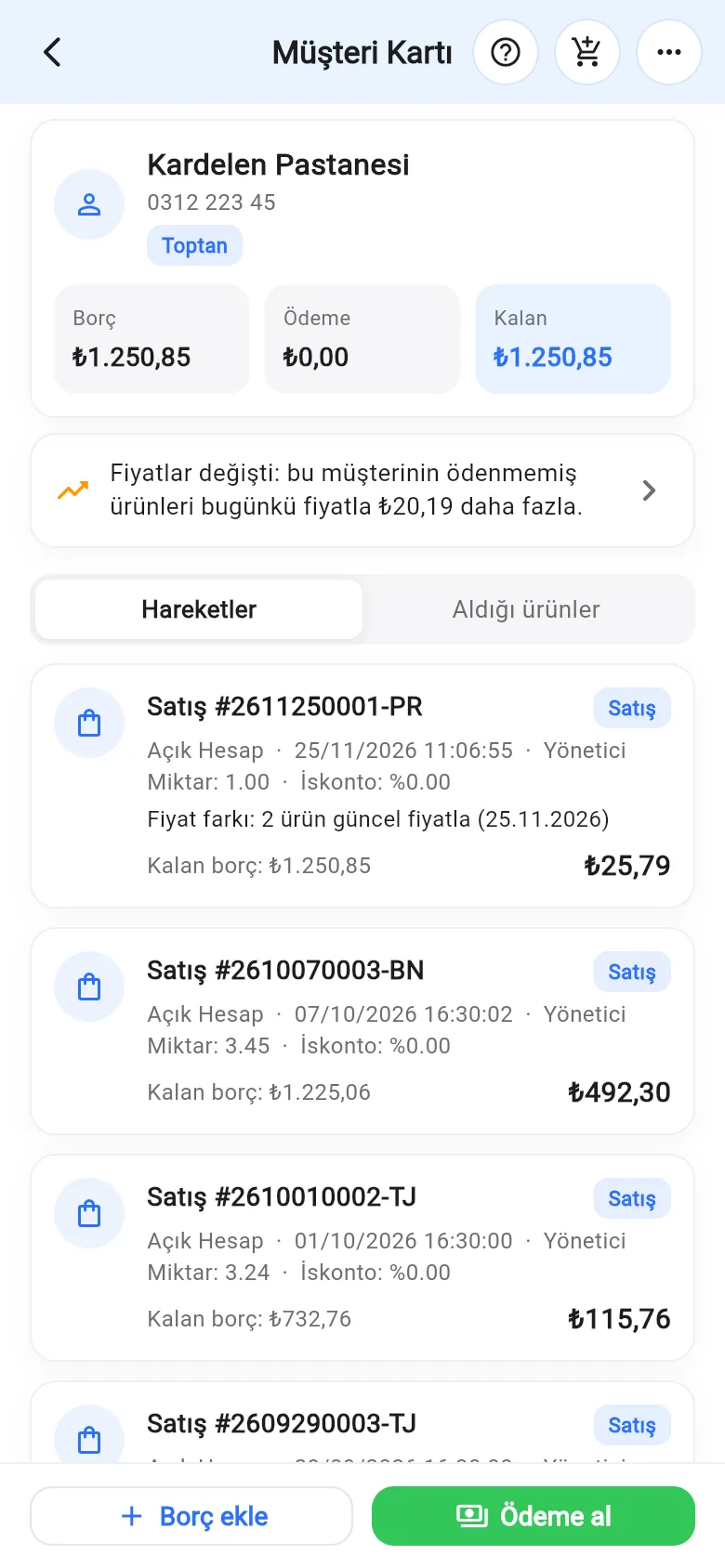
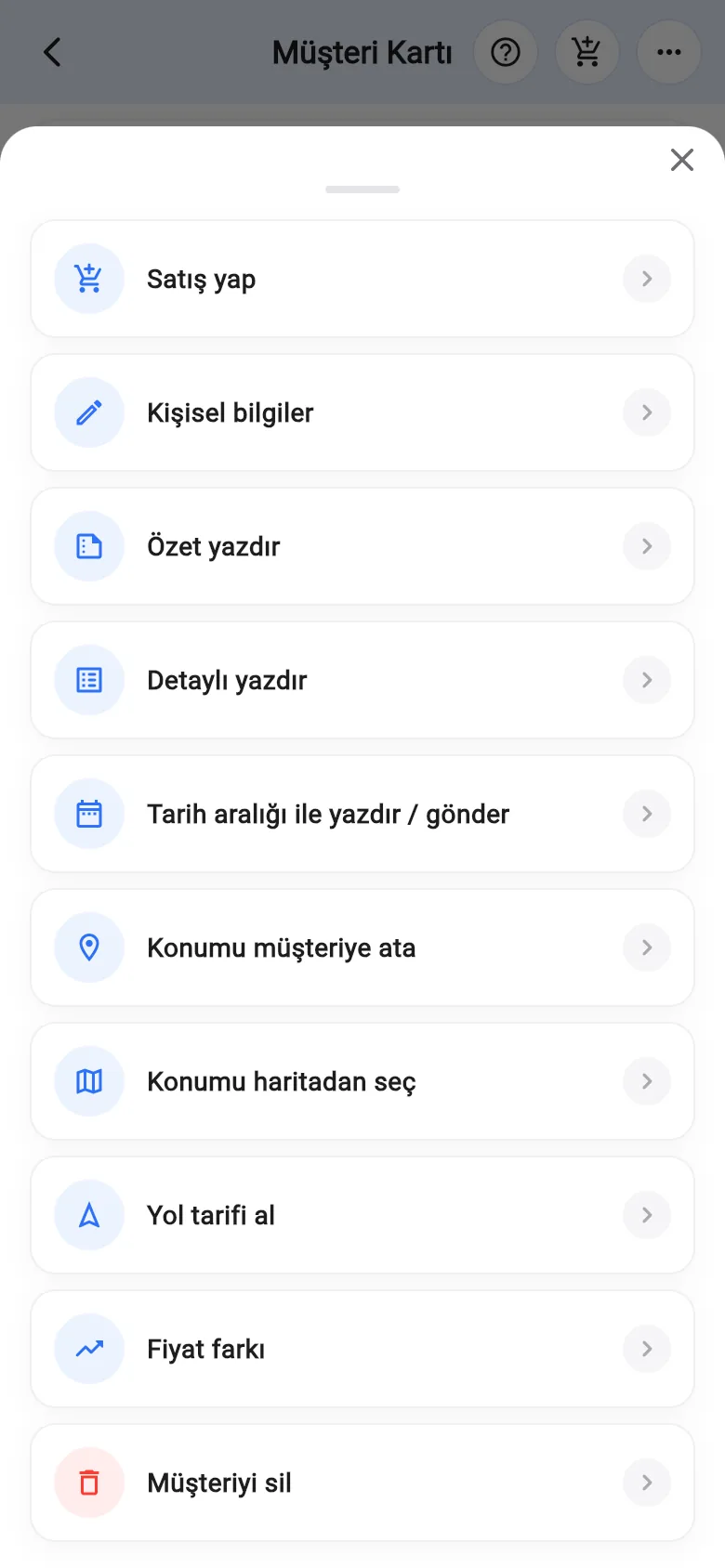
The setting is in the web panel under My Profile › Other Settings; when it is on, it can also be used on the customer card in the new version of the mobile app. On the customer card tap 1 the Actions menu at the top right, then 2 Price difference. If the reminder is on, 1 a reminder appears on the card of a customer with a difference; tapping it opens the same screen.
 1
 12
1 Untick any item you don't want to add. 2 Each line shows the sale date, unpaid quantity, the sale price and today's price, and 3 the difference on the right. 4 Tap Add to debt and confirm. The calculation is the same as in the web panel: payments pay off the oldest debt first and the same difference is never charged twice.
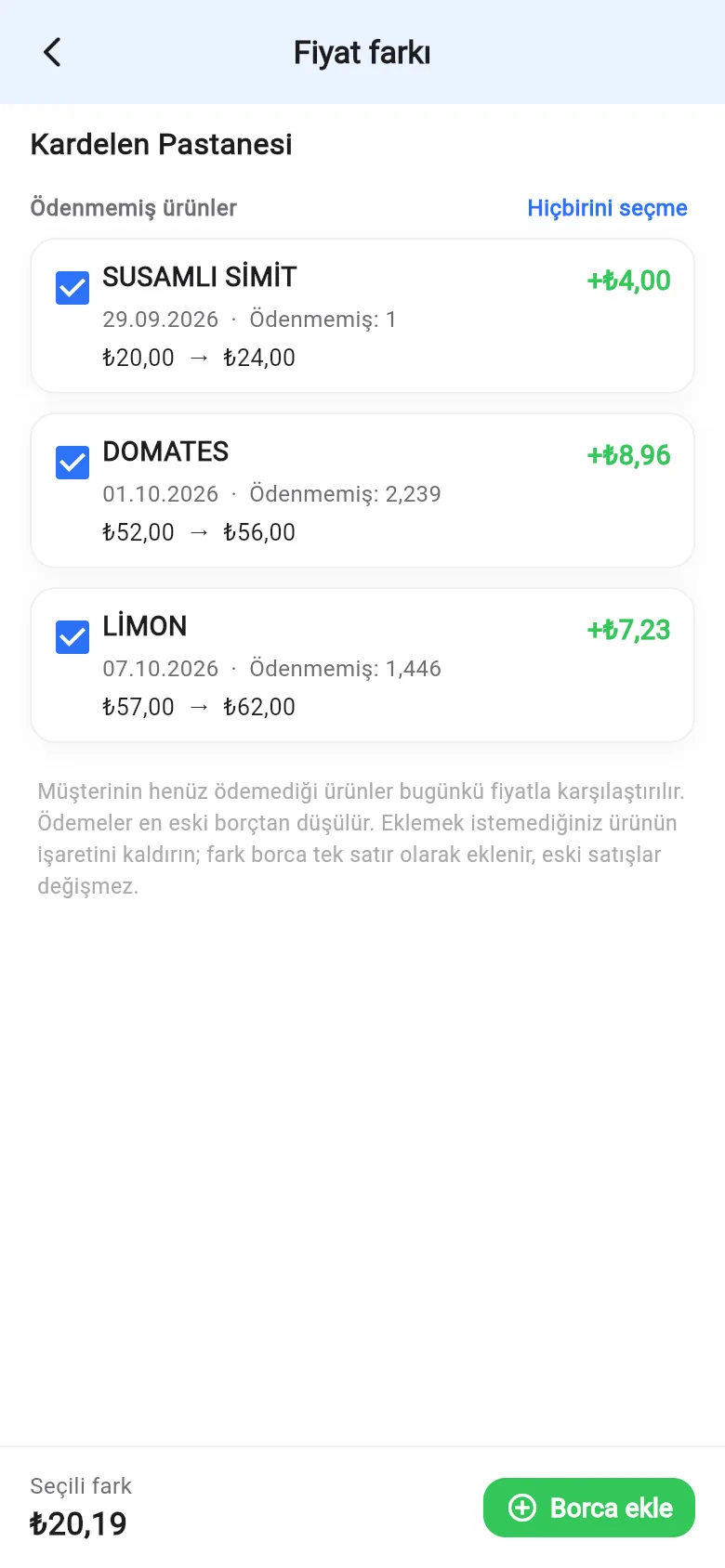 1234
Customers with a price difference on mobile
When the setting is on, 1 a Customers with a price difference row appears on the Customers screen. Tap it to check the customers with a balance due.
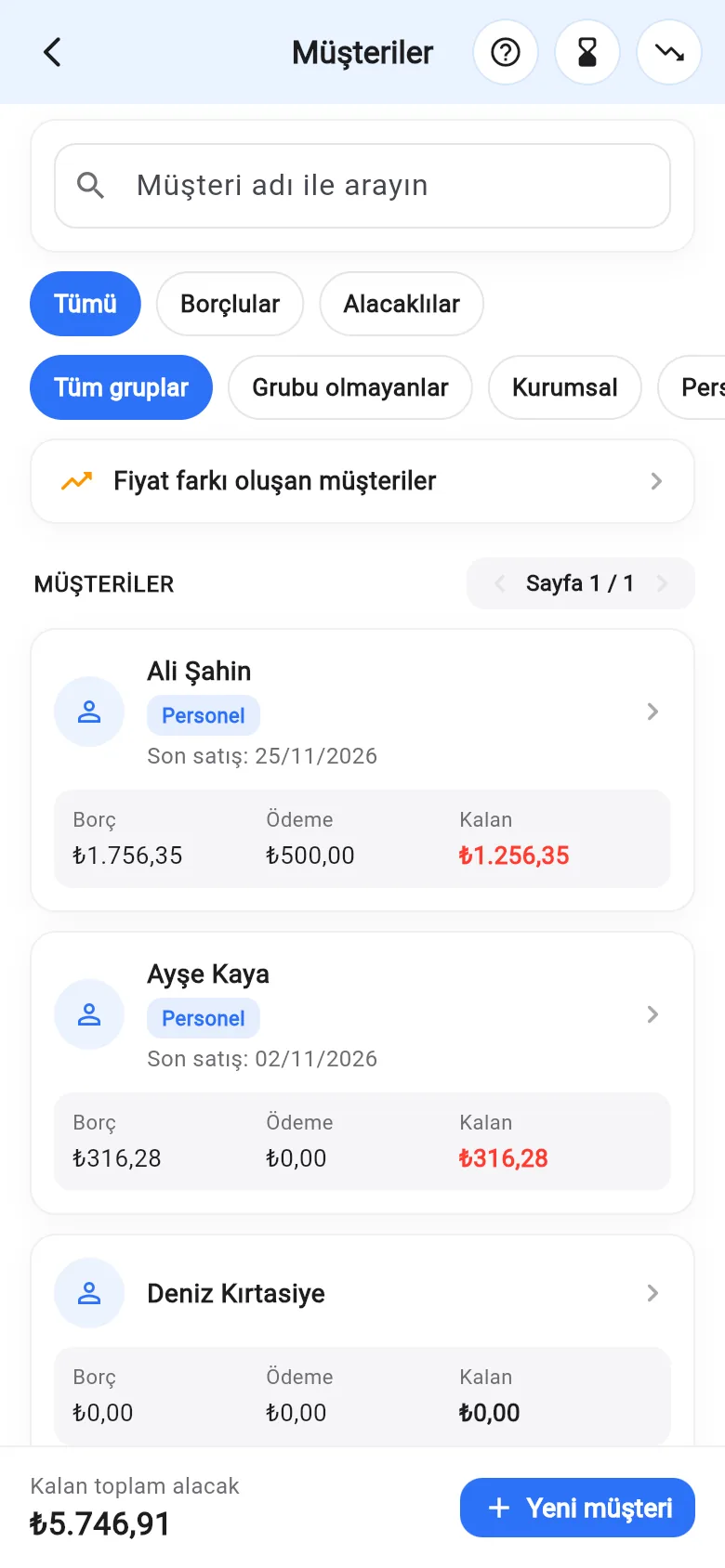 1
1 At the top you see the customers checked, the customers with a difference and the total difference. 2 Untick any customer you don't want to add; tap a customer to review item by item. 3 Tap Add to debt and confirm.
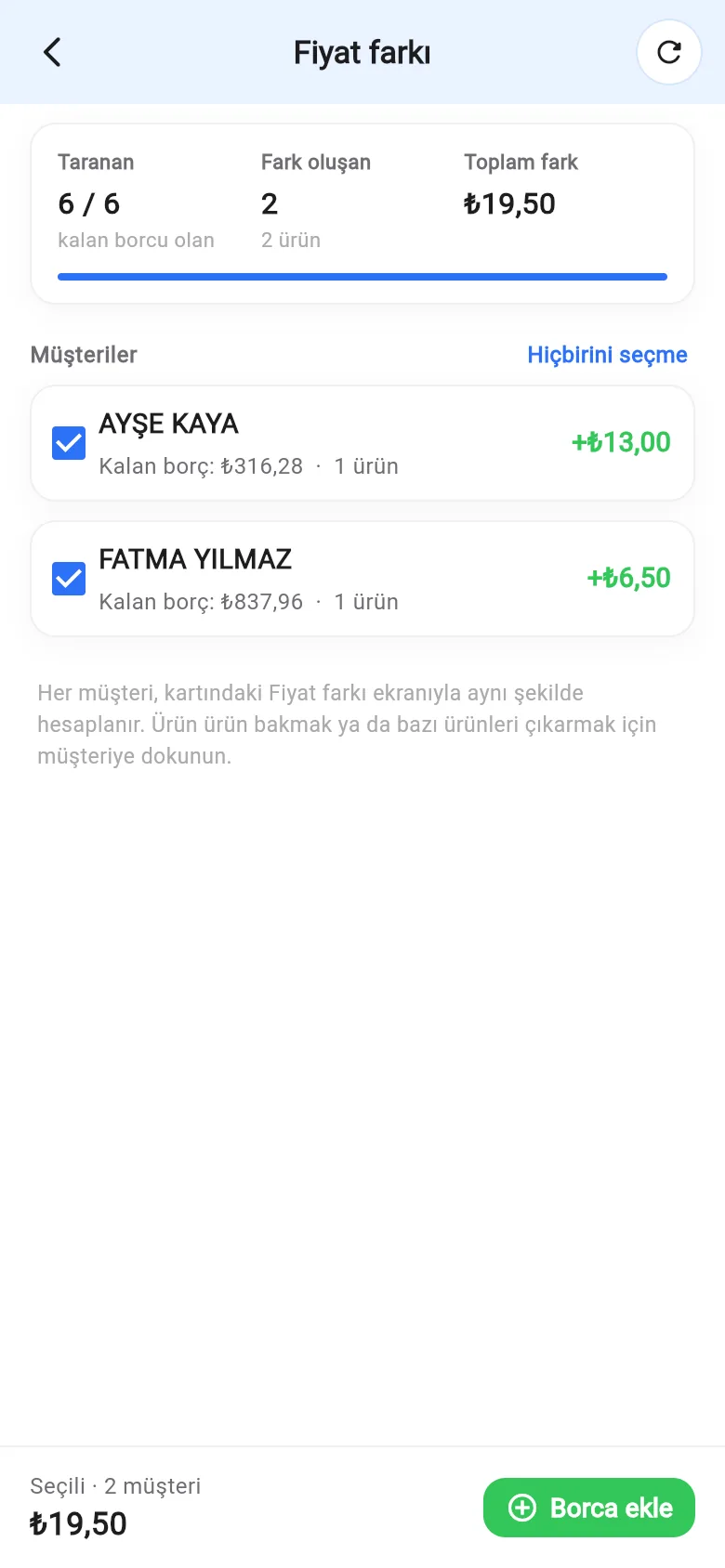 123
1 It shows how many customers the difference was added for and the total, and 2 Added appears next to those customers. Nothing is added for a customer whose account changed after the check; scan again and review.
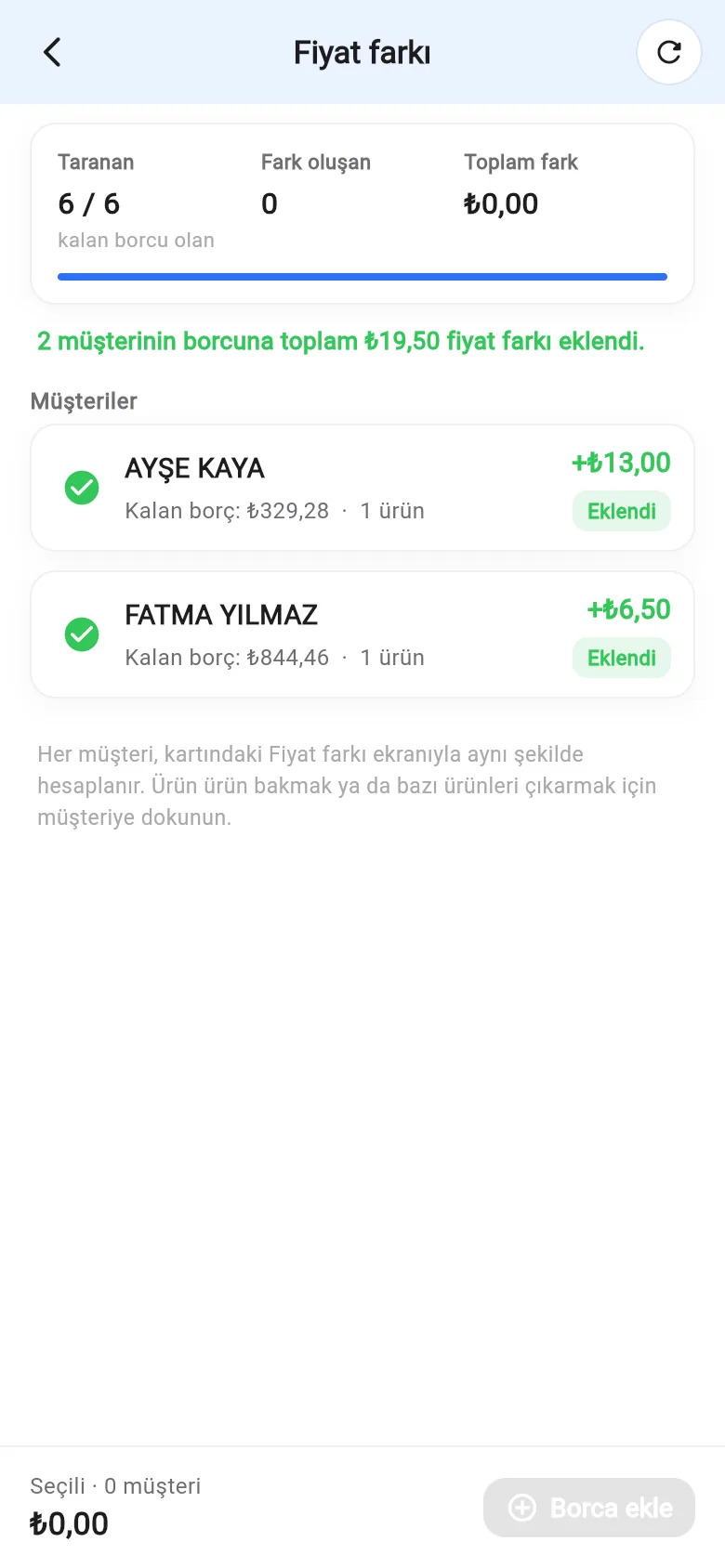 12
Price difference statement on mobile
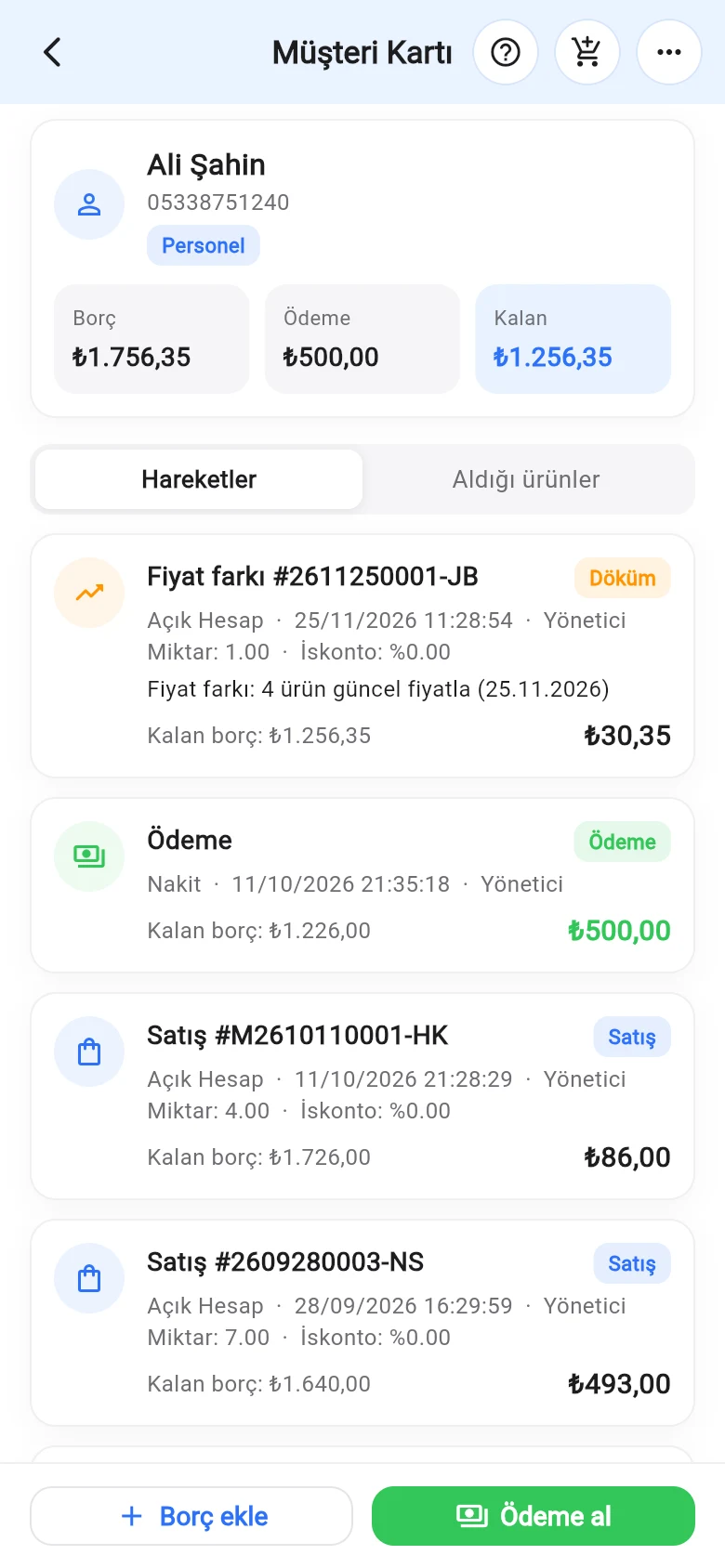
In the transactions on the customer card, a price difference receipt appears with the 1 Price difference title and the Statement label. Tap it to open the statement.
 1
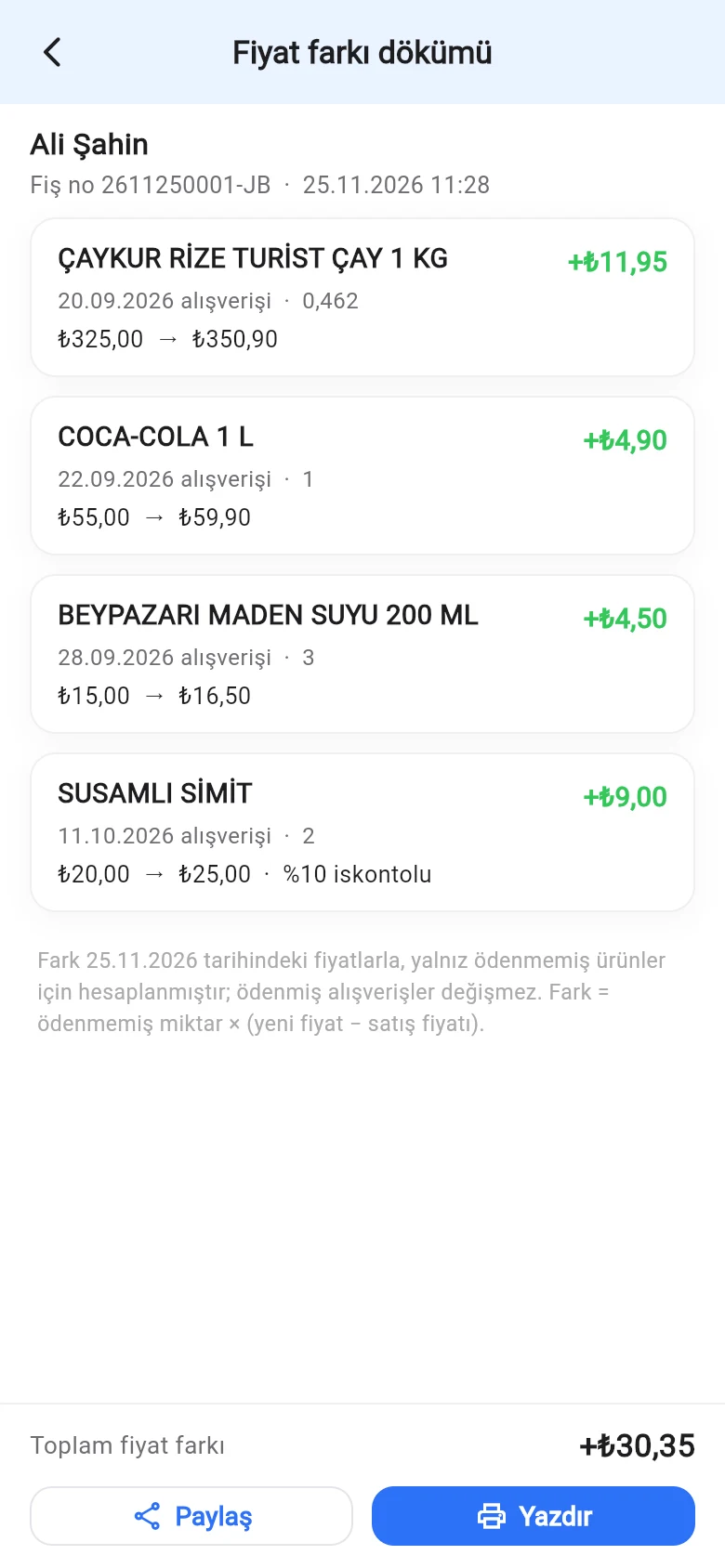
1 For each item it shows which purchase it came from, the unpaid quantity, the old and new price and the difference. 2 Share sends the statement as plain text via WhatsApp or another app, Print prepares an A4 or 80 mm PDF. When you add a difference to the debt, its statement opens automatically.
 12