




Preparing a price list and sending it to customers
Prepare a price list by product group, price type and validity dates, and send it to your customer as a link, a PDF or via WhatsApp. Prices are fixed when you save.
You can send your product prices to your dealers, wholesale customers or regular customers as a price list. You prepare the list by product group, price type (Price 1, 2, 3) and validity date; the customer opens the link on their phone or computer and can print it or save it as a PDF.
Creating a price list
Open a new list
On the Products › Price Lists page click 1 New price list.
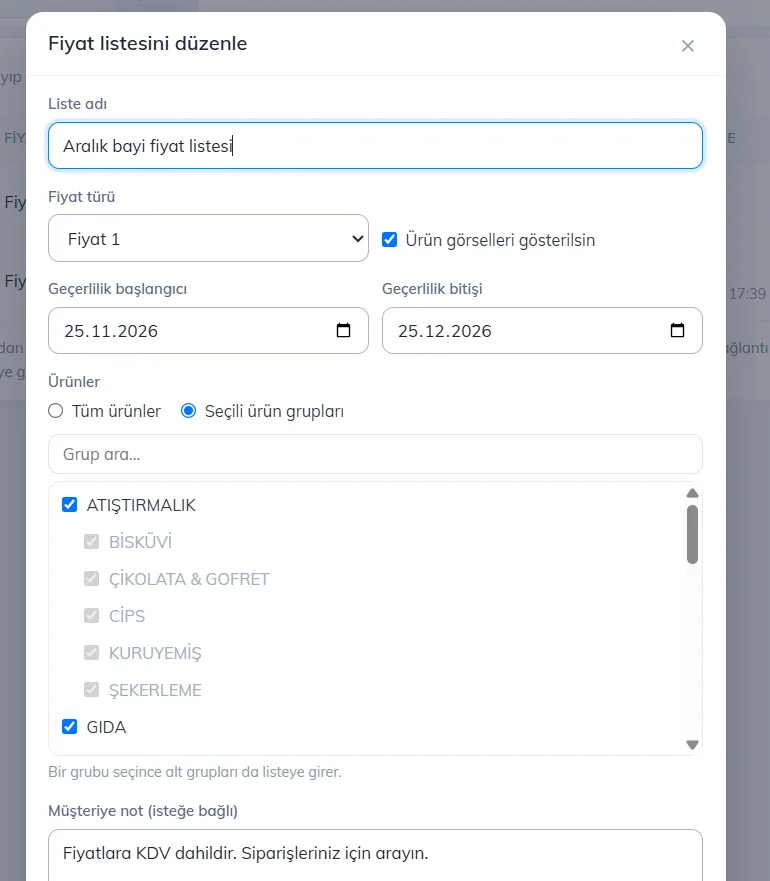
Choose the name and price type
Give the list a name the customer will see (e.g. December dealer price list). In 1 Price type choose which price is shown. For a product without the chosen price, Price 1 is used, just as in sales; products with a price of 0 are not included.
Enter the validity dates
2 Choose the start and end date. After the end date, the customer opening the link no longer sees prices and is asked to contact you for current prices.
Choose the products
3 All products or Selected product groups. Ticking a group also includes its subgroups. A list can hold up to 5,000 products.
Add a note and save
4 Optionally write a note for the customer (e.g. Prices include VAT) and click Save.
 1234
Sending it to the customer
Saved lists appear on the page. With the buttons next to each list:
- 2 Copy link: paste the link wherever you like (SMS, e-mail, message).
- Send via WhatsApp: a ready message with the list name, validity dates and link opens; pick the contact and send.
- Print / PDF: the list opens with the print screen; choose Save as PDF instead of a printer to get a file.
3 The status label shows whether the list is Valid, Not started or Expired. The Views column shows how many times the link was opened and when it was last opened.
 123
When do the prices change?
Prices are fixed when the list is saved. Even if you change a product's price later, the customer sees the price in the list at the link. To send current prices click 2 Update prices: prices are taken again at their current values and the link stays the same; the customer sees the new prices at the same link.
If you only change the name, dates or note while editing, the prices do not change. If you change the price type or the groups, prices are taken again at their current values.
The page the customer sees
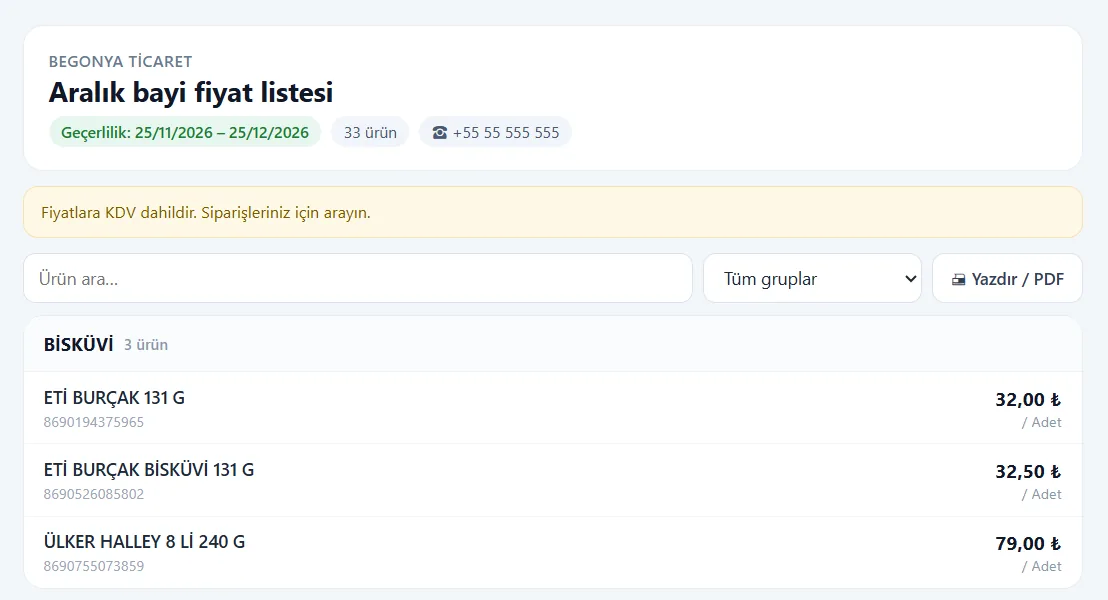
The customer opening the link sees your business name and phone, 1 the validity dates of the list and 2 your note. Products are sorted by group; they can 3 search by product name or barcode, filter by group and 4 print the list with Print / PDF. The page needs no sign-in and opens in your account's language.
 1234
When you delete a list, the link sent to the customer no longer opens. Price lists are in the web panel; staff with permission to view the product list can see and share lists, and creating or changing them requires permission to add products.